¶ 3. Devices
Application: Nomid MDM Portal
Document: V3.1.0
Last updated: 2026-08-22
Editorial owner: Nomid MDM Documentation
Last editorial review: 2026-08-22
Editorial language: en-US
Use Devices to find equipment, interpret its reported state, open an individual device page, and start actions allowed by your permissions. Values, dates, battery, location, and synchronization represent the moment shown; check freshness before making a decision.
Security: remote actions, policy changes, clearing, and resets can interrupt use or erase data. Review the device, scope, and confirmation before execution. This article does not instruct you to execute destructive actions.
¶ Quick route
- Open the list
- Search, filter, and organize
- Use the map
- Select devices and open actions
- Review an import without completing it
- Summary
- History
- Location
- Apps
- System
- Policy
- Usage
- Allocation
- Resolve common issues
¶ Start here
¶ Prerequisites
- Open https://portal.nomid.tech/ and verify the
portal.nomid.techdomain before entering credentials. - Enter the correct company and have permission to view the required devices.
- To assess whether data is recent, check the displayed last synchronization. An offline or unreachable device may remain visible with older information.
- To enroll equipment, use 8. New device. This article begins after the device appears in the Portal.
¶ Open the list
- In the side menu, select Devices.
- Check the title, visible count, and List mode.
- Wait for loading to finish before searching or selecting rows.
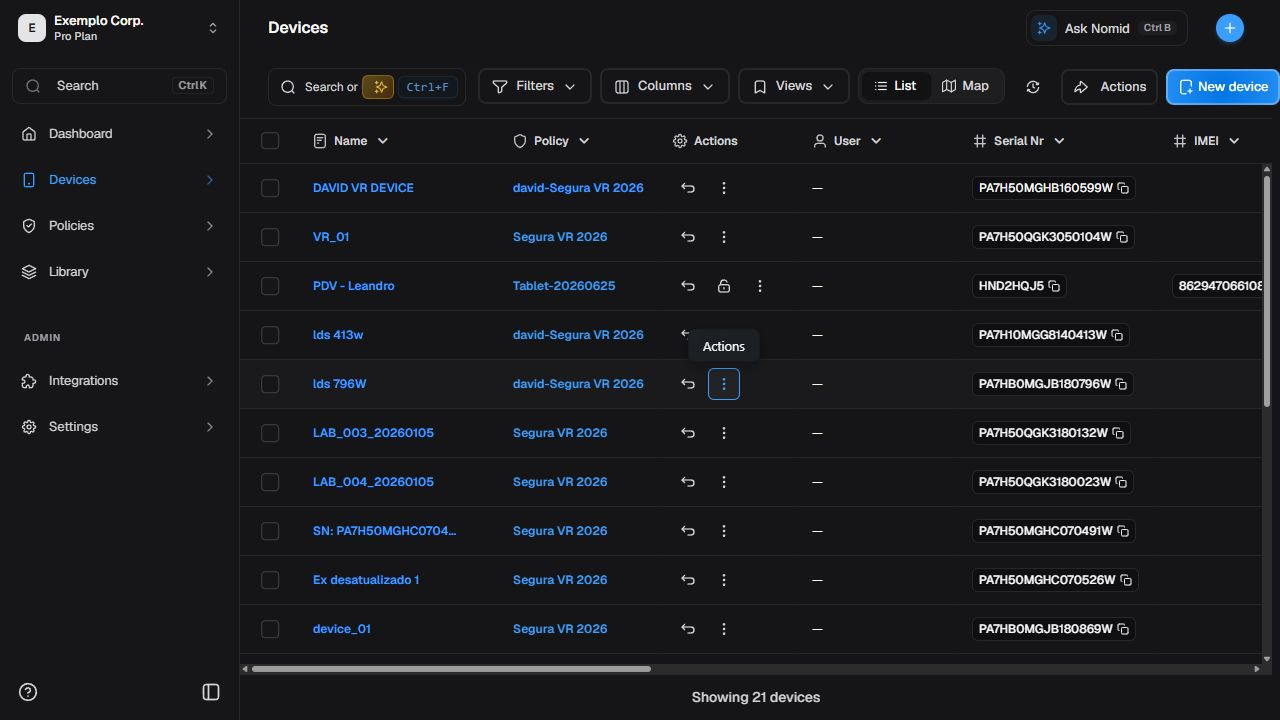
Overview of the device list and the list/map switch.
Each row can show name, policy, state, battery, and last synchronization. Columns depend on the view, platform, and permissions.
¶ Interpret states
| State | Safe interpretation | Next step |
|---|---|---|
| Active | The device reported an active condition in the current state. | Check the last synchronization before acting. |
| Synchronizing | Synchronization or processing is under way; this does not guarantee completion or indicate failure by itself. | Wait and check history or a later update. |
| Inactive | The device is not active in the current classification. | Check data age, connectivity, and policy. |
| External | The device belongs to a compatible external source or management model. | Expect fewer tabs or actions and verify the source. |
| Deleted | The record is classified as deleted in the current context. | Do not assume physical data has been erased. |
For an aggregate fleet view, see 2. Dashboard. Return here when you need to identify a specific device.
¶ Search, filter, and organize
¶ Search the list
- Select the search field above the list.
- Enter a safe term, such as part of an authorized name, model, or identifier.
- Wait for the list to stabilize and check the resulting rows.
- Clear the field to restore the previous set.

Search applied to the device list and the displayed results.
Results change with data and permissions. No rows does not prove that a device is absent from another company or scope.
¶ AI-assisted search
When the AI control is available, use a short question about visible attributes. Review the generated filters and results before acting: the interpretation is assisted and may be inaccurate.
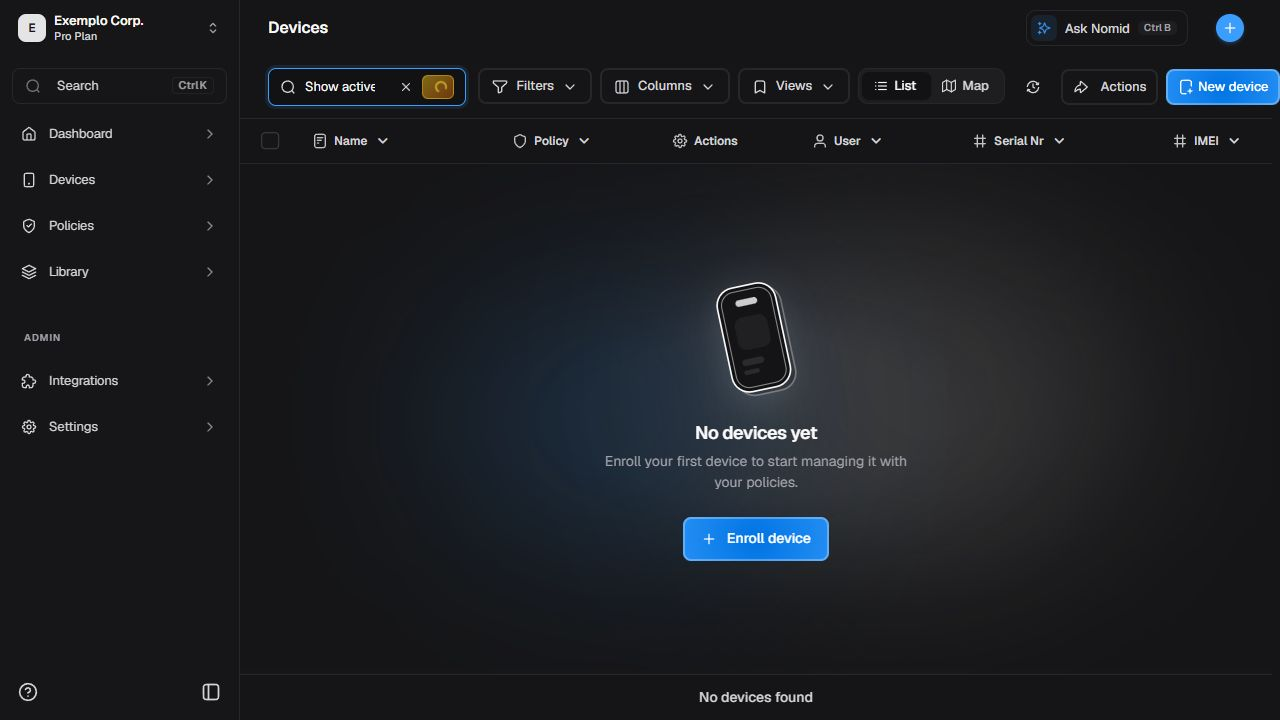
AI-assisted query in the device list.
Do not treat the answer as a normative source or submit secrets. If the control is unavailable, use the visible search and filters.
¶ Apply filters
- Select Filters.
- Choose only the categories needed for the investigation.
- Check the filter indicator and resulting list.
- Remove the filters to return to the previous set.
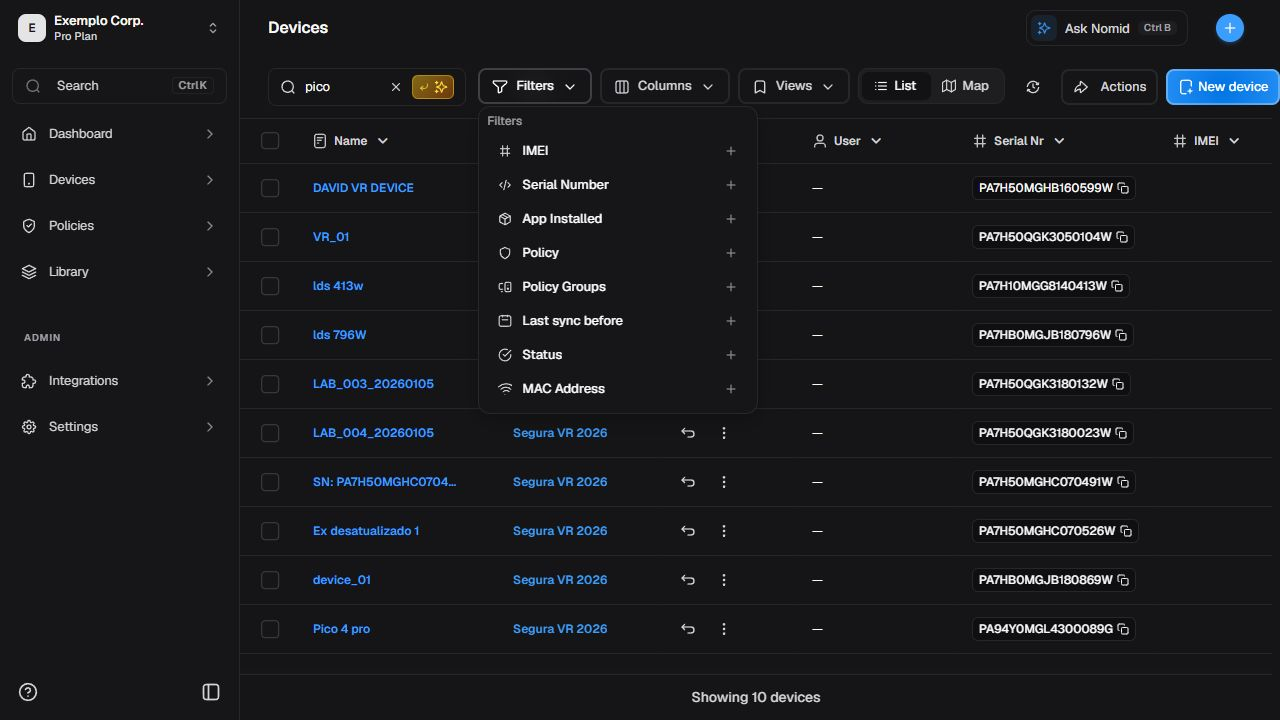
Filters available to narrow the device list.
Categories and counts can vary. Always verify the active filter; do not infer the complete device universe from visible rows.
¶ Columns and views
Use Columns to choose the fields displayed. The views control may offer existing configurations, but this journey does not guarantee creating, persisting, or deleting a view. Check the immediate result and avoid replacing someone else's configuration.
¶ Context before opening the device page
Hover over or focus the row's actual trigger. The interface may show a compact tooltip or a small context card; use it as an initial clue and open the device page for the complete set.
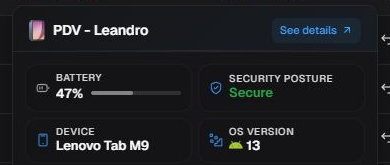
Compact context available from the device row.
The content and size vary by current interface and device. Do not expect a rich preview everywhere.
¶ Use the map
¶ Switch modes and recognize controls
- On Devices, switch from List to Map.
- Check available mode, color or style, and zoom controls.
- Keep a regional scale; do not zoom to a street or precise address.
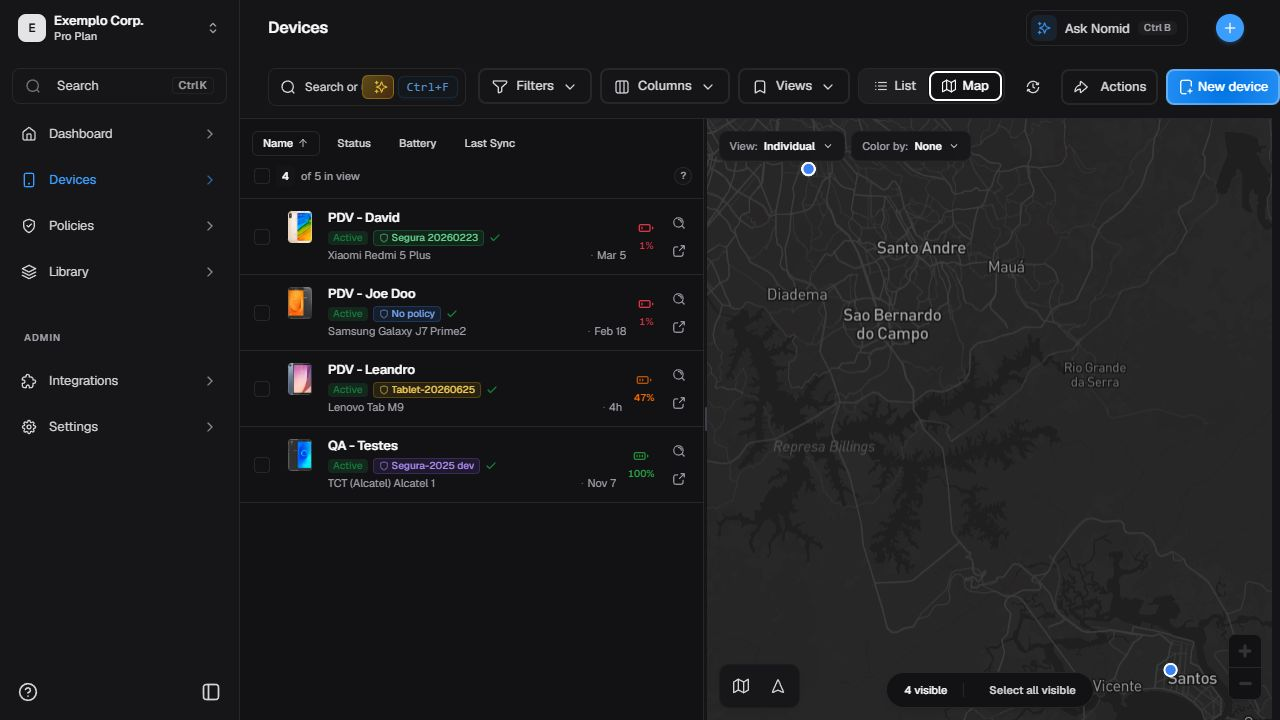
Map controls and a device location marking.
Markers, points, clusters, and positions change with telemetry. Search may remain in the page toolbar instead of appearing inside the map.
¶ Select a location marking
Select a marker or point to open its card. Check the authorized identity and use the details action only when you need the device page.
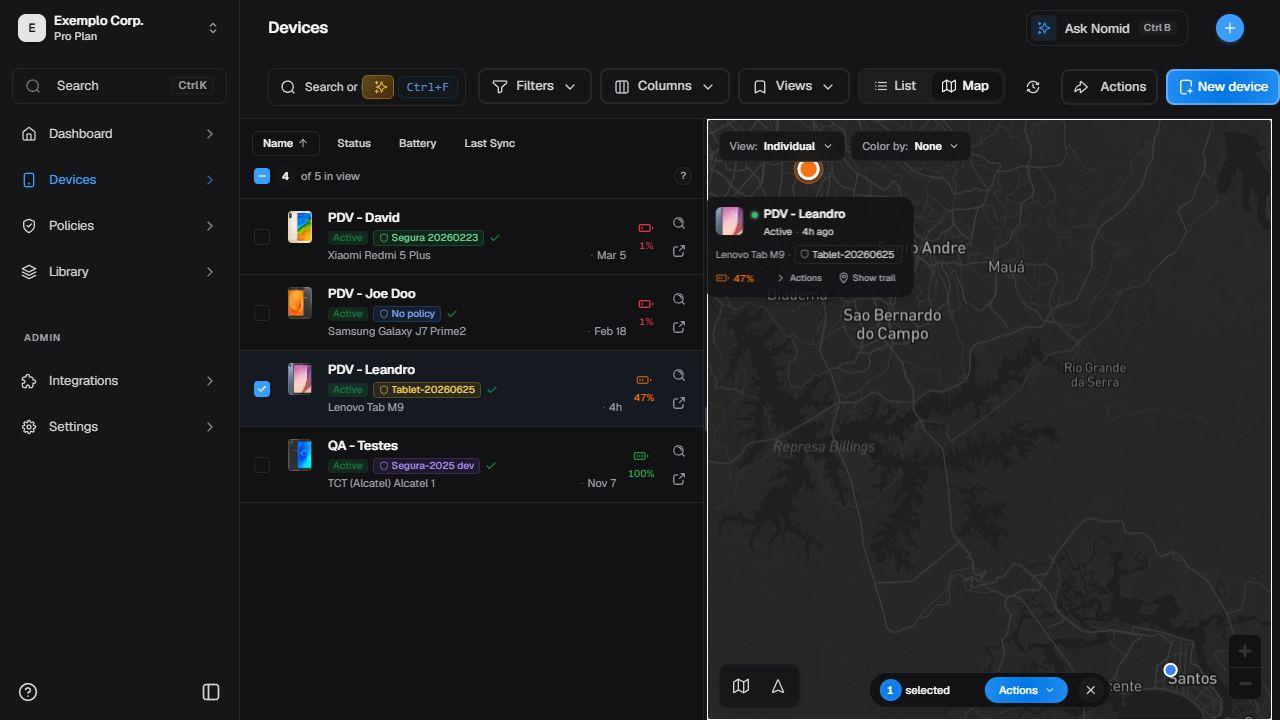
Device selected on the map with general geographic context.
A trail appears only when data exists. The map does not prove real-time presence and must not be used to infer an exact address.
¶ Select devices and open actions
¶ Bulk actions
- Select the checkboxes for the intended rows.
- Check the selected count before opening Actions.
- Read the menu without choosing a command until impact, platform, and permission are confirmed.
- Close the menu and clear selection if the scope is wrong.
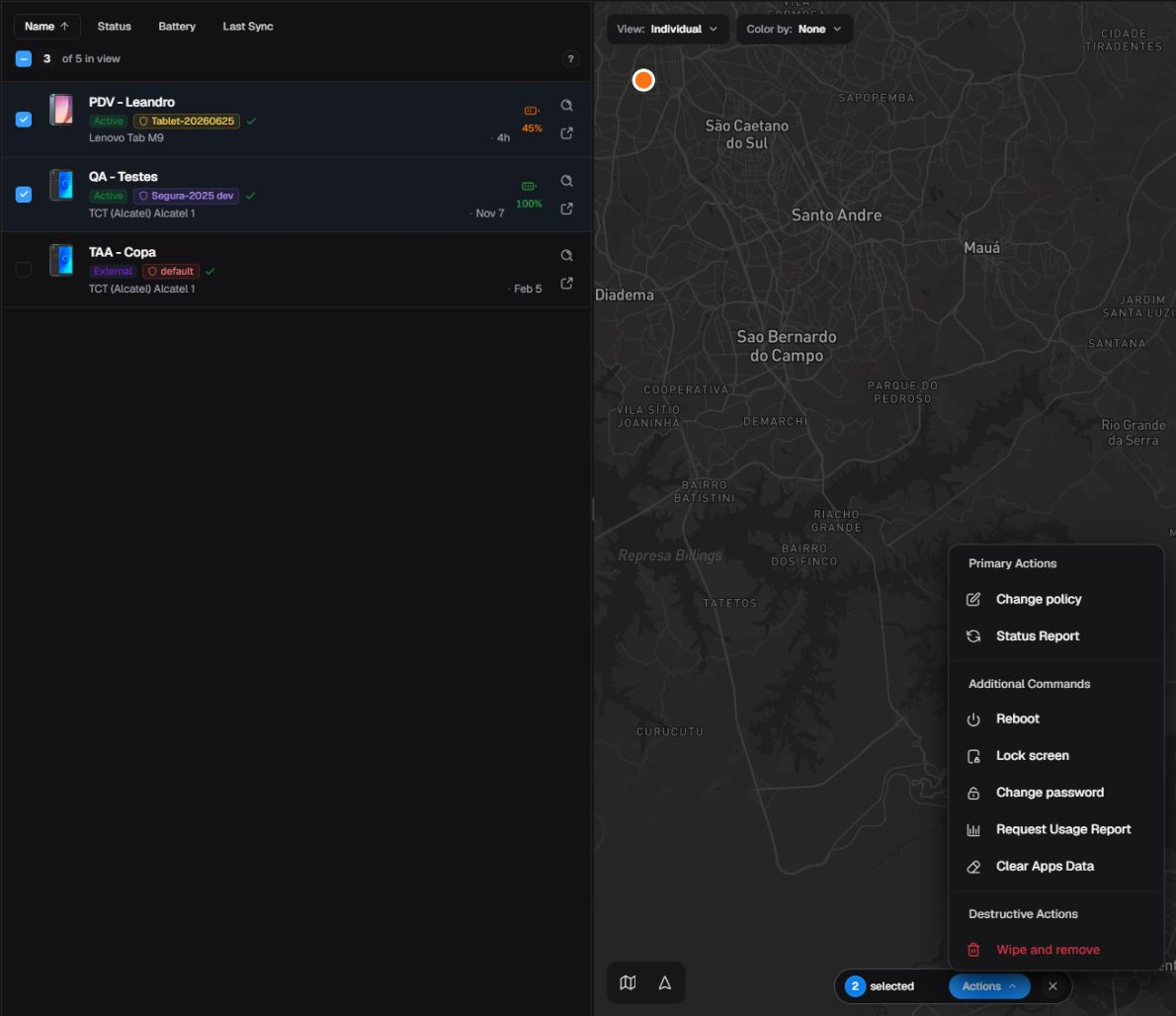
Bulk selection and the menu associated with the selected devices.
The bulk menu and a row menu share some of the commands described in the following table. Availability varies by platform, state, permission, connectivity, and enabled feature.
¶ Row actions
Use the row's three-dot menu to act on one device. Verify the row name and policy before opening it.
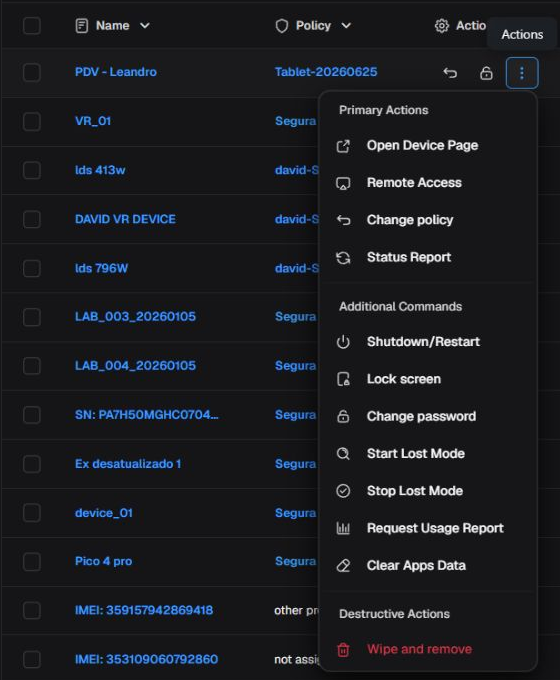
Individual menu with primary, additional, and destructive action groups.
¶ What each control does
| Visible control | Effect and operation type | Conditions | Impact and risk | Where to verify |
|---|---|---|---|---|
| Open Device Page | Navigates to the device page; it neither sends a command nor changes the device. | The row and device page must be accessible. | Low; verify that the correct device opened. | Device page header and Summary. |
| Remote Access | Opens the entry point for a Nomid Remote session; selecting it does not prove that a session started. | Compatible feature, permission, platform, agent, and connectivity. | High for privacy and operational control. | Session flow and state in Nomid Remote. |
| Change policy | Opens the change form; completing it changes the policy assignment and requires a later synchronization to reach the device. | Edit permission and a compatible destination policy. | High; restrictions, apps, and settings may change. | Assigned policy on the device page, History, and later synchronization; review effects in 4. Policies. |
| Status Report | Sends an asynchronous request to refresh inventory and reported state. | A managed device that is connected and able to receive the command. | Low, but it may use network and battery. | History, last synchronization time, and refreshed fields. |
| Classroom mode | Opens the interactive experience for the selected set; opening it does not prove that a session is running. | Compatible feature, permissions, and devices. | Medium; it may interfere with use of the selected devices. | State shown by the experience and later device events. |
| Shutdown/Restart | Opens the compatible choice; Restart restarts the operating system and Shutdown requests power-off when supported by the platform. | Compatible platform, permission, connectivity, and command support. | High; interrupts use and may cause loss of unsaved work. | History, command time, and a new synchronization after the device returns. |
| Lock screen | Sends a request to lock the screen immediately without erasing data. | A managed device able to receive the command. | Medium; interrupts current use. | History and reported state after synchronization. |
| Change password | Opens a form and, when submitted, changes or clears the lock credential according to the platform and presented options. | Compatible permission, platform, and management mode. | High; an incorrect credential can prevent access to the device. | History and authorized operational verification on the device after synchronization. |
| Open App | Opens app selection and, when submitted, requests that the selected app be brought to the foreground. | Installed app, compatible device, permission, and connectivity. | Medium; interrupts the user's current context. | History and device state after synchronization. |
| Pin app | Opens app selection and requests that the selected app remain in pinned or kiosk mode. It is not the same as creating a permanent policy. | Installed app and compatible platform/management mode. | High; may restrict user navigation. | History and reported device behavior; permanent configuration belongs in 4. Policies. |
| Start Lost Mode | Opens configuration and requests a state that restricts use and shows the configured information, as supported by the platform. It does not promise location. | Compatible platform, management mode, permission, and connectivity. | High; restricts device use. | History, reported state, and later synchronization. |
| Stop Lost Mode | Requests that the active Lost Mode state end. | Lost Mode must be active and the device must accept the command. | High; returns the device to the use allowed by its current configuration. | History, reported state, and later synchronization. |
| Request Usage Report | Opens parameters and requests a new collection/transmission for the selected period; data changes only after the device responds. | Compatible permission, usage telemetry, platform, and connectivity. | Low to medium; may use network, battery, and processing. | History, telemetry time, and the Usage tab. |
| Export Usage Data | Requests the available export. The initial message only indicates that the export flow started in the Portal; it does not prove that the backend accepted it, that a file was generated, or that its contents are complete. | Export permission and available data. | Medium because usage information is involved. | A later notification, resulting file, or error. |
| Clear Apps Data | Opens app selection and, when submitted, erases local data for the selected apps. It may remove sessions and settings, but does not uninstall the app. | Compatible app, platform, permission, and management. | High and potentially irreversible for the selected local data. | History and app state after synchronization. |
| Wipe and remove | Opens a destructive confirmation; when authorized, it may erase data, reset the device, and remove its management link according to the platform. | Explicit authorization, permission, and compatible platform. | Critical, with no recovery guarantee. This manual does not teach how to confirm the action. | History, device inventory, and later management state. |
| Relinquish Ownership | Opens a confirmation to release the corporate ownership link and managed data according to the platform. It is not simple navigation and does not guarantee specific data preservation. | Compatible device/provider, permission, and explicit authorization. | Critical; may end corporate management. This manual does not teach how to confirm the action. | History, inventory, and later ownership/management state. |
Portal acceptance of a request does not mean that the device received or completed it. Check status and time in History, then wait for a later synchronization before repeating any command. To operate a remote session, continue in Nomid Remote.
¶ General page actions
Open the general menu to locate operations that do not belong to one row, such as adding or importing devices.
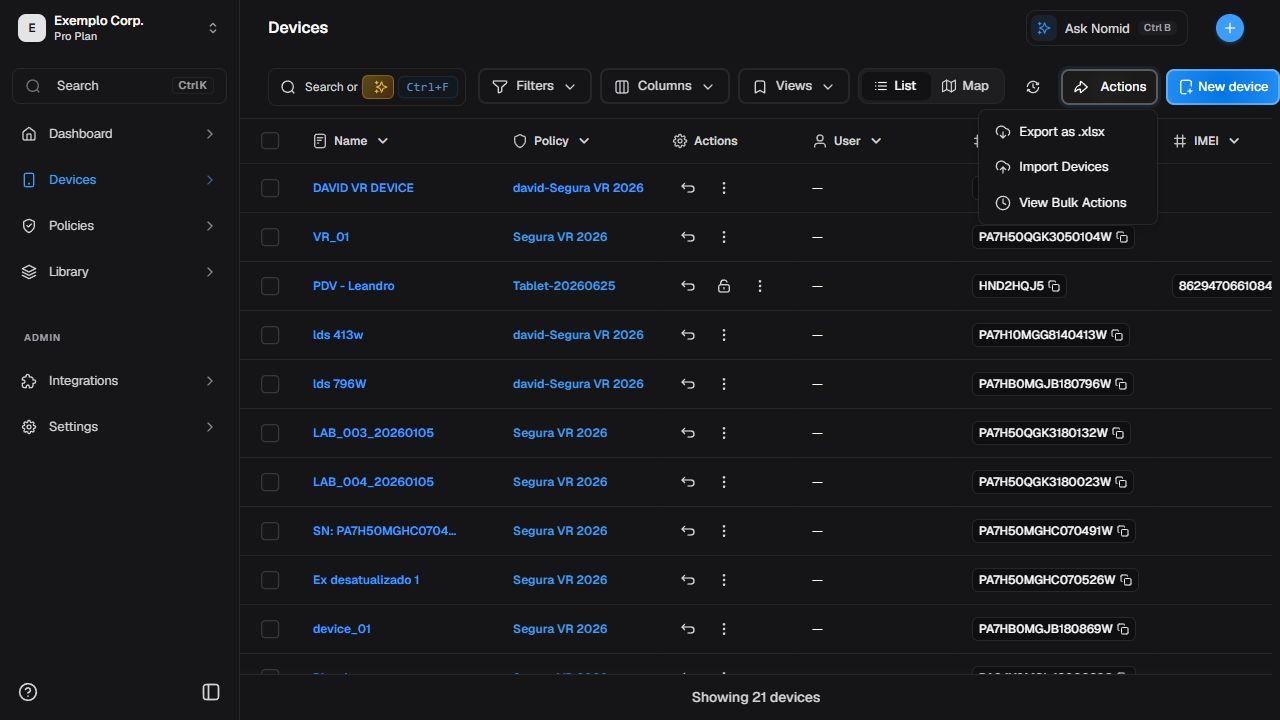
General actions available on the Devices page.
For enrollment, use 8. New device. Opening the wizard is not the same as completing enrollment.
¶ Review an import without completing it
¶ Review before importing
- Open bulk import from the general menu.
- Choose only a file prepared and authorized for this flow.
- Check preview, columns, validations, and count.
- Before selecting Import, close the window with X to leave without creating records.
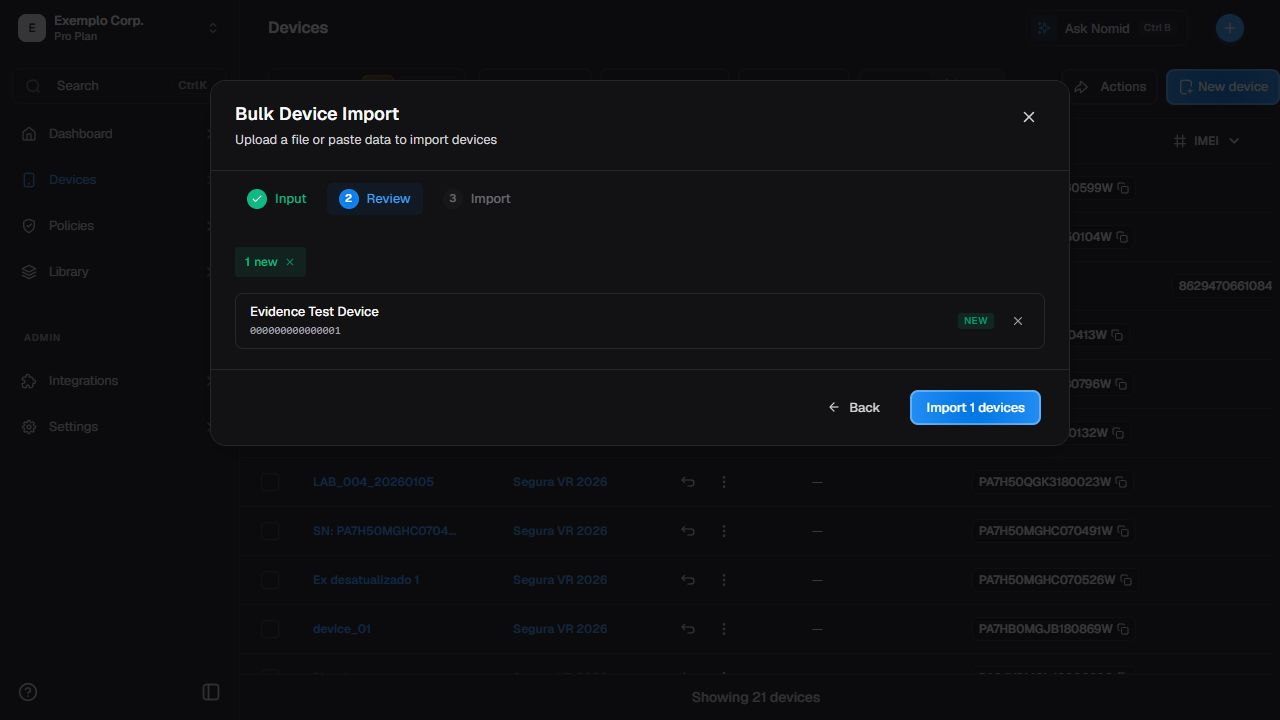
Review step before starting the import.
¶ Interpret processing
When a processing record already exists, separate created, updated, skipped, and failed counts. A completed result can still include partial errors; do not treat total processed as total success. Do not start processing just to obtain this information.
¶ Summary
¶ Open and recognize Summary
Select the device name or Open Device Page. In Summary, check the header, model, state, last synchronization, and available tabs.
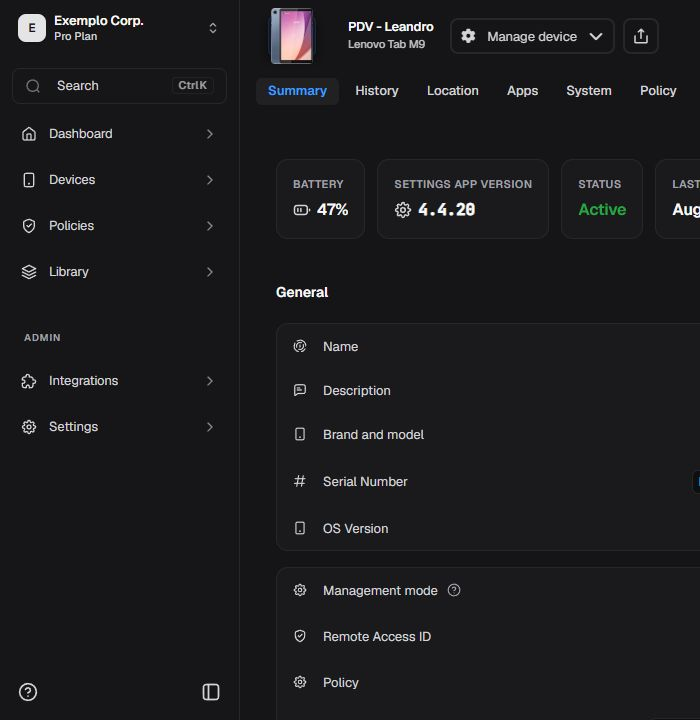
Header and Summary for a managed device.

The External status appears in the device Summary.
External devices or other platforms may show fewer tabs and actions. Values and dates are examples of the current state, not product constants.
¶ Manage device menu
Open Manage device only to identify available options, then close it without running a command.
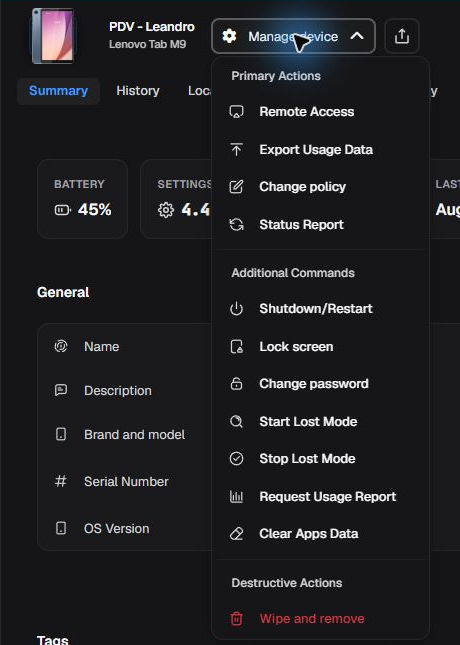
Individual device menu with no action executed.
The device page menu reuses the commands detailed in What each control does and adds Export Usage Data when permission is available. Before submitting any request, record the device, reason, impact, authorization, and recovery possibility.
¶ History
¶ History and commands
Open History and use the displayed filters to narrow events by type or period. Read the state in each returned record.
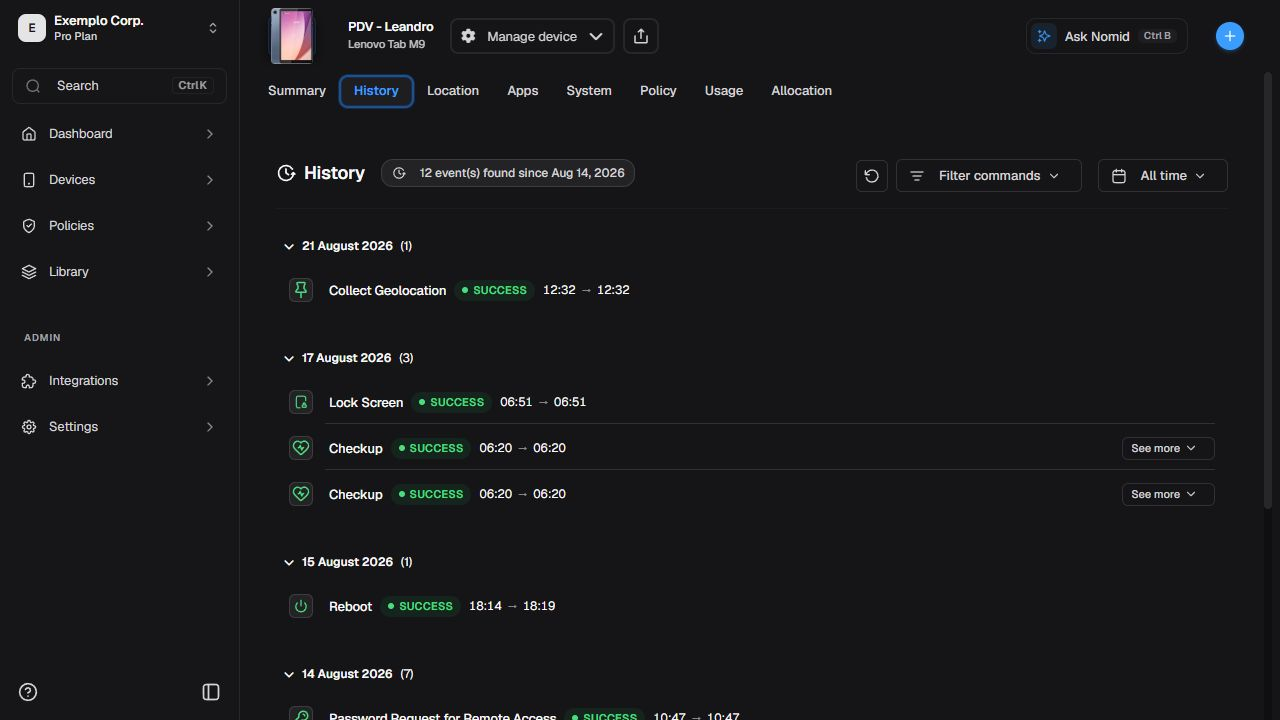
Command and event history with available filters.
Interpret request, processing, and completion times separately. Pending, in progress, completed, and failed describe different stages; a record does not prove the user observed the effect on the device.
¶ Location
¶ Location
Open Location and keep a regional map scale. Check the marker, period or quantity, and zoom controls.
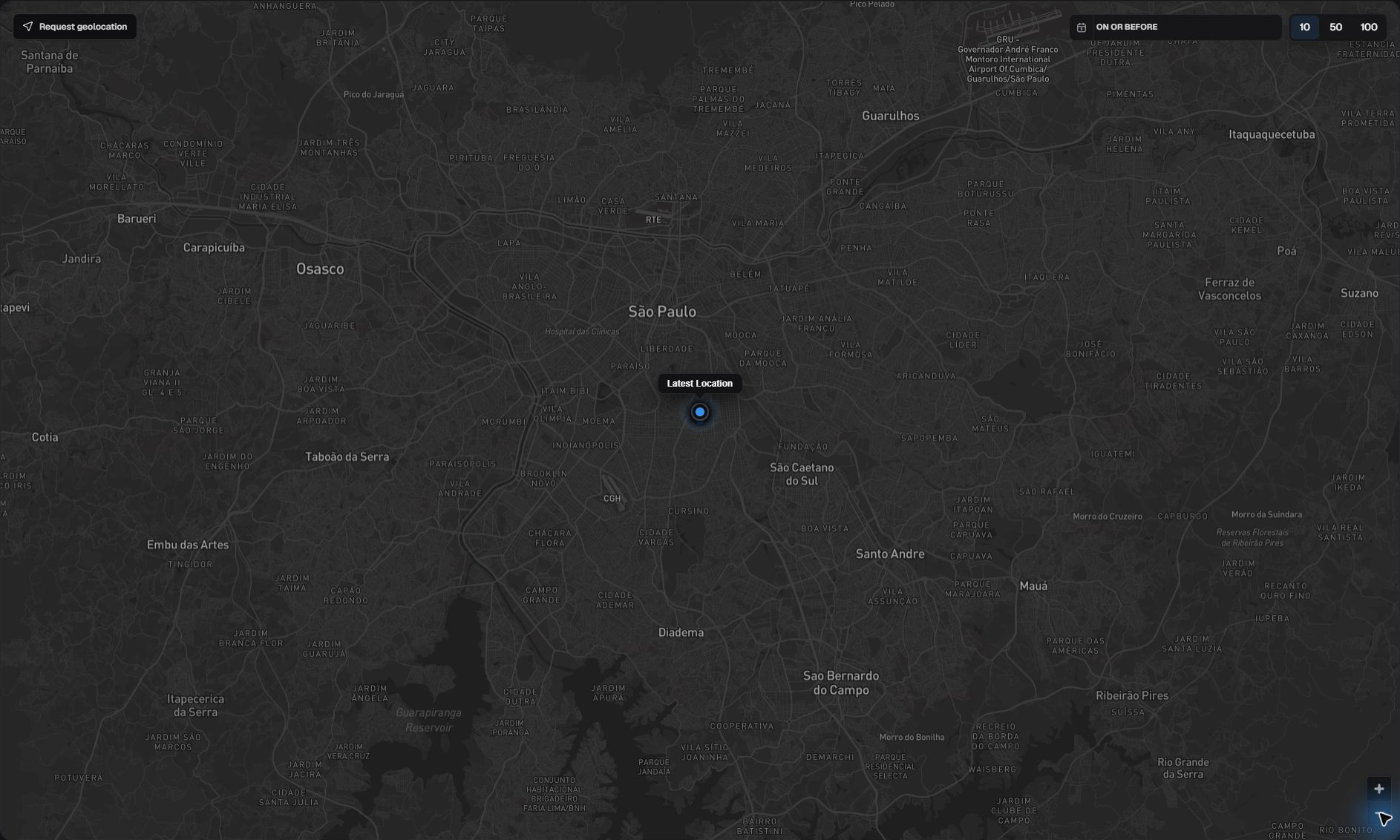
Latest available location in general geographic context.
The position may be stale and does not prove real-time presence. Do not zoom to, transcribe, or publish a street, building, or precise address.
¶ Request a new location
Before requesting, check the device, purpose, authorization, and possible battery or connectivity impact. Do not trigger the request if any information is wrong. This manual neither sends nor proves delivery of the command.
¶ Apps
¶ Installed apps
Open Apps and use search or filters to locate package, version, source, and state.
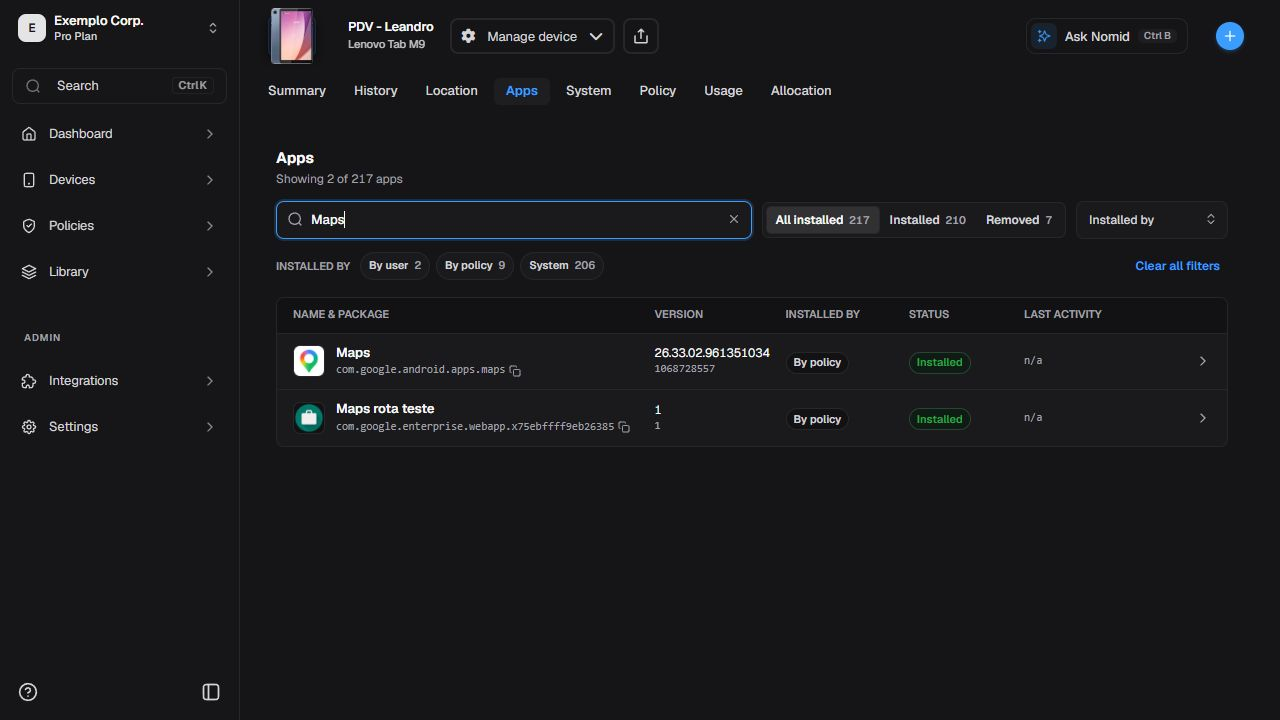
Apps reported by the device.
Select an app to open details without starting installation, removal, or clearing.
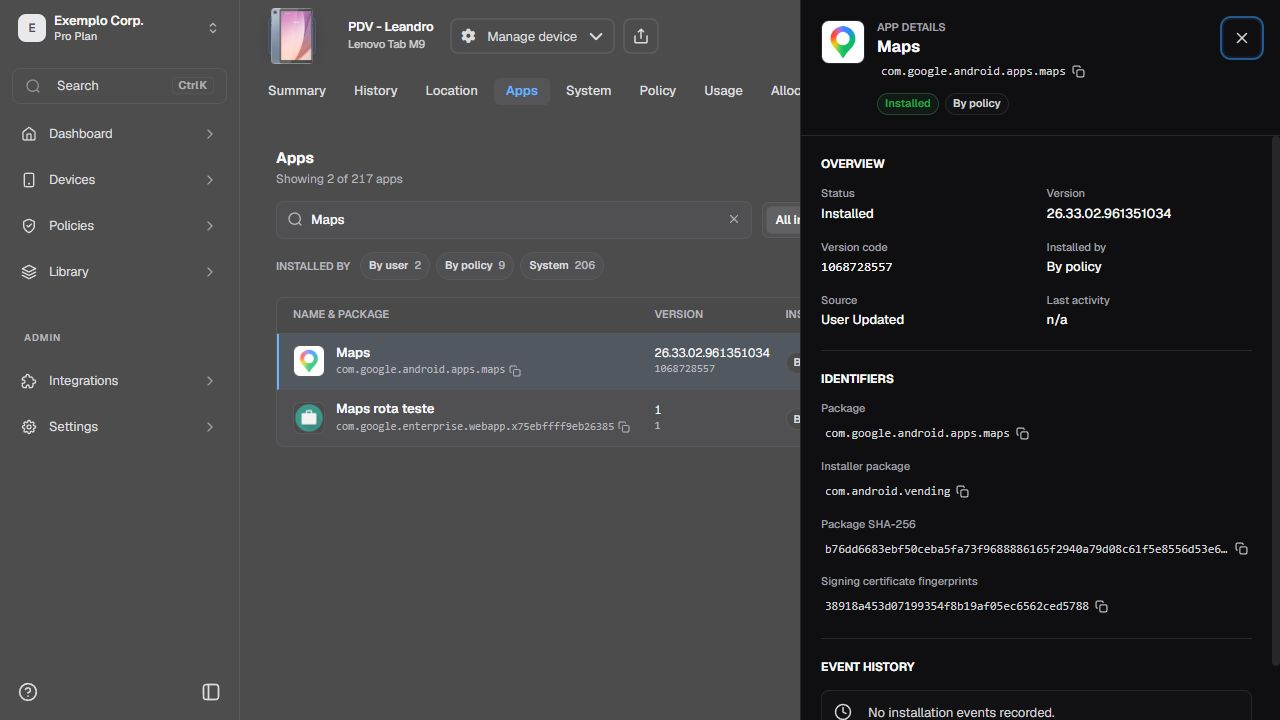
Selected app detail and reported information.
To distribute or configure apps, continue in 5. Library or 4. Policies, depending on the workflow.
¶ System
¶ System, hardware, and network
In System, check the reported information blocks. Read n/a as “not available in this context,” not as proof of compliance or absence of risk.
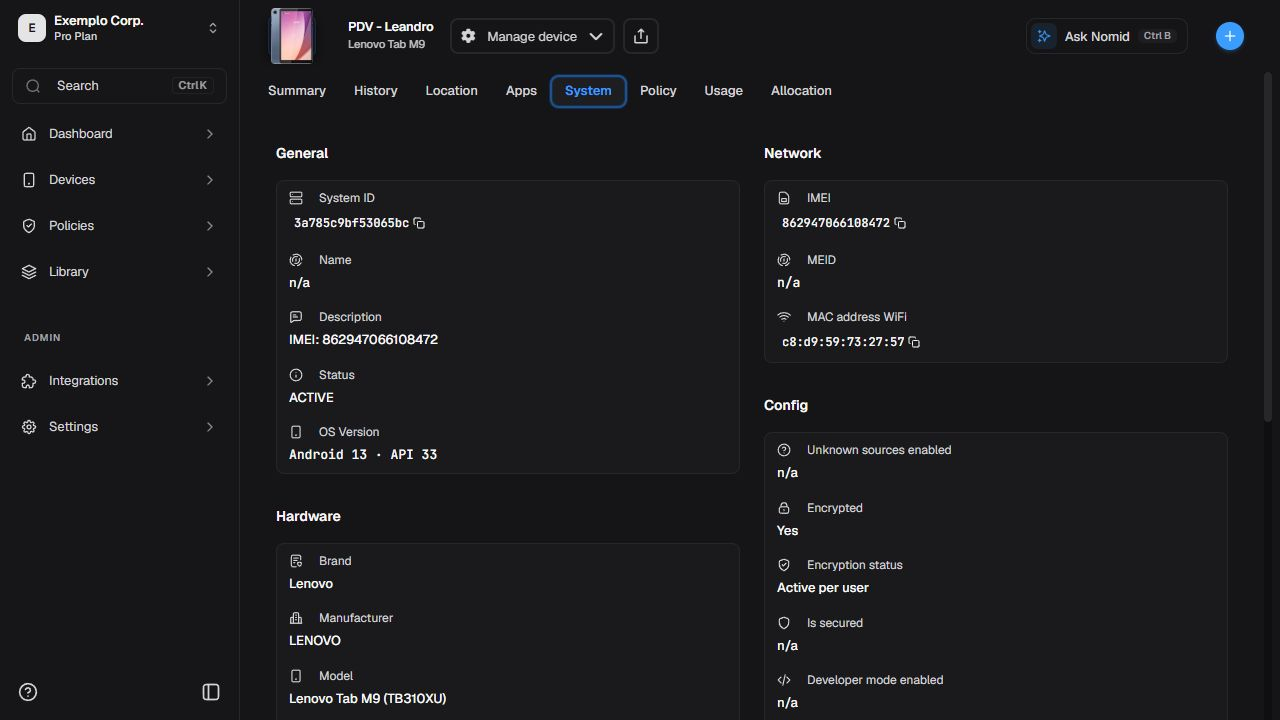
Reported system, hardware, network, and configuration information.
Network fields, addresses, and versions can change. Do not use a static image to diagnose current connectivity.
¶ Managed contacts
When the block exists, check count, state, and last checked time. Contact list sources and configuration belong to 5. Library or the responsible settings; this page only shows the reported state.

Managed contacts state on the device.
Up to date does not promise immediate synchronization after every change. Use technical diagnostics only when needed and authorized.
¶ Policy
¶ Applied policy
Open Policy to check the reported name, version or update, and last synchronization.
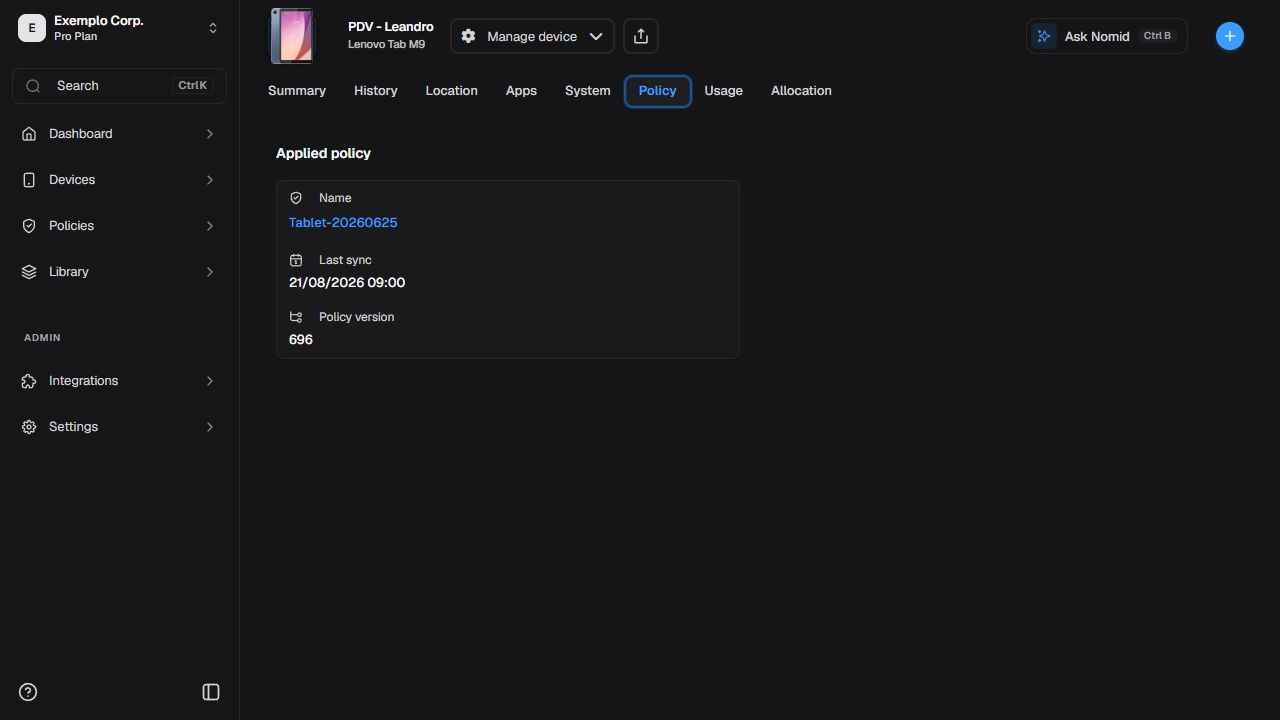
Associated policy and information reported by the device.
This page reports the device state. To edit rules, scope, or settings, use 4. Policies. Association does not prove that every rule has already applied.
¶ Usage
¶ Device usage
Open Usage to compare screen time, traffic, or other aggregates available for the selected period.
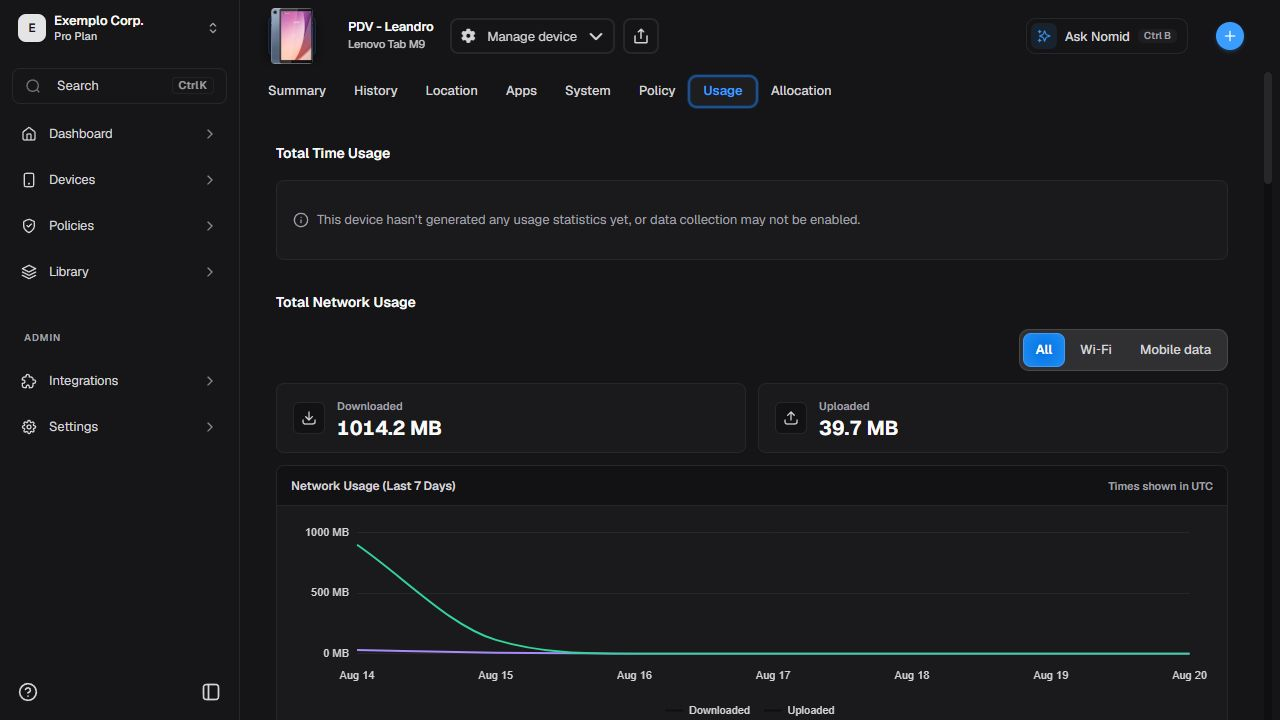
Usage reported by the device.
Do not add values from screens captured at different times. Verify period, latest telemetry, and unit before comparison.
¶ App details
Select an app in the usage list to open the available detail.
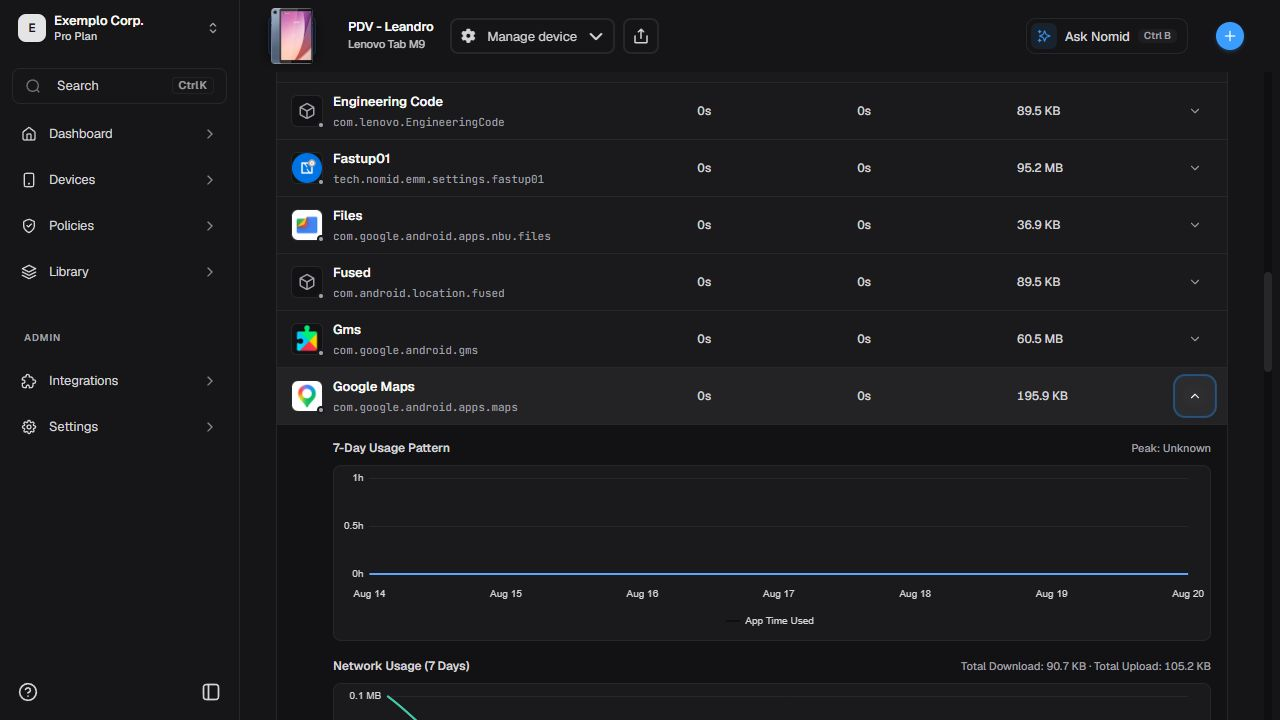
Usage attributed to an app in the current period.
Foreground time, data, and events depend on platform and collection. A missing value can mean unavailable data rather than zero use.
¶ Connectivity
The Connectivity tab collects connection history reported by the device. These records do not, by themselves, confirm which connection is active right now.
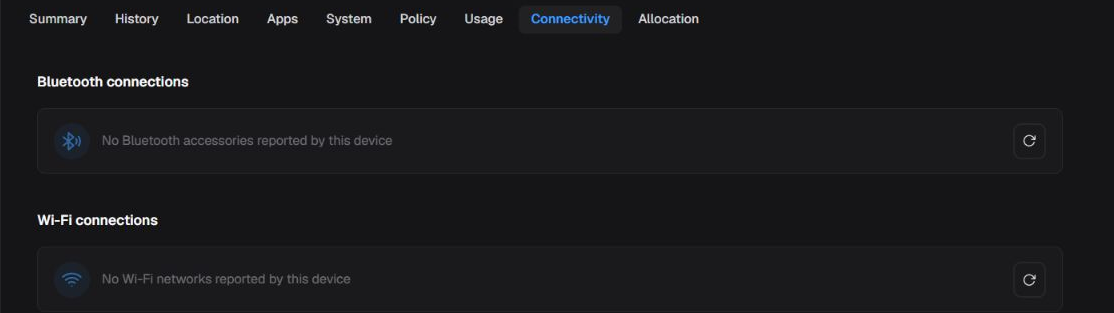
The Connectivity tab brings together reported Bluetooth and Wi-Fi connection boxes.
¶ Bluetooth Connections
The Bluetooth Connections box shows accessories reported by the device. When it is empty, treat it as no reported data, not proof that Bluetooth is off or that no accessory is currently connected.

No Bluetooth accessory was reported by this device.
¶ Wi-Fi Connections
The Wi-Fi Connections box shows networks reported by the device. An empty state means no network was reported at the time of the report; it does not confirm whether a Wi-Fi connection is active now.

No Wi-Fi network was reported by this device.
To change network rules, use 4. Policies. Before diagnosing or restricting a network, check synchronization and behavior on a pilot device.
¶ Allocation
¶ Allocation and responsibility
The Allocation tab stores administrative data and can depend on permission, enabled feature, and device type. Allocation status is not the device's MDM status.
| Status | Operational meaning |
|---|---|
| Allocated | Assigned to a person or area and in administrative use. |
| Borrowed | Temporarily loaned; an expected return date or condition may matter. |
| Stock | Held or available, with no current person responsible for its use. |
| Maintenance | Temporarily outside regular use for repair or service. |
| Discontinued | Removed from the active administrative lifecycle. It does not delete or remove the device. |
These values are classifications stored in custom data. They do not change connectivity, policy, lock, wipe, enrollment, physical presence, or MDM state. Do not use an allocation value to conclude that a command ran.
When the form is available, review allocation details, responsible user, manager, role, phone, cost center/area, administrative location, allocation date, expected return date, last update, and responsibility term. Save persists this metadata; Discard changes restores the last saved value. With no pending changes, Download terms generates the document when the feature and permission allow it. With pending changes, the control changes to Save and download and persists the current values first. To avoid an unintended save, review the fields and deliberately choose Save or Discard changes before downloading; do not download while unreviewed changes are pending.
¶ Resolve common issues
| Situation | Check | Safe next step |
|---|---|---|
| Device is missing | Company, search, filters, and permission. | Clear filters and verify enrollment in New device. |
| Data looks old | Last synchronization, connectivity, and battery. | Wait for new telemetry before running an action. |
| Action is missing | Platform, state, permission, and enabled feature. | Do not seek an alternate shortcut; confirm with an administrator. |
| Command does not finish | State and times in History. | Do not repeat destructive actions before understanding the prior result. |
| Map does not update | Position age and location permission. | Do not interpret an old position as current location. |
| Policy looks different | Name, version, and last synchronization. | Compare with 4. Policies. |
¶ Glossary
- Telemetry: information sent from the device to the Portal, such as state, battery, network, usage, and location.
- Synchronizing: processing or information exchange is under way; it does not mean success or failure by itself.
- External: a device presented through a compatible external source or management model.
- Job: batch processing with a state and result counts.
- Remote action: a command requested by the Portal and executed only when device, agent, network, and permissions allow it.