¶ Remote Access
Application: Nomid Remote
Document: V2.1.0
Last updated: 07/08/2026
Application version: Current portal-managed version
Editorial owner: Nomid MDM Documentation
Last editorial review: 07/08/2026
Editorial language: en-US
¶ What Remote Access does
Remote Access lets an authorized portal user open and control a supported Android device or Pico headset from the browser. The current portal launches the session from a device action or device details; it does not require the administrator to install a separate controller application or manually copy the device access code.
The flow depends on three layers working together: the portal must expose the action to the operator, the policy must deliver the tech.nomid.remote helper application, and the device must start the service and allow the required local permissions.
This guide documents only behavior available in the current portal. Voice chat, file transfer, session recording, and multiple simultaneous controller sessions are not documented portal capabilities and must not be promised without functional confirmation.
¶ Before starting
- The company must have the Remote Access capability enabled.
- The user needs the Device Remote Access permission, assigned through Settings.
- The device must be online, enrolled, and running a policy prepared for Remote Access. See Policies for policy configuration and publication.
- The device must have synchronized the policy, installed the
tech.nomid.remoteapp, and reported its Remote Access identifier to the portal. - For first activation, have someone with physical access to the device unless the environment already has policy-authorized permissions that are compatible with the manufacturer.
¶ Configure the policy
Open the device policy in Policies and enable Remote configuration. Publishing this configuration adds the tech.nomid.remote helper application, forces its installation, delivers managed configurations, and grants the Android permission required for device identification when supported by policy.
Review the remote configuration fields before publishing:
- Start on boot: starts the service after reboot, reducing the need to open the app manually.
- Auto confirm screen capture: attempts to confirm screen capture/sharing automatically when Android and policy allow it.
- Keep awake during remote session: keeps the screen active during the session to avoid lock or sleep interruptions.
- Verification method: defines whether the session uses temporary authorization, a permanent password, or both.
- Permanent password: appears when permanent verification is enabled and must be protected as an operational secret.
- Auto sync password: synchronizes the password automatically when the company has this capability enabled.
- Lock advanced settings: locks advanced local changes to reduce manual changes on the device.
Publish the policy and allow the device to synchronize before testing a session. Do not tell administrators to download a controller application as the standard portal setup. If the policy helper is absent or has not synchronized, the portal cannot establish the managed session.
¶ Prepare the remote device
Important: First-time permission release may vary by manufacturer, Android version, management mode, and applied policy. When a permission is denied, the portal may open the session without remote input or may be unable to display the screen.
¶ Start the Nomid Remote service
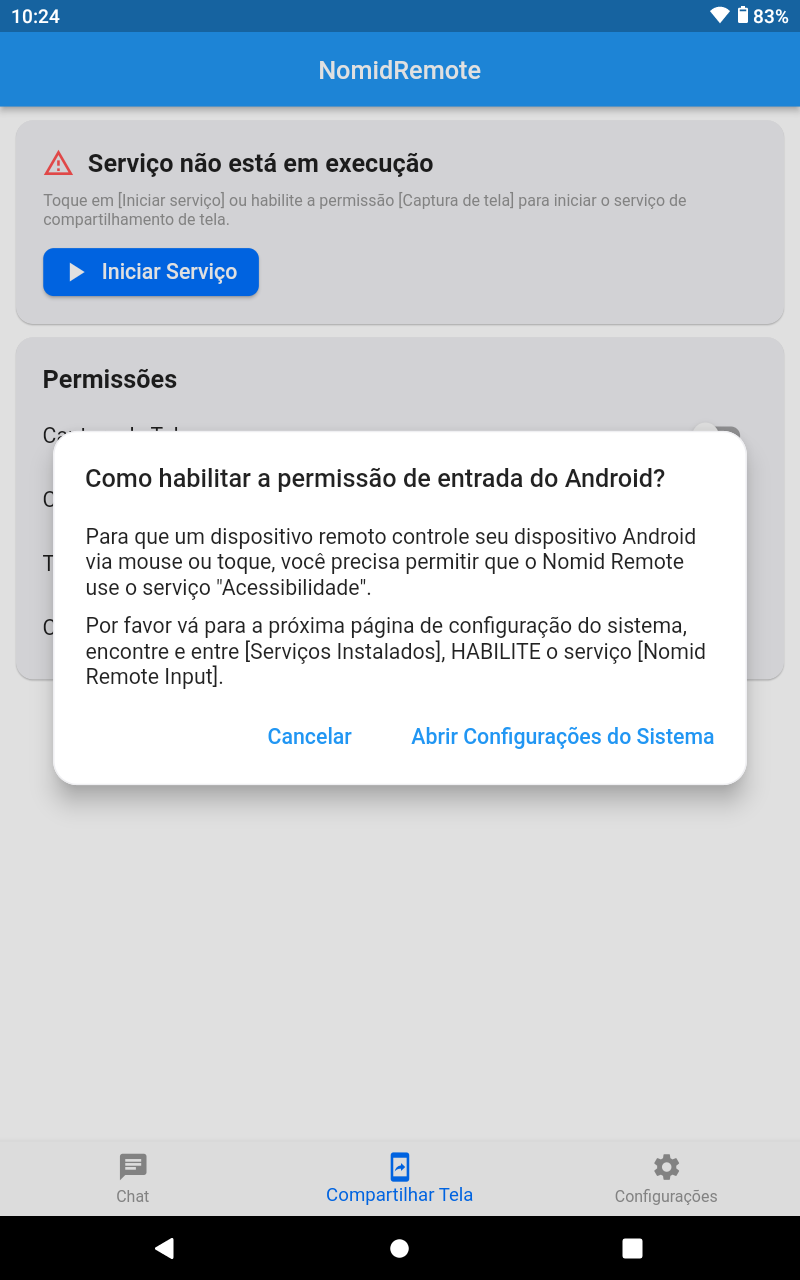
- On the remote device, open the NomidRemote app after the policy synchronizes.
- If the screen shows Service is not running, tap Start Service.
- When Android asks for screen capture or screen sharing, allow it only for an approved support session.
- If the app indicates that input permission is missing, tap Open System Settings to continue to Accessibility.
¶ Enable remote input through Accessibility
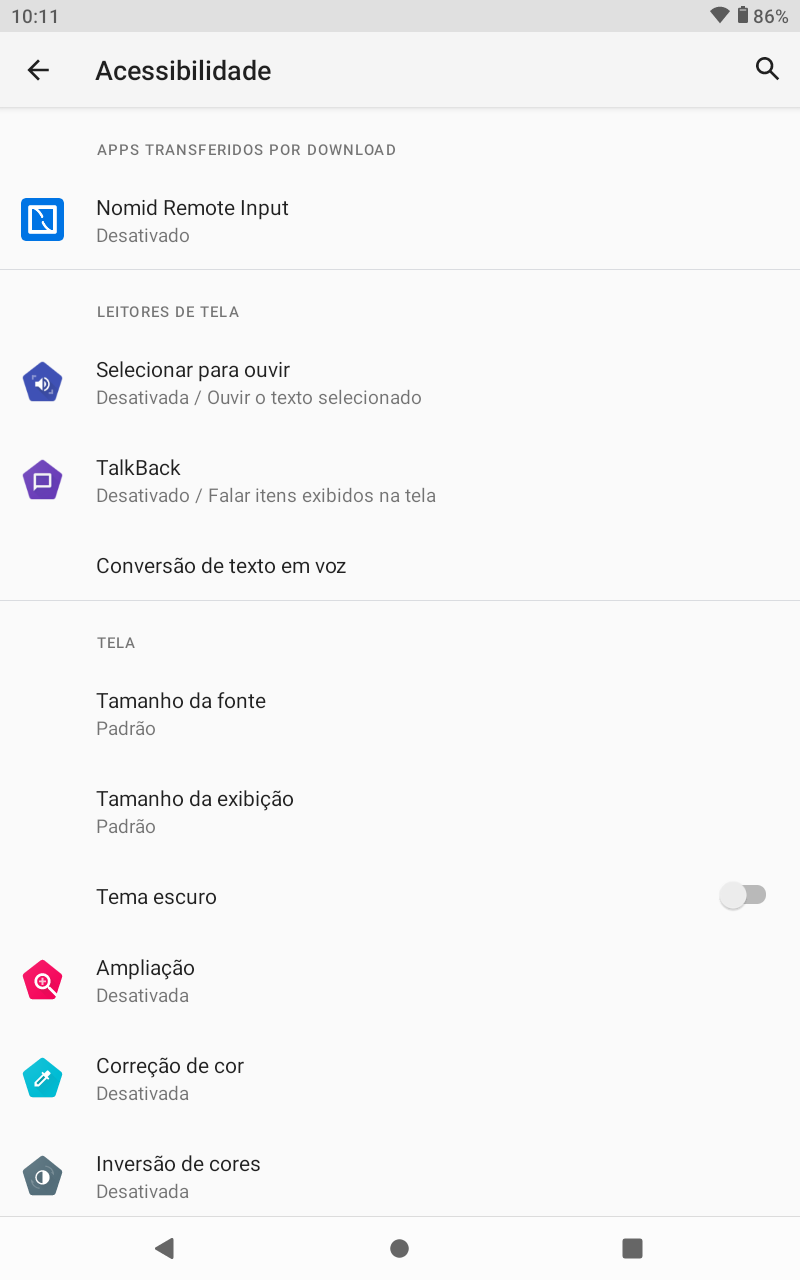
- In Accessibility, locate Nomid Remote Input.
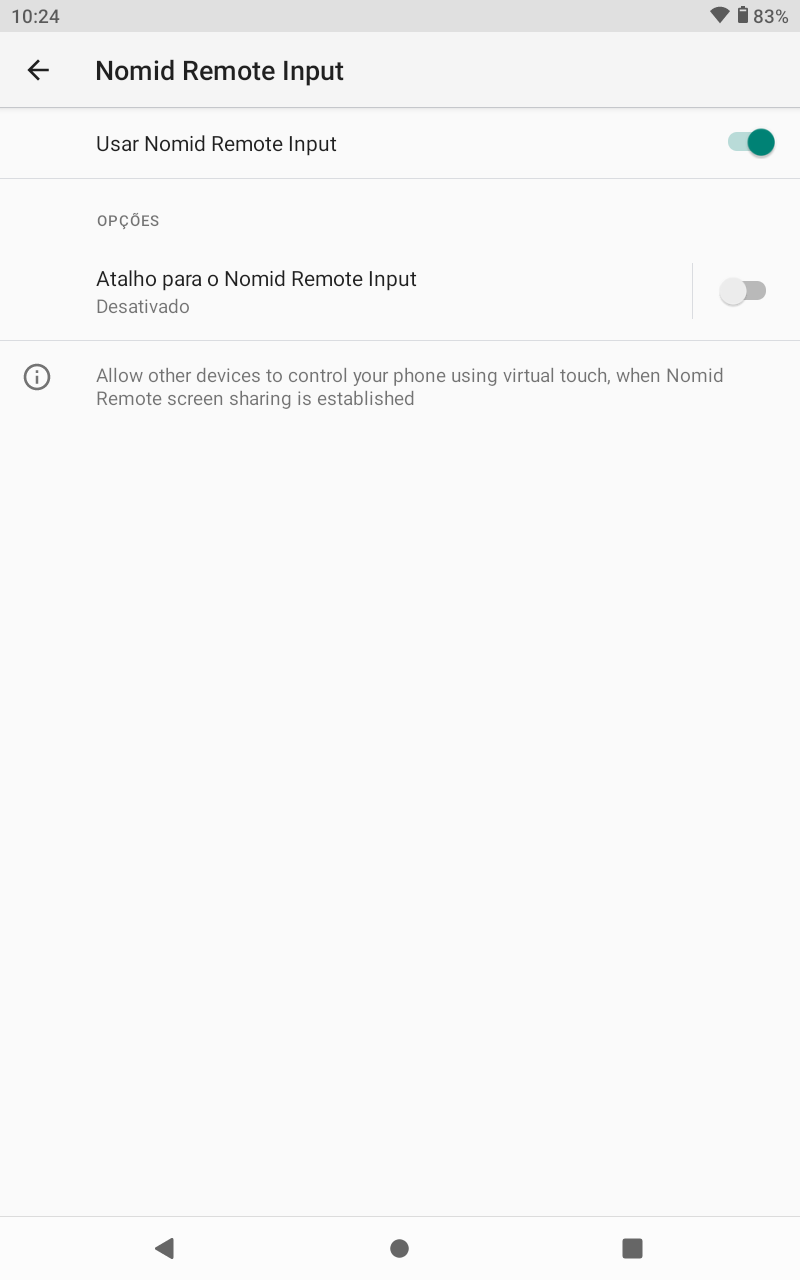
- Open the item and enable Use Nomid Remote Input.
- Read the Android warning before confirming. This permission lets support view the screen and send touch or mouse actions during an authorized session.
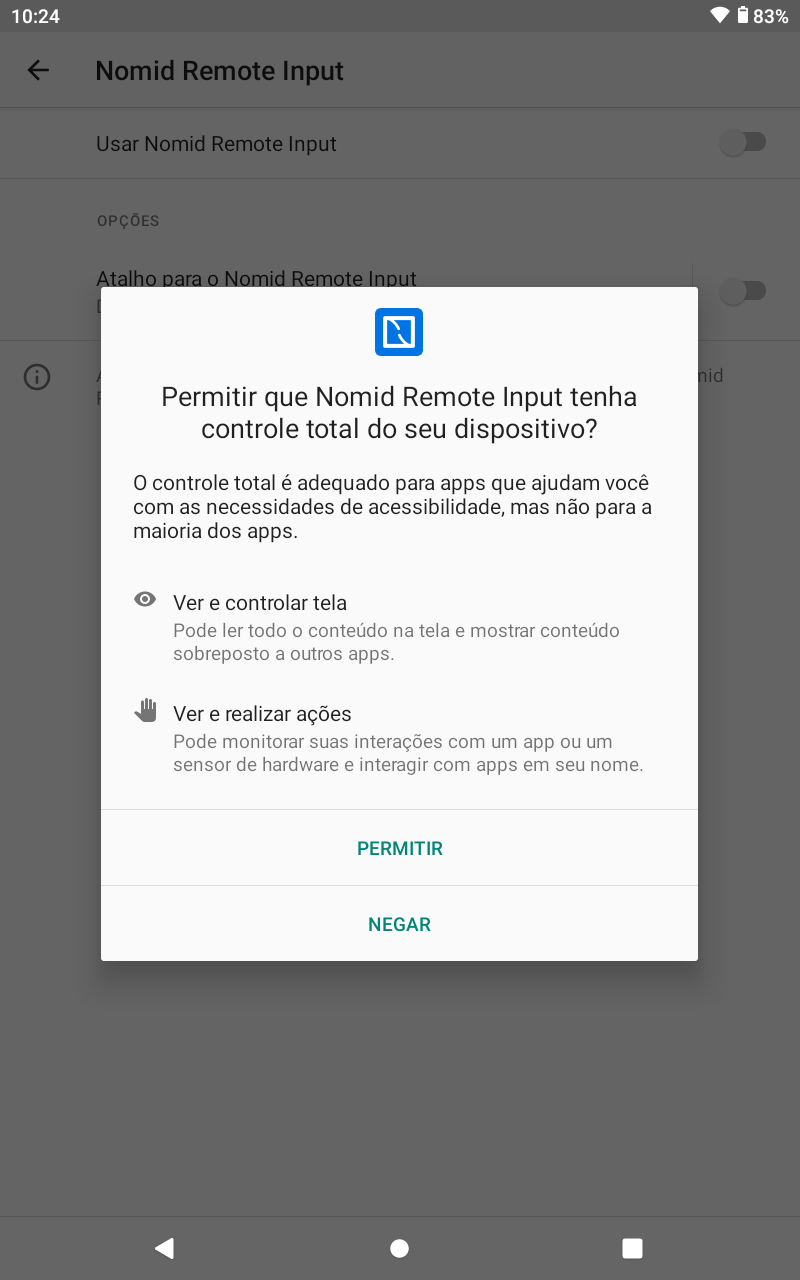
- In the full control confirmation, tap Allow only when the remote support session is authorized.
- Return to the NomidRemote app and confirm that the permission remains active.
¶ Validate overlay and Android variations
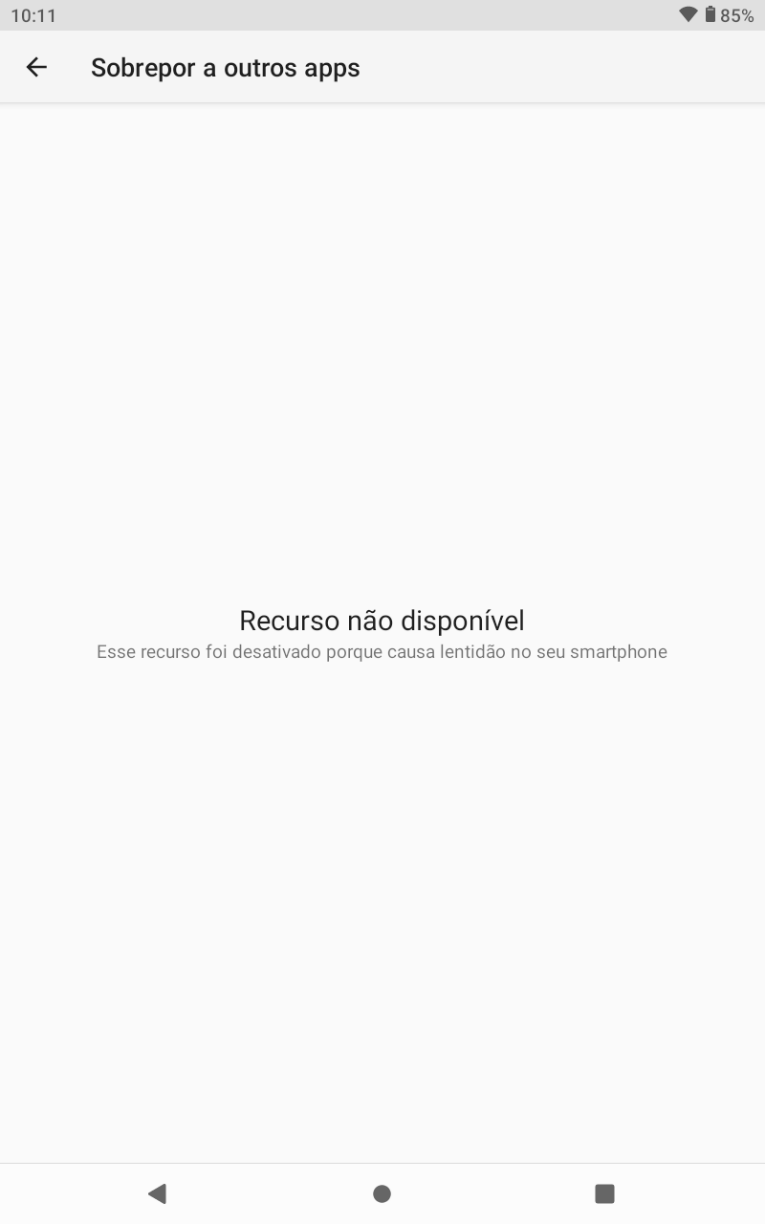
Some Android versions or manufacturers block Display over other apps for this app or show that the feature is unavailable. Record this condition as a device limitation. Do not promise overlay support when Android blocks it; validate whether the session still displays the screen and whether remote input works with Accessibility enabled.
¶ Authorization modes
¶ Assisted access
Use assisted access when someone at the device can accept screen capture, full control, or temporary authorization prompts. This mode is best for support with explicit consent at the time of service.
¶ Previously authorized access
Use previously authorized access only when the company, policy, and device support the combination of start on boot, screen capture confirmation, permanent password, or automatic synchronization. Even in this mode, Android may still require an initial Accessibility or full control approval on the device.
¶ Compatible Pico headsets
In a VR/Pico policy, enable Remote Access and keep the remote apps automatically added by the solution as required. Saving the policy prepares distribution; the portal action becomes available only after the headset synchronizes and reports every readiness requirement.
- Remote Access ID: identifies the headset in the remote service. Without it, there is no session destination.
- Pico platform: confirms the device reported the platform-specific integration.
- Pico capture capability: confirms that the compatible integration can capture the image.
- Pico input capability: confirms that the compatible integration can send input commands.
- Unattended capability: confirms the headset is ready for previously authorized access.
If any requirement is missing, Remote Access remains hidden or unavailable to prevent a session without image or control. Check the applied policy, remote-app versions, connectivity, and latest status report; do not bypass the block with a manually entered code.
The Accessibility and full control sequence shown in this article's images is for Android. On a ready Pico headset, use Remote Access from the device page or policy drawer and wait for the browser session; do not look for the same phone Accessibility menus.
¶ Launch a portal session
- Open Devices and locate the enrolled device.
- Use the device action menu or open device details and select Remote Access.
- The portal checks permission, capability, device metadata, password mode, and connection configuration before opening the browser session.
- If the portal reports that the policy is disabled or that the device has no Remote Access identifier, return to the policy and device preparation steps before trying again.
- End the session from the Remote Access overlay when support is complete.
¶ Controls currently available
The browser overlay supports refreshing the stream, choosing Performance, Balanced, or Quality presets, minimizing or expanding the session, reconnecting after a recoverable interruption, and ending the session. Availability of remote input depends on device-side permissions and policy state.
Features such as voice chat, file transfer, recording, and multiple sessions may exist in complementary clients or legacy flows, but they are not part of the current portal procedure. Use them only if they are enabled for the company and confirmed by the functional owner.
¶ Validate the session
- Confirm that the
tech.nomid.remoteapp is installed, the service has started, and Nomid Remote Input is enabled. - Confirm that the Remote Access overlay opens for the selected device and displays its current screen.
- When device permissions allow remote input, perform a reversible navigation action and confirm that the device responds.
- End the session and confirm that the overlay closes without leaving an active connection in the portal.
¶ End and revoke after support
Ending the portal session closes the active connection, but it does not automatically remove policy preparation or local permissions. When temporary support is complete:
- End the session in the overlay and confirm there is no active connection in the portal.
- If Remote Access was enabled only for support, disable temporary options in the policy and publish/sync again.
- Confirm on the device whether the service, Accessibility, and local permissions are back to the company-approved state.
- Rotate or remove shared permanent passwords when used.
- Record time, operator, device, access reason, and closure evidence according to the internal process.
¶ Common issues
¶ The Remote Access action is unavailable
Confirm the company capability and the user's Device Remote Access permission. If either is missing, changing unrelated Library or application permissions will not enable the action.
¶ The device has no Remote Access identifier
Confirm that Remote configuration is enabled in the assigned policy, that tech.nomid.remote is installed, and that the device has synchronized after the policy was published. The portal explains this policy state instead of opening an empty session.
For a Pico headset, also confirm that the VR/Pico policy has Remote Access enabled and that the device reported capture, input, and unattended capabilities. An ID without these capabilities does not release the session.
¶ The service does not start on the device
Open the NomidRemote app, tap Start Service, and accept screen capture/sharing when Android asks. If the app returns to Service is not running, review connectivity, applied policy, local permissions, and manufacturer restrictions.
¶ The portal shows the screen but does not control the device
Enable Nomid Remote Input in Accessibility and accept the full control warning. Without this permission, support may be able to view the screen but not send touches or commands.
¶ Screen capture or overlay was denied
Start the service again and accept the request on the device. If Android indicates that Display over other apps is unavailable, treat it as a version/manufacturer limitation and validate a compatible device before broad rollout.
¶ The connection fails
Confirm that the device is online and retry once. If repeated attempts fail, record the device name, approximate time and time zone, policy name, and the message shown by the portal. Do not expose access passwords or managed configuration secrets in a support request.
¶ Security notes
Use Remote Access only for an authorized support purpose. The Accessibility permission grants sensitive device control and must be released only for the tech.nomid.remote app delivered by policy. Access to managed passwords is separately permission-gated and audited. Never place Remote Access passwords, HMAC values, or device secrets in chat or wiki content.