¶ 4. Policies
Application: Portal Nomid MDM
Document: V3.2.0
Last updated: 26/08/2026
Editorial owner: Nomid MDM Documentation
Last editorial review: 26/08/2026
Editorial language: en-US
Use Policies to define applications, network settings, security, and managed Android device behavior. A policy describes the desired state; the result on a device depends on platform compatibility, permissions, connectivity, and a later synchronization.
For VR/Pico headset policies, see 4.1 Policies for VR/Pico.
Before you begin: open https://portal.nomid.tech/, confirm the active company, and work only on an authorized policy. Saving may create a revision and start distribution to linked devices. This guide shows how to review controls, but it does not instruct you to confirm destructive actions.
¶ Quick route
- Find and open a policy
- Edit without losing control
- Apps and Home Screen
- Settings App
- Network
- Device Settings
- Security
- Remote Access
- Geofencing
- Application Schedules
- Contact Lists
- Data Collection
- History
- Troubleshoot
¶ Find and open a policy
Open Policies from the main menu. The page brings together the list or grid, the count, and the controls available to your role. Names, counts, and states are dynamic; confirm the current value before making a decision.
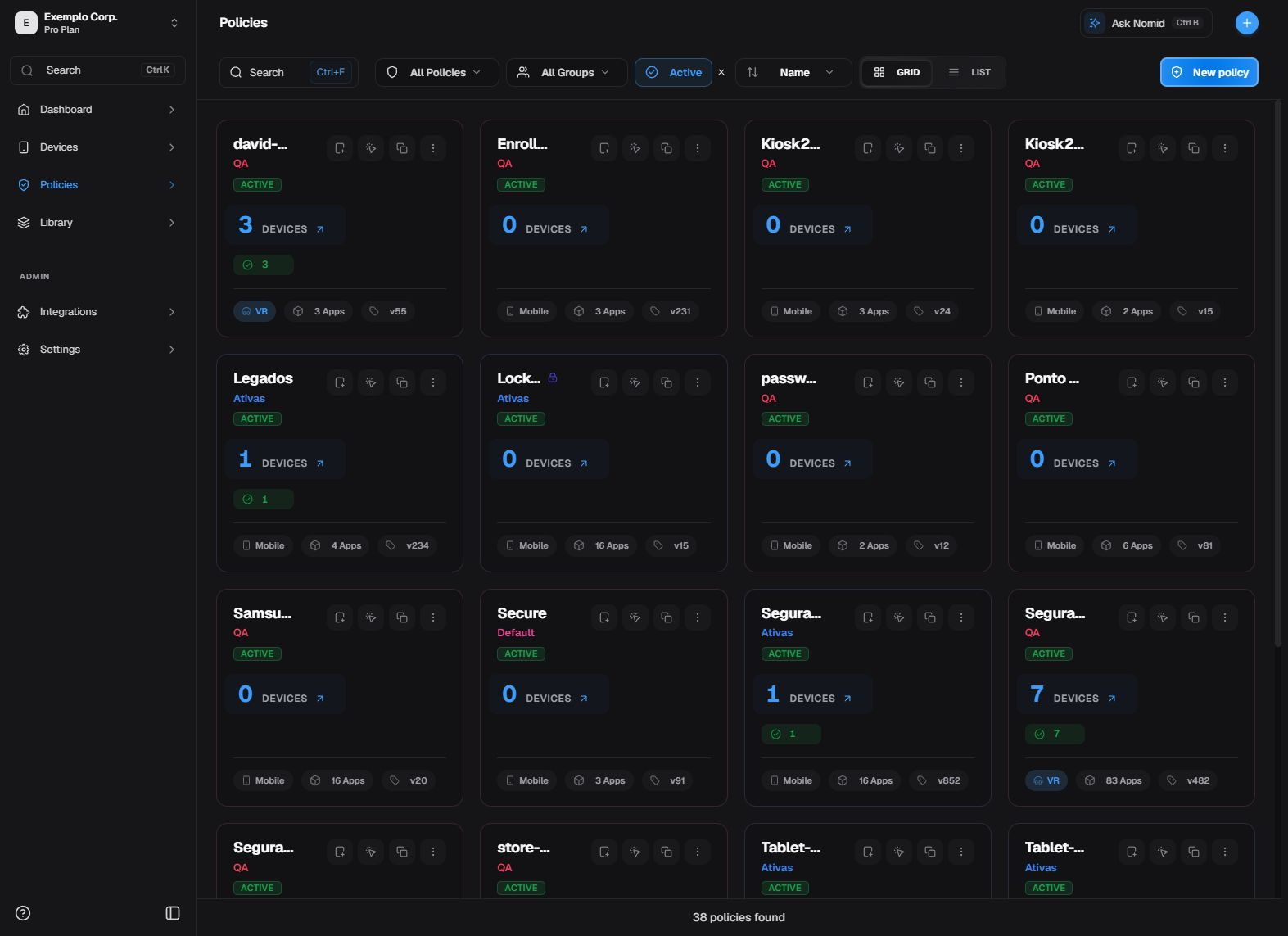
Overview of policies available in the active company.
¶ Search, filter, and sort
Use the visible search field and filters before browsing the list. Sorting changes the presentation, not policy configuration.
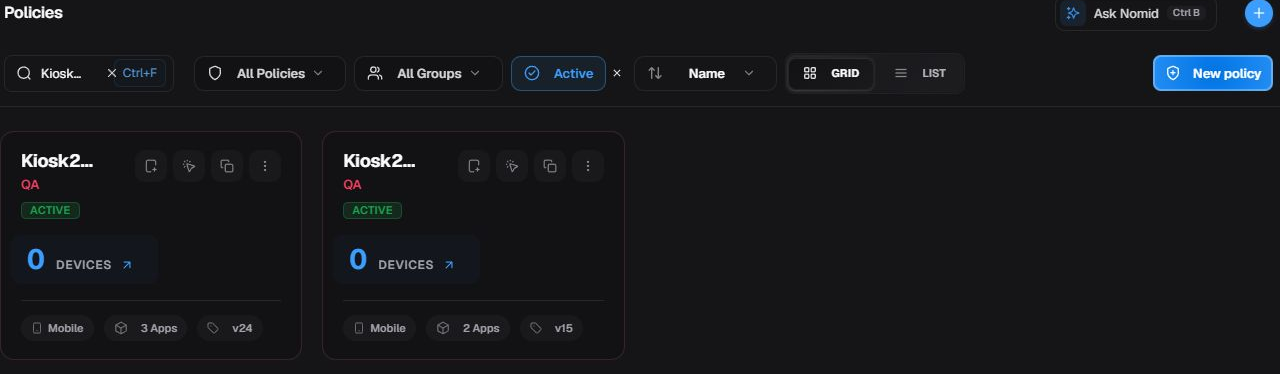
Controls that narrow and organize the list without changing policies.
¶ Read the card and open actions
The card summarizes the name, state, and related counts. The actions menu offers only operations allowed in that context. A count represents the displayed moment and does not guarantee that every device has received the latest revision.
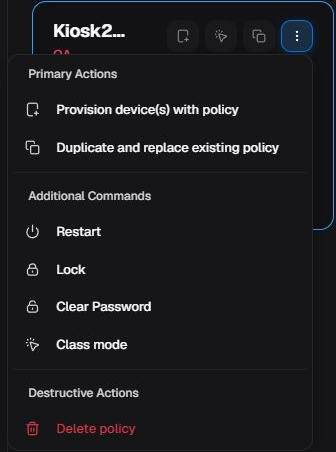
Summary and entry point for policy actions.
¶ Understand menu actions
Opening the menu does not execute an action. Check the target and close the next form or modal with Cancel or X when you are only reviewing it.
Available menu actions
| Action | Effect | Guidance, risk, and recovery |
|---|---|---|
| Provision device(s) with policy | Opens the enrollment assistant with the policy and device type preselected; opening it does not enroll a device. | Requires provisioning permission. Go back or cancel in the assistant. Continue in 8. New device. |
| Duplicate and replace existing policy | Opens a modal to choose a target policy and copy the current policy configuration over it. | High impact on the target. Submission requires the confirmation word; use Cancel or X to leave. Do not confuse this with creating a new duplicate. |
| Restart | Opens confirmation for a restart command targeting devices associated with the policy. | It may interrupt use. Only confirmation sends the request; Portal acceptance does not prove delivery or restart. |
| Lock | Opens lock confirmation for devices associated with the policy. | It may interrupt access. Cancel without confirming and check any later result in 3. Devices. |
| Clear Password | Opens confirmation to reset the lock credential on associated devices, as supported by the platform. | It may prevent expected access. Cancel without confirming; compatibility and result belong in Devices. |
| Class mode | Loads devices associated with the policy and opens the School Mode experience when compatible devices exist. | Depends on permission, devices, and support. Opening the experience does not start or prove a session; close it before executing actions. |
| Delete policy | Opens the modal for the selected policy. Deletion is requested only after confirmation. | Irreversible: it does not immediately change associated devices, but prevents later changes to that policy. Check the name and use Cancel or X; this guide does not instruct confirmation. |
Restart, lock, and clear-password commands are asynchronous requests aimed at the set filtered by policy. Check status and time later in Devices; an initial Portal message does not prove delivery or success.
In the policy header, open Actions to review the available commands. All Settings opens the settings set in the same block.
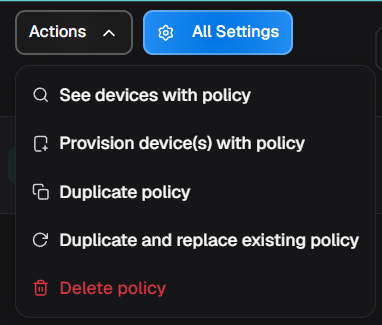
Policy command menu in the block header.
¶ View associated devices
Use View devices to check the current policy scope. The result may be a drawer inside Policies or, depending on the current interface state, a Devices list already filtered by policy. When the list opens, continue in 3. Devices to search, select, open device details, or run commands.
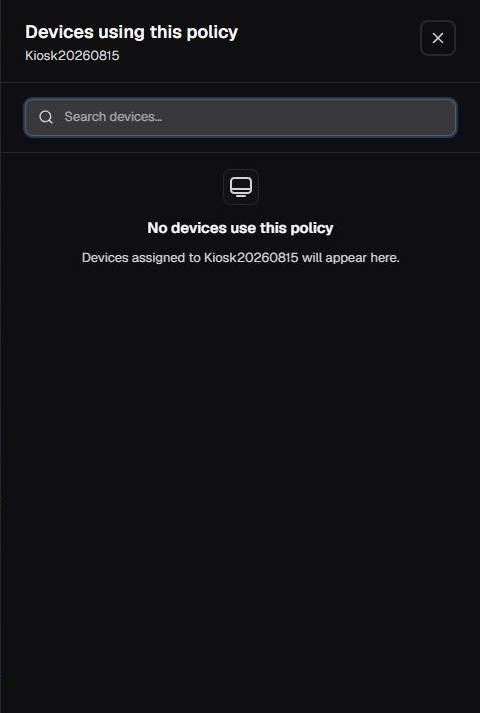
Associated-device consultation without opening an individual device page; an empty central scroll area was omitted to compact the image.
Do not generalize the displayed count or assume that every policy always opens the same destination. Confirm the current title, filter, and count.
¶ Edit without losing control
Select Edit, use the side navigation to reach the required block, and change only the intended item. The order below follows the active Portal tree.
¶ Save or discard the edit
Save
| Action | Effect | Guidance, risk, and recovery |
|---|---|---|
| Save | Persists the revision and may start distribution to assigned devices. | Use only after reviewing the summary and scope; Portal acceptance does not prove device application. |
Discard
| Action | Effect | Guidance, risk, and recovery |
|---|---|---|
| Discard | Abandons unsaved local changes and reloads the persisted state. | Use to leave a review or undo an unconfirmed edit. |
¶ Android policies for tablets and smartphones
From this point, sections follow the Android editor order through History. VR/Pico headset policies use a separate editor, described in 4.1 Policies for VR/Pico.
¶ Apps and Home Screen
The Portal organizes this section into mode, availability, apps, controls, appearance, and dock. Library supplies the apps; here you define how they appear, receive permissions, and participate in the managed experience.
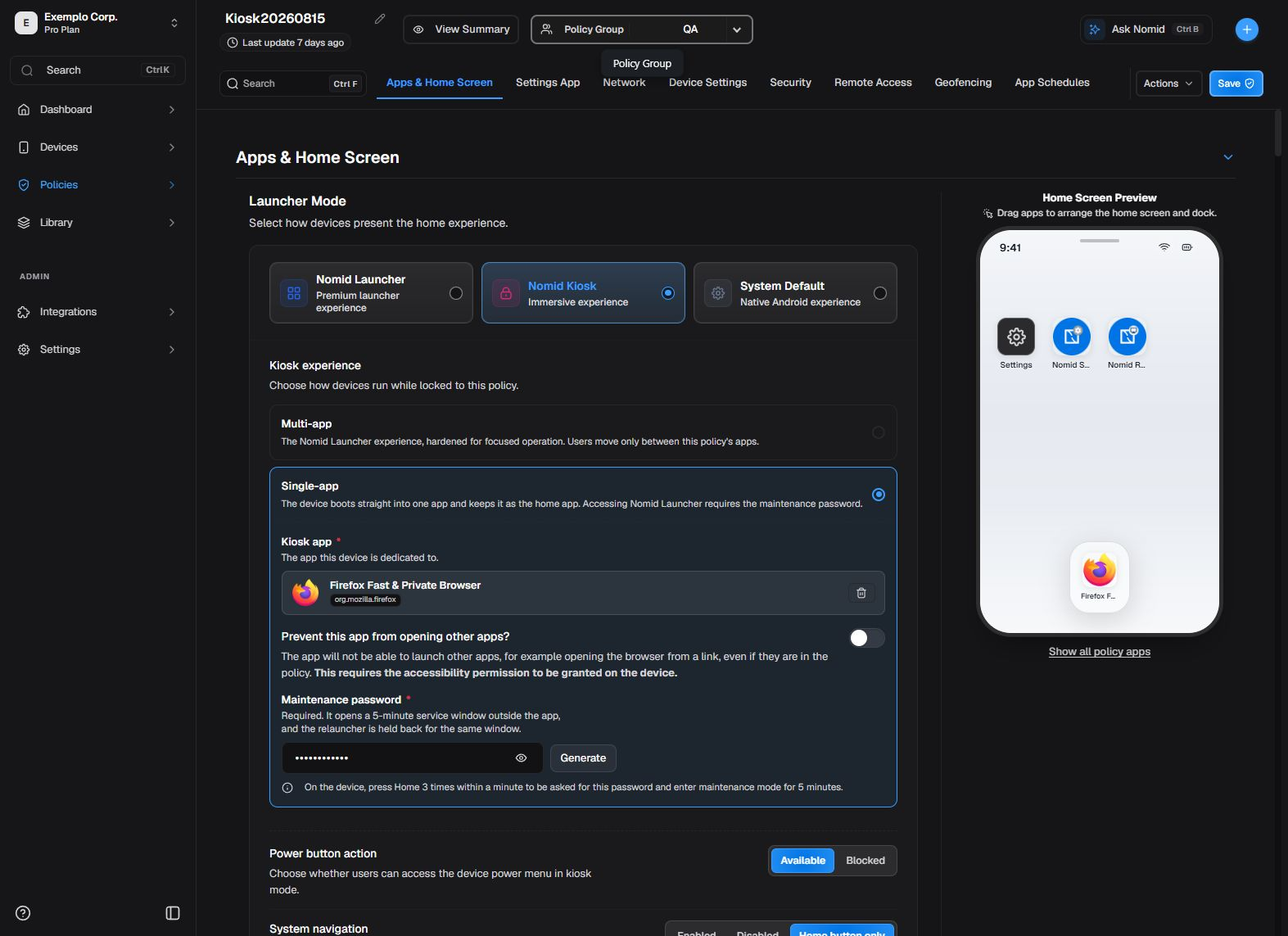
Editor navigation and revision actions.
¶ Mode
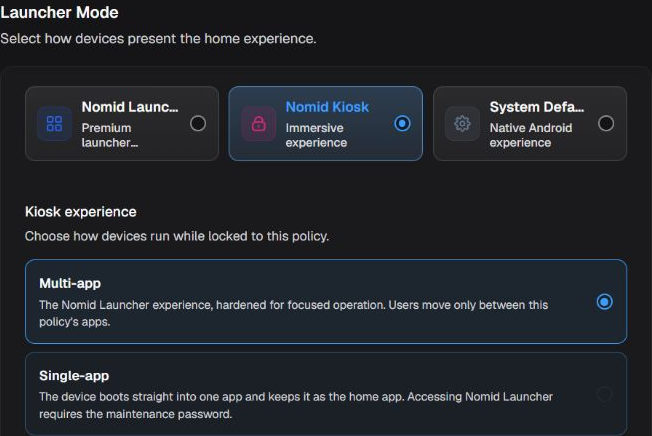
Launcher type and kiosk experience in the Tablet-20260625 policy.
Launcher type
| Option or state | Effect |
|---|---|
| Nomid Launcher | Uses the managed Nomid home screen with policy-defined layout and apps. |
| Nomid Kiosk | Uses the Nomid kiosk experience and restricts navigation to the allowed set. |
| System default | Keeps the launcher supplied by the system or manufacturer. |
Kiosk experience
| Option or state | Effect |
|---|---|
| Multi-app | Shows multiple approved applications in kiosk mode. |
| Single-app | Keeps one application as the primary kiosk experience. |
Guidance: When blocking it, keep a support path that can restart or power off the device without that button.
Power button
| Option or state | Effect |
|---|---|
| Available | Keeps the power button available. |
| Blocked | Blocks the power button in the kiosk experience. |
Guidance: Use the least access that still supports the required journey and recovery.
System navigation
| Option or state | Effect |
|---|---|
| Enabled | Keeps system navigation available. |
| Disabled | Hides or blocks system navigation. |
| Home button only | Keeps only the Home action available. |
Guidance: Keep system information when the operator needs network, battery, or time details; hide the bar only in a validated kiosk journey.
Status bar
| Option or state | Effect |
|---|---|
| Enabled | Shows the full status bar. |
| Disabled | Hides the status bar. |
| System info only | Shows system information only, without all status-bar controls. |
Guidance: Keep warnings when users or support need to react; mute only in a validated, monitored kiosk.
System error warnings
| Option or state | Effect |
|---|---|
| Enabled | Shows system error warnings. |
| Muted | Mutes system error warnings in the controlled experience. |
Guidance: If blocking access, first confirm an authorized maintenance path that does not depend on local settings.
Device settings access
| Option or state | Effect |
|---|---|
| Settings access allowed | Allows opening device settings. |
| Settings access blocked | Blocks access to device settings. |
Redirect app
| Option or state | Effect |
|---|---|
| Eligible policy app | In the Portal, the 'redirect app' is the primary app to which single-app kiosk mode directs the experience. |
Guidance for Eligible policy app: Use an app that has been tested and is available offline or has assured connectivity; Single-app mode requires both this app and the maintenance password.
Prevent the kiosk app from opening other apps
| Option or state | Effect | When to use and applicability |
|---|---|---|
| Enabled | The restriction is active and prevents the kiosk app from opening other apps where the version and management mode support it. | Use in single-app kiosk when external links and intents must remain contained. |
| Disabled | The policy does not prevent the kiosk app from opening other apps through this control; other policies or the system may still restrict it. | Use when external integrations are required and have been tested. |
Guidance: Generate and store it in a secure channel. Never publish it in manuals, examples, or screenshots.
Kiosk maintenance password
| Field or value | Effect |
|---|---|
| Numeric password meeting the Portal minimum | Protects exit and maintenance for single-app kiosk; the same password is distributed to devices on this policy. |
¶ App availability
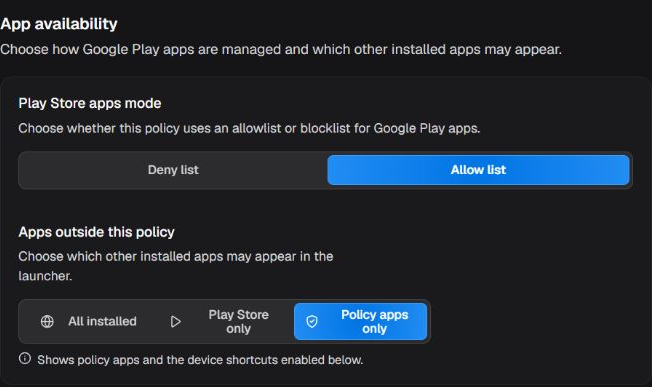
App lists and availability in the Tablet-20260625 policy.
Launcher Play Store mode
| Option or state | Effect | When to use and applicability |
|---|---|---|
| Blocklist | Allows apps in general and blocks only items placed on the list. | Use when only a small number of exceptions must be blocked. |
| Allowlist | Blocks by default and allows only apps placed on the list. | Use for controlled experiences such as kiosk mode; verify that essential support apps are allowed. |
Source filter
| Option or state | Effect |
|---|---|
| All | Includes applications from every compatible source in the filter. |
| None | Includes no source through this filter. |
| Play Store | Filters applications originating from the Play Store. |
¶ Apps
¶ Apps included in the policy
The Apps in this policy list contains applications already linked to the current configuration. It is the main element in this part of the editor: first find and identify the item, then select its card to open its settings. If the app is not included yet, use Add and see 5. Library. To start a new policy, see 9. New Policy.
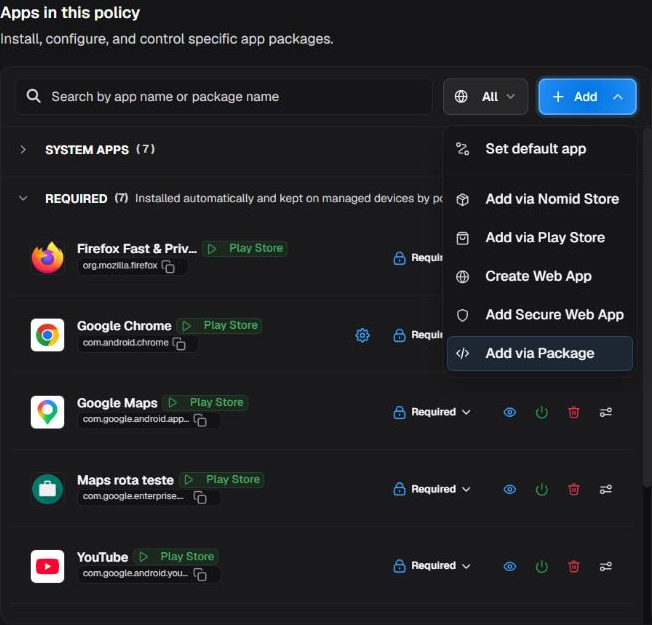
The policy app list is the starting point for finding, identifying, and selecting the item to configure.
Search by app name or package
| State or information | Effect |
|---|---|
| Search by app name or package | Filters the list by display name or package name without changing the policy. |
All / specific origin
| State or information | Effect |
|---|---|
| All / specific origin | Filters items by an available origin, such as Nomid Store, Play Store, web app, or package. Available origins depend on company features. |
Installation category
| State or information | Effect |
|---|---|
| Installation category | Groups items such as system or required apps and shows how many items are in each group. |
Name and package name
| State or information | Effect |
|---|---|
| Name and package name | Identify the application. The package name distinguishes apps with similar commercial names. |
Origin
| State or information | Effect |
|---|---|
| Origin | Shows where the item came from, such as Play Store, Nomid Store, Secure Web App, or uploaded package. |
Card state
| State or information | Effect |
|---|---|
| Card state | Summarizes installation, visibility, enabled, or blocked settings for the item; check the panel details before deciding. |
Select the card
| Action | Effect |
|---|---|
| Select the card | Opens that application's settings panel; selection does not save or distribute a change. |
Set default app
| Action | Effect |
|---|---|
| Set default app | Opens the default-role settings for compatible apps already included in the policy. |
Add from Nomid Store / Play Store
| Action | Effect |
|---|---|
| Add from Nomid Store / Play Store | Opens the selected source. To search, select, or maintain the catalog, see 5. Library. |
Create Web App / Add Secure Web App / Add from Package
| Action | Effect |
|---|---|
| Create Web App / Add Secure Web App / Add from Package | Opens the corresponding flow for another source; opening the flow alone creates nothing. |
Firefox example:
- Installation, permissions, or managed configuration: search for Firefox, verify
org.mozilla.firefoxand the Play Store origin, select the card, and use the open panel. - Default browser: return to the list, choose Add > Set default app, select Browser, the applicable scope, and Firefox. This path assigns the app to the role; it is not performed in the app card panel.
After distributing the policy to a pilot device, open a link and observe which browser actually handles it. The saved value and synchronization alone do not prove the effective browser. If Firefox is not included yet, see 5. Library before continuing.
¶ Selected app settings
Use this box to define how an application already included in the policy is installed, displayed, updated, and authorized on the device. The groups below belong to the same application card; some appear only for compatible sources, versions, or management modes.
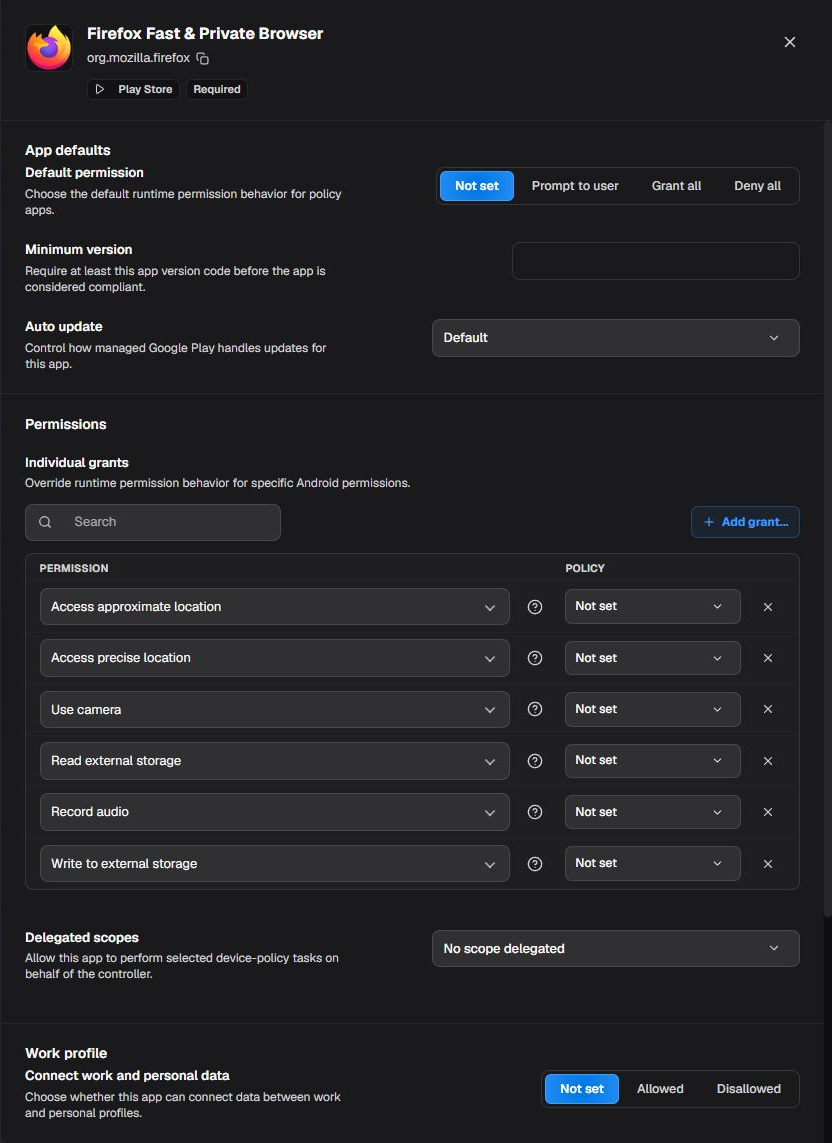
Installation, state, update, and permission settings for an application in the policy.
Installation type
| Option or state | Effect |
|---|---|
| Blocked | Prevents managed installation and may request removal of a managed app that is already installed. In a policy already distributed or in use, confirm dependencies and have a reinstall plan before blocking it. |
| Available | Makes the app available for installation without requiring it on every device. |
| Required | Requests that the app be installed and kept on devices covered by the policy. Actual installation depends on the store, connectivity, and synchronization. |
Launcher visibility
| Option or state | Effect |
|---|---|
| Visible | Shows the app in the Nomid Launcher or Nomid Kiosk configured for the policy. |
| Hidden | Hides the app from the compatible launcher; it does not uninstall or block the package. |
App state
| Option or state | Effect |
|---|---|
| Enabled | Keeps the installed package enabled. |
| Disabled | Disables the installed package without removing it. Features that depend on it stop opening while this state is applied. |
Default permission
| Option or state | Effect |
|---|---|
| Not set | Creates no app-specific decision; the general permission policy or applicable Android behavior continues to apply. |
| Prompt to user | Shows the permission request when the app needs the resource and leaves the decision to the user. |
| Grant all | Requests grants for permissions declared by the app when Android allows it. Use only after reviewing access to data, camera, microphone, location, and other sensitive resources. |
| Deny all | Requests denial of declared permissions; app features that depend on them may stop working. |
Minimum version
| Field or value | Effect |
|---|---|
| Minimum version | Requires the installed app to reach at least the version code supplied by the publisher. A number above the available release can leave the device noncompliant. |
Auto-update
| Option or state | Effect |
|---|---|
| Default | Keeps the default update behavior of managed Google Play and the device. |
| Postponed | Postpones the update for the period allowed by the platform; it does not freeze the version indefinitely. |
| High priority | Requests priority installation of an available update. It is useful for a tested critical fix, with network and operational impact considered. |
Individual grant
| Option or state | Effect |
|---|---|
| Prompt to user | For the selected permission, leaves the decision to the user when the app requests it. |
| Grant | For the selected permission, requests a policy grant. |
| Deny | For the selected permission, requests denial; the corresponding app feature may fail. |
The individual-grant list is dynamic: it depends on permissions declared by the current application version. Do not create an exception for a permission that is not available on the card.
In this box, an agent is an authorized administrative application, not a person. Keep Unspecified unless the vendor or technical owner formally requires a scope for that application.
Delegated administrative scopes
| Option or state | Effect |
|---|---|
| Unspecified | Delegates no special administrative function to the app. |
| Certificate | Allows a trusted agent to manage certificates within Android support. |
| Managed configurations | Allows the agent to manage other apps' managed configurations. |
| Block uninstall | Allows the agent to manage uninstall blocking. |
| Permission grant | Allows the agent to make runtime-permission decisions. |
| Package access | Allows the agent to inspect or manage the state of other packages. |
| System app | Allows a compatible administrative agent to manage system apps. |
| Network activity logs | Allows administrative access to available network-activity logs. These data may be sensitive. |
| Security logs | Allows administrative access to device security logs. Use only with an authorized security agent. |
Personal/work connection
| Option or state | Effect |
|---|---|
| Unspecified | Defines no specific rule for communication between this app's personal and work instances. |
| Allowed | Allows supported communication between the two instances. Assess what data crosses the profile boundary. |
| Disallowed | Prevents that communication to separate personal and corporate data. |
Work-profile widgets
| Option or state | Effect |
|---|---|
| Not set | Defines no app-specific decision about widgets. |
| Allowed | Allows widgets from the work app when Android and the launcher support them. |
| Disallowed | Prevents widgets from this work app from appearing on the home screen. |
Always-on VPN lockdown
| Option or state | Effect |
|---|---|
| Enforced | Requires app traffic to follow the always-on VPN when lockdown is configured. |
| Exempt | Allows the app to use the network outside the always-on VPN on supported platforms. Use only for a proven incompatibility and document the risk. |
Nomid app environment
| Option or state | Effect |
|---|---|
| Nomid app environment | Selects a service environment published by a Nomid app. The list is dynamic; do not mix production, testing, or regions without operational guidance. |
Testing tracks
| Option or state | Effect |
|---|---|
| Release tracks | Associates the app with release channels published for the company, such as closed testing. The list depends on the publisher and catalog. |
App managed configuration
| Action | Effect |
|---|---|
| App managed configuration | Sends the values defined by the schema published for that app version. Review each field and never expose secrets in manuals or screenshots. |
Expand or collapse
| Action | Effect |
|---|---|
| Expand or collapse | Opens or closes card groups without changing their values. |
Edit Secure Web App
| Action | Effect |
|---|---|
| Edit Secure Web App | Opens the secure web item editor when that source and feature are available. |
Remove
| Action | Effect |
|---|---|
| Remove | Removes the app from this policy after confirmation. If it is the assigned always-on VPN, confirmation may also clear that assignment. |
Credentials, advanced installation constraints, certificates, and extensions may exist in specific platform flows, but they are not exposed as general controls on this card in the current Portal version.
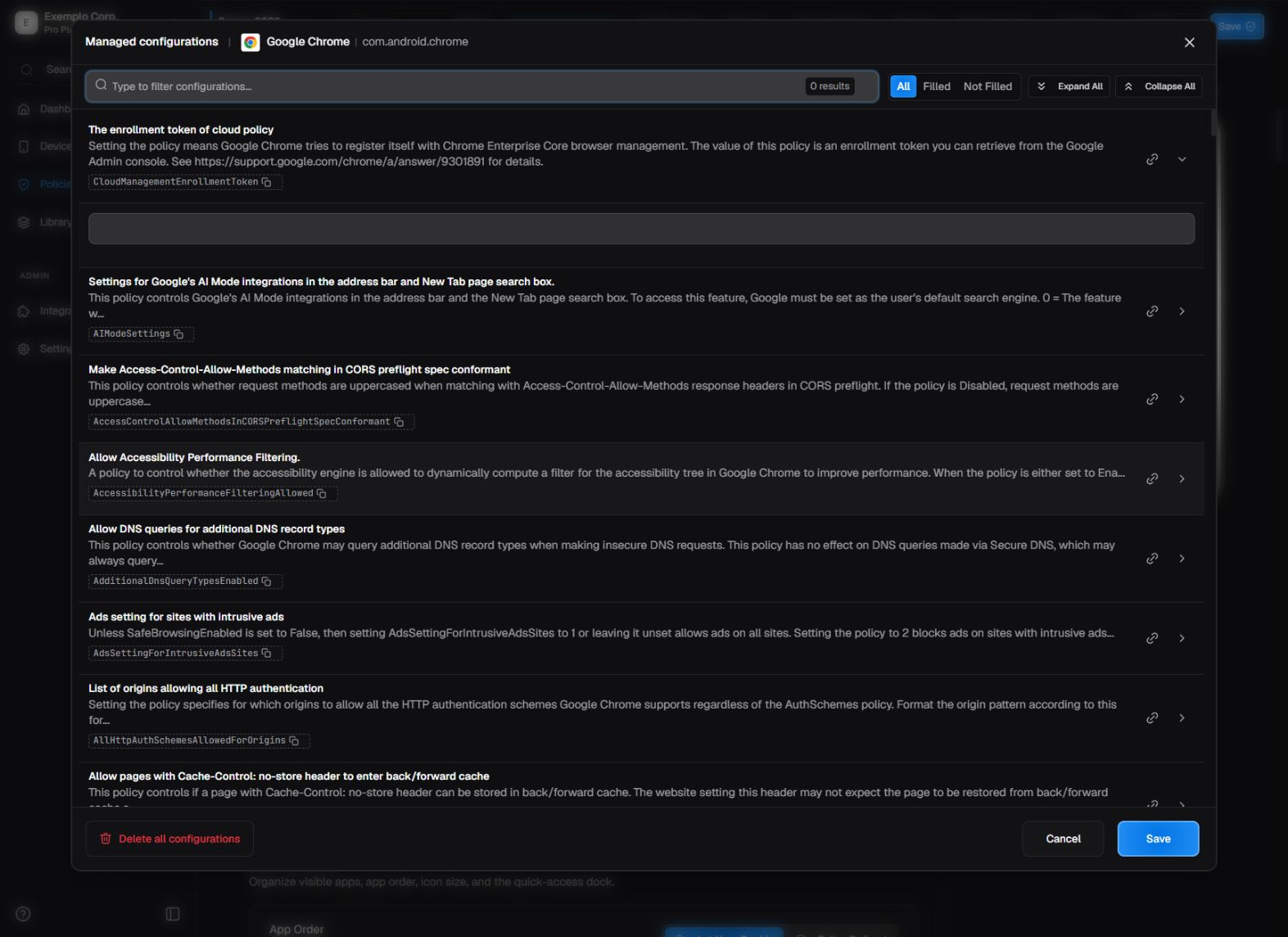
Managed configuration uses the schema published by the app; fields and values vary by package and version.
¶ Default app role
Use compatible packages installed in the selected scope. The assignment defines role, priority, and scope; in-app settings remain in the Manage applications card.
Default app role
| Option or state | Effect |
|---|---|
| Assistant | Binds an ordered application list to the Assistant role; the first package is the preferred candidate. This can keep and manage the app that already performs the role or change the default candidate by placing another package first. |
| Browser | Binds an ordered application list to the Browser role; the first package is the preferred candidate. This can keep and manage the app that already performs the role or change the default candidate by placing another package first. |
| Call redirection | Binds an ordered application list to the Call redirection role; the first package is the preferred candidate. This can keep and manage the app that already performs the role or change the default candidate by placing another package first. |
| Call screening | Binds an ordered application list to the Call screening role; the first package is the preferred candidate. This can keep and manage the app that already performs the role or change the default candidate by placing another package first. |
| Dialer | Binds an ordered application list to the Dialer role; the first package is the preferred candidate. This can keep and manage the app that already performs the role or change the default candidate by placing another package first. |
| Home | Binds an ordered application list to the Home role; the first package is the preferred candidate. This can keep and manage the app that already performs the role or change the default candidate by placing another package first. |
| SMS | Binds an ordered application list to the SMS role; the first package is the preferred candidate. This can keep and manage the app that already performs the role or change the default candidate by placing another package first. |
| Wallet | Binds an ordered application list to the Wallet role; the first package is the preferred candidate. This can keep and manage the app that already performs the role or change the default candidate by placing another package first. |
Guidance for Browser: For example, you can keep the installed browser as the first package and manage it in the policy, or place another compatible browser first to change the default candidate.
Guidance: Select only scopes that are actually managed in the fleet.
Default app scope
| Option or state | Effect |
|---|---|
| Fully managed | Applies the assignment on a fully managed device. |
| Work profile | Applies the assignment inside the work profile. |
| Personal profile | Applies the assignment to the personal profile when supported. |
App for the role
| Option or state | Effect |
|---|---|
| App compatible with the role | Assigns the package to the selected default role, such as browser, dialer, or SMS. |
Guidance for App compatible with the role: Use only when the app declares the role and is installed in the selected scope.
Priority among apps for a default role
| Option or state | Effect | When to use and applicability |
|---|---|---|
| First app in the list | Is the primary preference sent for the selected default role. | Place the validated primary default app first. |
| Following apps | Act as later preferences in configured order when the platform accepts multiple candidates. | Use only compatible apps; reorder with the arrows and test the effective choice on a device. |
| No app | Leaves the role without an explicit preferred package in this setting. | Use when the system or user should resolve the default app. |
Default-role and scope compatibility
- Assistant: Accepts the Fully managed scope. Use an app that declares the assistant role.
- Browser: Accepts Fully managed, Work profile, and Personal profile. Select only profiles where the browser is installed and managed.
- Call redirection or screening: Accepts Fully managed and Work profile. Requires telephony support and an app compatible with the corresponding role.
- Dialer: Accepts Fully managed, Work profile, and Personal profile. Validate calls, SIM, and permissions in each selected profile.
- Home: Accepts Fully managed and is unavailable when Nomid Launcher or Nomid Kiosk already controls Home. Do not create a second Home association that conflicts with the policy launcher.
- SMS: Accepts Fully managed and Personal profile. Use only where SMS and a compatible app are available.
- Wallet: Accepts Fully managed, Work profile, or Personal profile; work and personal cannot be combined in the same setting. Choose one profile consistent with wallet provisioning.
Type, scopes, and applications
- Type: Chooses a role currently available in the Portal. Each type can appear only once in the policy.
- Scopes: Limits the assignment to Fully managed, Work profile, or Personal profile according to role compatibility.
- Applications: Adds eligible packages from the policy or a confirmed package name. Order matters: the first package is preferred and the remaining packages are ordered candidates.
- Move up/down and remove: Reorders priority, removes a candidate, or deletes the entire role without editing the application's internal settings.
Guidance for Applications: The Portal requires at least one package and one scope to submit the setting.
Guidance for Move up/down and remove: Review the first package before saving because it represents the submitted preference.
Validate and recover: after distribution, confirm on the device and in the later state recorded by the Portal that installation, version, permissions, and availability match the expected result. The Portal confirms the saved value and the progress it can report, not the app's complete operation. If the result is unsuitable, return to the previous value or restore an earlier policy revision in the policy itself or in History, then synchronize again.
¶ Permissions and relaunch
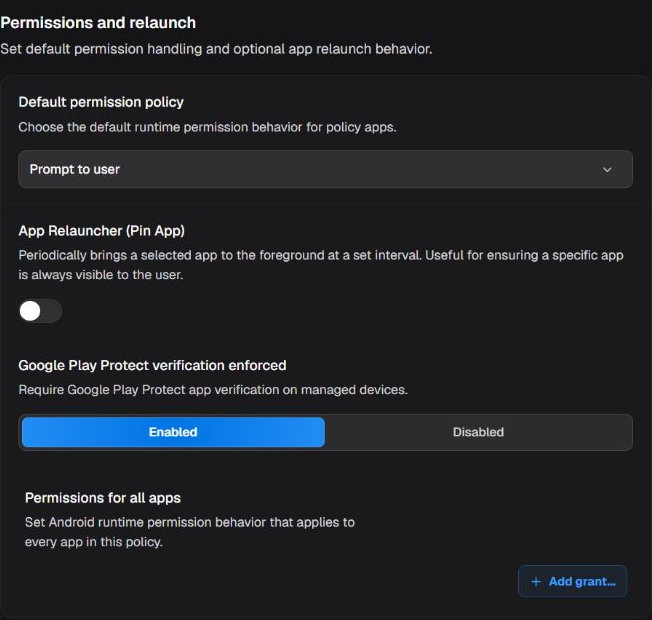
App permissions and relaunch settings in the Tablet-20260625 policy.
Portal label: Default permission policy
Launcher default permission policy
This is the same global permission policy shown under Permissions and relaunch and App & Permission Controls; these are not independent defaults. The restriction below does not apply to an application's default or to individual permission rules.
| Option or state | Effect | When to use and applicability |
|---|---|---|
| Not set | Does not impose a decision; Android, the app, or another applicable policy keeps the default behavior. | Use when this rule should not manage the permission. It does not mean granted or denied. |
| Prompt user | Leaves the decision with the user and displays the permission prompt when the app needs it. | On personal or shared devices with an operator, this lets the user decide after reading why access is requested. For unattended kiosks, prefer an explicit, tested decision. |
| Grant | May appear in policies already using this default. This version rejects changing the global default from another value to Grant. | Do not select it to introduce a new global grant. Assess app-level or individual permission rules separately, using the least access required and a pilot test. |
| Deny | Denies the permission by policy; the app feature that depends on it may stop working. | Use to block unnecessary or prohibited access after testing the application's main flow. |
Verify apps
| Option or state | Effect | When to use and applicability |
|---|---|---|
| Enabled | Makes app verification available on compatible devices. | Use in the managed launcher to keep app security verification active on compatible devices. |
| Disabled | Keeps app verification unavailable through this control. | Use only for a validated exception involving apps that do not work with verification or when another control replaces it. |
Individual permission
| Option or state | Effect |
|---|---|
| Permission declared by the app | Selects which Android permission receives an individual rule. |
Guidance for Permission declared by the app: The list depends on the app manifest; do not create an individual rule when no permission is declared.
Individual permission treatment
| Option or state | Effect | When to use and applicability |
|---|---|---|
| Prompt user | Leaves the decision with the user and displays the permission prompt when the app needs it. | On personal or shared devices with an operator, this lets the user decide after reading why access is requested. For unattended kiosks, prefer an explicit, tested decision. |
| Grant | Grants the permission by policy without relying on the user's day-to-day confirmation, when Android allows it. | Use only for a required business function after assessing access to data or sensors. |
| Deny | Denies the permission by policy; the app feature that depends on it may stop working. | Use to block unnecessary or prohibited access after testing the application's main flow. |
App relauncher
| Option or state | Effect | When to use and applicability |
|---|---|---|
| Enabled | Monitors the selected app and attempts to bring it back to the foreground at the configured interval. | Use on dedicated terminals where a primary app must recover after accidental navigation or closure. |
| Disabled | Does not force an app back to the foreground periodically. | Use when users need to switch freely between apps or another mechanism already controls the experience. |
Guidance: Select only a tested app installed as required; do not enable the relauncher without an app.
Relauncher app
| Option or state | Effect |
|---|---|
| App already included in the policy | Defines which package the relauncher should return to the foreground. |
Guidance: Use the longest interval that meets operational needs; excessive frequency can interrupt legitimate tasks.
Relauncher interval
| Field or value | Effect |
|---|---|
| Numeric interval | Defines how often the selected app is checked and returned to the foreground. |
Guidance: Use the smallest reviewed domain set; do not include paths or wildcards without confirming the accepted format.
Allowed domains
| Option or state | Effect |
|---|---|
| Comma-separated list | Restricts browsing to the specified domains according to Secure Browser behavior. |
Back button
| Option or state | Effect | When to use and applicability |
|---|---|---|
| Enabled | Shows and enables backward navigation in the browser. | Use for regular multi-page browsing. |
| Disabled | Hides or disables backward navigation in the browser UI. | Use in a guided flow where going back would break the journey. |
Pull to refresh
| Option or state | Effect | When to use and applicability |
|---|---|---|
| Enabled | Allows page refresh with a pull gesture. | Use for web content that benefits from simple manual refresh. |
| Disabled | Disables the pull-to-refresh gesture. | Use when the gesture conflicts with the web app or could reset forms. |
Autofill
| Option or state | Effect | When to use and applicability |
|---|---|---|
| Enabled | Allows supported autofill in the browser. | Use when the organization allows the autofill provider and risk has been assessed. |
| Disabled | Prevents browser autofill. | Use on shared terminals or flows involving sensitive data. |
Clear data on exit
| Option or state | Effect | When to use and applicability |
|---|---|---|
| Enabled | Removes local session data when Secure Browser exits. | Use on shared devices or to reduce data persistence. |
| Disabled | Keeps local data and session according to app and site behavior. | Use when session continuity is required and accepted by security policy. |
Secure Browser status bar
| Option or state | Effect | When to use and applicability |
|---|---|---|
| Enabled | Keeps the status bar visible while browsing. | Use when time, battery, and connectivity help the user. |
| Disabled | Hides the status bar for a more dedicated experience. | Use in an immersive kiosk when this information is unnecessary. |
Navigation bar
| Option or state | Effect | When to use and applicability |
|---|---|---|
| Enabled | Keeps system navigation controls visible. | Use when users need to exit or switch tasks. |
| Disabled | Hides navigation controls to contain the experience. | Use only in a kiosk with a tested maintenance and recovery path. |
Prevent screenshots
| Option or state | Effect | When to use and applicability |
|---|---|---|
| Enabled | Requests protection against screenshots and screen recording in the browser. | Use for pages with confidential data, subject to Android support. |
| Disabled | Does not apply this Secure Browser-specific protection. | Use when capture is part of support or operations and is permitted. |
Guidance: Use a period compatible with data sensitivity and actual task duration.
Session timeout
| Option or state | Effect |
|---|---|
| Minutes or empty | Defines after how many minutes the Secure Browser session expires; empty keeps default behavior. |
Screen orientation
| Option or state | Effect | When to use and applicability |
|---|---|---|
| Unspecified | Does not force portrait or landscape. | Use to let content and device choose. |
| Portrait | Keeps Secure Browser in portrait orientation when supported. | Use for forms and devices operated vertically. |
| Landscape | Keeps Secure Browser in landscape orientation when supported. | Use for dashboards, video, and devices mounted horizontally. |
Guidance: Use only when the web system depends on this marker; do not include personal identity or secrets.
User-Agent suffix
| Field or value | Effect |
|---|---|
| Optional text | Appends text to the User-Agent for controlled identification by the site. |
¶ Appearance
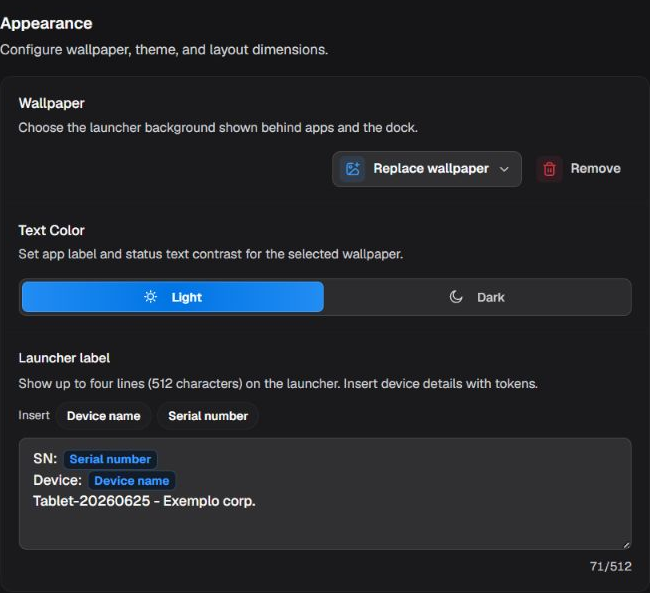
Launcher appearance in the Tablet-20260625 policy.
Font color
| Option or state | Effect |
|---|---|
| Light | Uses light text and font elements. |
| Dark | Uses dark text and font elements. |
Icon size
| Option or state | Effect |
|---|---|
| Small | Shows small icons and increases grid density. |
| Medium | Shows medium icons, balancing density and readability. |
| Large | Shows large icons and reduces the number visible at once. |
Wallpaper
| Option or state | Effect | When to use and applicability |
|---|---|---|
| Upload image | Stores the selected image as the Nomid launcher background. | Use an approved image that remains readable behind icons and fits device orientation. |
| Use URL | Makes the launcher obtain the wallpaper from the specified address. | Use only a stable HTTPS URL reachable by devices; unavailability may prevent the background from updating. |
| Remove | Removes the custom wallpaper and returns to the launcher default presentation. | Use to retire previous branding or correct an unsuitable image. |
Show serial number
| Option or state | Effect | When to use and applicability |
|---|---|---|
| Enabled | Shows the serial number in the launcher for local device identification. | Use for field support or shared operations when the identifier is not considered sensitive. |
| Disabled | Hides the serial number from the home screen. | Use when on-screen identification is unnecessary or could expose inventory data. |
Preview screen type
| Option or state | Effect | When to use and applicability |
|---|---|---|
| Smartphone | Shows the launcher preview in phone proportions; it does not by itself change device type or policy settings. | Use to review density, dock, and readability on narrow screens. |
| Tablet | Shows the launcher preview in tablet proportions; it is a visualization tool, not a device restriction. | Use to assess grid, spacing, and order on larger screens. |
¶ Dock
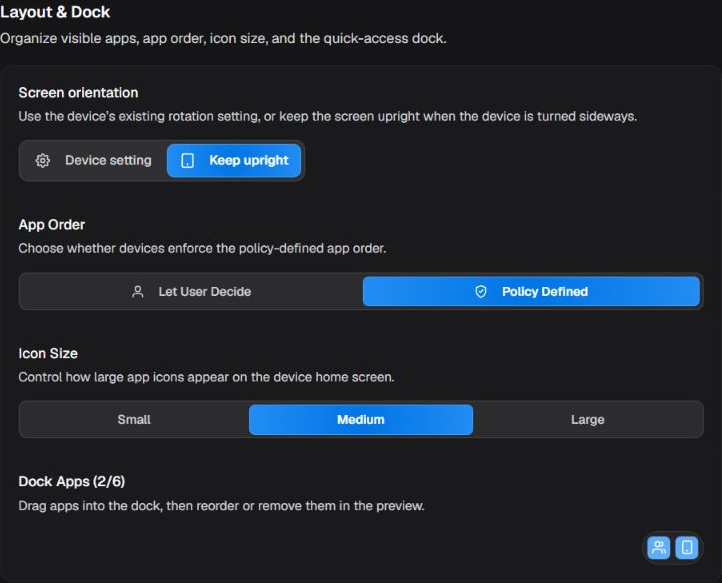
Layout & Dock in the Tablet-20260625 policy.
App order
| Option or state | Effect |
|---|---|
| Policy | Uses the application order defined by the policy. |
| User | Lets the user rearrange applications on the device. |
Guidance: Reserve for frequent tasks. The item must be available in the policy and cannot be hidden or blocked.
Dock apps
| Option or state | Effect |
|---|---|
| Up to 6 visible apps or shortcuts | Keeps selected items in a fixed launcher area, separate from the main grid. |
System shortcuts
| Option or state | Effect | When to use and applicability |
|---|---|---|
| Browser | Shows a shortcut to the app assigned to the default browser role. | Use when web browsing is part of the allowed journey and a compatible app exists. |
| Phone | Shows the default dialer shortcut. | Use only on devices and plans that support calling. |
| Messages | Shows the default SMS app shortcut. | Use when SMS is allowed and a compatible app exists. |
| Contacts | Shows the system contacts shortcut. | Use when contact lookup is part of the operation. |
| Camera | Shows the camera shortcut when the camera is not blocked by policy. | Use only when image capture is necessary and allowed. |
| Settings | Shows the settings shortcut when settings access is not marked unavailable. | Use for journeys with controlled autonomy; remove in restricted kiosks. |
¶ Settings App
This area controls the administrative password and availability of buttons shown by the Nomid Settings app. Do not record the password in the manual or screenshots.
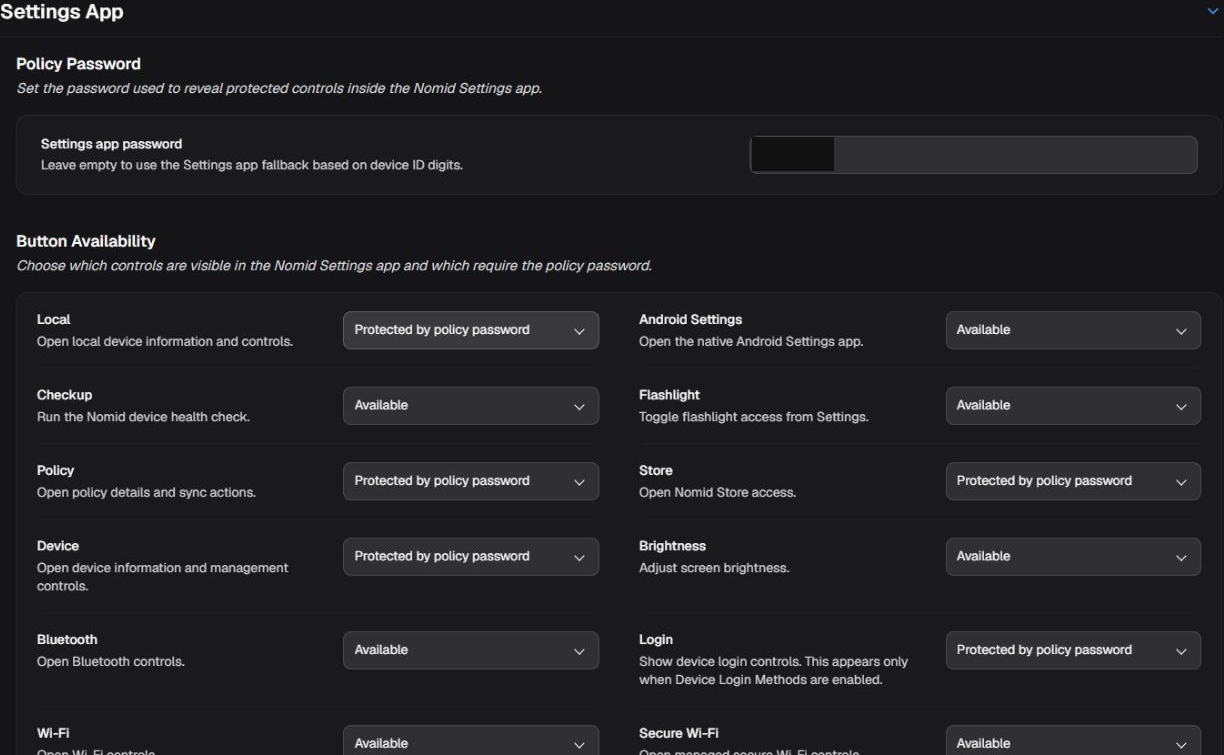
Administrative password and button availability in the Nomid Settings app.
¶ Password

Administrative Settings app password in the Tablet-20260625 policy.
Guidance: Use a password managed outside the manual and screenshots. Without a valid password, protected buttons do not provide controlled maintenance.
Settings app password
| Field or value | Effect |
|---|---|
| Organization-defined password | Protects buttons marked Protected by policy password; it does not change available or unavailable buttons. |
¶ Buttons
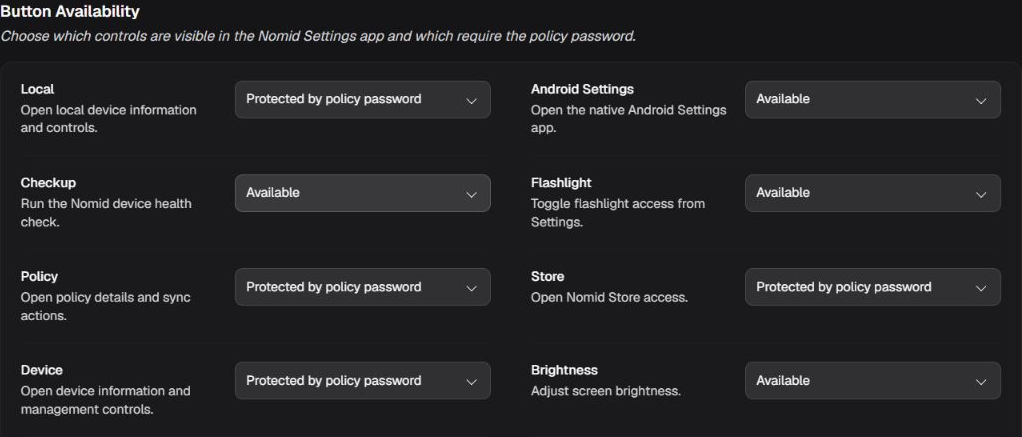
First eight Button Availability controls in the Tablet-20260625 policy; the tables below cover all 17 controls.
Choose the state of each button. The same three-state rule applies throughout the list:
Local
| Action | Effect |
|---|---|
| Available | Shows the button and allows it to open without requesting the policy password. Opens the Local item provided by the app. |
| Protected by policy password | Keeps the button visible but requires the password before opening or running the function. Opens the Local item provided by the app. |
| Not available | Hides or blocks the button in the Nomid Settings app. |
When to use: The exact function depends on the installed version; confirm it on a pilot device.
Native settings
| Action | Effect |
|---|---|
| Available | Shows the button and allows it to open without requesting the policy password. Opens native Android settings. |
| Protected by policy password | Keeps the button visible but requires the password before opening or running the function. Opens native Android settings. |
| Not available | Hides or blocks the button in the Nomid Settings app. |
When to use: It can provide broad system access; prefer password protection on restricted devices.
Checkup
| Action | Effect |
|---|---|
| Available | Shows the button and allows it to open without requesting the policy password. Opens the checkup or diagnostic provided by the app. |
| Protected by policy password | Keeps the button visible but requires the password before opening or running the function. Opens the checkup or diagnostic provided by the app. |
| Not available | Hides or blocks the button in the Nomid Settings app. |
When to use: Use the result as a diagnostic; it does not replace checking the device in the Portal.
Flashlight
| Action | Effect |
|---|---|
| Available | Shows the button and allows it to open without requesting the policy password. Provides access to the flashlight control. |
| Protected by policy password | Keeps the button visible but requires the password before opening or running the function. Provides access to the flashlight control. |
| Not available | Hides or blocks the button in the Nomid Settings app. |
When to use: It requires compatible hardware and may consume battery.
Policy
| Action | Effect |
|---|---|
| Available | Shows the button and allows it to open without requesting the policy password. Shows the policy-information area in the app. |
| Protected by policy password | Keeps the button visible but requires the password before opening or running the function. Shows the policy-information area in the app. |
| Not available | Hides or blocks the button in the Nomid Settings app. |
When to use: Displayed information depends on the app version and policy received.
Store
| Action | Effect |
|---|---|
| Available | Shows the button and allows it to open without requesting the policy password. Opens the store area provided by the app. |
| Protected by policy password | Keeps the button visible but requires the password before opening or running the function. Opens the store area provided by the app. |
| Not available | Hides or blocks the button in the Nomid Settings app. |
When to use: Available items depend on the company catalog and permissions.
Device
| Action | Effect |
|---|---|
| Available | Shows the button and allows it to open without requesting the policy password. Opens device information and controls exposed by the app. |
| Protected by policy password | Keeps the button visible but requires the password before opening or running the function. Opens device information and controls exposed by the app. |
| Not available | Hides or blocks the button in the Nomid Settings app. |
When to use: Review which information is available to the user before allowing access.
Brightness
| Action | Effect |
|---|---|
| Available | Shows the button and allows it to open without requesting the policy password. Provides access to local brightness adjustment. |
| Protected by policy password | Keeps the button visible but requires the password before opening or running the function. Provides access to local brightness adjustment. |
| Not available | Hides or blocks the button in the Nomid Settings app. |
When to use: It may conflict with operations that require fixed brightness; test it with screen restrictions.
Bluetooth
| Action | Effect |
|---|---|
| Available | Shows the button and allows it to open without requesting the policy password. Provides access to local Bluetooth controls. |
| Protected by policy password | Keeps the button visible but requires the password before opening or running the function. Provides access to local Bluetooth controls. |
| Not available | Hides or blocks the button in the Nomid Settings app. |
When to use: The policy may restrict Bluetooth; validate with approved peripherals.
Login
| Action | Effect |
|---|---|
| Available | Shows the button and allows it to open without requesting the policy password. Opens the app authentication area. |
| Protected by policy password | Keeps the button visible but requires the password before opening or running the function. Opens the app authentication area. |
| Not available | Hides or blocks the button in the Nomid Settings app. |
When to use: Do not expose credentials in the manual or screenshots.
Wi-Fi
| Action | Effect |
|---|---|
| Available | Shows the button and allows it to open without requesting the policy password. Provides access to local Wi-Fi controls. |
| Protected by policy password | Keeps the button visible but requires the password before opening or running the function. Provides access to local Wi-Fi controls. |
| Not available | Hides or blocks the button in the Nomid Settings app. |
When to use: A local change may interrupt the management network; keep a recovery path.
Secure Wi-Fi
| Action | Effect |
|---|---|
| Available | Shows the button and allows it to open without requesting the policy password. Opens the secure Wi-Fi feature provided by the app. |
| Protected by policy password | Keeps the button visible but requires the password before opening or running the function. Opens the secure Wi-Fi feature provided by the app. |
| Not available | Hides or blocks the button in the Nomid Settings app. |
When to use: It depends on the app version and company-provided configuration.
Delay relauncher
| Action | Effect |
|---|---|
| Available | Shows the button and allows it to open without requesting the policy password. Delays launcher resumption during the maintenance flow offered by the app. |
| Protected by policy password | Keeps the button visible but requires the password before opening or running the function. Delays launcher resumption during the maintenance flow offered by the app. |
| Not available | Hides or blocks the button in the Nomid Settings app. |
When to use: Use only in a tested maintenance process and confirm when the launcher takes control again.
Device Portal QR
| Action | Effect |
|---|---|
| Available | Shows the button and allows it to open without requesting the policy password. Shows the QR used to open the Device Portal. |
| Protected by policy password | Keeps the button visible but requires the password before opening or running the function. Shows the QR used to open the Device Portal. |
| Not available | Hides or blocks the button in the Nomid Settings app. |
When to use: The QR may reveal an address or identifier; do not expose it in public screenshots.
IMEI barcode
| Action | Effect |
|---|---|
| Available | Shows the button and allows it to open without requesting the policy password. Shows the IMEI as a barcode. |
| Protected by policy password | Keeps the button visible but requires the password before opening or running the function. Shows the IMEI as a barcode. |
| Not available | Hides or blocks the button in the Nomid Settings app. |
When to use: The IMEI identifies the device and must be treated as restricted data.
Serial barcode
| Action | Effect |
|---|---|
| Available | Shows the button and allows it to open without requesting the policy password. Shows the serial number as a barcode. |
| Protected by policy password | Keeps the button visible but requires the password before opening or running the function. Shows the serial number as a barcode. |
| Not available | Hides or blocks the button in the Nomid Settings app. |
When to use: The serial identifies the device and must be treated as restricted data.
Exit kiosk
| Action | Effect |
|---|---|
| Available | Shows the button and allows it to open without requesting the policy password. Starts the exit from kiosk mode through the app. |
| Protected by policy password | Keeps the button visible but requires the password before opening or running the function. Starts the exit from kiosk mode through the app. |
| Not available | Hides or blocks the button in the Nomid Settings app. |
When to use: Keep it password protected and validate the return-to-kiosk procedure beforehand.
Validate and recover: on a pilot device, open only the expected buttons and confirm when the password is requested. The Portal confirms the saved value and available synchronization progress, not the full behavior of every button. If the result differs from expectations, return to the previous value or restore the previous revision and check the next synchronization in 3. Devices.
¶ Network
Configure Wi-Fi profiles, connection autonomy, APN, VPN, proxy, and radio restrictions. An incompatible choice can remove connectivity; preserve a recovery path before restricting the network used for management.
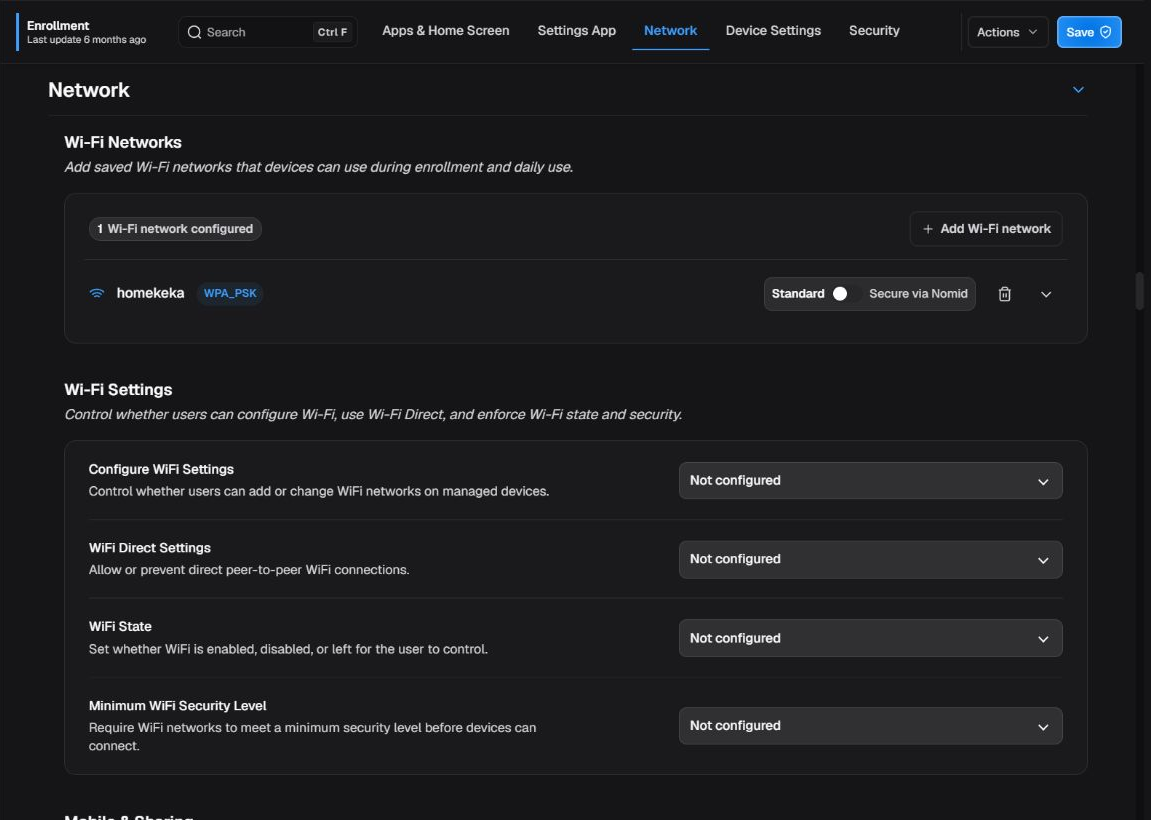
The Network area starts with Wi-Fi networks and connection settings.
¶ Wi-Fi networks

Representative privacy-safe view of the Wi-Fi Networks box; the tables below cover its settings and options without exposing network identifiers.
Profile name/GUID
| Option or state | Effect | When to use and applicability |
|---|---|---|
| Profile name/GUID | Identifies the network configuration internally for editing and synchronization. | Use a unique identifier; do not confuse it with the SSID broadcast by the access point. |
SSID
| Field or value | Effect | When to use and applicability |
|---|---|---|
| SSID | Defines the exact network name the device will try to find. | Match case exactly and do not publish private names in examples. |
Wi-Fi network security
| Option or state | Effect | When to use and applicability |
|---|---|---|
| open | Configures a network without password authentication. | Use only on a controlled network with compensating protection; traffic may be exposed. |
| WEP-PSK | Configures WEP shared-key authentication. | Use only for legacy compatibility; WEP is weak and should be replaced. |
| WPA-PSK | Configures WPA pre-shared-key authentication. | Use a strong credential managed through a secure channel; the effective version depends on access point and device. |
Password/key
| Option or state | Effect | When to use and applicability |
|---|---|---|
| Passphrase/key | Provides the credential used by the selected security method. | Never include the value in manuals, screenshots, or tickets; validate through a secure channel. |
Connect automatically
| Option or state | Effect | When to use and applicability |
|---|---|---|
| Auto-connect | When enabled, the device attempts to connect when the network is available; when disabled, it does not request automatic connection. | Enable for preferred corporate networks; disable for occasional or test networks. |
Wi-Fi profile type
| Option or state | Effect | When to use and applicability |
|---|---|---|
| Standard | Creates an Android Wi-Fi configuration with SSID, Open, WEP-PSK, or WPA-PSK security, a passphrase when required, and optional auto-connect. | Use as a normal managed profile when the device accepts the corresponding Android configuration. |
| Secure | Keeps the network in Nomid Settings managed configuration with WPA2 security, a passphrase, and auto-connect; the component converts the profile between models when the type is switched. | Use when the fleet depends on the Nomid Settings secure Wi-Fi flow; validate that app and its version. |
¶ Wi-Fi settings
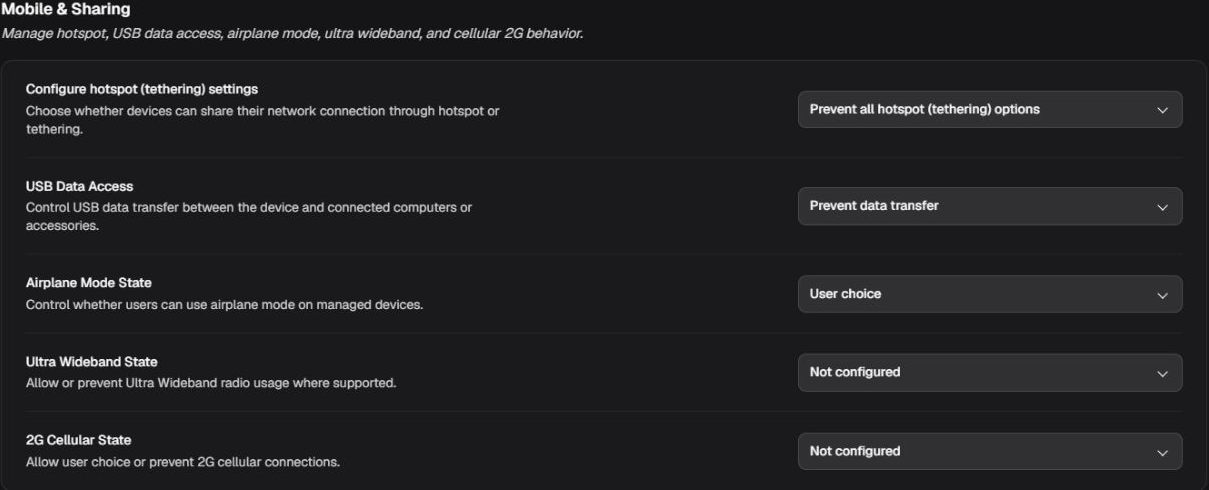
Wi-Fi settings and mobile sharing.
Configure WiFi Settings
| Option or state | Effect | When to use and applicability |
|---|---|---|
| Not configured | Does not impose a Wi-Fi configuration policy on the user. | Use when another layer defines the rule or the user keeps the system default. |
| Allow user to configure WiFi | Allows the user to add and change Wi-Fi networks. | Use on devices where users need autonomy to manage connectivity. |
| Prevent user from configuring WiFi | Prevents the user from configuring Wi-Fi networks. | Use when all networks are managed; provide a recovery network. |
| Prevent user from adding new WiFi networks | Prevents adding new networks while preserving use of already provisioned networks. | Use when users may use existing profiles but must not register new SSIDs. |
| Enterprise network configuration | Restricts new Wi-Fi configuration to supported enterprise networks. | Use in managed 802.1X environments. |
| Enterprise 192-bit network configuration | Restricts new Wi-Fi configuration to enterprise networks with 192-bit security. | Use only when the infrastructure, certificates, and devices support this level. |
WiFi Direct Settings
| Option or state | Effect | When to use and applicability |
|---|---|---|
| Not configured | Does not impose a Wi-Fi Direct rule. | Use when the system default is acceptable. |
| Allow WiFi Direct | Allows peer-to-peer connections through Wi-Fi Direct. | Use for compatible printing, pairing, or transfer without an access point. |
| Prevent WiFi Direct | Prevents Wi-Fi Direct use. | Use to reduce peer-to-peer connections outside the managed network. |
Defines whether this policy leaves Wi-Fi without a specific instruction, lets the user choose, or keeps the radio always on or off.
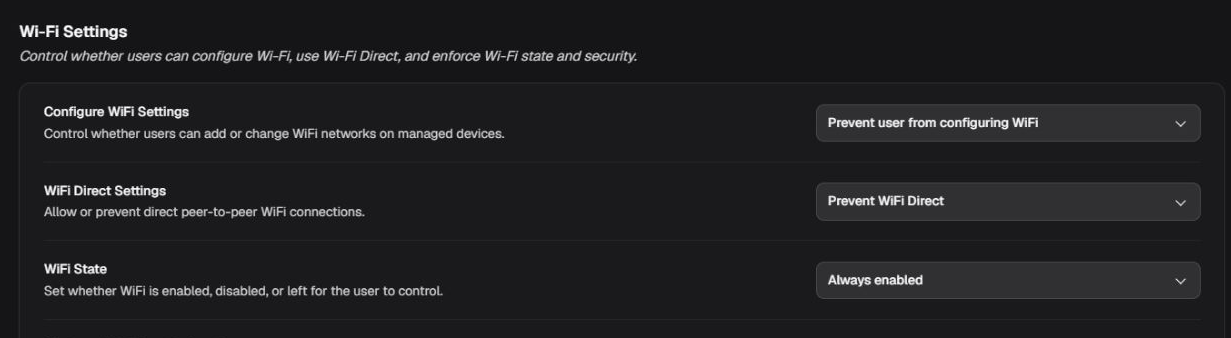
The WiFi State selector inside Wi-Fi settings.
WiFi State
| Option or state | Effect |
|---|---|
| Not configured | This policy does not set the Wi-Fi state. The current system, user, or other applicable policy behavior remains. |
| User choice | Lets the user turn Wi-Fi on or off on the device. |
| Always enabled | Requests that Wi-Fi remain on on supported devices. It suits managed equipment that depends on Wi-Fi for operation and synchronization. |
| Always disabled | Requests that Wi-Fi remain off. It can interrupt synchronization, app access, and remote support; use only when the operation has another connectivity path or requires Wi-Fi to be unavailable. |
Validate and recover: after distribution and synchronization, check on the device whether Wi-Fi can be changed and whether it keeps the selected state. The value saved in the Portal does not prove connectivity. If access is lost, restore the previous policy value or revision and validate again on a pilot device before wider distribution.
Minimum WiFi Security Level
| Option or state | Effect | When to use and applicability |
|---|---|---|
| Not configured | Sets no minimum Wi-Fi security level. | Use when another layer evaluates security; open networks may still be accepted. |
| Allow open networks | Allows open networks as the minimum level. | Use only in controlled scenarios; this level does not authenticate the network. |
| Require personal network security (WEP/WPA) | Requires at least a compatible secured personal network. | Use for home or organizational networks with a shared password, as supported. |
| Require enterprise network security | Requires enterprise security, normally 802.1X. | Use with enterprise identity and certificates configured. |
| Require 192-bit enterprise security | Requires 192-bit enterprise security. | Use only with compatible infrastructure and devices. |
¶ Mobile sharing
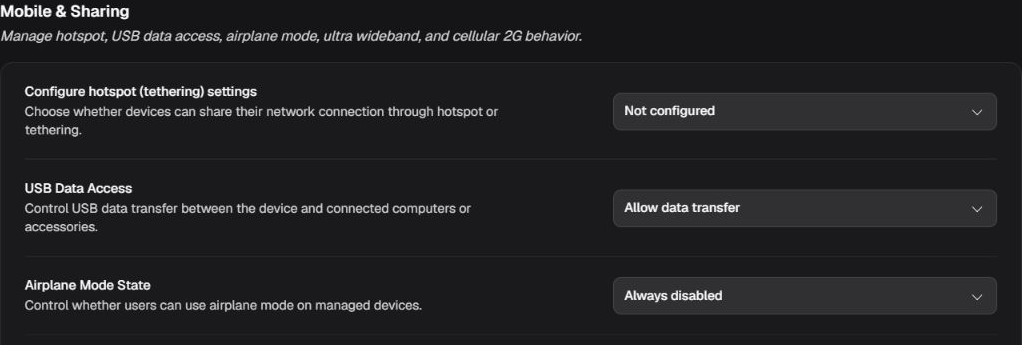
Representative upper segment of the Mobile & Sharing box in the Tablet-20260625 policy; the tables below also cover ultra wideband and cellular 2G.
Configure hotspot (tethering) settings
| Option or state | Effect | When to use and applicability |
|---|---|---|
| Not configured | Does not impose a tethering rule. | Choose according to whether the device may share connectivity; test each tethering method used by the operation. |
| Allow all hotspot (tethering) options | Allows all supported tethering methods. | Choose according to whether the device may share connectivity; test each tethering method used by the operation. |
| Disable WiFi hotspot (tethering) | Blocks the Wi-Fi hotspot without claiming to block every other tethering method. | Choose according to whether the device may share connectivity; test each tethering method used by the operation. |
| Prevent all hotspot (tethering) options | Blocks all tethering methods covered by Android. | Choose according to whether the device may share connectivity; test each tethering method used by the operation. |
USB Data Access
| Option or state | Effect | When to use and applicability |
|---|---|---|
| Not configured | Does not impose a USB data rule. | Choose the least USB restriction that meets the data-protection requirement and preserves required maintenance. |
| Allow data transfer | Allows data transfer through USB. | Choose the least USB restriction that meets the data-protection requirement and preserves required maintenance. |
| Prevent file transfer | Blocks file transfer while preserving any other USB uses still allowed by the platform. | Choose the least USB restriction that meets the data-protection requirement and preserves required maintenance. |
| Prevent data transfer | Blocks USB data transfer; charging may continue depending on hardware. | Choose the least USB restriction that meets the data-protection requirement and preserves required maintenance. |
Airplane Mode State
| Option or state | Effect | When to use and applicability |
|---|---|---|
| Not configured | Does not control airplane mode through this policy. | Allow user choice when local staff may intentionally disconnect every radio; keep it disabled on unattended devices that must remain reachable. |
| User choice | Lets the user control airplane mode. | Allow user choice when local staff may intentionally disconnect every radio; keep it disabled on unattended devices that must remain reachable. |
| Always disabled | Prevents airplane mode from being enabled. | Allow user choice when local staff may intentionally disconnect every radio; keep it disabled on unattended devices that must remain reachable. |
Ultra Wideband State
| Option or state | Effect | When to use and applicability |
|---|---|---|
| Not configured | Does not control ultra-wideband through this policy. | Use only on devices with UWB and according to whether proximity/location features are required. |
| Allow user to control Ultra Wideband | Lets the user control ultra-wideband. | Use only on devices with UWB and according to whether proximity/location features are required. |
| Prevent Ultra Wideband usage | Prevents ultra-wideband use. | Use only on devices with UWB and according to whether proximity/location features are required. |
2G Cellular State
| Option or state | Effect | When to use and applicability |
|---|---|---|
| Not configured | Does not control 2G cellular service through this policy. | Disable 2G only after confirming adequate 4G/5G coverage for the fleet. |
| Allow user to control 2G cellular | Lets the user control 2G cellular service. | Disable 2G only after confirming adequate 4G/5G coverage for the fleet. |
| Prevent 2G cellular usage | Prevents 2G cellular service. | Disable 2G only after confirming adequate 4G/5G coverage for the fleet. |
¶ APN

The APN box contains the replacement control and the settings that appear when the feature is enabled.
An APN is the profile a device uses to access a carrier's mobile-data services. This box should replace carrier profiles only when every official parameter is known; an incorrect configuration can prevent mobile data, MMS, or auxiliary services.
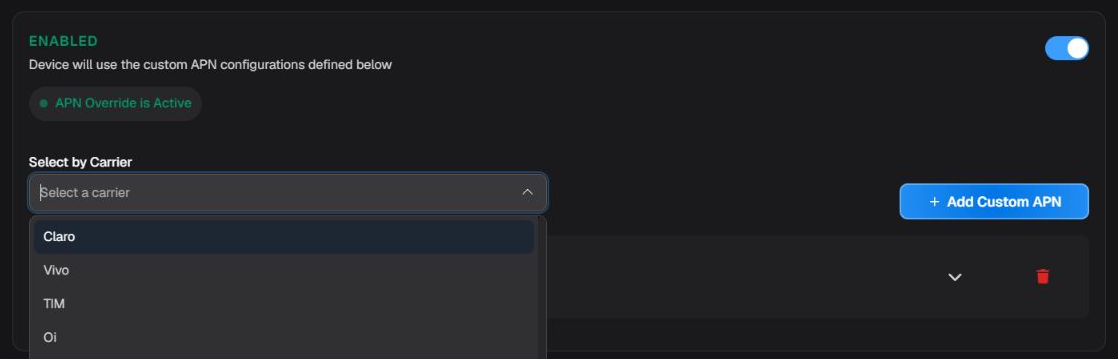
APN replacement enabled locally and the templates available in the carrier selector.
Override APNs
| Option or state | Effect |
|---|---|
| Disabled | Preserves profiles supplied by the SIM, carrier, or system; custom APN controls remain hidden. |
| Enabled | Allows the policy to define APNs on compatible devices. Use only with carrier-confirmed parameters. |
APN carrier
| Option or state | Effect |
|---|---|
| APN carrier — carrier template | Selecting a template prefills one or more profiles from the built-in catalog. Review every field before saving; this manual does not reproduce catalog credentials or sensitive values. |
The static templates are Claro, Vivo, TIM, Oi, Algar Telecom (CTBC), Sercomtel, Nextel (Claro NXT), Correios Celular (MVNO), Fluke, and Salvy. For a manual APN, leave the carrier selector empty and use Add Custom APN.
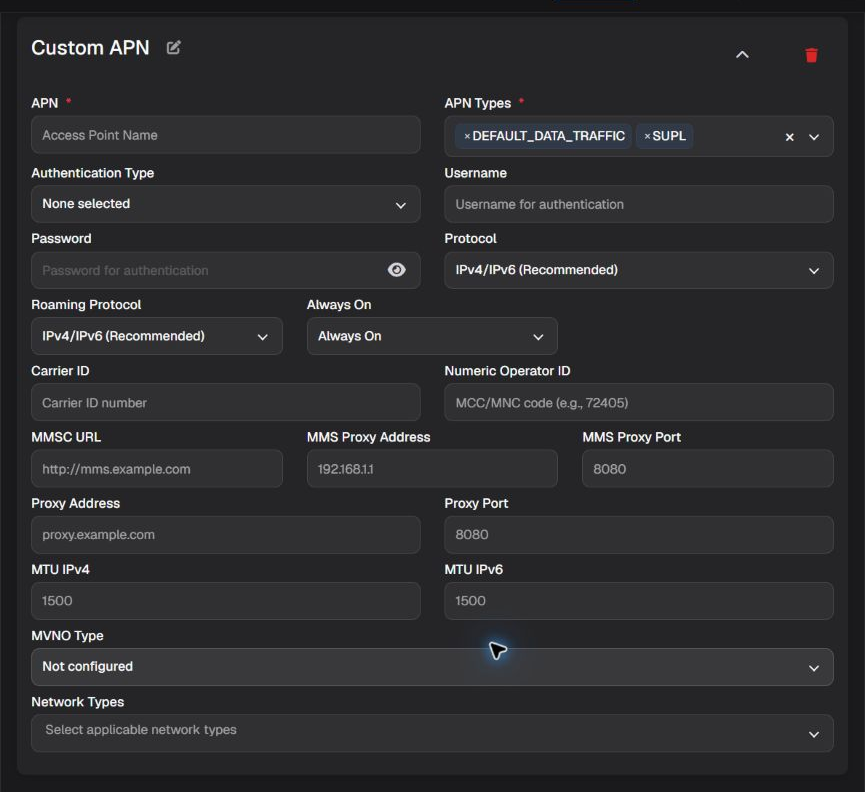
A custom APN form with visible fields and sample entries.
Example text shown inside empty fields is not submitted as a value. Enter only official parameters supplied by the carrier.
Display name
| Field or value | Effect |
|---|---|
| Display name | Identifies the APN card in the Portal; it does not replace the technical APN name. |
APN
| Option or state | Effect |
|---|---|
| APN | Defines the access-point name supplied by the carrier. An incorrect value can prevent mobile data. |
Username
| Field or value | Effect |
|---|---|
| Username | Supplies the authentication username when required by the carrier. Treat it as sensitive data. |
Password
| Field or value | Effect |
|---|---|
| Password | Supplies the authentication password when required. Never include the value in manuals, images, or support cases. |
Select only types supplied by the carrier; the combination determines which services can use the profile.
APN types
| Option or state | Effect |
|---|---|
| ENTERPRISE — enterprise | Uses the APN for enterprise traffic. |
| BIP | Uses the APN for Bearer Independent Protocol. |
| CBS | Uses the APN for Cell Broadcast Service. |
| DEFAULT_DATA_TRAFFIC — default data | Uses the APN for default mobile data. |
| DUN | Uses the APN for mobile connection sharing. |
| EMERGENCY — emergency | Uses the APN for emergency services. |
| FOTA | Uses the APN for carrier-provided firmware updates. |
| HIPRI | Uses the APN for high-priority data. |
| IA | Uses the APN for initial network attachment. |
| IMS | Uses the APN for IMS services such as voice over LTE when supported. |
| MCX | Uses the APN for mission-critical communication services. |
| MMS | Uses the APN for multimedia messaging. |
| RCS | Uses the APN for rich communication services. |
| SUPL | Uses the APN for network-assisted location. |
| VSIM | Uses the APN for virtual SIM services. |
| XCAP | Uses the APN for carrier service configuration. |
The searchable labels in this group are APN authentication, APN protocol, and Roaming protocol.
APN authentication
| Option or state | Effect |
|---|---|
| None | Uses no PAP or CHAP authentication. |
| PAP | Uses PAP authentication; credentials have less in-transit protection than with CHAP. |
| CHAP | Uses CHAP challenge-response authentication. |
| PAP or CHAP | Lets the network negotiate PAP or CHAP. |
APN protocol
| Option or state | Effect |
|---|---|
| IPv4 | Uses IPv4 on the home network. |
| IPv4/IPv6 | Uses dual-stack IPv4 and IPv6 on the home network. |
| IPv6 | Uses IPv6 on the home network. |
| Non-IP | Uses non-IP traffic on the home network. |
| PPP | Uses PPP on the home network. |
| Unstructured | Uses unstructured traffic on the home network. |
Roaming protocol
| Option or state | Effect |
|---|---|
| IPv4 | Uses IPv4 while the device is roaming. |
| IPv4/IPv6 | Uses dual stack while the device is roaming. |
| IPv6 | Uses IPv6 while the device is roaming. |
| Non-IP | Uses non-IP traffic while roaming. |
| PPP | Uses PPP while roaming. |
| Unstructured | Uses unstructured traffic while roaming. |
The searchable groups in this part are Always-on APN, MVNO type, and APN network types.
Do not choose these parameters by trial and error. Use only official carrier values and test the profile on a pilot device before wider distribution.
Carrier ID
| Field or value | Effect |
|---|---|
| Carrier ID | Applies the carrier identifier recognized by the platform when supplied. |
Numeric Operator ID
| Field or value | Effect | When to use and applicability |
|---|---|---|
| Numeric Operator ID | Supplies the carrier's numeric operator identifier used by the APN profile; it is distinct from Carrier ID, MCC, and MNC. | Enter only the official value supplied by the carrier; do not determine this identifier by trial and error. |
MCC
| Field or value | Effect |
|---|---|
| MCC | Supplies the mobile network's country code. |
MNC
| Field or value | Effect |
|---|---|
| MNC | Supplies the carrier's network code. Incorrect MCC or MNC values can prevent matching with the SIM. |
MMSC
| Field or value | Effect |
|---|---|
| MMSC | Defines the service address used to send and receive MMS. |
MMS proxy address
| Field or value | Effect |
|---|---|
| MMS proxy address | Routes MMS through the proxy specified by the carrier. |
MMS proxy port
| Field or value | Effect |
|---|---|
| MMS proxy port | Defines the port used by the MMS proxy. |
Proxy address
| Field or value | Effect |
|---|---|
| Proxy address | Routes this APN's traffic through the specified proxy; it is not the policy global proxy. |
Proxy port
| Field or value | Effect |
|---|---|
| Proxy port | Defines the port for the APN proxy. |
IPv4 MTU
| Field or value | Effect |
|---|---|
| IPv4 MTU | Defines the requested maximum IPv4 packet size for this APN. Change it only as directed by the carrier. |
IPv6 MTU
| Field or value | Effect |
|---|---|
| IPv6 MTU | Defines the requested maximum IPv6 packet size for this APN. Change it only as directed by the carrier. |
Always-on APN
| Option or state | Effect |
|---|---|
| Unspecified | Requests no specific persistent-connection behavior. |
| Not always on | States that the APN does not need to remain connected continuously. |
| Always on | Requests that the APN remain connected when the platform supports it. Assess battery and network use. |
MVNO type
| Option or state | Effect |
|---|---|
| Unspecified | Uses no specific mobile virtual network matching. |
| Gid — GID | Matches a virtual carrier by group identifier. |
| Iccid — ICCID | Matches by the SIM card identifier. |
| Imsi — IMSI | Matches by the mobile subscription identifier. |
| Spn — SPN | Matches by the service provider name stored on the SIM. |
APN network types
| Option or state | Effect |
|---|---|
| EDGE | Allows the APN on EDGE access. |
| GPRS | Allows the APN on GPRS access. |
| Gsm — GSM | Allows the APN on GSM access. |
| Hsdpa — HSDPA | Allows the APN on HSDPA access. |
| Hspa — HSPA | Allows the APN on HSPA access. |
| Hspap — HSPA+ | Allows the APN on HSPA+ access. |
| Hsupa — HSUPA | Allows the APN on HSUPA access. |
| Iwlan — IWLAN | Allows the APN on IWLAN access. |
| LTE | Allows the APN on LTE/4G access. |
| NR | Allows the APN on NR/5G access. |
| TD_SCDMA — TD-SCDMA | Allows the APN on TD-SCDMA access. |
| Umts — UMTS | Allows the APN on UMTS/3G access. |
APN options configure the profile sent by the policy; availability and the device result depend on Android, the modem, the carrier, and management mode. Confirm connectivity after distribution without exposing credentials.
Validate and recover: validate mobile data and required services on a pilot device first. The Portal confirms the saved configuration and the state it can report, but not that the carrier accepted every parameter. If connectivity fails, restore the previous configuration or revision in the policy itself or in History and confirm recovery before distributing again.
¶ VPN

Complete VPN box in the Tablet-20260625 policy. Always-on VPN is not shown in the current state and remains documented in the table as a conditional setting.
Always-on VPN lockdown
| Option or state | Effect | When to use and applicability |
|---|---|---|
| Enabled | Makes traffic lockdown outside the always-on VPN available on compatible devices. | Use only after selecting and testing an always-on VPN app because a VPN failure may stop all traffic. |
| Disabled | Keeps traffic lockdown outside the always-on VPN unavailable through this control. | Use when the device may access the network outside the VPN while the tunnel is unavailable or reconnecting. |
Always-on VPN app source
| Option or state | Effect | When to use and applicability |
|---|---|---|
| Play Store app | Selects a VPN package from the catalog and adds it to the policy if it is not already present. | Use an approved VPN client compatible with Android Enterprise. |
| App already in the list | Associates a package already included in the policy with always-on VPN. | Use to avoid duplicates and retain the app's existing properties. |
VPN package name
| Field or value | Effect | When to use and applicability |
|---|---|---|
| Package name | Manually associates the supplied Android identifier and creates the app entry when needed. | Use only the VPN client's official package name. |
Remove VPN app
| Action | Effect | Guidance, risk, and recovery |
|---|---|---|
| Remove app | Clears the always-on VPN package and its associated lockdown choice; it does not necessarily remove the app from the policy's general app list. | Use when the policy should no longer enforce that client as always-on VPN. |
¶ Global proxy

Complete Global Proxy box in the Tablet-20260625 policy, with the toggle turned off. Host, URL, credential, and exception fields appear only when the setting is enabled and remain documented in the tables.
Global proxy
| Option or state | Effect | When to use and applicability |
|---|---|---|
| Disabled | Keeps the global proxy unavailable through this control. | Use when traffic should not pass through a global proxy; proxy and bypass fields remain hidden. |
| Enabled | Makes the global proxy available on compatible devices. | Use only with a confirmed host and port or PAC URL reachable from every expected network. |
Proxy bypass hosts
| Option or state | Effect |
|---|---|
| One or more hostnames | Makes these destinations bypass the global proxy. |
Guidance for One or more hostnames: Use for internal services or services incompatible with the proxy. Do not include protocol, password, or path when the field expects only a host.
Global proxy host
| Field or value | Effect | When to use and applicability |
|---|---|---|
| Host | Routes compatible traffic to the specified fixed server and port. | Use when the same proxy is reachable from every expected network. |
Global proxy port
| Field or value | Effect | When to use and applicability |
|---|---|---|
| Port | Routes compatible traffic to the specified fixed server and port. | Use when the same proxy is reachable from every expected network. |
PAC URL
| Field or value | Effect | When to use and applicability |
|---|---|---|
| PAC URL | Retrieves a PAC file that decides when and which proxy to use. | Use a stable HTTPS URL and validate availability before distribution. |
¶ Advanced restrictions
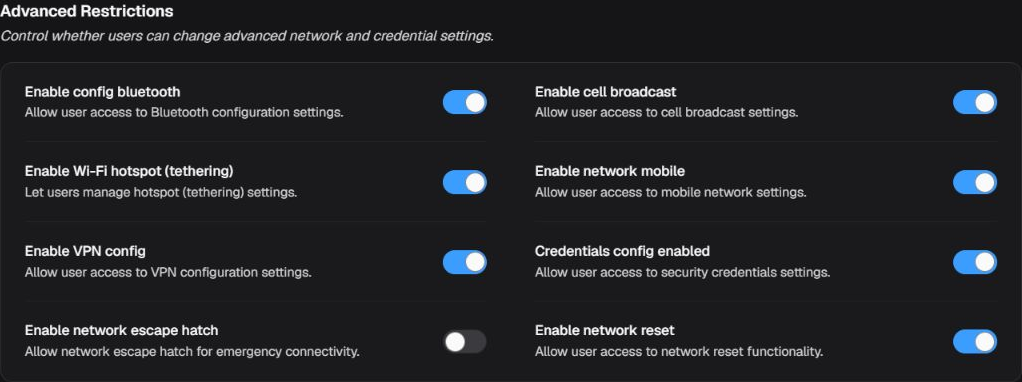
Complete Advanced Restrictions box in the Tablet-20260625 policy. Seven controls are on; network escape hatch is off.
Bluetooth configuration
| Option or state | Effect |
|---|---|
| Enabled | Allows local Bluetooth configuration when the device provides that capability. |
| Disabled | Prevents local Bluetooth configuration when the device provides that restriction. |
Cell-broadcast configuration
| Option or state | Effect |
|---|---|
| Enabled | Allows local network-alert configuration when the device provides that capability. |
| Disabled | Prevents local network-alert configuration when the device provides that restriction. |
Tethering configuration
| Option or state | Effect |
|---|---|
| Enabled | Allows local tethering configuration when the device provides that capability. |
| Disabled | Prevents local tethering configuration when the device provides that restriction. |
Mobile-network configuration
| Option or state | Effect |
|---|---|
| Enabled | Allows local mobile-network configuration when the device provides that capability. |
| Disabled | Prevents local mobile-network configuration when the device provides that restriction. |
VPN configuration
| Option or state | Effect |
|---|---|
| Enabled | Allows local VPN configuration when the device provides that capability. |
| Disabled | Prevents local VPN configuration when the device provides that restriction. |
Credential configuration
| Option or state | Effect |
|---|---|
| Enabled | Allows local network-credential configuration when the device provides that capability. |
| Disabled | Prevents local network-credential configuration when the device provides that restriction. |
Network escape hatch
| Option or state | Effect | When to use and applicability |
|---|---|---|
| Enabled | Makes the network escape hatch available on compatible devices. | Use in restricted experiences only when the model provides a tested network escape hatch for connectivity recovery. |
| Disabled | Keeps the network escape hatch unavailable through this control. | Use when that local escape path must not be available and another documented network-recovery procedure exists. |
Network reset
| Option or state | Effect |
|---|---|
| Enabled | Allows local network-settings reset when the device provides that capability. |
| Disabled | Prevents local network-settings reset when the device provides that restriction. |
¶ Device Settings
The blocks follow the Portal screen: device controls, display and lock, permissions, update, users, and hardware. Confirm compatibility before restricting local maintenance, access, or recovery.
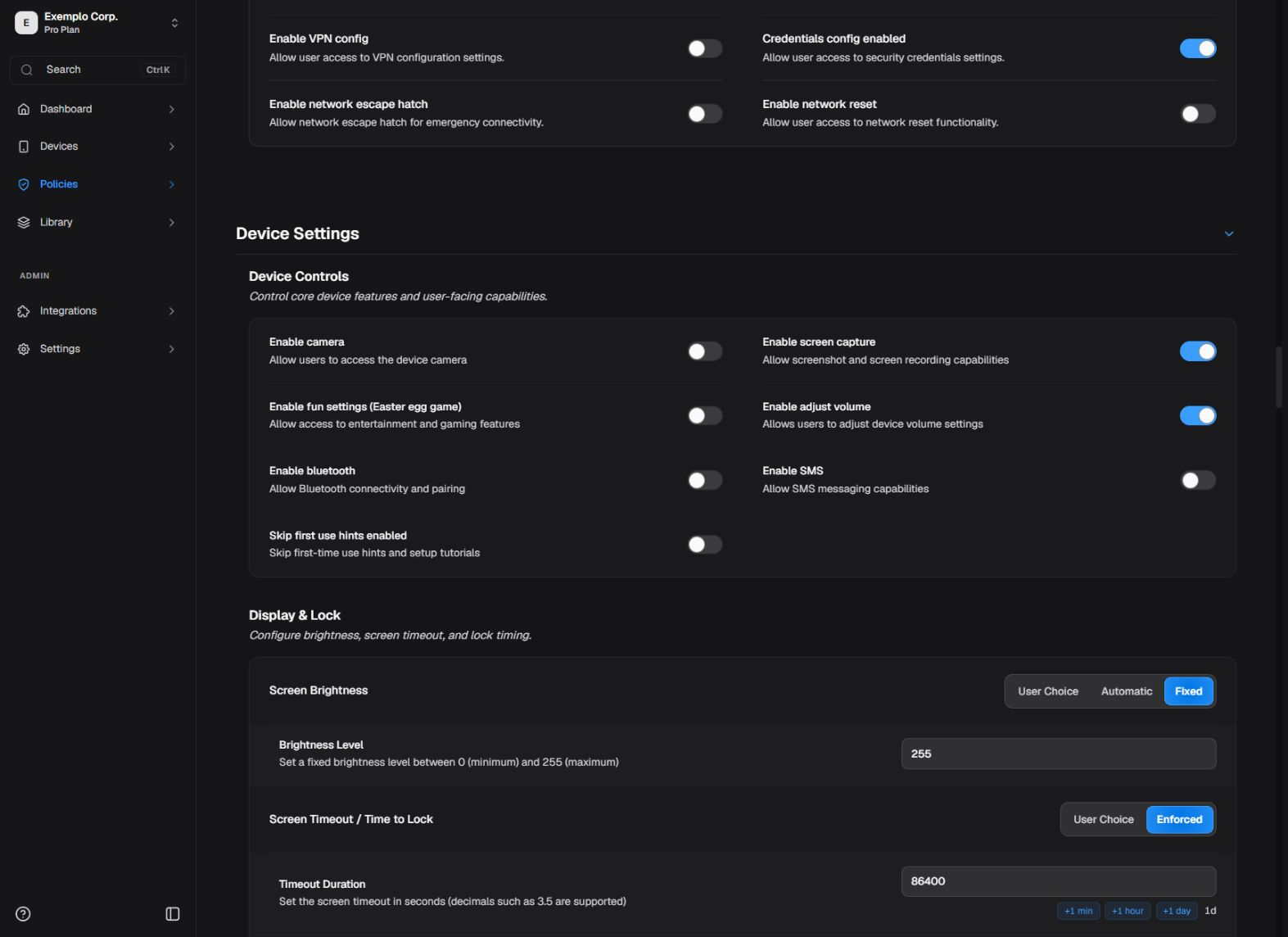
Device controls in the editor.
¶ Device controls
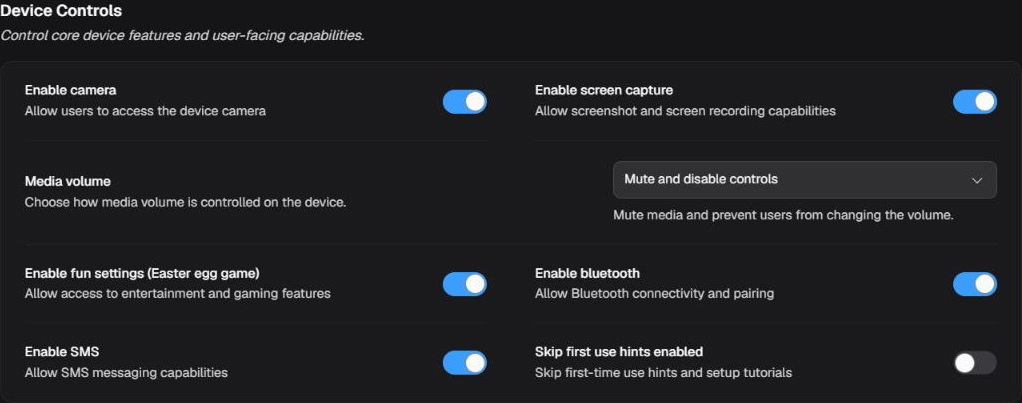
Device Controls in the Tablet-20260625 policy. The six toggles and media volume mode are shown in the policy's current state.
Enable camera
| Option or state | Effect | When to use and applicability |
|---|---|---|
| Enabled | Allows the camera when the device provides that capability. | Use when the camera is part of authorized operations. |
| Disabled | Prevents the camera when the device provides that restriction. | Use when image capture is unnecessary or represents a risk. |
Enable screen capture
| Option or state | Effect | When to use and applicability |
|---|---|---|
| Enabled | Allows screenshots and screen recording when the device provides that capability. | Use when capture is required for support or authorized evidence. |
| Disabled | Prevents screenshots and screen recording when the device provides that restriction. | Use to protect displayed data, considering supported exceptions for screen-sharing apps. |
Enable fun features
| Option or state | Effect | When to use and applicability |
|---|---|---|
| Enabled | Allows system fun features and Easter eggs when the device provides that capability. | Use when these features do not interfere with device purpose. |
| Disabled | Prevents system fun features and Easter eggs when the device provides that restriction. | Use on strictly operational devices. |
Enable volume adjustment
| Option or state | Effect | When to use and applicability |
|---|---|---|
| Enabled | Allows local volume adjustment when the device provides that capability. | Use when users need to adapt audio to the environment. |
| Disabled | Prevents local volume adjustment when the device provides that restriction. | Use on terminals that require a fixed, tested volume. |
Enable Bluetooth
| Option or state | Effect | When to use and applicability |
|---|---|---|
| Enabled | Allows the Bluetooth radio and connections when the device provides that capability. | Use when approved readers, headsets, or peripherals depend on Bluetooth. |
| Disabled | Prevents the Bluetooth radio and connections when the device provides that restriction. | Use when no Bluetooth peripheral is required. |
Enable SMS
| Option or state | Effect | When to use and applicability |
|---|---|---|
| Enabled | Allows SMS use and sending when the device provides that capability. | Use when SMS is operationally required and allowed by the plan. |
| Disabled | Prevents SMS use and sending when the device provides that restriction. | Use on devices with no messaging purpose or to reduce cost and risk. |
Skip first-use hints
| Option or state | Effect | When to use and applicability |
|---|---|---|
| Enabled | Requests Android to skip supported first-use hints and screens. | Use for bulk provisioning or kiosk to reduce user steps. |
| Disabled | Allows the system to show its default initial guidance. | Use when manufacturer guidance helps new users. |
¶ Display and lock
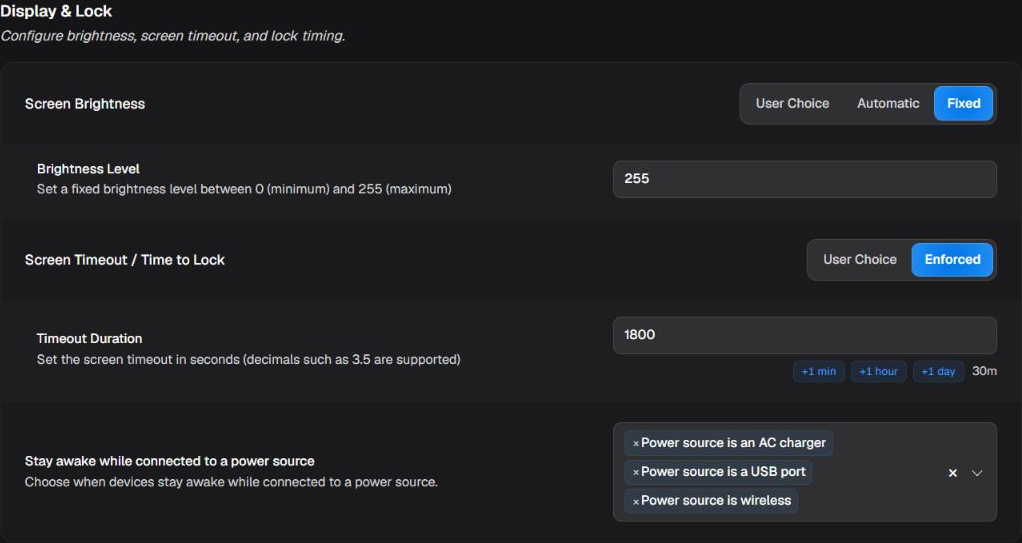
Display and Lock in the Tablet-20260625 policy. In this observed state, Brightness Level is 255 and Timeout Duration is 1800; effects, supported limits, and configuration decisions remain explained by the tables.
Stay awake while plugged in
| Option or state | Effect | When to use and applicability |
|---|---|---|
| Unknown | Does not specify a power source that should keep the screen awake. | Use when the policy should not impose this behavior. |
| AC | Keeps the device awake while connected to AC charger. | Use for fixed terminals or continuously powered kiosks; assess power use and screen wear. |
| USB | Keeps the device awake while connected to USB power. | Use for fixed terminals or continuously powered kiosks; assess power use and screen wear. |
| Wireless | Keeps the device awake while connected to wireless charging. | Use for fixed terminals or continuously powered kiosks; assess power use and screen wear. |
Brightness mode
| Option or state | Effect | When to use and applicability |
|---|---|---|
| User choice | Lets the user adjust the value on the device. | Use when individual preference does not compromise operation or security. |
| Automatic | Lets the system adjust brightness according to sensors and ambient conditions. | Use to balance readability and power use in changing environments. |
| Fixed | Enforces the brightness level entered in the associated numeric field. | Use in controlled environments; test readability and power use before distribution. |
Screen timeout
| Option or state | Effect | When to use and applicability |
|---|---|---|
| User choice | Lets the user adjust the value on the device. | Use when individual preference does not compromise operation or security. |
| Enforced | Enforces the configured delay before turning off the screen or locking the device. | Use to standardize security and power use; a very short value may interrupt tasks. |
¶ App permission controls
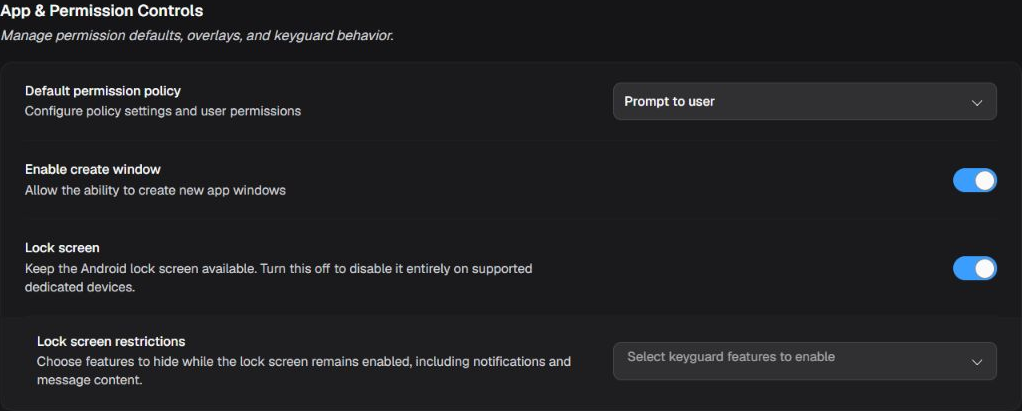
Default permission policy, window creation, and lock-screen controls in the Tablet-20260625 policy.
Portal label: Default permission policy
Device default permission policy
This is the same global permission policy shown under Permissions and relaunch and App & Permission Controls; these are not independent defaults. The restriction below does not apply to an application's default or to individual permission rules.
| Option or state | Effect | When to use and applicability |
|---|---|---|
| Not set | Does not impose a decision; Android, the app, or another applicable policy keeps the default behavior. | Use when this rule should not manage the permission. It does not mean granted or denied. |
| Prompt user | Leaves the decision with the user and displays the permission prompt when the app needs it. | On personal or shared devices with an operator, this lets the user decide after reading why access is requested. For unattended kiosks, prefer an explicit, tested decision. |
| Grant | May appear in policies already using this default. This version rejects changing the global default from another value to Grant. | Do not select it to introduce a new global grant. Assess app-level or individual permission rules separately, using the least access required and a pilot test. |
| Deny | Denies the permission by policy; the app feature that depends on it may stop working. | Use to block unnecessary or prohibited access after testing the application's main flow. |
Guidance: Use only for the feature that must be unavailable before unlock; All Features has the broadest impact.
Disabled keyguard features
| Option or state | Effect |
|---|---|
| Camera | This selection removes camera access from the lock screen. |
| Notifications | This selection hides notifications on the lock screen. |
| Unredacted notifications | This selection hides unredacted sensitive notification content. |
| Trust agents | This selection disables trust agents used for unlocking. |
| Disable fingerprint | This selection prevents fingerprint unlock. |
| Disable remote input | This selection prevents remote input and replies from the lock screen. |
| Face | This selection prevents face unlock. |
| Iris | This selection prevents iris unlock. |
| Biometrics | This selection prevents biometric unlock methods. |
| All features | This selection disables all lock-screen features covered by the platform. |
Prevent window creation
| Option or state | Effect | When to use and applicability |
|---|---|---|
| Enabled | The restriction is active and prevents apps from creating windows over other apps where the version and management mode support it. | Use to reduce overlays, phishing, and visual kiosk escape. |
| Disabled | The policy does not prevent apps from creating windows over other apps through this control; other policies or the system may still restrict it. | Use when an approved feature depends on overlays and has been tested. |
Disable keyguard
| Option or state | Effect | When to use and applicability |
|---|---|---|
| Enabled | The restriction is active and prevents use of the lock screen or keyguard where the version and management mode support it. | Use only on a dedicated device with physical control and assessed risk. |
| Disabled | The policy does not prevent use of the lock screen or keyguard through this control; other policies or the system may still restrict it. | Use to preserve normal lock-screen authentication and protection. |
¶ System update
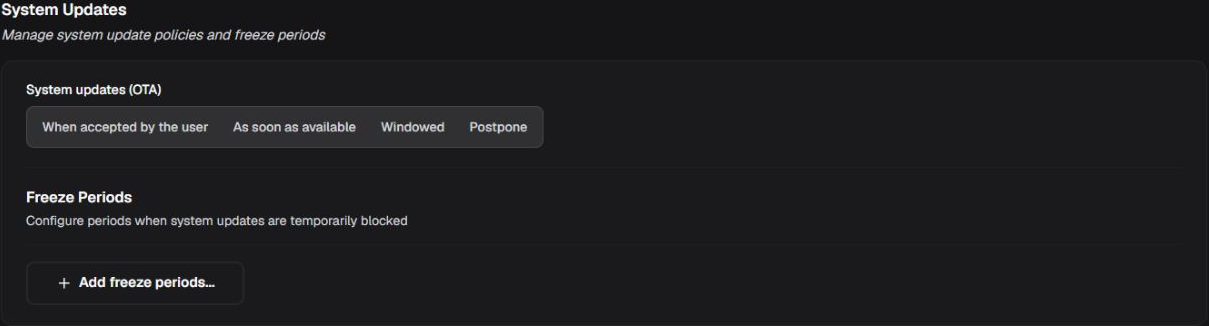
System update preferences and periods.
System update preference
| Option or state | Effect | When to use and applicability |
|---|---|---|
| Unspecified | Does not impose a system-update mode through this policy. | Use to follow manufacturer and Android default behavior. |
| Automatic | Requests automatic installation of available updates subject to device requirements. | Use when patch speed is a priority and operations tolerate automatic updates. |
| Windowed | Restricts automatic installation to the configured daily start and end window. | Use to reduce disruption during operating hours; confirm device time zone. |
| Postpone | Postpones updates for up to the number of days accepted by the Portal and platform, currently bounded in the form. | Use for short compatibility validation; do not treat it as a permanent patch block. |
Guidance: Use for critical periods. Overlapping periods or dates outside Android rules may be rejected.
Freeze periods
| Option or state | Effect |
|---|---|
| Start and end dates | Defines recurring intervals when system updates should not be installed. |
Guidance: Use a value compatible with risk and task length; shorter values improve security but may interrupt work.
Maximum time to lock
| Option or state | Effect |
|---|---|
| Seconds or not set | Limits the maximum inactivity time before device lock, subject to the highest value accepted by the platform. |
¶ User controls
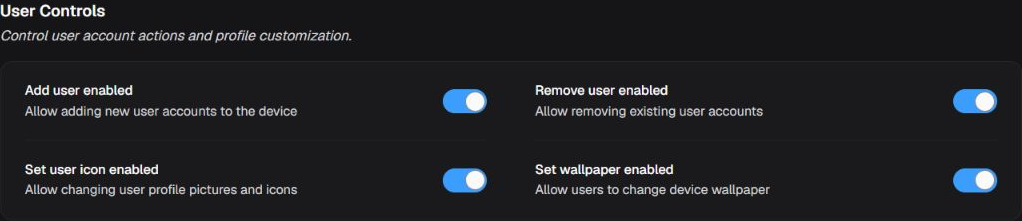
Controls to add and remove users, set the user icon, and set the wallpaper in the Tablet-20260625 policy.
Prevent adding users
| Option or state | Effect | When to use and applicability |
|---|---|---|
| Enabled | The restriction is active and prevents local creation of new users where the version and management mode support it. | Use on single-user corporate devices or kiosks. |
| Disabled | The policy does not prevent local creation of new users through this control; other policies or the system may still restrict it. | Use when multiple local users are part of the approved model. |
Prevent removing users
| Option or state | Effect | When to use and applicability |
|---|---|---|
| Enabled | The restriction is active and prevents local removal of users where the version and management mode support it. | Use to prevent loss of profiles or data through local action. |
| Disabled | The policy does not prevent local removal of users through this control; other policies or the system may still restrict it. | Use when local administrators need to manage users. |
Prevent changing user icon
| Option or state | Effect | When to use and applicability |
|---|---|---|
| Enabled | The restriction is active and prevents local changes to the user icon where the version and management mode support it. | Use to maintain standardized visual identity. |
| Disabled | The policy does not prevent local changes to the user icon through this control; other policies or the system may still restrict it. | Use when profile personalization is allowed. |
Prevent changing wallpaper
| Option or state | Effect | When to use and applicability |
|---|---|---|
| Enabled | The restriction is active and prevents local wallpaper changes where the version and management mode support it. | Use on standardized or public-facing devices. |
| Disabled | The policy does not prevent local wallpaper changes through this control; other policies or the system may still restrict it. | Use when personalization is allowed and does not affect readability. |
¶ Hardware Controls
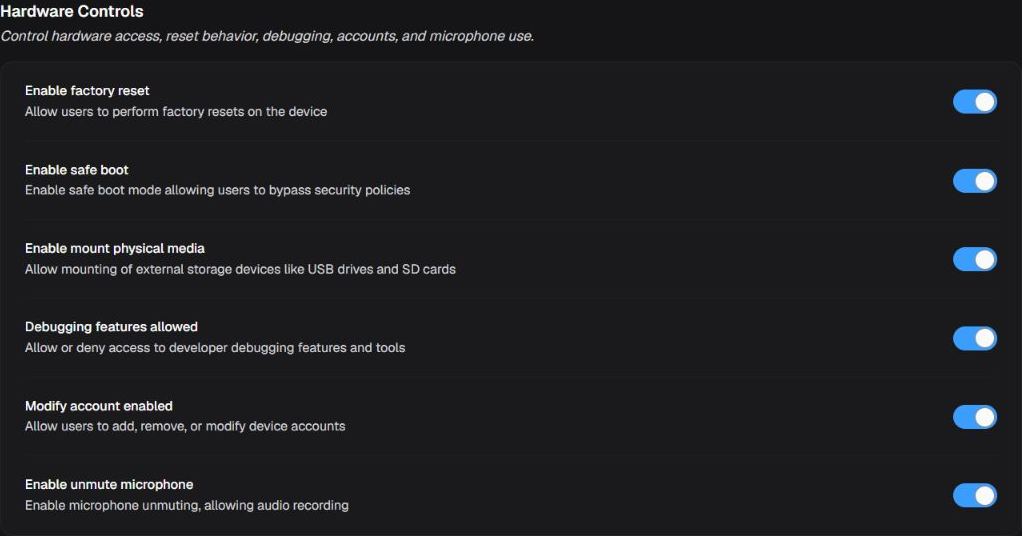
Hardware Controls in the Tablet-20260625 policy; the image shows all six controls materialized in the Portal.
Prevent factory reset
| Option or state | Effect | When to use and applicability |
|---|---|---|
| Enabled | The restriction is active and prevents a locally initiated factory reset where the version and management mode support it. | Use on corporate devices to prevent local removal of management. |
| Disabled | The policy does not prevent a locally initiated factory reset through this control; other policies or the system may still restrict it. | Disable the restriction only when operations require an authorized local reset. |
Prevent safe boot
| Option or state | Effect | When to use and applicability |
|---|---|---|
| Enabled | The restriction is active and prevents booting the device into safe mode where the version and management mode support it. | Use on kiosks and managed devices to reduce bypass paths. |
| Disabled | The policy does not prevent booting the device into safe mode through this control; other policies or the system may still restrict it. | Use when authorized local support needs safe-mode diagnostics. |
Prevent physical media
| Option or state | Effect | When to use and applicability |
|---|---|---|
| Enabled | The restriction is active and prevents mounting removable physical media where the version and management mode support it. | Use to reduce data ingress or egress through removable media. |
| Disabled | The policy does not prevent mounting removable physical media through this control; other policies or the system may still restrict it. | Use when operations depend on approved media and risk is controlled. |
Allow debugging features
| Option or state | Effect | When to use and applicability |
|---|---|---|
| Enabled | Allows supported debugging features on the device. | Use only for controlled development or support; debugging expands the attack surface. |
| Disabled | Does not grant debugging features through this control. | Use in production as the default posture. |
Prevent account changes
| Option or state | Effect | When to use and applicability |
|---|---|---|
| Enabled | The restriction is active and prevents locally adding, removing, or changing accounts where the version and management mode support it. | Use when accounts must be controlled by the organization. |
| Disabled | The policy does not prevent locally adding, removing, or changing accounts through this control; other policies or the system may still restrict it. | Use when the user needs to manage allowed accounts. |
Prevent unmuting microphone
| Option or state | Effect | When to use and applicability |
|---|---|---|
| Enabled | The restriction is active and prevents local unmuting of the microphone where the version and management mode support it. | Use where audio capture must remain blocked. |
| Disabled | The policy does not prevent local unmuting of the microphone through this control; other policies or the system may still restrict it. | Use when authorized calls, recording, or voice commands depend on the microphone. |
Validate and recover: apply first to a pilot device and observe the expected screen, permission, update, and hardware behavior. The Portal confirms configuration and available synchronization, not every physical effect. If access is lost or behavior is unexpected, return to the previous value or restore the previous revision and monitor the device in 3. Devices.
¶ Security
Review access, restrictions, installation, automatic responses, passwords, keys, and allowed services in the displayed order. Quarantine, wipe, and blocking require impact assessment and a recovery path.
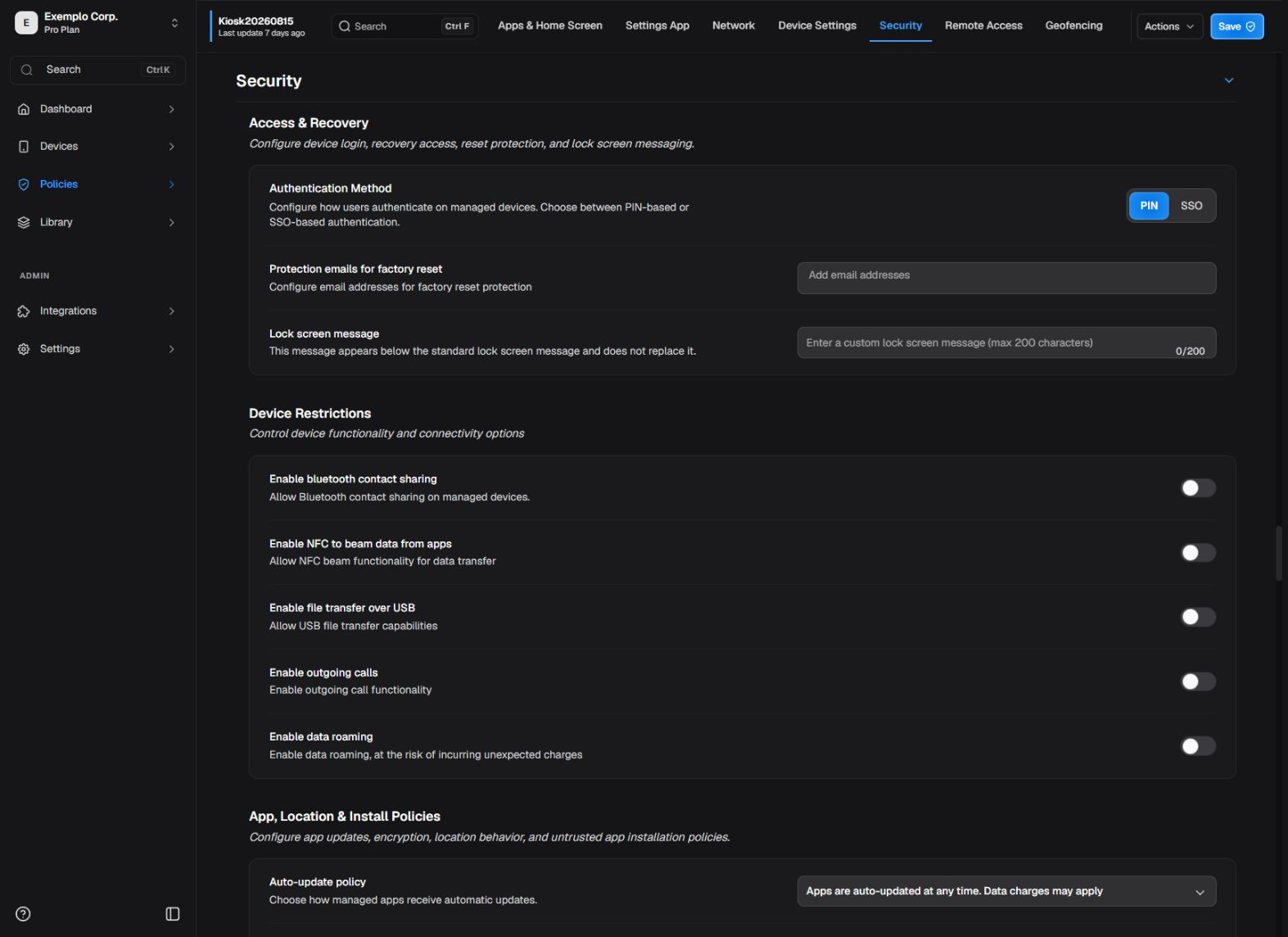
Device restrictions.
¶ Access and recovery
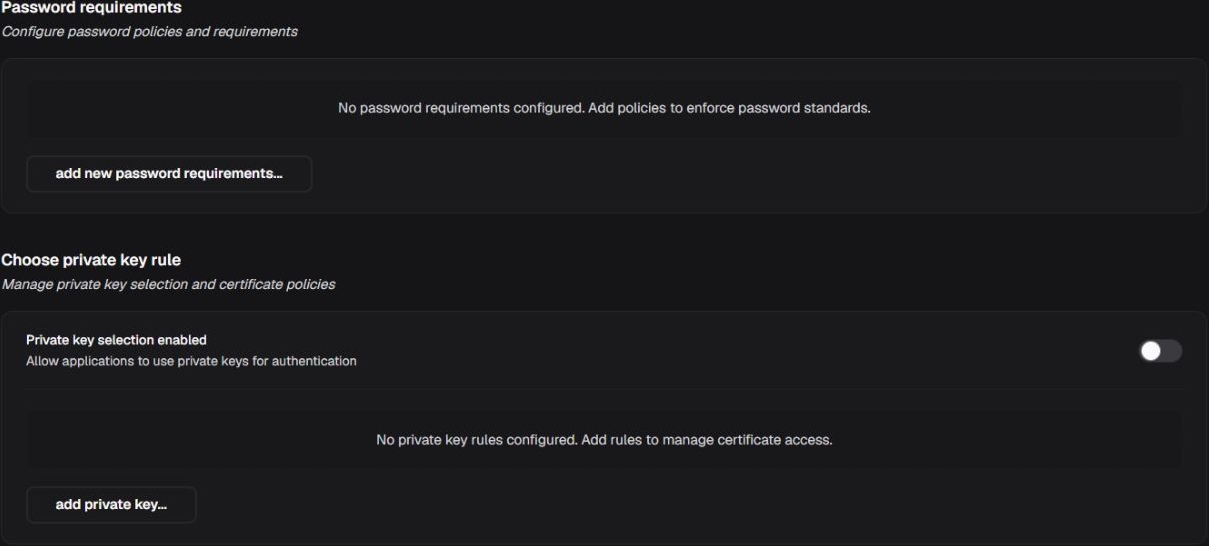
Access, credentials, and recovery.
Factory-reset protection emails
| Option or state | Effect |
|---|---|
| Authorized Google account | Adds the account to Factory Reset Protection (FRP). |
Guidance for Authorized Google account: Use recoverable organization admin accounts; do not publish real addresses in examples or screenshots.
Device login method
| Option or state | Effect | When to use and applicability |
|---|---|---|
| None | Does not configure a device login method. The Portal keeps Login requirement at Not required and makes dependent controls unavailable until PIN or SSO is chosen. | Use when the policy should not configure device login. |
| PIN | Uses a PIN for device login. | Use when simple local authentication fits the scenario and a secure recovery procedure exists. |
| SSO | Uses the company-configured single sign-on (SSO) integration for device login instead of a local PIN. | Use only with a previously validated SSO provider, app, and connectivity. |
Login requirement
Set this after choosing PIN or SSO. With None, the Portal keeps the requirement at Not required and does not allow it to be changed.
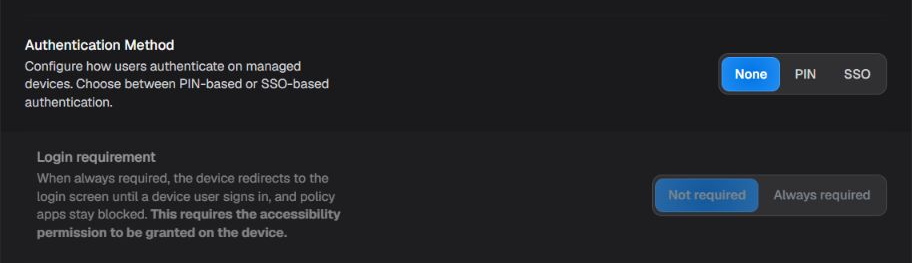
Authentication Method set to None and Login requirement set to Not required.
| Option or state | Effect |
|---|---|
| Not required | Keeps the login requirement disabled in the policy configuration. |
| Always required | Configures the policy to request login before user access; confirm the result on a pilot device because the Portal alone does not prove effective enforcement. |
SSO access scope
| Option or state | Effect | When to use and applicability |
|---|---|---|
| Full device | Indicates device-wide SSO; it is the only currently active option shown. | Use only when the login method is SSO and integration is configured. |
| Specific apps — coming soon | The interface shows the alternative, but it is disabled and does not currently configure scope. | Do not plan a deployment around this option until it is enabled and documented in the Portal. |
Guidance: Do not enter a value or claim expiration is applied while the field remains disabled.
SSO session expiration — coming soon
| Option or state | Effect |
|---|---|
| Minutes (disabled field) | The field is shown as a future capability but is not editable in the current interface. |
Lock-screen message
| Field or value | Effect |
|---|---|
| Text up to 200 characters | Shows an admin-defined message on the device-owner lock screen when supported. |
Guidance for Lock-screen message: Use this message for identification, return contact, or a short instruction; do not include secrets or unnecessary personal data.
¶ Device Restrictions
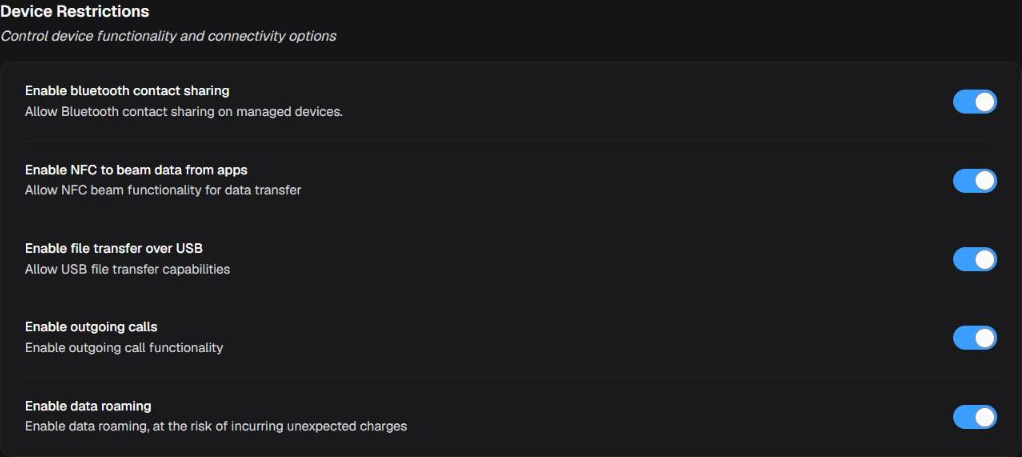
Five controls materialized in the Device Restrictions box of the Tablet-20260625 policy. Location sharing remains documented in the table because it is not shown in the current state.
Bluetooth contact sharing
| Option or state | Effect |
|---|---|
| Enabled | Allows Bluetooth contact sharing when the device provides that capability. |
| Disabled | Prevents Bluetooth contact sharing when the device provides that restriction. |
Data roaming
| Option or state | Effect |
|---|---|
| Enabled | Allows data roaming when the device provides that capability. |
| Disabled | Prevents data roaming when the device provides that restriction. |
Outgoing NFC beam
| Option or state | Effect |
|---|---|
| Enabled | Allows data transfer through NFC Beam when the device provides that capability. |
| Disabled | Prevents data transfer through NFC Beam when the device provides that restriction. |
Outgoing calls
| Option or state | Effect |
|---|---|
| Enabled | Allows outgoing calls when the device provides that capability. |
| Disabled | Prevents outgoing calls when the device provides that restriction. |
Location sharing
| Option or state | Effect |
|---|---|
| Enabled | Allows location sharing when the device provides that capability. |
| Disabled | Prevents location sharing when the device provides that restriction. |
USB file transfer
| Option or state | Effect |
|---|---|
| Enabled | Allows USB file transfer when the device provides that capability. |
| Disabled | Prevents USB file transfer when the device provides that restriction. |
¶ App, Location & Install Policies
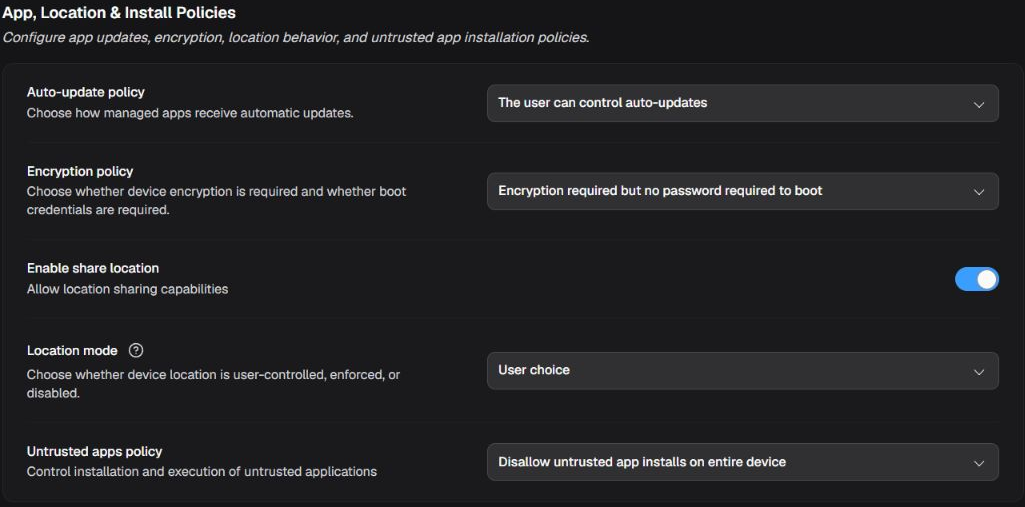
Five rows materialized in the App, Location & Install Policies box of the Tablet-20260625 policy.
Automatic app updates
| Option or state | Effect | When to use and applicability |
|---|---|---|
| User choice | Lets the user choose when apps update. | Choose according to update urgency and data constraints; Never requires another controlled update process. |
| Always | Requests automatic app updates whenever an applicable release is available. | Choose according to update urgency and data constraints; Never requires another controlled update process. |
| Wi-Fi only | Automatically updates apps only over Wi-Fi. | Choose according to update urgency and data constraints; Never requires another controlled update process. |
| Never | Disables automatic app updates through this policy. | Choose according to update urgency and data constraints; Never requires another controlled update process. |
Encryption policy
| Option or state | Effect | When to use and applicability |
|---|---|---|
| No | Does not impose encryption through this option. | Use only on compatible Android versions and with a tested credential-recovery path. |
| Without password | Requires encryption without tying access to a startup password, when supported. | Use only on compatible Android versions and with a tested credential-recovery path. |
| With password | Requires password-protected encryption when supported. | Use only on compatible Android versions and with a tested credential-recovery path. |
Location mode
| Option or state | Effect | When to use and applicability |
|---|---|---|
| User choice | Lets the user control location mode. | Choose according to operational need and privacy requirements. |
| Enforced | Keeps location enabled when supported. | Choose according to operational need and privacy requirements. |
| Disabled | Keeps location disabled when supported. | Choose according to operational need and privacy requirements. |
Untrusted app installation
| Option or state | Effect | When to use and applicability |
|---|---|---|
| Disallow install | Blocks installation from untrusted sources. | Prefer blocking untrusted sources; any exception increases exposure to unverified software. |
| Allow in personal profile only | Allows untrusted sources only in the personal profile. | Prefer blocking untrusted sources; any exception increases exposure to unverified software. |
| Allow device-wide | Allows untrusted-source installation across the device. | Prefer blocking untrusted sources; any exception increases exposure to unverified software. |
¶ Workflow actions
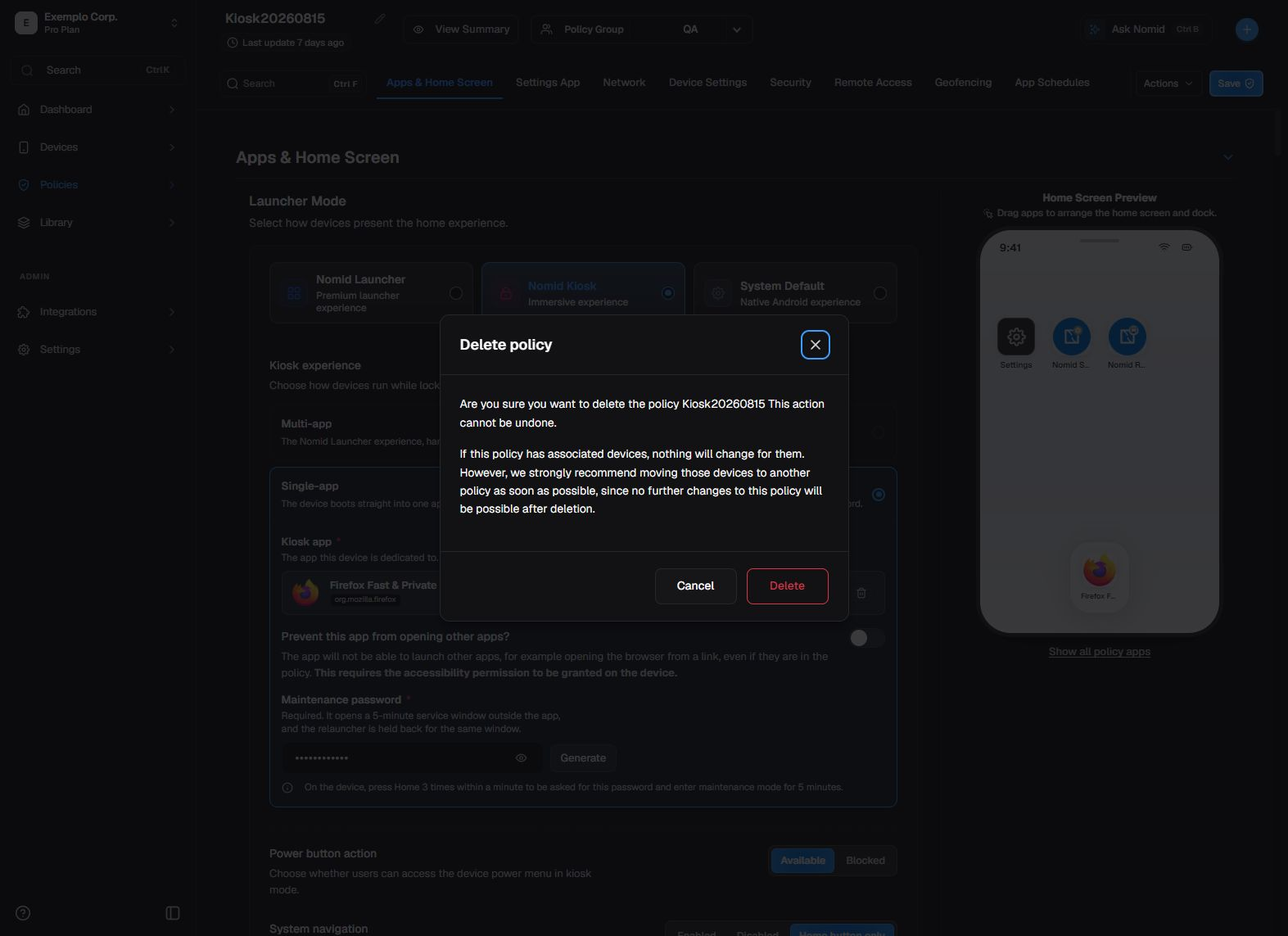
High-impact action confirmation.
Compromised-OS action
| Option or state | Effect | When to use and applicability |
|---|---|---|
| Do nothing | Records compromised-os action but performs no automatic quarantine or wipe. | Use for observation without an automatic response. |
| Quarantine | Requests that the device be placed in quarantine when compromised-os action occurs. Portal acceptance or saving does not prove containment; verify the effective state in 3. Devices. | Use to contain access while preserving a chance to investigate and recover. |
| Wipe device | Requests a device wipe when compromised-os action occurs. | Use only for extreme risk with approval and understanding that local data may be lost. |
Unknown-OS action
| Option or state | Effect | When to use and applicability |
|---|---|---|
| Do nothing | Records unknown-os action but performs no automatic quarantine or wipe. | Use for observation without an automatic response. |
| Quarantine | Requests that the device be placed in quarantine when unknown-os action occurs. Portal acceptance or saving does not prove containment; verify the effective state in 3. Devices. | Use to contain access while preserving a chance to investigate and recover. |
| Wipe device | Requests a device wipe when unknown-os action occurs. | Use only for extreme risk with approval and understanding that local data may be lost. |
Hardware-backed evaluation failure action
| Option or state | Effect | When to use and applicability |
|---|---|---|
| Do nothing | Records hardware-backed evaluation failure action but performs no automatic quarantine or wipe. | Use for observation without an automatic response. |
| Quarantine | Requests that the device be placed in quarantine when hardware-backed evaluation failure action occurs. Portal acceptance or saving does not prove containment; verify the effective state in 3. Devices. | Use to contain access while preserving a chance to investigate and recover. |
| Wipe device | Requests a device wipe when hardware-backed evaluation failure action occurs. | Use only for extreme risk with approval and understanding that local data may be lost. |
¶ Enforcement rules

Automatic security rules.
Guidance: Choose the smallest scope that meets the requirement; Device may also affect personal use.
Enforcement-rule scope
| Option or state | Effect |
|---|---|
| Unknown | Does not set the rule scope. |
| Work profile | Applies the rule to the work profile. |
| Device | Applies the rule to the whole device. |
Monitored setting
| Option or state | Effect | When to use and applicability |
|---|---|---|
| Applications | Makes the enforcement rule monitor applications. | Select applications only when that set should start the deadline and configured response. |
| Password policies | Makes the enforcement rule monitor password policies. | Select password policies only when that set should start the deadline and configured response. |
Affected packages
| Option or state | Effect |
|---|---|
| Android package name | Limits the rule to the listed packages. |
Guidance for Android package name: Use the app's exact package name; an empty list must not be assumed to mean a global rule.
¶ Password requirements
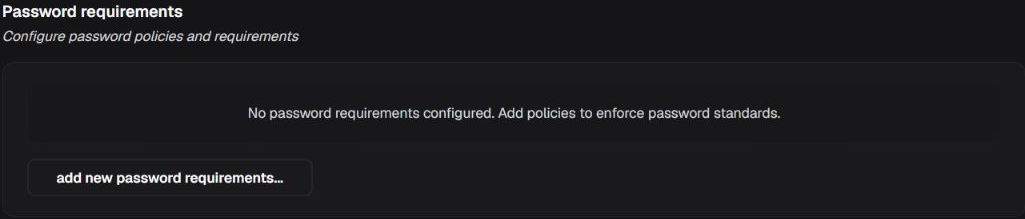
Empty state materialized in the Password requirements box of the Tablet-20260625 policy. Configurable requirements remain detailed in the tables because they are not shown in this image.
Guidance: Use Profile to isolate business requirements when supported; use Device when the whole device needs the same protection.
Password scope
| Option or state | Effect |
|---|---|
| Unspecified | Does not set the password requirement scope. |
| Device | Applies requirements to the device credential. |
| Profile | Applies requirements to the managed-profile credential. |
Guidance: Choose the lowest quality that meets the security policy and test accessibility, input method, and recovery.
Password quality
| Option or state | Effect |
|---|---|
| Unspecified | Sets no minimum password quality. |
| Weak biometric | Accepts a credential classified by the platform as weak biometric. |
| Something | Requires some unlock credential without a specific composition. |
| Complex | Enables complex requirements and the configured letter, number, symbol, and length minima. |
| Numeric | Requires a numeric password or PIN. |
| Numeric complex | Requires a numeric PIN and rejects simple sequences when supported. |
| Alphabetic | Requires alphabetic characters. |
| Alphanumeric | Requires a combination of letters and numbers. |
Strong unlock
| Option or state | Effect | When to use and applicability |
|---|---|---|
| Default device timeout | Uses the device default timeout before requiring strong authentication again. | Use when the manufacturer default is acceptable. |
| Every day | Requires strong authentication at least once every day. | Use when biometrics or trust agents must not indefinitely replace the primary credential. |
¶ Choose private key rule
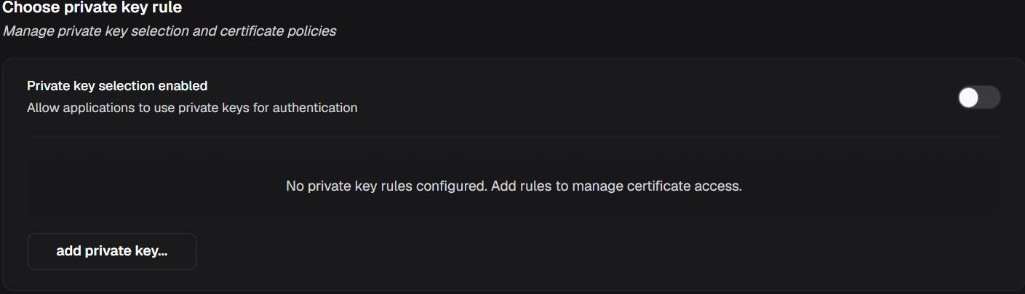
Natural state of the Choose private key rule box in the Tablet-20260625 policy: selection disabled, no configured rules, and the add action visible.
Private-key selection
| Option or state | Effect | When to use and applicability |
|---|---|---|
| Enabled | Makes managed private-key selection available on compatible devices. | Use with narrow URL, alias, and package rules to select an approved private key automatically. |
| Disabled | Keeps managed private-key selection unavailable through this control. | Use when no key should be selected automatically; the app or user follows the platform's normal flow. |
¶ Permitted accessibility services
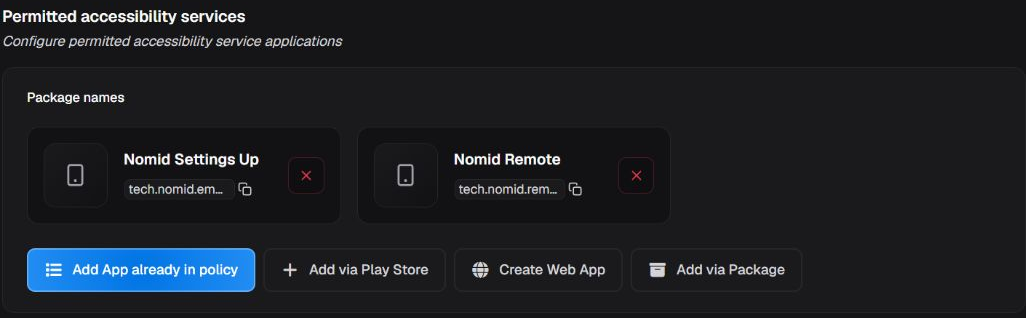
Natural state of the Permitted accessibility services box in the Tablet-20260625 policy: two configured internal apps and four visible add actions.
Guidance: Include only approved, necessary services; an incorrect list can block legitimate assistive technology.
Permitted accessibility services
| Option or state | Effect |
|---|---|
| Package list | Restricts accessibility services to listed packages according to the policy strategy. |
¶ Permitted input methods

Natural state of the Permitted input methods box in the Tablet-20260625 policy: no configured apps and four visible add actions.
Guidance: Keep at least one tested, functional input method; a wrong list can prevent typing and recovery.
Permitted input methods
| Option or state | Effect |
|---|---|
| Package list | Restricts keyboards and other input methods to listed packages. |
Validate and recover: for reversible actions, such as restrictions and a quarantine request, use a pilot device and check the effective state in 3. Devices before broadening the scope. Saving or distributing the policy does not prove effective blocking or quarantine. Do not trigger Wipe/Clear device only for testing. Restoring the previous value or revision prevents new requests, but it cannot recover data that has already been erased. If a wipe was executed, route the device through the applicable authorized reprovisioning or recovery procedure.
¶ Remote Access
These controls prepare the policy for Nomid Remote; they do not start a session. To connect, obtain consent, and operate the session, see Nomid Remote.
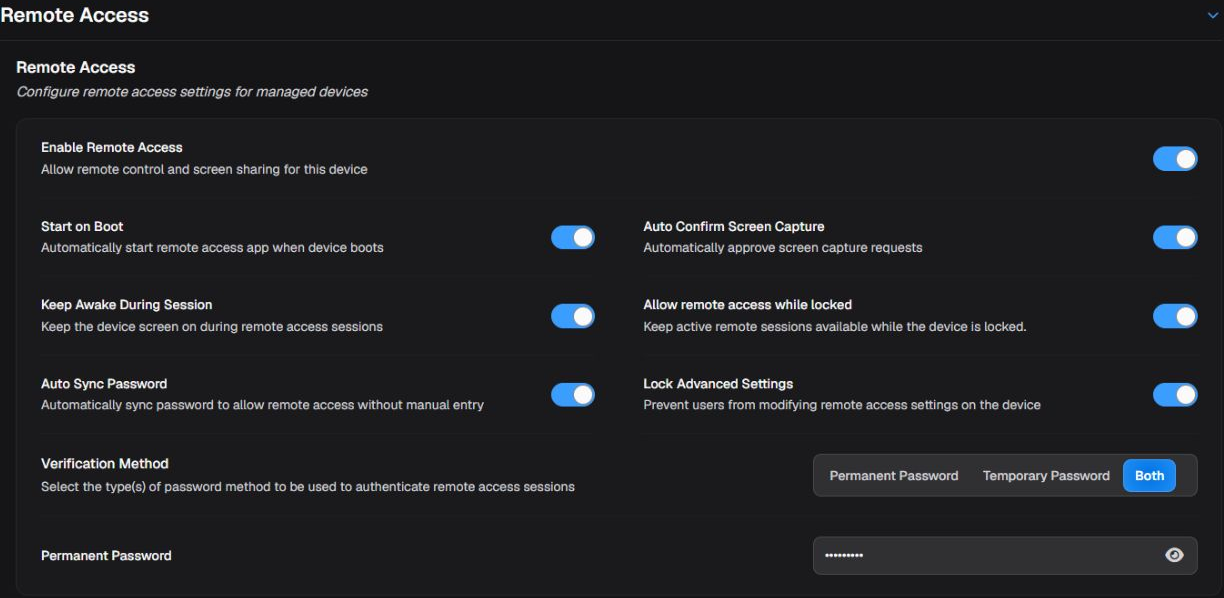
Policy remote-access settings.
Remote access
| Option or state | Effect | When to use and applicability |
|---|---|---|
| Enabled | Includes the Nomid Remote app, makes it visible according to policy, and adds the required phone-state permission. | Use when remote support is licensed, authorized, and tested; enabling it does not start a session by itself. |
| Disabled | Removes or disables remote-access configuration from this policy. | Use when the device must not accept support through this feature. |
Start on boot
| Option or state | Effect | When to use and applicability |
|---|---|---|
| Enabled | Requests the remote service to start after device boot. | Use when rapid support availability is required. |
| Disabled | The service is not requested automatically at boot through this control. | Use to reduce background activity when support is occasional. |
Auto-confirm screen capture
| Option or state | Effect | When to use and applicability |
|---|---|---|
| Enabled | Allows automatic confirmation of screen capture used by the remote session, subject to app and device support. | Use only on dedicated corporate devices with appropriate consent and controls. |
| Disabled | Keeps user or system confirmation when required. | Use when user presence and confirmation are required. |
Keep screen awake during session
| Option or state | Effect | When to use and applicability |
|---|---|---|
| Enabled | Keeps a wake lock or screen awake while the remote service controls the session. | Use to avoid interrupting an assisted session; consider battery and privacy. |
| Disabled | Allows normal sleep and display rules to apply during the session. | Use when sessions are short or the screen need not remain awake. |
Allow access while locked
| Option or state | Effect | When to use and applicability |
|---|---|---|
| Enabled | Allows the remote service to operate while the device is locked, when supported. | Use only on dedicated equipment after assessing unattended-access risk. |
| Disabled | Requires unlock before the corresponding remote access. | Use as a more restrictive posture when the user must unlock the device. |
Verification method
| Option or state | Effect | When to use and applicability |
|---|---|---|
| Temporary password | Uses a generated temporary code to authorize the session. | Use for attended support and short-lived credentials. |
| Permanent password | Authorizes sessions with the permanent password managed in policy. | Use only with secure storage, rotation, and access control. |
| Both | Accepts temporary or permanent password according to the remote-app flow. | Use when operations need both paths and accept the additional exposure. |
Guidance: Never expose it in manuals or screenshots; follow Portal validation requirements and organizational rotation.
Permanent password
| Field or value | Effect |
|---|---|
| Valid password when required | Defines the permanent credential used by Permanent and Both modes. |
Auto-sync password
| Option or state | Effect | When to use and applicability |
|---|---|---|
| Enabled | Synchronizes the password through the optional feature enabled for the company. | Use only when the feature flag is available and the rotation process is approved. |
| Disabled | Does not enable automatic password synchronization. | Use when the password is managed by another process or the feature is unavailable. |
Lock advanced settings
| Option or state | Effect | When to use and applicability |
|---|---|---|
| Enabled | Locks local changes in the remote app for approval, verification, startup, capture, and wake settings. | Use to keep policy as the source of truth on dedicated devices. |
| Disabled | Leaves advanced settings adjustable according to app permissions. | Use when authorized local technicians need to adjust the session. |
Validate and recover: on a pilot device, confirm availability, consent, verification, and session closure. The Portal confirms the saved configuration and available synchronization, not session success. If the result is unsuitable, return to the previous value or revision; to start and operate a session, see Nomid Remote.
¶ Geofencing
Define the event and area the Portal should evaluate. The map teaches the general area; precise addresses and personal data do not belong in screenshots.
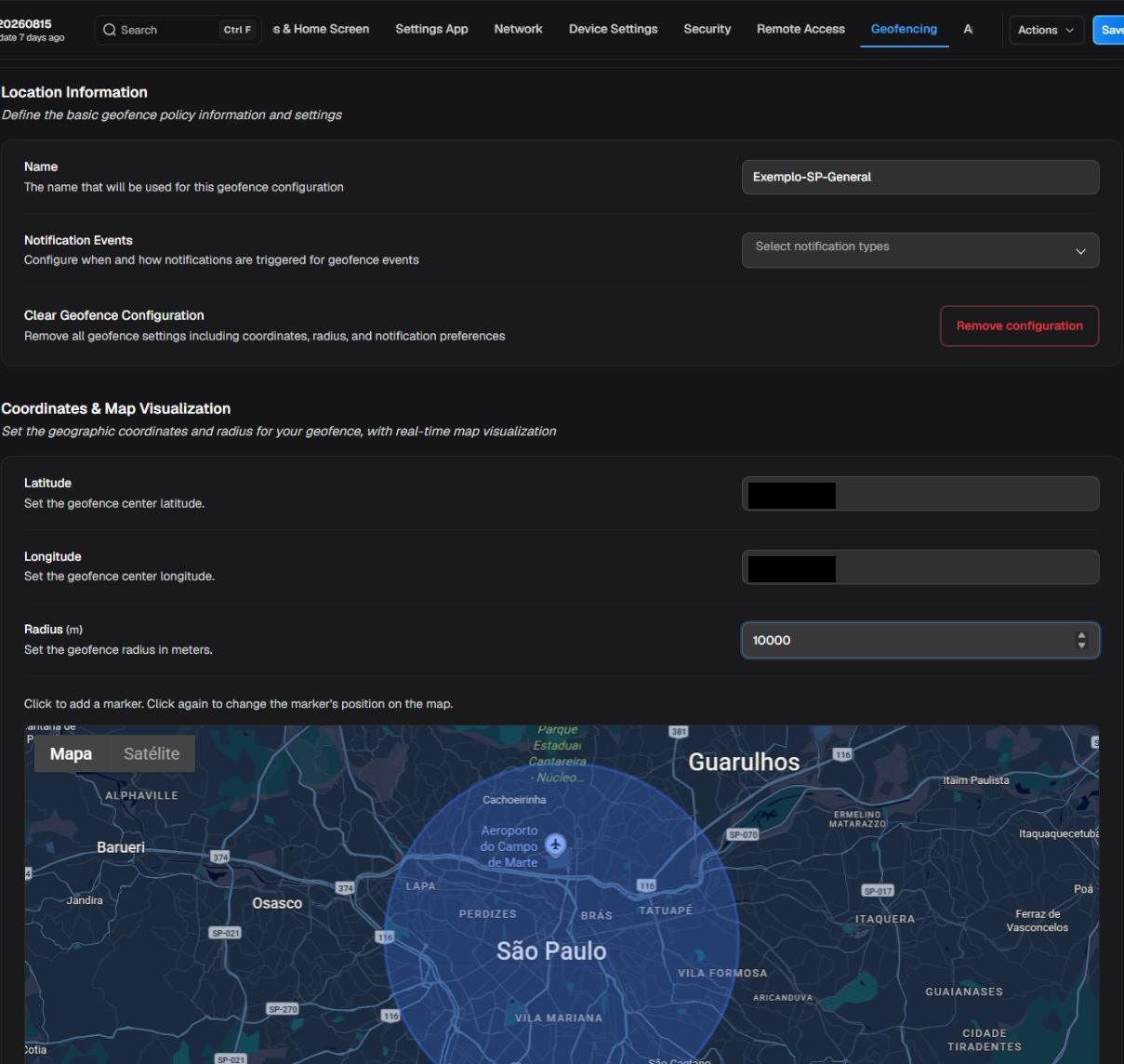
Geofencing area and conditions.
¶ Location
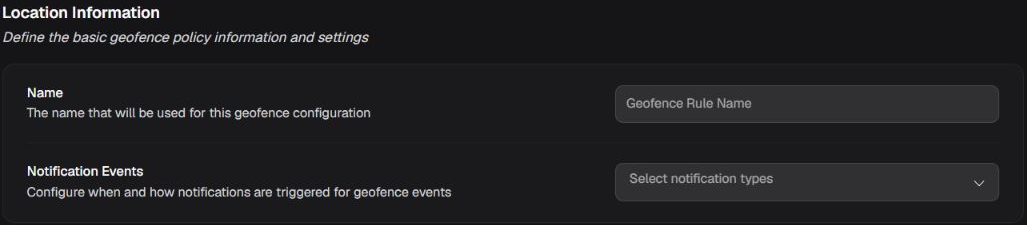
Natural state of the Location box in the Tablet-20260625 policy: empty name and no notification event selected.
Geofence notification type
| Option or state | Effect | When to use and applicability |
|---|---|---|
| Enter | Triggers the notification when entering the area. | Use to start an action when the device reaches the area, such as enabling an on-site journey. |
| Exit | Triggers the notification when leaving the area. | Use to detect departure from an expected area, such as a site perimeter. |
| Enter or exit | Triggers the notification on both entry and exit. | Use when the audit needs both boundary crossings recorded. |
Geofence name
| Option or state | Effect | When to use and applicability |
|---|---|---|
| Name | Identify the rule for administration and audit. | Use clear text without unnecessary sensitive addresses. |
Geofence description
| Option or state | Effect | When to use and applicability |
|---|---|---|
| Description | Identify the rule for administration and audit. | Use clear text without unnecessary sensitive addresses. |
Latitude
| Field or value | Effect | When to use and applicability |
|---|---|---|
| Latitude | Define the geographic center of the circular area. | Confirm coordinates and hemisphere; a sign error moves the area elsewhere. |
Longitude
| Field or value | Effect | When to use and applicability |
|---|---|---|
| Longitude | Define the geographic center of the circular area. | Confirm coordinates and hemisphere; a sign error moves the area elsewhere. |
Radius
| Field or value | Effect | When to use and applicability |
|---|---|---|
| Radius | Defines the distance around the center considered inside the geofence. | Consider GPS accuracy and displayed unit; a radius that is too small can cause unstable transitions. |
¶ Coordinates and map
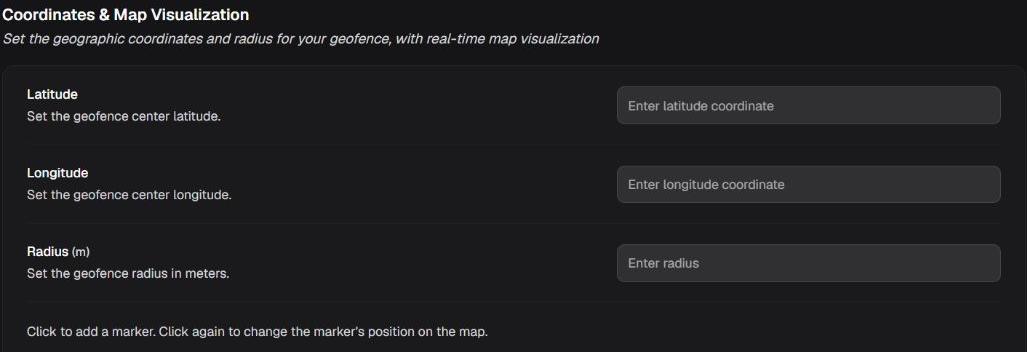
Geofence latitude, longitude, and radius fields in the Tablet-20260625 policy; the empty map without a marker was omitted.
Guidance: Adding or removing persists only after saving; review name, coordinates, radius, and event.
Add
| Action | Effect |
|---|---|
| Add | Creates a new geofence rule in the form. |
Remove
| Action | Effect |
|---|---|
| Remove | Removes the geofence rule from the current edit. |
¶ Application Schedules
Use days and windows to limit when covered apps are available. Confirm time behavior in the actual environment before distributing an operational schedule.
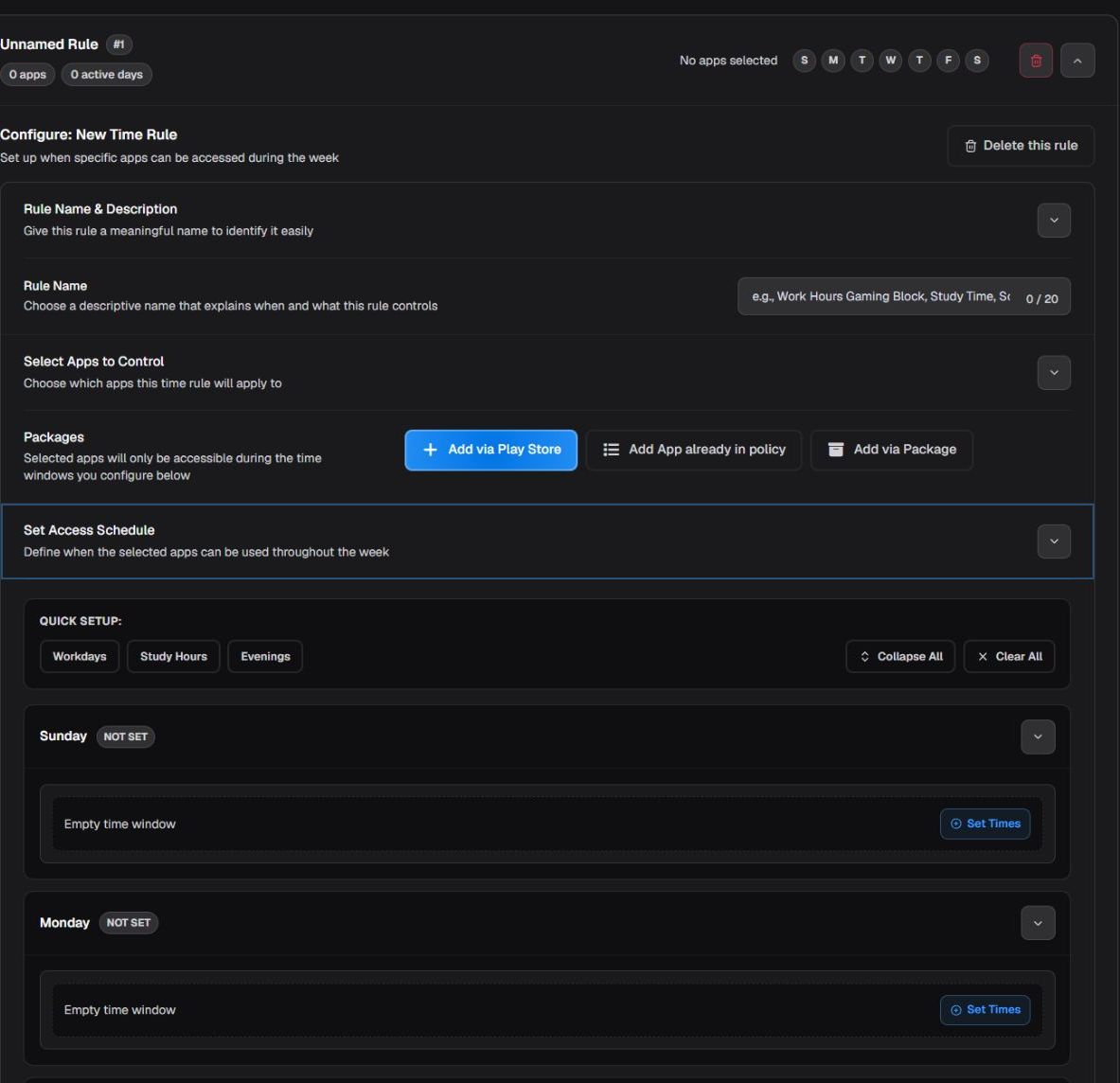
Application schedule windows.
Time windows
| Option or state | Effect |
|---|---|
| Days and start/end interval | Restricts associated app availability to the configured weekly window. |
Guidance for Days and start/end interval: Use clear operating hours; confirm time zone and behavior for intervals that cross midnight.
Schedule name
| Option or state | Effect | When to use and applicability |
|---|---|---|
| Schedule name | Identifies the set of availability windows. | Use a name that indicates audience and purpose. |
Default rule
| Option or state | Effect | When to use and applicability |
|---|---|---|
| Default rule | Marks the schedule as the default behavior when the feature logic uses it. | Use one coherent default rule; review conflicts with specific windows. |
Schedule apps
| Option or state | Effect | When to use and applicability |
|---|---|---|
| Applications | Defines which packages are affected by the windows. | Select only apps present in the policy. |
Day
| Option or state | Effect | When to use and applicability |
|---|---|---|
| Day | Defines when associated apps are available or unavailable according to the rule. | Confirm time zone and intervals that cross midnight before distribution. |
Start
| Option or state | Effect | When to use and applicability |
|---|---|---|
| Start | Defines when associated apps are available or unavailable according to the rule. | Confirm time zone and intervals that cross midnight before distribution. |
End
| Option or state | Effect | When to use and applicability |
|---|---|---|
| End | Defines when associated apps are available or unavailable according to the rule. | Confirm time zone and intervals that cross midnight before distribution. |
Monday through Sunday
| Option or state | Effect | When to use and applicability |
|---|---|---|
| Monday through Sunday | Each day has its own start and end windows; multiple windows may exist on the same day. | Configure only required days and avoid overlapping intervals. |
Day with no window
| Option or state | Effect | When to use and applicability |
|---|---|---|
| Day with no window | The Portal presents the day as blocked all day and with no windows. The effective app behavior requires functional confirmation on a pilot device. | Use it to represent a day with no window; confirm behavior before distribution. |
Add window
| Action | Effect | Guidance, risk, and recovery |
|---|---|---|
| Add window | Adds another availability interval to the selected day. | Use for separated shifts such as morning and afternoon. |
Copy to all
| Option or state | Effect | When to use and applicability |
|---|---|---|
| Copy to all | Copies the current day's windows to the other weekdays. | Use as a shortcut and review every day before saving; copying replaces the intended per-day setup. |
Remove all windows for the day
| Action | Effect | Guidance, risk, and recovery |
|---|---|---|
| Remove all windows for the day | Removes the intervals and makes the Portal show that day with no windows and blocked all day. The effective result requires confirmation on a pilot device. | Use only after reviewing the intent for that day. |
Workdays
| Option or state | Effect | When to use and applicability |
|---|---|---|
| Workdays | Fills a predefined workday schedule using the times implemented by the Portal. | Use as a starting point and review every window; do not assume it matches the organization's hours. |
Study hours
| Option or state | Effect | When to use and applicability |
|---|---|---|
| Study hours | Applies the study-window template defined by the interface. | Review days and times before saving because the template is only a quick fill. |
Evenings
| Option or state | Effect | When to use and applicability |
|---|---|---|
| Evenings | Applies the evening template defined by the interface. | Confirm the time zone and whether any window crosses midnight. |
Clear all
| Action | Effect | Guidance, risk, and recovery |
|---|---|---|
| Clear all | Removes every window and makes the Portal show the days with no windows and blocked all day. This does not prove effective app blocking on the device. | Confirm on a pilot device before distribution. |
¶ Contact Lists
Assign only lists that are already managed. To create, import, or maintain contacts, see 5. Library; this policy only defines the assignment.
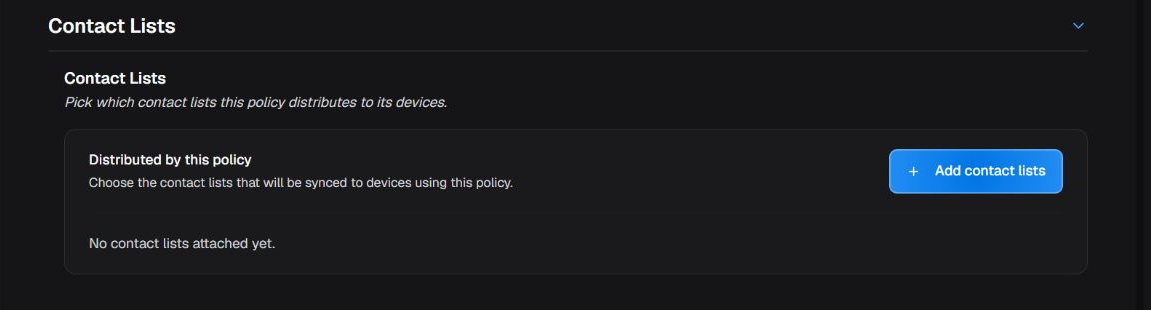
The Contact Lists area shows the lists distributed by the policy.
To open the modal shown next, select Add contact lists. In the modal, review the available lists, select the ones to assign, and only then select Apply. Until that confirmation, no list is added to the policy edit.
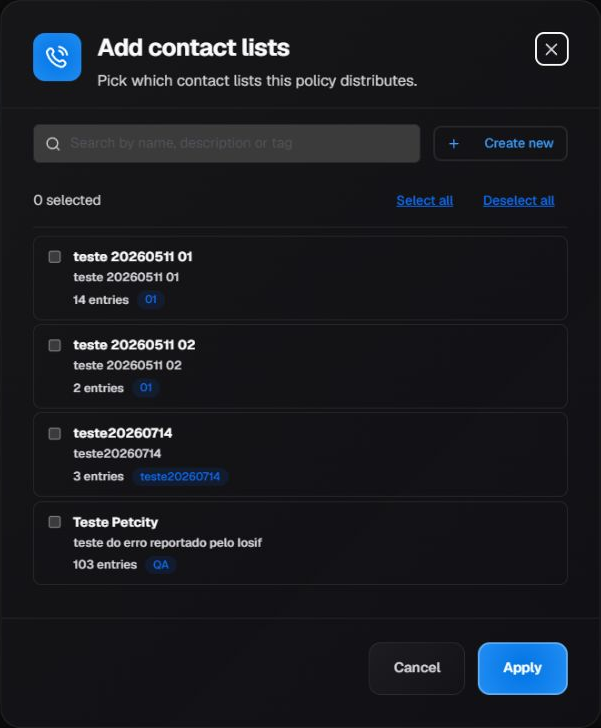
The modal shows the lists available for selection before the assignment is applied and added to the policy edit.
Add contact lists
| Action | Effect | Guidance, risk, and recovery |
|---|---|---|
| Add contact lists | Opens the modal for selecting one or more existing lists; the assignment enters the edit only after Apply. | Use when contacts from that list should be available to covered devices. |
Remove
| Action | Effect | Guidance, risk, and recovery |
|---|---|---|
| Remove | Removes the list association from the edit; it does not delete the list from the Library. | Use when the policy should no longer distribute that list. |
Available contact lists
| Option or state | Effect |
|---|---|
| Contact list from the Library | Associates the list with the policy; contacts are managed in the Library. |
Guidance for Contact list from the Library: Use lists authorized for the covered audience. Removing the association does not delete the original list.
Guidance: Maintain the list in the Library and use only authorized data; removing the association does not delete the original list.
Contact list
| Option or state | Effect |
|---|---|
| Existing Library list | Associates contacts from the selected list with the policy without moving list administration into the editor. |
¶ Data Collection
Choose only the data needed for support, inventory, or auditing. More collection increases exposure and retention; align each item with an authorized purpose.
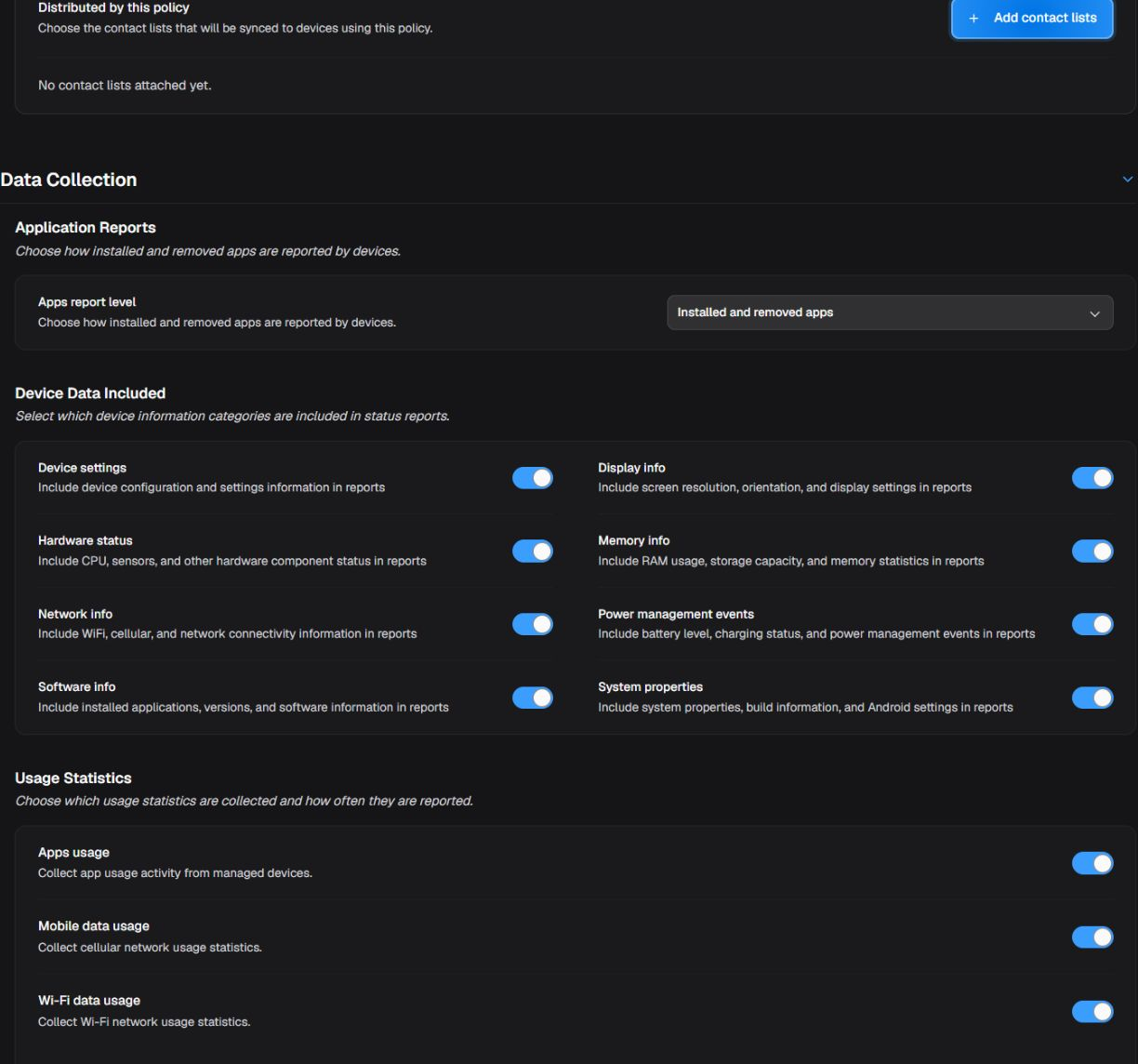
Data collection controls.
¶ Status reporting

Apps report level in the Tablet-20260625 policy; the Included device data and Usage statistics boxes are outside this image.
Guidance: Use the lowest level required for inventory and auditing, respecting privacy and retention.
Application report level
| Option or state | Effect |
|---|---|
| Disabled | Requests no application report. |
| Installed apps | Requests the installed-app list. |
| Installed and removed apps | Requests installed apps and removal events when supported. |
¶ Device reporting
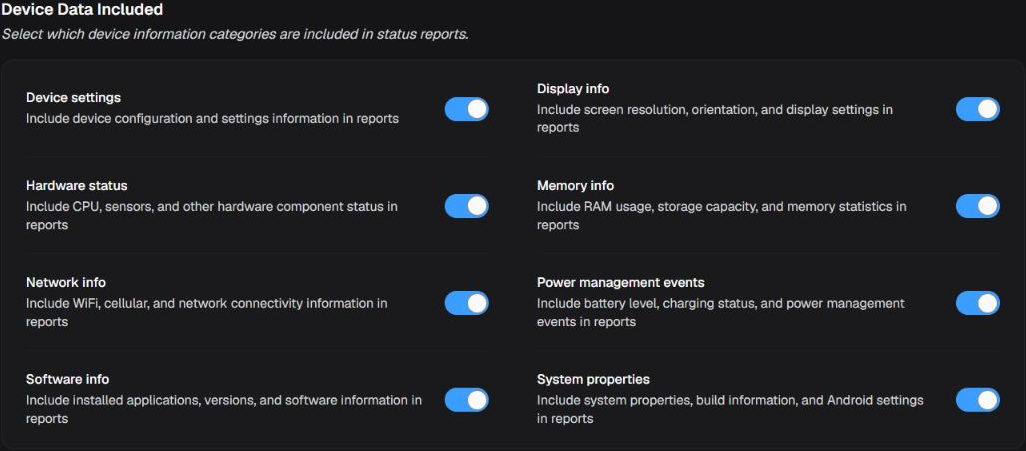
Device-data categories included in reporting for the Tablet-20260625 policy; the details and effects of each setting appear in the tables that follow.
Device settings
| Option or state | Effect |
|---|---|
| Enabled | Includes device settings and administrative state in status sent by the managed device. |
| Disabled | Does not request device settings and administrative state through this reporting category. |
Display information
| Option or state | Effect |
|---|---|
| Enabled | Includes display and screen information in status sent by the managed device. |
| Disabled | Does not request display and screen information through this reporting category. |
Hardware status
| Option or state | Effect |
|---|---|
| Enabled | Includes hardware component status in status sent by the managed device. |
| Disabled | Does not request hardware component status through this reporting category. |
Memory information
| Option or state | Effect |
|---|---|
| Enabled | Includes memory information and usage in status sent by the managed device. |
| Disabled | Does not request memory information and usage through this reporting category. |
Network information
| Option or state | Effect |
|---|---|
| Enabled | Includes network information and state in status sent by the managed device. |
| Disabled | Does not request network information and state through this reporting category. |
Power-management events
| Option or state | Effect |
|---|---|
| Enabled | Includes power-management events in status sent by the managed device. |
| Disabled | Does not request power-management events through this reporting category. |
Software information
| Option or state | Effect |
|---|---|
| Enabled | Includes software inventory and state in status sent by the managed device. |
| Disabled | Does not request software inventory and state through this reporting category. |
System properties
| Option or state | Effect |
|---|---|
| Enabled | Includes system properties available to management in status sent by the managed device. |
| Disabled | Does not request system properties available to management through this reporting category. |
¶ Usage data
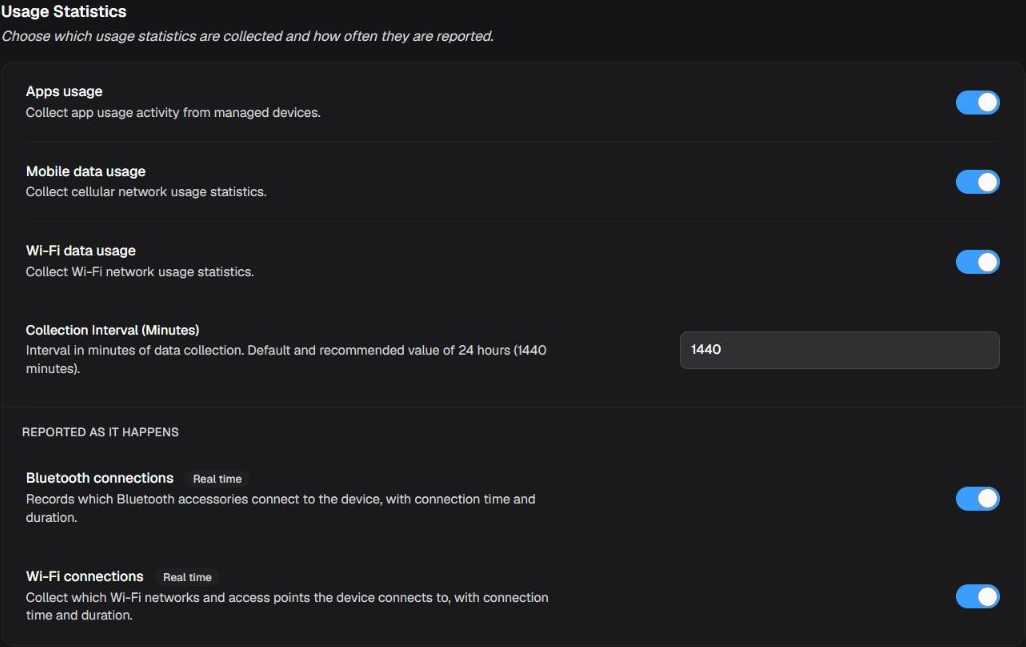
Usage Statistics: three periodic collectors followed by their interval, then event-driven Bluetooth and Wi-Fi connections.
Enable only the categories needed for your analysis, taking privacy and retention into account. The first three use the collection interval; the two connection controls follow events, not that interval.
Apps usage
| Option or state | Effect |
|---|---|
| Enabled | Requests statistics about application usage on managed devices. |
| Disabled | Does not request this collection of application-usage statistics. |
Mobile data usage
| Option or state | Effect |
|---|---|
| Enabled | Requests cellular data-consumption statistics, useful for monitoring allowances and costs. |
| Disabled | Does not request this collection of mobile data-consumption statistics. |
Wi-Fi data usage
| Option or state | Effect |
|---|---|
| Enabled | Requests statistics about data consumption over Wi-Fi. |
| Disabled | Does not request this collection of Wi-Fi data-consumption statistics. |
Collection Interval (Minutes)
| Field or value | Effect |
|---|---|
| Minutes | Configures the interval for the three periodic collectors above that are enabled. It does not set the frequency of the connection events below. |
Choose a frequency that serves the analysis you need; shorter intervals may increase traffic, battery use and stored data.
Bluetooth connections
| Option or state | Effect |
|---|---|
| Enabled | Requests records of connected Bluetooth accessories, including connection time and duration. |
| Disabled | Does not request this collection of Bluetooth connection events. |
Wi-Fi connections
| Option or state | Effect |
|---|---|
| Enabled | Requests records of Wi-Fi networks and access points the device connects to, including connection time and duration. This is distinct from measuring Wi-Fi data consumption. |
| Disabled | Does not request this collection of Wi-Fi connection events. |
The Real time badge distinguishes event-driven collection from periodic collection; it does not guarantee instant delivery to the Portal. Saving the configuration does not prove collection or receipt: check reported records in 3. Devices, taking the agent, connectivity and synchronization into account.
¶ Geolocation data
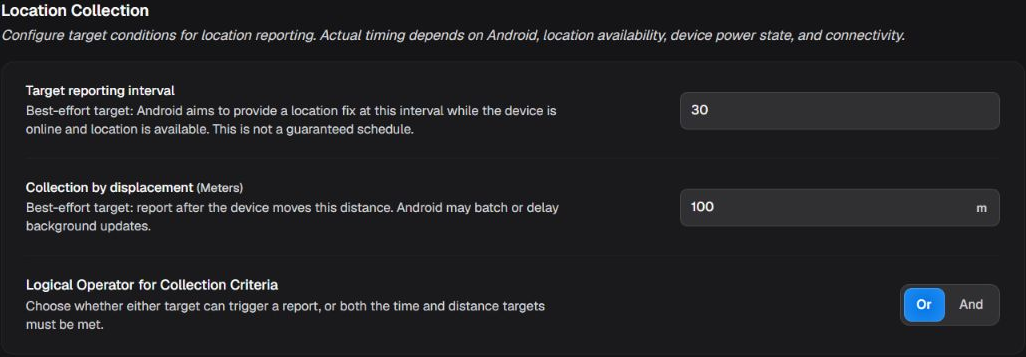
Location Collection: target interval, displacement and the combination of criteria, in that order. This image has no enablement control.
These criteria set targets for location reports, not a guaranteed schedule. Results depend on Android, location availability, power state and connectivity; background updates may be batched or delayed.
Target reporting interval
| Field or value | Effect |
|---|---|
| Minutes | Sets a time target for obtaining a location while the device is online and location is available. It guarantees neither a reporting frequency nor a minimum time between actual records. |
Collection by displacement (Meters)
| Field or value | Effect |
|---|---|
| Distance | Sets the displacement target for a new report. Check the unit displayed for the company; the operator below determines whether the time target must also be met. |
Logical Operator for Collection Criteria
| Option or state | Effect |
|---|---|
| Or | Either target, time or displacement, can trigger a report. Meeting the time target does not also require the configured distance. |
| And | Combines the targets: both time and displacement must be met. This does not remove Android collection limitations. |
For example, with Or, a stationary device can still meet the time criterion; with And, time alone does not satisfy both criteria. Validate reports on a pilot device before relying on them operationally; saving the policy does not confirm the time or position actually reported.
¶ History
Compare revisions before restoring. Comparison is read-only; restore replaces current values after confirmation and may start a new distribution.
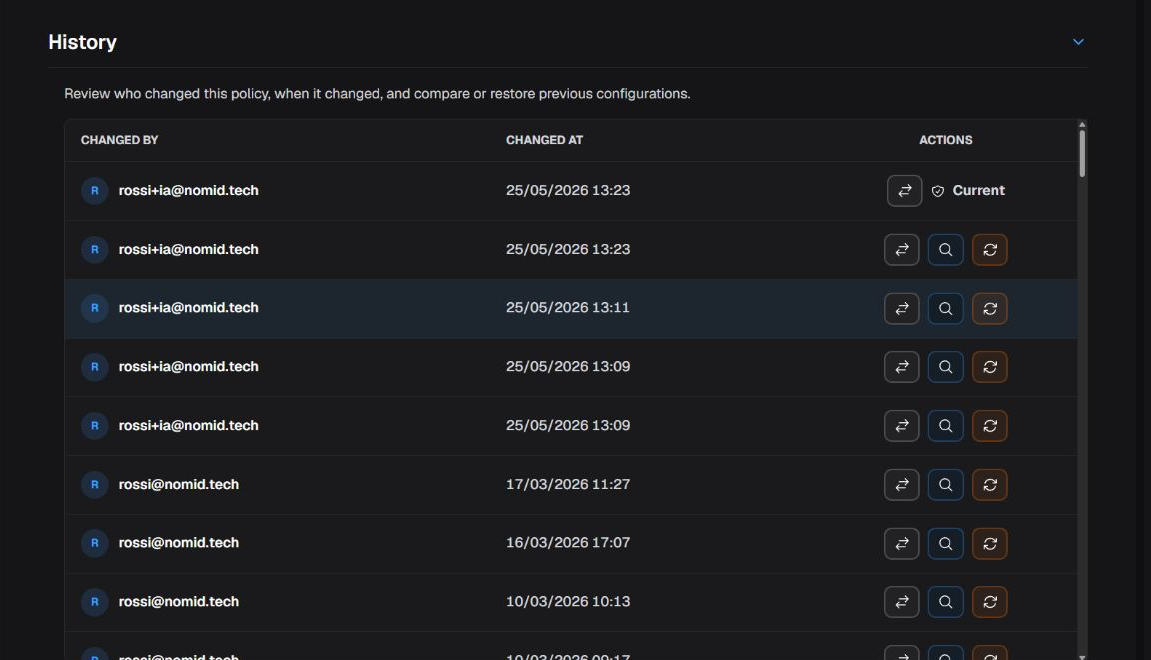
History lists versions and their compare and restore actions.
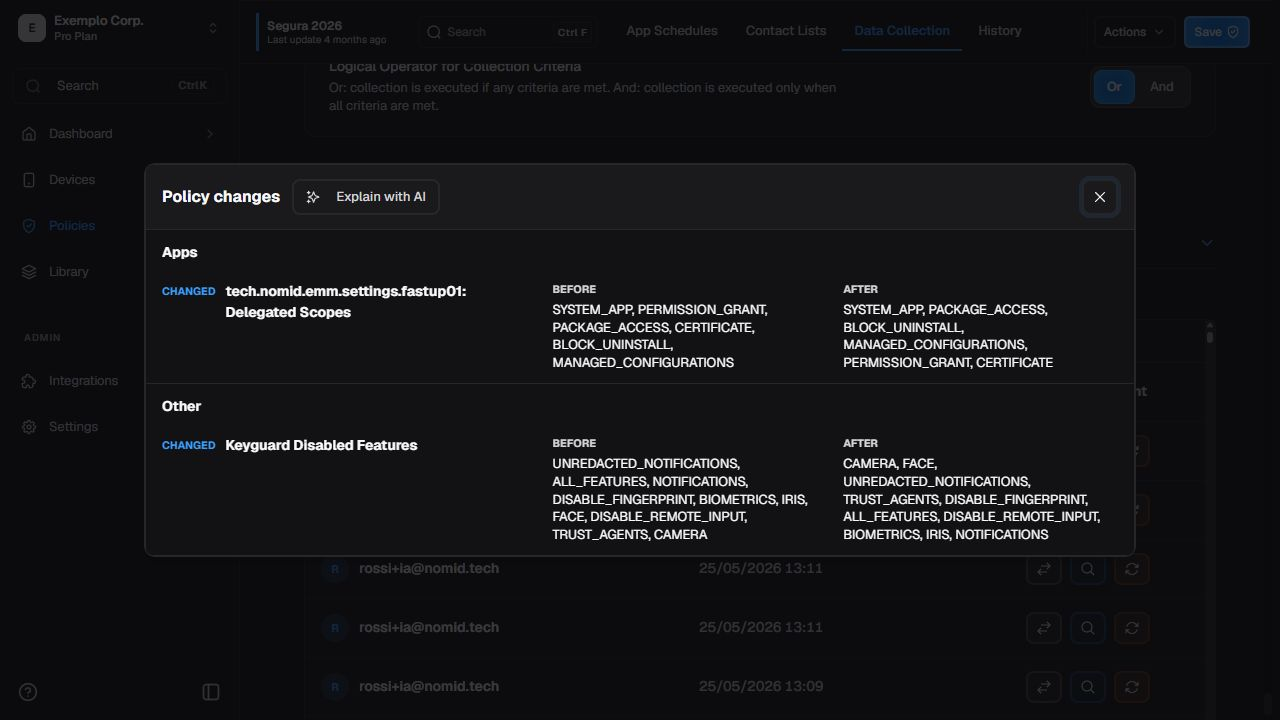
Comparison between policy revisions.
Restore confirmation not executed.
Compare
| Action | Effect | Guidance, risk, and recovery |
|---|---|---|
| Compare | Shows differences between revisions without changing the current version. | Use to identify when and how a value changed. |
Restore
| Action | Effect | Guidance, risk, and recovery |
|---|---|---|
| Restore | Opens the flow that replaces the current configuration with values from the selected revision. | Use only after confirming impact; restoring may create a new distribution. |
Explain with AI
| Option or state | Effect | When to use and applicability |
|---|---|---|
| Explain with AI | Generates an assisted explanation of the differences; it does not change the policy. | Use as reading assistance and verify the explanation against the displayed values. |
¶ Troubleshoot
Troubleshoot
- Policy is missing: Active company, search, filters, and permission. Clear filters and ask an administrator to confirm access.
- Device does not receive a change: Saved revision, association, connectivity, agent, and synchronization. Check 3. Devices; do not repeat high-impact actions.
- App does not install: Library source, compatibility, version, and network. Confirm the item in 5. Library.
- Network stops working: APN, VPN, proxy, certificate, and credentials. Revert in a controlled environment or use the authorized recovery procedure.
- Option is missing: Platform, Android version, permission, or enabled feature. Treat it as conditional and confirm with an administrator.
- Remote does not start: Policy, app, local permissions, and connectivity. See Nomid Remote; enabling the policy does not start a session.
¶ Continue
- To create a policy with the assistant, see 9. New policy.
- To investigate state, synchronization, and an individual device, see 3. Devices.
- To manage apps and contact lists, see 5. Library.
- For Android Enterprise binding and external services, see 6. Integrations.
- To start and control a session, see Nomid Remote.
¶ Glossary
Glossary
- Android Enterprise: Android capabilities for managing corporate devices, work profiles, apps, and policies.
- APN: Name and settings a device uses to access the carrier's mobile data network.
- ENTERPRISE / DEFAULT_DATA_TRAFFIC / EMERGENCY: APN usage types for enterprise traffic, default mobile data, or emergency services.
- BIP / CBS / DUN: APN types for SIM communication, cell-broadcast messages, and mobile connection sharing.
- FOTA / HIPRI / IA: APN types for firmware updates over mobile data, high-priority data, and the device's initial network attachment.
- IMS / MCX: APN types for carrier multimedia services, such as voice over LTE, and mission-critical communications.
- MMS / RCS / CBS: Multimedia messaging, rich communication, and alerts broadcast over the cellular network.
- SMS: Cellular text-messaging service, separate from MMS and internet-based messaging.
- SUPL / GPS: SUPL provides assistance data over the network to speed up or improve GPS positioning.
- VSIM / XCAP: VSIM identifies virtual-SIM service; XCAP accesses or changes carrier-service settings.
- PAP / CHAP / PPP: Methods and protocol used to authenticate a data connection; CHAP uses a challenge, while PAP sends credentials with less protection.
- MCC / MNC: Numeric codes that identify the mobile network country and carrier.
- MVNO / SPN / GID: Identifiers used to distinguish a mobile virtual operator, the provider name on the SIM, or a specific SIM-card group.
- SIM / ICCID / IMSI / IMEI: SIM is the mobile subscription module; ICCID identifies the card, IMSI the network subscription, and IMEI the cellular device.
- IP / IPv4 / IPv6: IP is the network addressing protocol; IPv4 and IPv6 are its two versions in current use.
- MTU: Largest packet size the connection attempts to transmit without fragmentation.
- MMSC: Address of the carrier service that sends and receives MMS messages.
- VPN: Protected network tunnel that routes device or app traffic through organization-defined infrastructure.
- Proxy / PAC: A proxy intermediates network connections; a PAC file contains rules that choose when and which proxy to use.
- SSID: Public or administrative name that identifies a Wi-Fi network.
- WEP / WPA / WPA2 / WPA3: Wi-Fi security families; WEP is legacy, while newer WPA versions provide stronger protection when supported.
- PSK / WEP-PSK / WPA-PSK: PSK is a pre-shared key; WEP-PSK and WPA-PSK identify which security family uses that credential.
- Hotspot / tethering: Sharing a device's mobile connection over Wi-Fi, USB, or Bluetooth.
- GSM / GPRS / EDGE / UMTS: Cellular generations and technologies that predate LTE and remain compatibility or restriction references.
- HSPA / HSDPA / HSUPA: 3G mobile-data technologies for faster access, download, and upload.
- LTE / NR / TD-SCDMA (TD_SCDMA) / IWLAN: Mobile access technologies: LTE is 4G, NR is 5G, TD-SCDMA is a 3G variant, and IWLAN is integrated mobile access over Wi-Fi.
- APK: Android application installation file.
- Package name: Unique Android app identifier, usually in reverse-domain form, such as com.example.app.
- Version code (versionCode): Integer Android uses to compare releases of the same app; it is not necessarily the release's display name.
- SHA / SHA-256: Cryptographic digest used to verify a file's identity and integrity; it does not reveal file contents.
- URL / HTTPS: A URL is a resource address; HTTPS is the protected way to access it over the web.
- Launcher / dock: A launcher is the home screen that organizes apps and shortcuts; the dock is its fixed area for frequently used items.
- Kiosk: Operating mode restricted to one app or an approved set, with controlled exit and maintenance.
- Managed configuration: Values a policy sends to an app according to the schema published by that app.
- Scope / work profile: Scope defines where a setting applies; a work profile separates corporate apps and data on Android.
- MDM / DPC: MDM is centralized device management; DPC is the Android component that applies management policies locally.
- FRP: Factory Reset Protection, which may require an authorized account after a device wipe.
- Firmware / OTA: Firmware is the device's low-level software; OTA is its delivery or update over the network.
- GUID: Long identifier created to distinguish an object, such as a network profile, without relying on its display name.
- PIN: Numeric code used to unlock a function, authorize maintenance, or protect a feature.
- QR code: Visual code read by a camera to carry an address or provisioning data.
- SSO: Single sign-on that reuses an authenticated identity across compatible services.
- SIEM: Platform that centralizes security events and alerts for analysis and auditing.
- NFC / UWB: Short-range wireless technologies; NFC supports tap interactions, while UWB enables precise proximity and positioning.
- USB: Physical connection standard used for power, accessories, and data transfer.
- AC: Alternating current, used in the manual for power supplied by a mains-connected charger.
- Geofencing: Rule that uses entry into or exit from a configured geographic area as an action condition.
¶ Sources and limits
This guide describes current Nomid MDM Portal controls and uses official Android management concepts to explain compatibility and asynchronous application. Provider documentation does not define Portal-specific labels, calculations, or availability. Always confirm visible controls, device version, and the reported result before a high-impact change.