¶ 1. Login, menu and help
Application: Portal Nomid MDM
Document: V2.0.1
Last updated: 2026-08-20
Editorial owner: Nomid MDM Documentation
Last editorial review: 2026-08-20
Editorial language: en-US
This manual explains how to sign in to the Nomid MDM Portal, recognize global navigation, use shortcuts, and find help without losing the context of your task. It supports first-time users and advanced operators who need to interpret permissions, states, and interface limits.
Article scope: this article teaches global controls. The contents of each module continue in their owning manual.
Expected variation: options, modules, and actions may vary by role, permissions, plan, and enabled features. Text and figures show the interface available in the Example company on August 15, 2026; dynamic results are not fixed rules.
¶ Quick route
- Sign in to the Portal
- Use a local password
- Recover access
- Start creating an account
- Learn the sidebar
- Confirm the session and sign out
- Use global search
- Start a quick action
- Open Ask Nomid
- Open help, theme, or language
- Resolve common issues
¶ Start here
¶ Prerequisites
Open https://portal.nomid.tech/ and confirm that the browser shows the portal.nomid.tech domain before entering any credential. Also have an authorized authentication method. The company may offer Google, Microsoft, or local email and password access. If you do not know which method to use, confirm it with your organization's administrator before making repeated attempts.
Never send a password, verification code, token, API key, or other secret in screenshots, tickets, or Ask Nomid conversations.
¶ Sign in to the Portal
On the public sign-in page, select an authorized provider or enter your email to continue through the local flow.
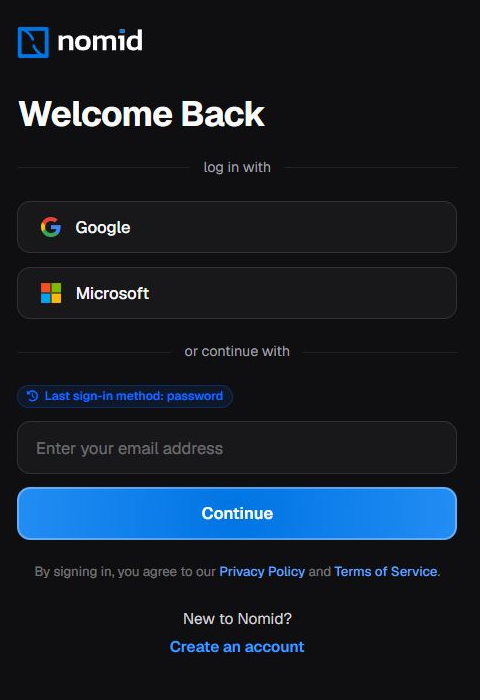
Figure 1. Initial sign-in state with the methods and controls available before authentication.
- Confirm that you are on the Nomid MDM Portal.
- For federated access, select Google or Microsoft.
- For local access, enter the authorized email and select Continue.
- Continue only through a flow recognized by your organization.
The Last sign-in method: password badge appears on the illustrated screen and does not require you to use a password. Google and Microsoft start a redirect. Provider screens, their steps, the authentication result, and organizational policies are outside this article.
Treat sign-in as complete when global navigation is visible and the active company can be identified. The initial destination may vary by method, profile, and a previously opened link. If these elements do not appear, do not retry credentials indiscriminately; return to the start or contact the administrator.
Advanced note: a method shown on the page does not by itself confirm that a user is provisioned or authorized in the Portal. User and authentication administration belongs in Settings; SSO and identity providers belong in Integrations.
¶ Other access flows
¶ Sign in with an email link, when available
After you enter the authorized email, some profiles may receive confirmation that a passwordless sign-in link was sent. Use this option only when it appears for your account, open the newest link in the expected inbox, and return to the Portal. Do not share the link, token, or email content. If the option does not appear or the message does not arrive, use another authorized method or contact the administrator. Availability depends on the organization's configuration.
¶ Sign in with a local password
After the email is recognized in the local flow, the Portal presents the password field. Identity is hidden in the figure and the field remains empty.
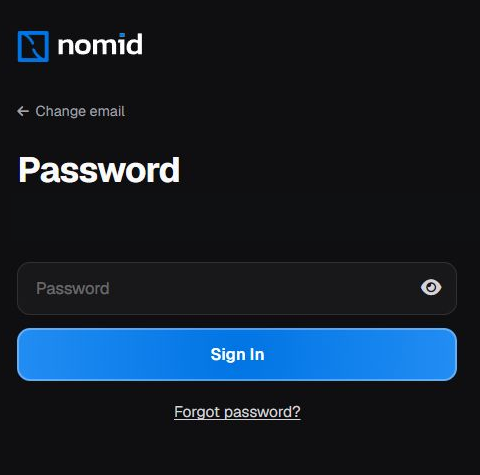
Figure 2. Local password form before a credential is entered or authentication occurs.
- Confirm that the Password state is open.
- If the email is wrong, use Change email.
- Enter the password only in the Portal and use the visibility control carefully.
- Select Sign In to authenticate.
- If you do not remember the password, open Forgot password?.
The screen shows the form and its controls before authentication; it does not indicate that access was completed. Do not share the password or include it in Ask Nomid.
¶ Recover access
Select Forgot password? to open the recovery form. Check the contact and select Send only when you want to start the request.
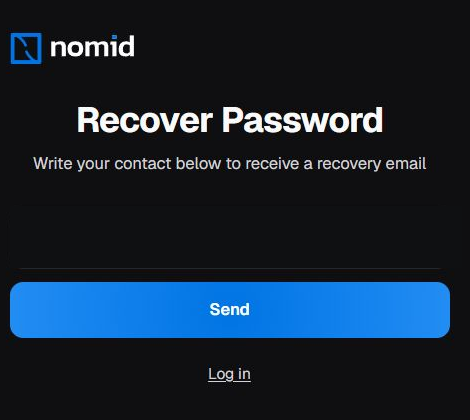
Figure 3. Recovery entry state with identity protected and no request sent.
Review the instruction and indicated contact. Send starts the request only if you choose to activate it; the figure shows the state before the click and does not prove email delivery, timing, link, reset, or success. Use Log in to return without sending.
If the contact is not recognized or the flow cannot be completed, contact the administrator responsible for access. User administration belongs in Settings.
¶ Start creating an account
On the initial page, Create an account opens the form used to start signup.
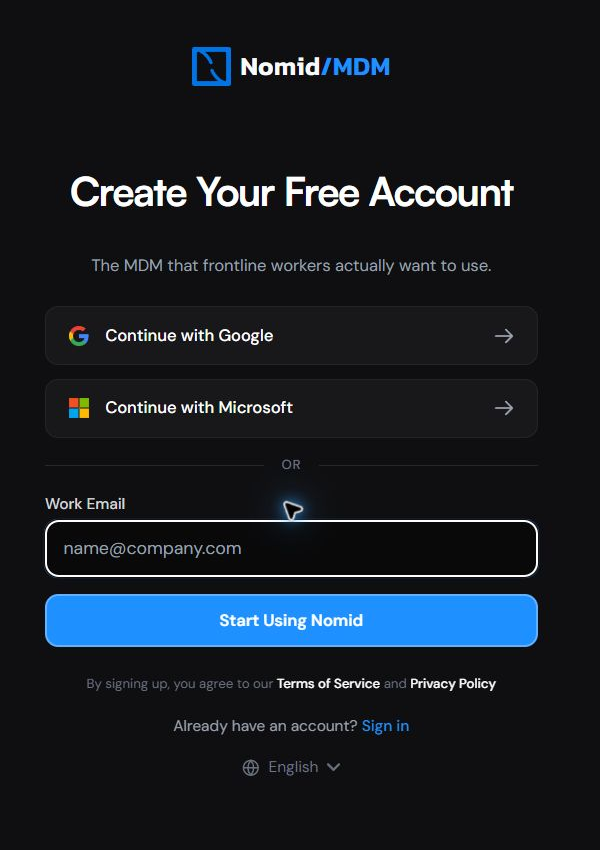
Figure 4. Initial signup form with no data entered and no request submitted.
Choose only one authorized route:
- If the organization uses Google or Microsoft, select only the corresponding provider; do not fill in the work email at the same time.
- For the local flow, enter only the Work Email.
- Read the displayed terms before continuing.
- In the local flow, select Start Using Nomid. In federated flows, the provider button starts an external page that this manual does not document.
- Stop when the next state opens. This step only starts the flow; it does not prove account creation, approval, plan, or company association. Use Sign in to return if you already have an account, and contact the administrator if signup depends on an invitation or authorization.
¶ Learn the navigation
¶ Sidebar
After authentication, the sidebar keeps the active company, search, and global modules in a consistent reference area.
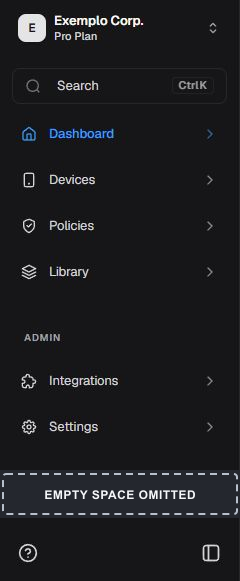
Figure 5. Portal modules and the help menu, showing the EN language indicator.
Use the sidebar to open the module you need. The help menu groups the links shown and displays the current language.
- Active company: verify the name before starting an operation.
- Search: opens global search.
- Dashboard: opens aggregate fleet information. Continue in Dashboard.
- Devices: opens device inventory and operations. Continue in Devices.
- Policies: opens configurations applied to devices. Continue in Policies.
- Library: opens applications and other reusable resources. Continue in Library.
- Integrations: opens Android Enterprise, SSO, and connected services. Continue in Integrations.
- Settings: opens organization and access administration. Continue in Settings.
- Help and language: the open menu shows Wiki, API Docs and other help links. Language indicates the current selection.
After selecting a module, continue in its owning article to complete the task.
¶ User menu
Open the company or user control at the top of the sidebar to review session context and available actions.
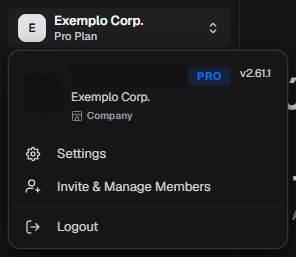
Figure 6. Session menu with the active company and actions available to the illustrated role.
- Settings: opens administration; details continue in Settings.
- Invite & Manage Members: leads to member administration when the role has access. Creation, roles, and permissions belong in Settings.
- Logout: ends the current session. Use it when work is complete, especially on a shared computer.
The menu may show the plan and Portal version. These values are informational and can change. A missing action may reflect role, permission, plan, or feature differences; visual absence does not prove an error.
¶ Global shortcuts
¶ Global search
Use search to locate pages, actions, devices, or policies without browsing every module. Open it through Search in the sidebar, which is the primary path. On Windows, you can also use Ctrl+K when that hint is visible. On macOS, use Command+K only when that combination is available.
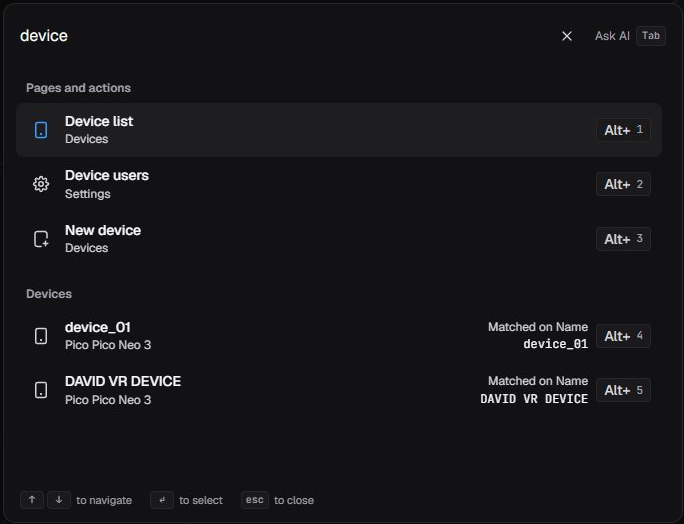
Figure 7. Global search open without selecting a result.
- Enter a term related to the destination or resource.
- Check each result's group before choosing it.
- Use arrow keys to move focus, Enter to select, or Esc to close.
- When shown, use Alt+number to open the corresponding position directly.
- With search open, select Ask AI. When the Tab hint is visible, press Tab to switch from search to Ask Nomid.
Groups, results, order, and counts are dynamic. The same search may show only pages and actions or also company resources. Do not use the figure as a fixed inventory and do not assume that a missing result was removed.
When a result opens a device or policy, continue in Devices or Policies.
¶ Quick actions
The + button opens shortcuts for starting common operations without finding the module in the sidebar.
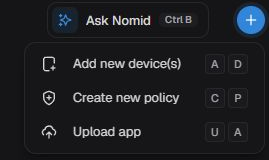
Figure 8. Quick actions available to the illustrated role; no action was run.
- Add new device(s): starts the enrollment journey. Continue in New device.
- Create new policy: starts policy creation. Continue in New policy.
- Upload app: starts adding an application. Continue in Library.
When a key combination appears beside an option, it identifies the corresponding shortcut. Available options depend on your permissions. After choosing an action, continue in the manual linked above; the next form belongs to that manual.
¶ Help while working
¶ Ask Nomid overview
Ask Nomid is a contextual panel. It shows the active mode, the page used as context, suggestions, and a field for your question.
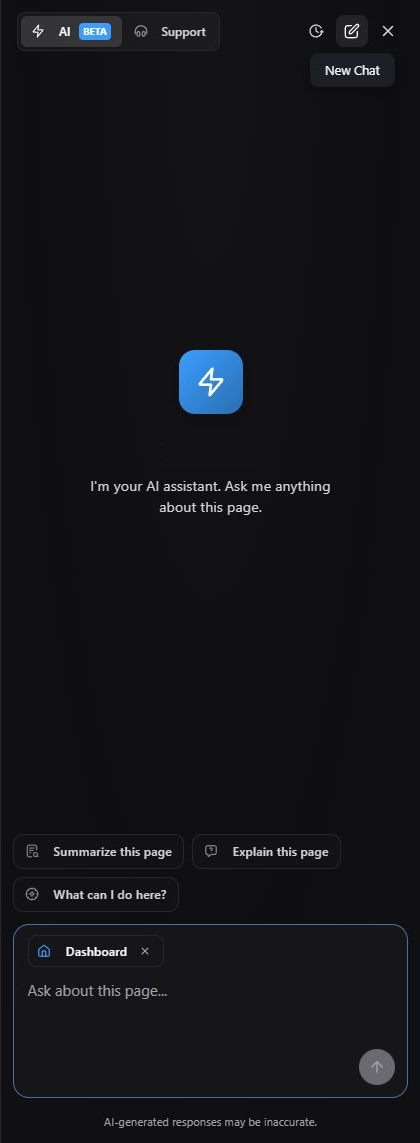
Figure 9. Initial Ask Nomid state on Dashboard before a question is sent.
- Open Search in the sidebar, as shown in Figure 7.
- Select Ask AI or press Tab when that hint is visible. Ask Nomid opens.
- Confirm whether AI or Support is the intended mode.
- Check the context chip, such as Dashboard.
- Write a focused question without personal data or secrets.
- Use X to close the panel and return to the page.
Suggestions, context, and controls may vary. The panel can help with navigation and interpretation, but it does not replace official documentation, an administrator's decision, or validation of the device's actual state.
¶ Help, theme, and language
The help icon at the bottom of the sidebar opens documentation, external channels, companion applications, and visual preferences.
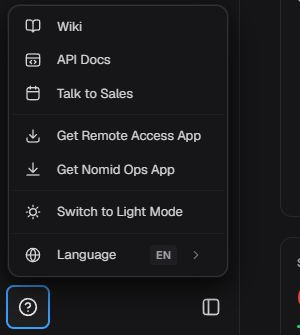
Figure 10. Help and preferences menu with the labels shown in the English interface.
- Wiki: opens Portal documentation.
- API Docs: leads to the technical API reference.
- Talk to Sales: opens the commercial contact channel.
- Get Remote Access App: offers the application identified by the interface. For enablement and operation, see Remote access.
- Get Nomid Ops App: offers another companion application observed in the environment.
- Switch to Light Mode: changes the visual preference when activated.
- Language: opens the interface language options.
The application names above are the labels shown in the interface. Do not treat Remote Access, Nomid Ops, VR Setup, or other names as equivalents without specific confirmation. The figure shows the starting points. The contents and outcomes of external destinations are outside this article.
¶ Ask Nomid in detail
¶ AI mode
In AI mode, ask a short, safe question tied to the current page. The answer appears in the conversation and may include related suggestions.
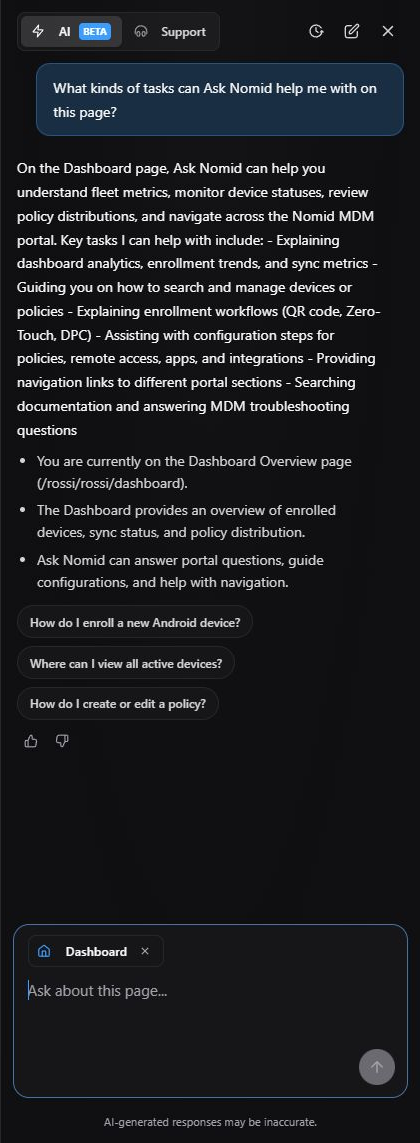
Figure 11. Demonstrative example of a real question and response in AI mode.
Safe example: “What kinds of tasks can Ask Nomid help me with on this page?”
Use the response to discover paths, terminology, and follow-up questions. Then validate important instructions against documentation and the Portal's actual state.
Required limitation: AI-generated responses may be inaccurate. The text shown in the figure is a dynamic demonstration, not a normative definition of Portal functions, metrics, or shortcuts.
Do not include passwords, tokens, verification codes, API keys, unnecessary personal information, or confidential content. For a question about another module, open that module first or state the context clearly.
¶ Support mode
Select Support to open the contact mode shown in the panel.
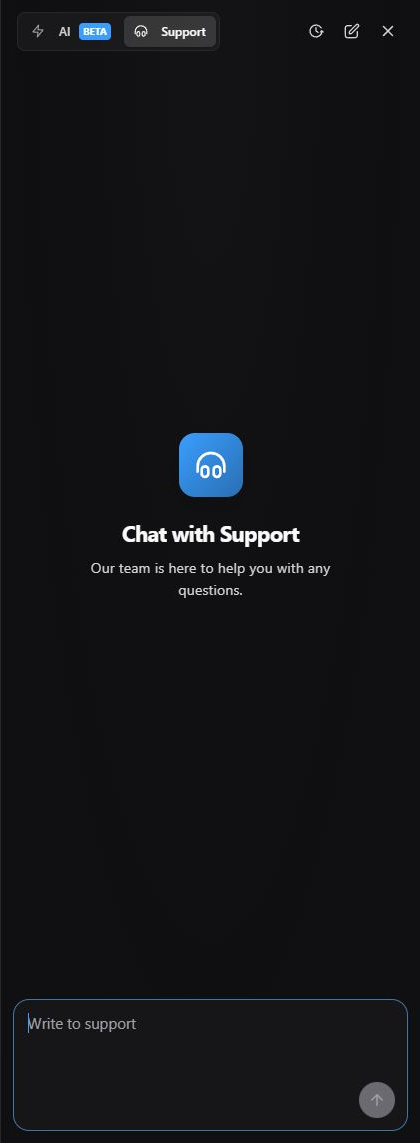
Figure 12. Initial Support mode before writing or sending a message.
The panel presents guidance and a text field. The figure shows the state before submission. It therefore does not prove ticket creation, human service, routing, response time, reply, storage, or conversation persistence.
When describing a problem, include the area, action taken, and the result you saw. Do not send secrets. If the investigation concerns a device or policy, continue in the owning manual to collect the correct context: Devices or Policies.
¶ History, new conversation, and closing
In the Ask Nomid header, three icons identify the history, new conversation, and closing controls.

Figure 13. Detail of the three icons used to identify controls in the Ask Nomid header.
- Clock icon: visual reference on the left.
- Compose icon: visual reference in the center.
- X: visual reference on the right.
The figure shows only the icons' appearance and position. It does not demonstrate what happens after clicking any of them. Before interacting, confirm the panel's current state and preserve any text or work you do not want to discard.
¶ Security and interpretation
- Verify the domain and address before entering credentials.
- Use only the authentication method authorized by the organization.
- Do not record a password, token, MFA code, API key, or secret in documentation, screenshots, or conversations.
- End the session on shared equipment.
- Treat search results, suggestions, and AI responses as dynamic.
- If a control is missing, check role, permission, plan, and enabled features before concluding that it failed.
- Use the owning article to validate operations in Devices, Policies, Library, Integrations, or Settings.
¶ Common issues
¶ I cannot continue through sign-in
Confirm the email and authorized method. If Google or Microsoft opens an external provider, follow your organization's policy; this manual does not document that interface. If the local flow reaches the password step, confirm that the field is filled only in the Portal. Avoid repeated attempts without guidance when account lockout is a concern.
¶ I cannot identify the sign-out action
Open the user menu and look for the final session action. Its label is localized according to the observed interface. In one es-ES variant, the action appears as Sair; this is a product localization gap, not an instruction to change language.
¶ A module or shortcut is missing
Visibility may depend on role, permission, plan, or an enabled feature. Compare it with the operation you need and contact the administrator. Do not use one figure's list as a fixed catalog.
¶ Search returns different results
The term, language, available resources, and company data can change the returned groups. Refine the term and verify the group before selecting. Global search does not replace module-specific filters.
¶ Ask Nomid disagrees with the documentation
Treat the response as initial guidance. Check the owning manual, current interface state, and, when needed, confirm with Support or an administrator. Do not perform a sensitive action based only on an AI-generated response.
¶ Glossary
- Federated authentication: sign-in redirected to a provider such as Google or Microsoft.
- Local access: sign-in in which the Portal shows its own password field after recognizing the email.
- Active company: organizational context shown in the authenticated session.
- Global search: panel that finds pages, actions, and resources from a term.
- Quick action: global shortcut that starts a journey in another module.
- Ask Nomid: contextual panel with AI and Support modes.
- Context: page indicated to the assistant as the reference for a conversation.