¶ Create a Web App for a Google Maps route
Application: Nomid MDM
Document: V1.0.0
Last updated: 03/08/2026
Editorial owner: Nomid MDM Documentation
Last editorial review: 03/08/2026
Editorial language: en-US
This guide explains how to create a route in Google Maps, copy its HTTPS link, and make it available as a Web App on Android devices managed by Nomid. The procedure does not require programming, a custom website, or an Android application.
The model is one Web App per route. When finished, the user finds an icon with the route name in Nomid Launcher and uses it to open the shared Google Maps link.
Variable behavior: tapping the icon may open Google Maps, the browser, or an app chooser. Maps may also recalculate the route based on location, traffic, closures, and regional availability. Run a pilot on the same device model and configuration used in the operation.
¶ 1. When to use this model
Use this procedure for a small number of stable routes, such as Downtown route, Branch visit, or Return to base.
Each route creates its own Web App and icon. For many routes, frequent changes, stop optimization, proof of delivery, or real-time dispatching, use an appropriate routing solution instead of creating many icons.
The shared link may reveal the origin, destination, and stops to anyone who receives it. Use authorized locations only, and avoid including homes, restricted facilities, or customer addresses unless operationally required.
¶ 2. Before you begin
Confirm these requirements:
- access to Google Maps on a computer;
- defined origin, destination, and stops;
- permission to edit the correct policy in Nomid;
- Managed Google Play available for the company;
- Google Maps and Google Chrome available for distribution;
- an approved corporate icon, square and maskable, 512 x 512 pixels in PNG or JPEG format, saved on the computer;
- a corporate Android device in a pilot policy or group;
- internet access on the device;
- location services enabled and allowed for Maps only when the route depends on the current position.
Policy impact: saving the policy may install applications and change the Home Screen on every linked device. Confirm the active company, policy, and pilot group before saving.
¶ 3. Create the route in Google Maps
On a computer:
Google Maps labels may change with the language or an interface update. When that happens, use the action equivalent to Directions, Add destination, Share, or Copy link.
- Open Google Maps.
- Select Directions.
- Enter a fixed origin, or leave the origin to be set at use time when the interface allows it.
- Enter the final destination.
- Use Add destination to include intermediate stops when needed.
- Drag the stops into the required operational order.
- Select the transportation mode that will be used.
- Review the route options available for the mode and region.
- Check the map to confirm the points, their order, and the operational restrictions.
If the interface requires an origin before sharing the route, enter a fixed origin and test the link with that point. If the operation must use the current position, do not distribute the Web App until the pilot device proves that the link requests or uses that position. Do not try to correct this case by manually editing URL parameters.
Effect of each choice:
| Choice | Expected result |
|---|---|
| Fixed origin | The link requests a route from the specified point. If the device is elsewhere, Maps may show a preview or recalculate. |
| Current position as origin | Maps tries to use the device location when the link opens. This depends on location services and the permission granted to Maps. |
| Destination | Sets the final point that should appear when the link opens. |
| Add destination | Adds an intermediate stop. Maps uses the submitted points but may recalculate the roads between them. |
| Stop order | Sets the requested sequence. Review it before sharing because this procedure does not automatically optimize the operation. |
| Driving, transit, walking, cycling, or another available mode | Changes the roads, estimate, and route options. Availability depends on the region and Google Maps. |
| Alternative route | Selects a suggestion for the current view but does not freeze the roads. Maps may recalculate when the link opens. |
| Avoid tolls, when available | Requests a preference for routes without toll charges. Check the result because distance and duration may change, and the option does not guarantee that every charge is absent. |
| Avoid highways, when available | Requests a preference for other roads. The route may become longer or take more time. |
| Avoid ferries, when available | Requests a preference for routes without ferry segments. The alternative depends on roads available in the region. |
| Depart at or Arrive by, when available | Uses the entered time in the displayed estimates and suggestions. Confirm in the shared link whether the expected behavior was preserved. |
These options influence the Google Maps suggestion but do not make the route immutable. Use only the controls displayed for the mode and region, and retain the recalculation warning in the operational procedure.
Do not manually copy parameters from the browser address bar. Use Share to obtain the link prepared by Google Maps.
¶ 4. Copy and test the link
- With the route open, select Share.
- Choose the option to send or share a link when it is displayed.
- Select Copy link.
- Open a private window or a browser where your account is not signed in.
- Paste the link and confirm that it uses HTTPS and reopens the expected origin, destination, stops, mode, and restrictions.
- Record whether the route preserved a fixed origin or requested the current position at use time.
Share opens the route distribution options. Copy link puts the shareable address on the clipboard; it does not publish the route in Nomid. Testing without a login reduces the risk of using an address that depends on the creator's personal history or session.
The link may start with https://maps.app.goo.gl/ and redirect to Google Maps. Do not use links from an unknown domain, and do not include credentials or confidential information in the URL.
¶ 5. Open the policy Home Screen
In the Nomid portal, open Policies, select the pilot policy, and open Home Screen.

The Home Screen tab contains the launcher mode, policy applications, and their visual organization. Changes in this section affect devices that receive the saved policy revision.
¶ 6. Add Google Maps and Chrome
In the application list, select Add App.
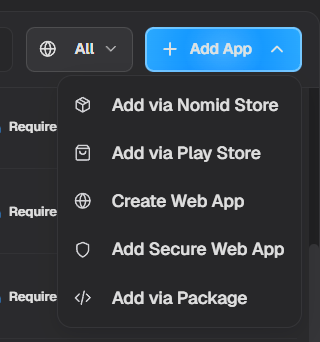
The menu provides five methods:
- Add via Nomid Store: adds an application available in Nomid's internal catalog. This is not the method used for Maps or Chrome.
- Add via Play Store: opens Managed Google Play to search for and approve applications. Use this method for Google Maps and Google Chrome.
- Create Web App: creates a managed application that opens a URL. Use this method later for the route link.
- Add Secure Web App: creates an entry for controlled browsing through the secure browser. It is not required for this procedure.
- Add via Package: adds an application using a known package name without searching the store. It is not required when the application can be selected in Managed Google Play.
Select Add via Play Store.
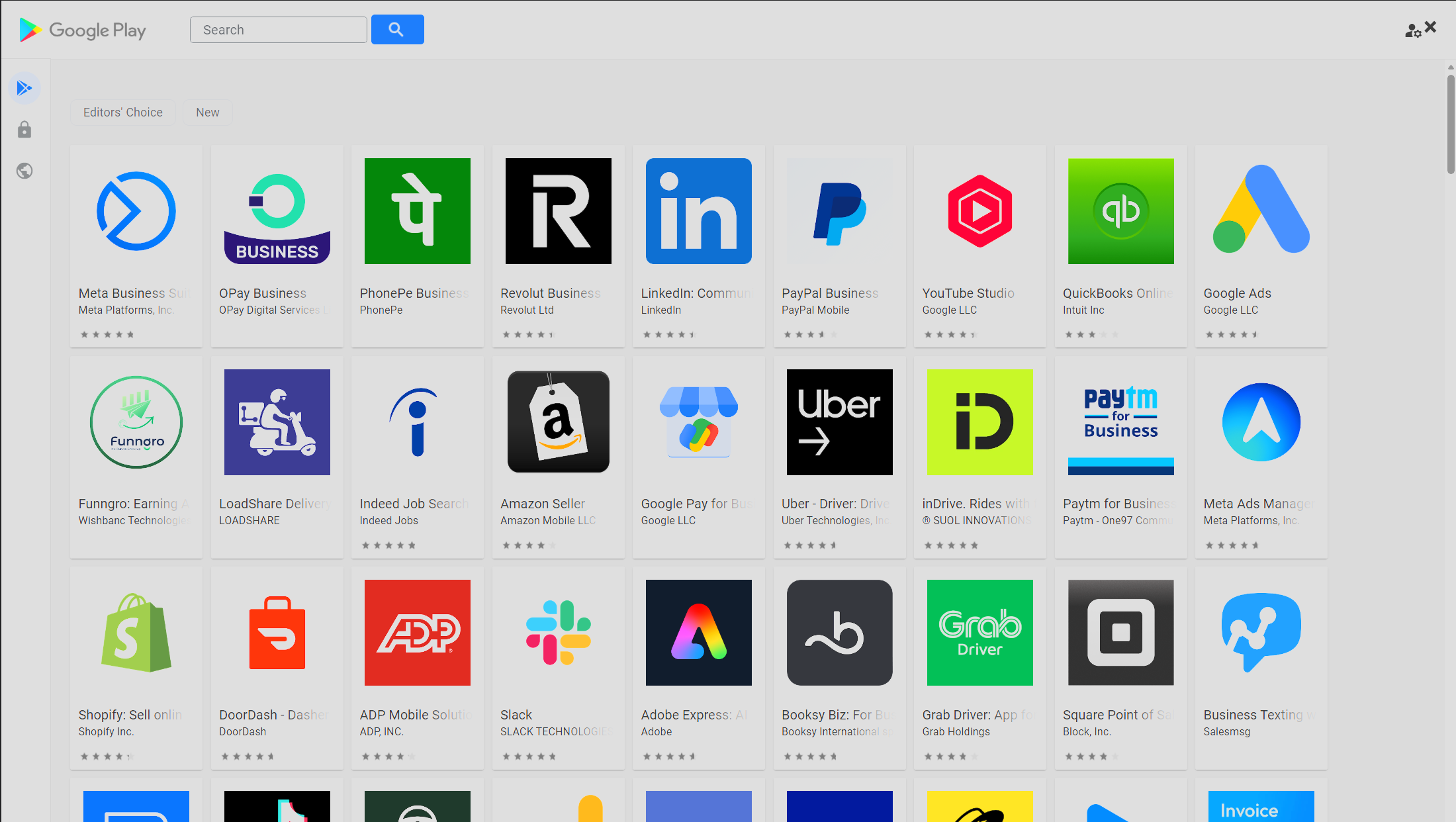
The image shows the catalog and search field; it does not show Maps or Chrome already selected.
- Search for Google Maps, open the correct application, and approve or add it to the policy.
- Return to the catalog, search for Google Chrome, and add it in the same way.
Purpose of each component:
- Google Maps: displays the route and may start navigation. Having it installed does not guarantee that every link will be routed to it automatically.
- Google Chrome: provides the browser support used by the Web App and processes link redirects. It may remain outside the visible launcher area if the policy allows it.
- Route Web App: creates the icon and requests that the configured link be opened. It does not calculate or lock the route.
¶ 7. Create the route Web App
Open Add App again and select Create Web App.
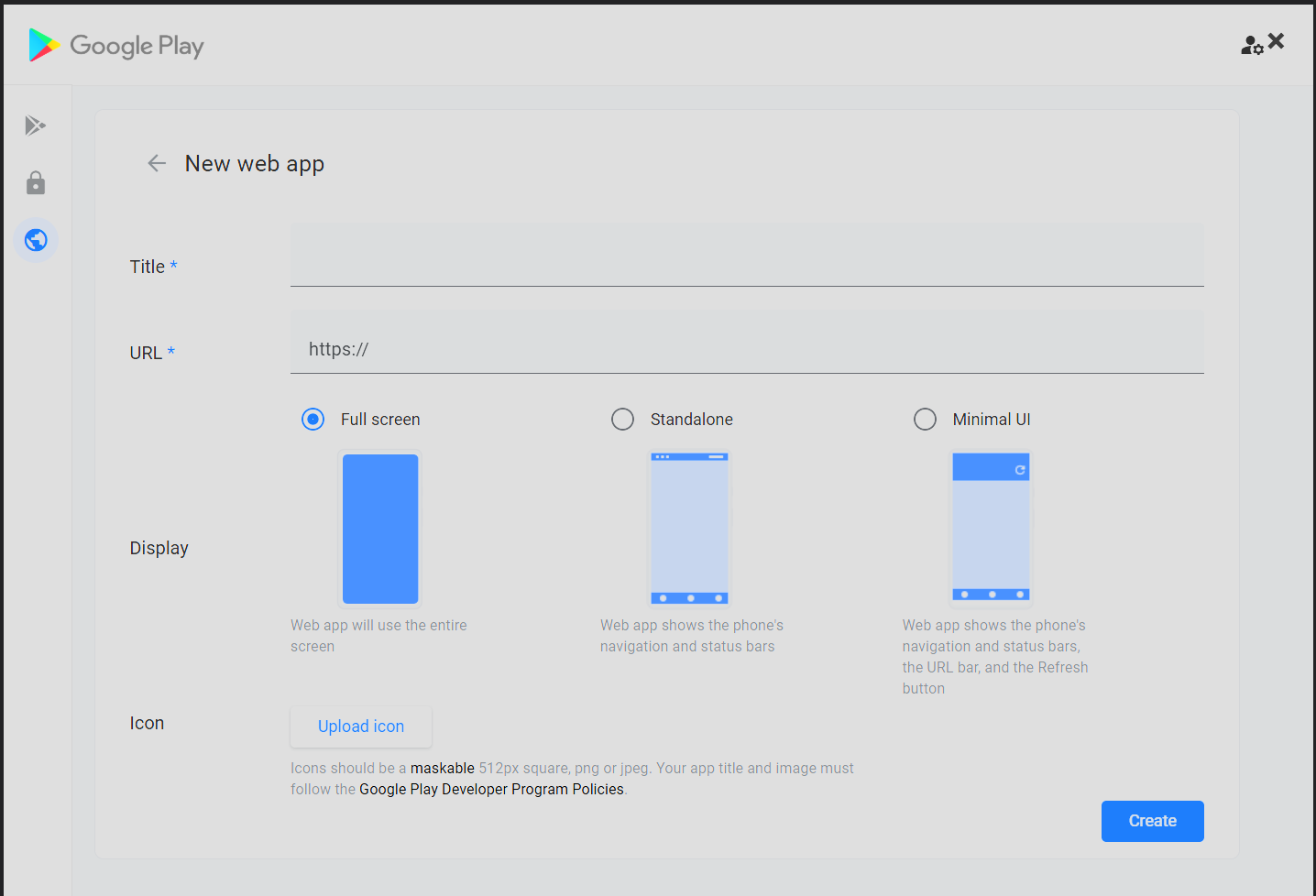
Complete and review each item:
| Field or option | What it lets you do | Recommended use in this guide |
|---|---|---|
| Title | Sets the name shown in the catalog and on the icon. | Use a name that identifies one route, such as Downtown route - Deliveries. |
| URL | Sets the address opened when the icon is tapped. | Paste the tested Google Maps HTTPS link. |
| Full screen | Uses the entire screen and hides the browser interface. | Do not use it in the first pilot because it provides fewer visible controls for returning and troubleshooting. |
| Standalone | Shows the device status and navigation bars without the complete URL bar. | It can be certified after the pilot if returning works correctly on the device. |
| Minimal UI | Shows the device bars, URL, and refresh control. | Recommended for the first pilot because it helps verify the address, refresh, and troubleshoot opening behavior. |
| Upload icon | Selects the file that represents the route in the catalog and launcher. | Use the approved corporate icon prepared in the prerequisites. Check format, dimensions, readability at a small size, and the absence of addresses, customer names, or other sensitive data. |
| Create | Submits the Web App to Managed Google Play. | Select it only after reviewing the name, link, mode, and icon. |
The display mode controls the Web App appearance. By itself, it does not determine whether Android opens the result in Maps, the browser, or an app chooser.
Creation and updates may take time to propagate through Managed Google Play. Do not treat a completed registration as proof that the device has already received the application.
¶ 8. Set the Required state
Find Google Maps, Google Chrome, and the route Web App in the policy application list. Open the state selector for each one.
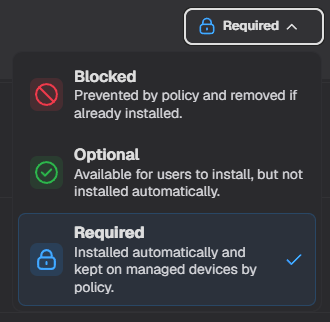
Each state produces a different result:
- Blocked: prevents use and removes the application if it is already installed. Use it to withdraw a route Web App when that is the intended result, then confirm on the device.
- Optional: makes the application available for manual installation but does not install it automatically. It does not guarantee that the route is ready for the user.
- Required: installs the application automatically and keeps it on the device while the policy applies. Select this state for Maps, Chrome, and the Web App in this flow.
¶ 9. Show the icon in Nomid Launcher
Under Launcher Mode, select Nomid Launcher.
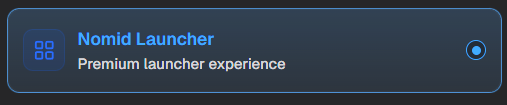
Nomid Launcher applies the policy-controlled Home and lets you present and order the required applications. Confirm that the route Web App is visible and place its icon where the user can recognize it.
The launcher organizes the shortcut, but it does not change the route or choose which application opens the link.
¶ 10. Save, synchronize, and validate
- Review the company, policy, pilot group, three applications, and icon order.
- Save the policy. This action creates a revision and starts its distribution.
- Under Policies > History, confirm the new revision.
- On the pilot device, wait for communication or request synchronization through the permitted operational procedure.
- Under Devices > Policy, confirm that Policy version matches the current revision and that Last sync occurred after the change.
- Under Devices > Apps, confirm that Google Maps, Google Chrome, and the Web App are installed.
- On the device, find the icon in Nomid Launcher and tap it.
- Confirm the origin, destination, stops, transportation mode, and selected operational restrictions.
- Test Back, returning to the launcher, and opening the route again after restarting the device.
Expected evidence:
- Link: reopens the correct route outside the creator's session.
- Portal: shows the revision, a later synchronization, and the installed applications.
- Device: shows the correct icon and opens the route using behavior that is known and accepted for the pilot.
Opening in the browser or displaying an app chooser does not necessarily mean that distribution failed. Record the actual result and certify only behavior suitable for the operation.
¶ 11. Update, replace, or withdraw a route
To reduce risk, do not replace an operational route before testing its new link.
- Create and validate the new link outside Nomid.
- Create a new Web App with a distinguishable name, such as
Downtown route - Revision 2. - Add it as Required only to the pilot policy.
- Confirm synchronization, installation, and opening on the device.
- After acceptance, set the old Web App to Blocked or remove it from the policy according to the approved procedure.
- Synchronize again and confirm that the old icon is no longer available.
Choose the rollback according to the scope of the problem:
- Withdraw only the new Web App: use this when the failure is limited to the route shortcut or link. Set the new Web App to Blocked or remove it from the policy, save, synchronize, and confirm removal on the device.
- Restore the complete revision: use this only when the entire policy must return to its previous state. Open Policies, select the policy, and see History in the Policies manual.
Under History, each action has a different effect:
- Compare: shows differences between revisions; it does not change or distribute the policy.
- Preview: opens the selected revision in read-only mode; it does not make it current.
- Restore: copies the complete contents of the selected revision into a new current revision, preserves the previous history, and starts normal policy distribution.
Before selecting Restore, compare and preview the revision, confirm applications, network, launcher, and critical restrictions, and limit the test to the pilot group. After restoration, confirm the new revision, Policy version, Last sync, and applications under Devices > Apps. Deleting a Web App from the catalog does not prove its removal from devices that already received it.
¶ 12. Common problems
| Problem | Verification | Recommended action |
|---|---|---|
| The link opens the wrong route | Open the HTTPS link outside the creator's session and check points and order. | Recreate and test the link before registering another Web App. |
| The Web App does not appear | Compare Policy version, Last sync, state, and launcher visibility. | Correct the policy, keep Required, and synchronize the pilot. |
| Maps or Chrome is not installed | Check Devices > Apps. | Add it through Managed Google Play, use Required, and validate again. |
| The route opens in the browser | Confirm that Maps is installed and record which application Android selected to open the link. | Certify the browser or Maps according to the accepted result; Web App mode does not guarantee which application will open. |
| An app chooser appears | More than one compatible application is available without a suitable default. | Select and test the permitted application on the pilot device. |
| Maps requires an origin before sharing | The interface does not allow a link to be generated with an empty origin. | Use a fixed origin; if current position is an operational requirement, stop registration and validate that behavior in the pilot without manually editing the URL. |
| The current position is not used | Check location services and the Maps permission. | Grant only the required permission and repeat the test. |
| Maps changes the route | Compare origin, destination, and stops instead of only the roads. | Accept recalculation or use another solution if the route must be immutable. |
| The change has not arrived | Check the revision time, Last sync, and connectivity. | Wait for propagation and synchronize; do not duplicate the registration before diagnosing it. |
¶ 13. Expected result
The procedure is complete when a Web App identified by route appears in Nomid Launcher, the policy and applications are confirmed as current, and the link opens the correct points using the behavior certified for the pilot device.
¶ References
- Google Maps Help: share maps and directions
- Google Maps Help: directions and routes
- Google: create web apps in Managed Google Play