¶ 5. Library
Aplicação: Portal Nomid MDM
Documento: V1.3.0
Última atualização: 07/08/2026
Responsável editorial: Documentação Nomid MDM
Última revisão editorial: 07/08/2026
Idioma editorial: pt-BR
A Library centraliza recursos reutilizáveis do portal, como aplicativos, contatos e links. Esses itens são reaproveitados em políticas, launchers e fluxos de distribuição.
Importante: Alterar um item da biblioteca pode impactar políticas e dispositivos que dependem dele. Revise vínculos antes de substituir ou remover um recurso.
Os recursos cadastrados aqui são consumidos principalmente por Policies. Para parâmetros por dispositivo, consulte variáveis dinâmicas em configurações gerenciadas; para atalhos web distribuídos como aplicativo, consulte App Web no Managed Google Play.
¶ Visão geral
¶ Abas da Library

As abas organizam os recursos da Biblioteca; Apps está selecionada nesta tela.
Selecione a aba do recurso desejado. Listas de Contatos depende da permissão de consulta; Links, Vídeos, Arquivos e Ambientes de VR dependem dos recursos VR habilitados para a empresa. A presença das abas Vídeos e Arquivos não garante ferramentas de envio ou gerenciamento.
¶ Elementos da tela
- Apps: centraliza aplicativos reutilizáveis em políticas.
- Listas de Contatos: organiza listas de contatos corporativos.
- Links: mantém atalhos web que podem ser publicados no launcher ou em políticas.
- Busca e filtros: ajudam a localizar recursos antes de criar duplicidades.
- Ações de criação: permitem adicionar novos itens à biblioteca conforme permissão.
¶ Aplicação na operação
- Clique na aba do tipo de recurso que deseja administrar. Cadastre primeiro na Library e depois vincule em Policies, evitando repetir a mesma configuração em várias políticas.
¶ Ambientes VR
Ambientes VR reúne os ambientes reutilizáveis disponíveis para a empresa. Para selecionar um ambiente em uma política VR/Pico, consulte 4.1 Políticas para VR/Pico; a seleção é feita no editor da política.
¶ Aplicativos
¶ Lista de aplicativos
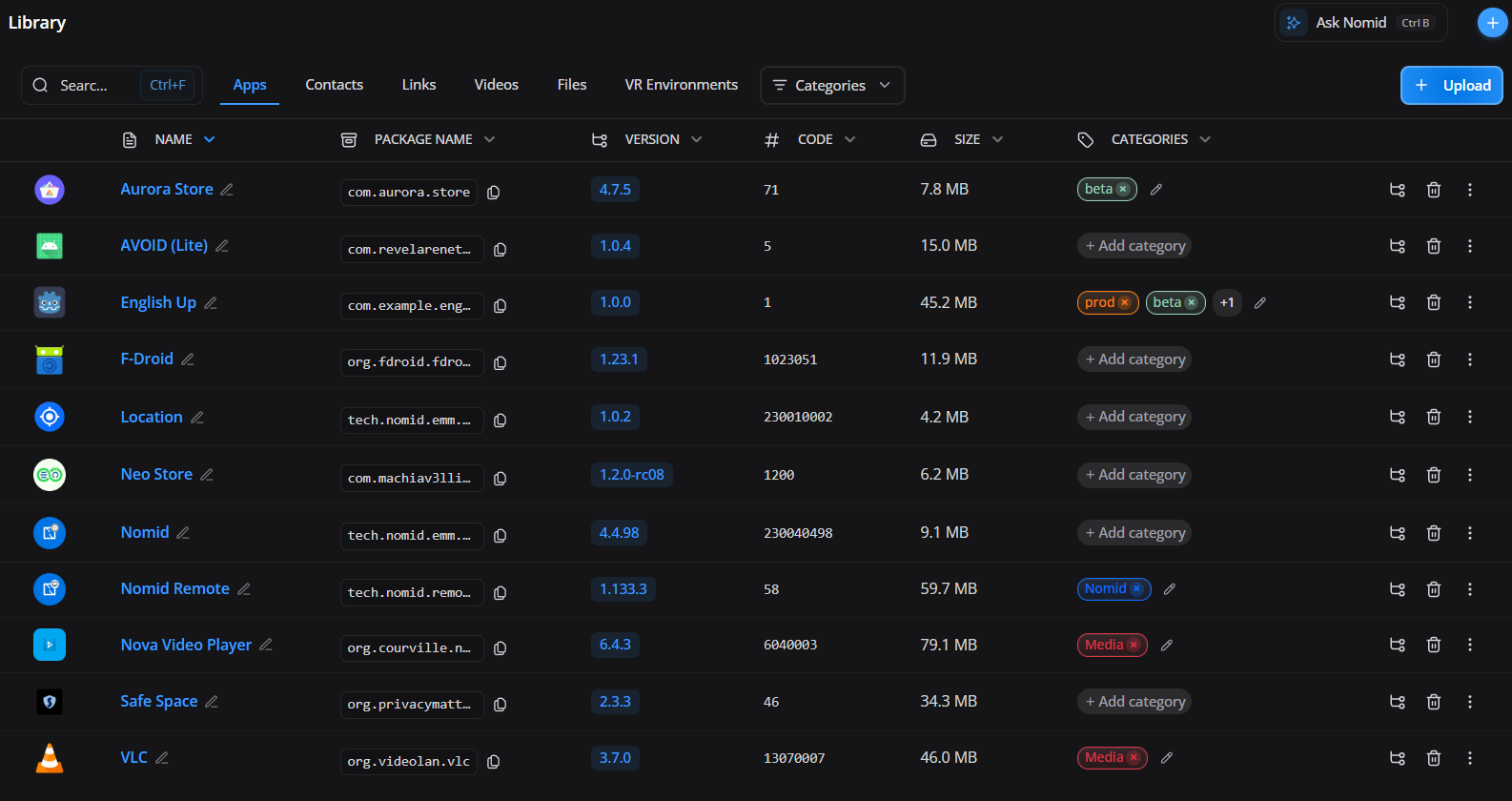
A lista de aplicativos cadastrados na Library.
Esta área é usada para consultar apps disponíveis para uso nas políticas, incluindo apps públicos, privados, gerenciados ou adicionados manualmente.
¶ Elementos da tela
- Lista de apps: mostra aplicativos disponíveis para reutilização.
- Nome e pacote: evitam confusão entre apps similares.
- Versão/status: indicam disponibilidade e atualização.
- Ações: permitem editar, remover ou revisar detalhes do app.
- Uso em políticas: o app da biblioteca pode ser incluído em uma ou mais políticas.
¶ Aplicação na operação
- Utilize a busca para localizar o app, revise nome/pacote e clique em ações para editar. Ao criar políticas, selecione apps dessa biblioteca para controlar instalação e permissões.
¶ Personalizar nome e ícone do app
Na lista ou no detalhe de um app do Nomid Store, a edição de apresentação permite definir como ele será reconhecido no launcher dos dispositivos.
- Custom display name: substitui o nome mostrado ao usuário sem alterar package name, assinatura ou nome original do APK.
- Custom icon: substitui o ícone exibido no launcher sem modificar o arquivo do app.
- Remove custom icon: volta a usar o ícone fornecido pelo APK ou pela loja; uma alteração de nome ainda pendente pode ser salva separadamente.
- Save: grava a nova apresentação e a inclui no próximo lote de distribuição. O resultado não chega imediatamente a todos os dispositivos.
As alterações de nome, ícone e novas versões são agrupadas em um rollout. O aviso da Library mostra quantos apps aguardam distribuição e o tempo restante:
- Start now: encerra a espera e solicita que o lote comece imediatamente. Depois que o processamento inicia, a ação deixa de aparecer.
- Extend: adia o início quando o servidor libera essa opção, normalmente perto do fim da contagem. O botão desabilitado indica que o lote ainda não pode ser prorrogado.
- View job: abre o acompanhamento do processamento correspondente; consultar o job não muda o rollout.
- Starting: indica que o lote já foi assumido para execução e não pode mais ser antecipado ou prorrogado pelo aviso.
- Upload processing: indica que um ou mais arquivos ainda estão sendo processados. View jobs abre o acompanhamento, mas não acelera nem repete o upload.
Depois da conclusão, valide nome, ícone e versão em um dispositivo piloto que tenha sincronizado a política. Não use o nome personalizado para distinguir pacotes diferentes: o package name continua sendo a identidade técnica do app.
¶ Adicionar aplicativo
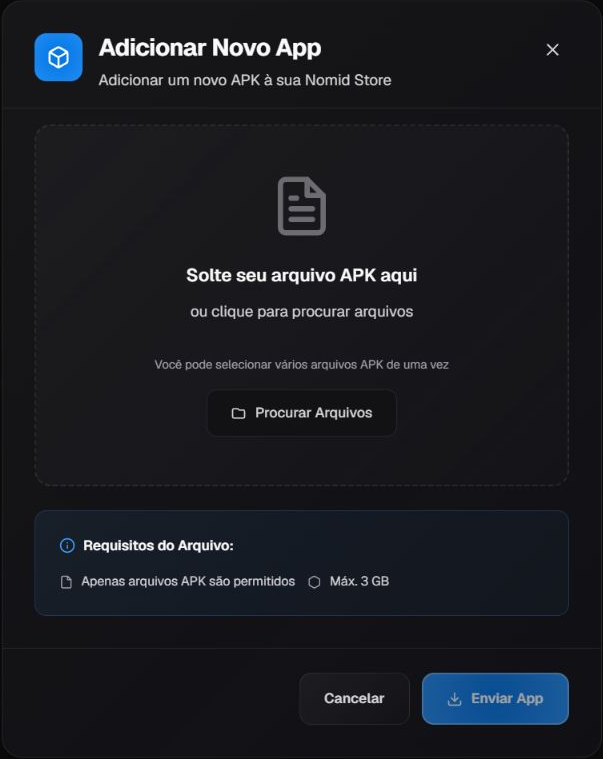
Na lista de aplicativos da Library, use Upload para abrir o modal de envio de APK. Esse modal recebe arquivos; não oferece escolha de Managed Google Play nem campos para cadastrar manualmente nome, pacote e versão.
¶ Enviar um APK aprovado
- Confirme a origem e a autorização para distribuir o APK. Confira assinatura, versão e compatibilidade antes do envio.
- Selecione o arquivo, ou os arquivos no modo de envio em lote, e revise a seleção. Escolher um arquivo não substitui a confirmação de envio.
- Acione Upload App quando a seleção estiver correta. Cada APK é enviado e processado; acompanhe o resultado de cada arquivo, inclusive em lote.
- Confira o aplicativo e seus metadados na lista antes de incluí-lo em uma política. Se algum envio falhar, verifique o que já foi concluído antes de repetir.
Use Browse Files ou a área de soltar apenas quando estiver pronto para escolher um APK. Cancelar fecha o modal sem selecionar arquivo; Enviar App exige um arquivo selecionado. O tamanho mostrado é apenas uma orientação visível do Portal, não uma garantia de compatibilidade nem de aceitação do envio. Cancelar não desfaz um envio já executado.
¶ Usar o aplicativo na política
O cadastro na Biblioteca não comprova instalação em um dispositivo. Para selecionar aplicativos da Biblioteca ou do Managed Google Play durante a criação, continue em Nova política. Para uma política já criada, use Políticas Android ou Políticas VR/Pico, conforme o equipamento, e confirme instalação e abertura em piloto.
¶ Contatos
¶ Lista de contatos
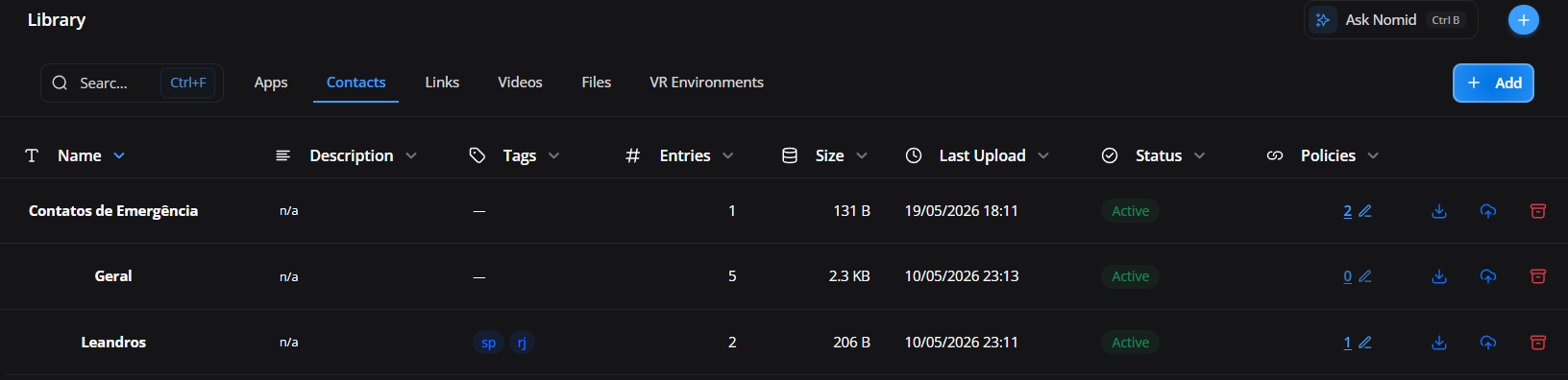
A aba Contacts mantém listas reutilizáveis que podem ser associadas às políticas. Cadastre apenas dados necessários à operação, registre a finalidade e limite a distribuição às políticas que realmente precisam deles.
A tabela e seus controles têm os seguintes efeitos:
- Search: filtra por nome, descrição ou tag sem alterar as listas.
- Active: mostra listas que podem ser editadas e associadas a políticas.
- Archived: mostra listas retiradas do uso ativo; arquivar não equivale a apagar imediatamente o conteúdo já sincronizado nos dispositivos.
- Name: identifica a lista e permite ordenação; quando a edição inline está disponível, salvar altera somente esse metadado.
- Description: registra finalidade e público; pode ser alterada sem substituir os contatos.
- Tags: ajudam a classificar cliente, filial, área ou uso e não são entregues como contatos aos dispositivos.
- Status: informa se a lista está ativa ou arquivada.
- Entries: mostra quantos contatos foram reconhecidos na versão atual.
- Policies: mostra quantas políticas usam a lista; abrir o número permite revisar associações quando o papel possui permissão.
- Updated: informa quando o conteúdo foi atualizado pela última vez.
- Edit contacts: abre o assistente para revisar, anexar, substituir ou editar os contatos.
- Edit policies: associa ou remove a lista das políticas selecionadas; isso muda quais dispositivos receberão o conteúdo depois da sincronização.
- Download: baixa o arquivo atual para conferência autorizada. Trate-o como dado pessoal e não o compartilhe em canal público.
- Archive: retira a lista da visão ativa e impede novo uso operacional até restauração.
- Restore: devolve uma lista arquivada à visão ativa; a restauração não a reassocia automaticamente a políticas removidas.
¶ Criar uma lista
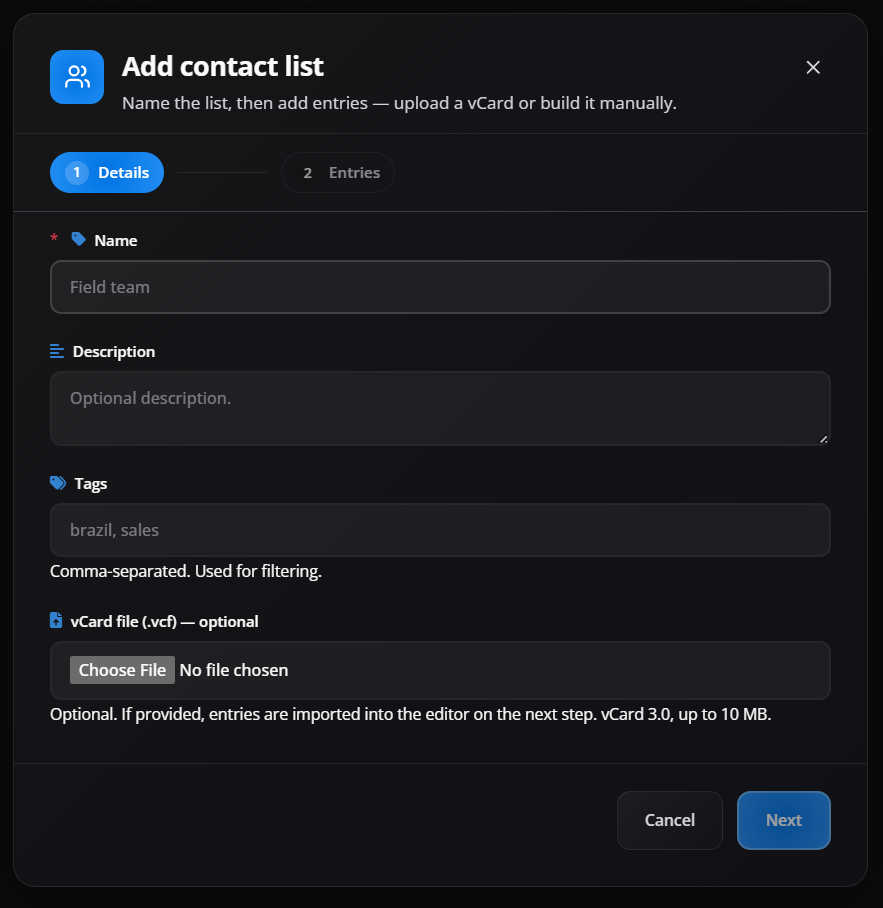
O assistente organiza criação e edição em upload, revisão dos contatos e detalhes da lista.
Na etapa de origem, escolha um método:
- Drop/browse file: carrega um arquivo
.csvou.vcfpara leitura; o upload ainda não cria a lista. - Add contacts manually: abre uma grade vazia para inclusão individual, adequada a listas pequenas.
- Download CSV template: baixa um modelo de colunas para preparar a importação sem adivinhar a estrutura.
- Replace file: troca o arquivo selecionado antes da revisão.
- Remove file: descarta o arquivo da etapa atual sem apagar uma lista já salva.
- Review: processa o arquivo e abre os contatos reconhecidos para conferência.
- Cancel: fecha a criação sem salvar a nova lista.
Linhas vazias, ilegíveis ou sem os dados mínimos podem ser ignoradas. O aviso de skipped rows identifica as linhas descartadas; corrija o arquivo se alguma delas deveria ser importada.
¶ Revisar os contatos
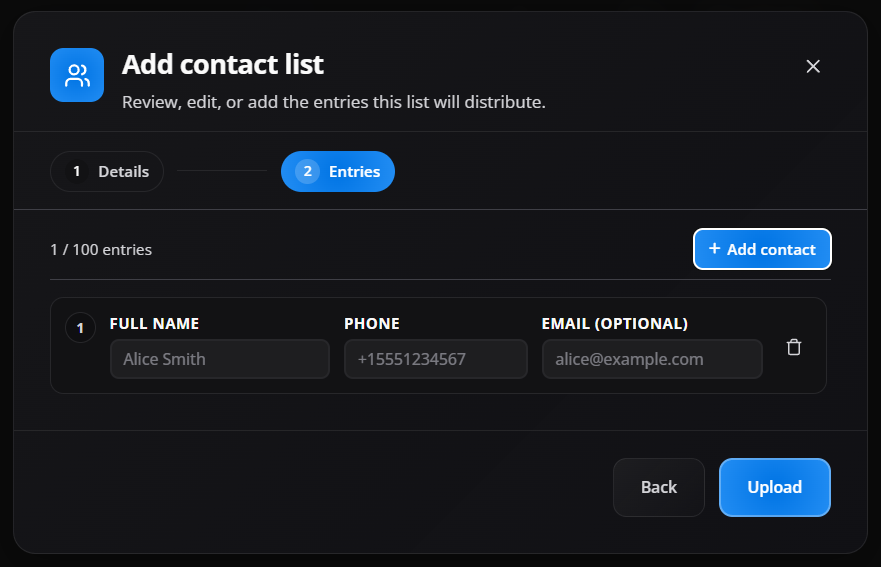
Na revisão, confira cada contato antes de avançar:
- Add contact: cria uma nova linha manual dentro do conjunto revisado.
- Edit: libera os campos do contato selecionado. Em vCards, somente os campos compatíveis exibidos pelo editor são alterados; propriedades não editadas são preservadas quando possível.
- Enter/Save: confirma a edição da linha quando os campos são válidos.
- Escape/Cancel: restaura os valores anteriores daquela linha.
- Remove: exclui o contato do conjunto que será salvo; não altera o arquivo original no computador.
- Append file: acrescenta contatos de outro CSV ou vCard à lista atual. Os contatos existentes são preservados e o arquivo anexado passa pela mesma revisão.
- Replace all: substitui todo o conteúdo da lista pelo novo arquivo revisado. Use somente depois de conferir a contagem e manter uma cópia autorizada para recuperação.
- Retry: tenta carregar novamente os contatos existentes quando a leitura falha; não substitui o conteúdo.
- Back: retorna à etapa anterior sem salvar a lista.
- Next: leva aos detalhes somente quando não há erro de validação que bloqueie a lista.
Nome, telefone e e-mail devem respeitar os limites e formatos apresentados. Um contato inválido permanece destacado e impede a conclusão até ser corrigido ou removido. Compare a contagem importada e as linhas ignoradas antes de continuar.
¶ Definir os detalhes e salvar
Na última etapa, revise a origem e a quantidade de contatos e preencha:
- Name: nome obrigatório da lista, com até 100 caracteres; use um padrão reconhecível por operação ou filial.
- More details: expande os metadados opcionais sem mudar os contatos.
- Description: registra a finalidade em até 500 caracteres.
- Tags: adiciona classificações administrativas para busca e organização.
- Back: retorna à revisão e preserva o rascunho atual.
- Create: cria uma nova lista com o conteúdo revisado.
- Save: atualiza a lista existente; políticas vinculadas passam a referenciar a nova versão depois da distribuição e sincronização.
Ao editar uma lista, Append file preserva os contatos atuais e soma os novos; Replace all troca o conjunto completo; alterar somente nome, descrição ou tags não reenvia um arquivo diferente por si só. Dispositivos offline podem manter a versão anterior até voltarem a sincronizar.
Depois de salvar, associe a lista em Policies > Contact List, aplique em um dispositivo piloto e compare Actual/Expected em Devices > System > Managed contacts.
¶ Links da Library
¶ Lista de links

A lista de links cadastrados na Library. Esta aba está disponível somente para
empresas com o recurso de biblioteca de VR habilitado. Se a Library exibir
apenas Apps e Contacts, alterar o papel do usuário no portal não fará
Links aparecer.
Esta área é usada para manter atalhos web reutilizáveis, como portais internos, sistemas corporativos, dashboards ou páginas de suporte.
¶ Elementos da tela
- Lista de links: mostra atalhos web cadastrados.
- Nome e URL: identificam cada recurso.
- Copiar URL: copia o endereço cadastrado, sem alterar o link.
- Abrir: abre o destino fora da lista; confirme o domínio antes de continuar.
- Excluir: solicita confirmação para remover o cadastro. Revise antes os vínculos nas políticas VR; não trate a exclusão na Biblioteca como comprovação de retirada imediata dos visores.
- Reutilização: evita recriar o mesmo atalho em várias políticas.
¶ Aplicação na operação
- Em uma empresa com VR habilitado, cadastre links na Library e associe-os ao
iniciador ou à política de VR para publicar atalhos em um visor. - Para um atalho web em quiosque Android, crie uma Web App pelo Managed Google
Play em
Policy > Apps, ou adicione uma Secure Web
App quando o site precisar
abrir no navegador seguro do Nomid. Não procure aplicativos web de políticas
Android em Library > Links.
¶ Adicionar link
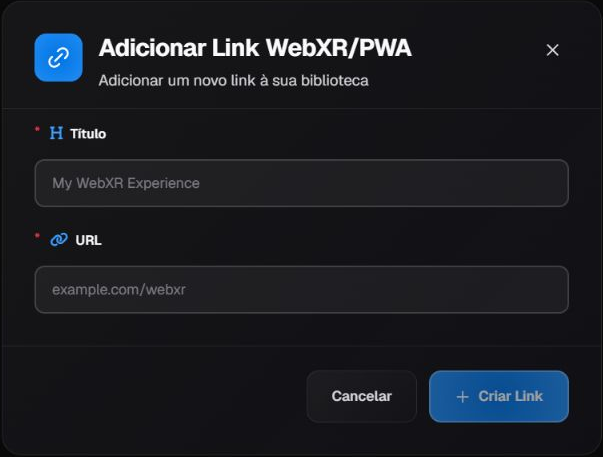
Título e URL ainda não foram preenchidos. Os textos de exemplo não são valores cadastrados.
Abra a ação de adicionar link na aba Links. Preencha os dois campos do modal:
| Campo | Efeito e cuidado |
|---|---|
| Título | Identifica o atalho. É obrigatório e aceita até 100 caracteres; use um título que ajude a reconhecer o destino. |
| URL | Registra o endereço, obrigatório, com até 500 caracteres. Confira o protocolo e o domínio; quando o protocolo é omitido, o formulário acrescenta https://. |
Criar Link cadastra o item na Biblioteca; Cancelar fecha o formulário sem cadastrá-lo. O cadastro não testa se o destino está acessível na rede do visor e não confirma autenticação nem funcionamento do site.
Antes de usar o atalho, confira o endereço em um contexto autorizado. Um site interno pode exigir VPN, Wi-Fi corporativo ou proxy. Depois, associe-o à política VR/Pico e valide a abertura em piloto. Não distribua um link incorreto; revise seus vínculos antes de excluir um cadastro.