¶ 7. Settings
Application: Portal Nomid MDM
Document: V1.2.0
Last updated: 07/08/2026
Editorial owner: Nomid MDM Documentation
Last editorial review: 07/08/2026
Editorial language: en-US
The Settings module brings together the company's administrative settings, including person account, organization, platform users, roles, security, billing, and API keys.
Important: Changes to users, permissions, authentication and API may affect administrator access and integrations. Record critical changes and maintain a contingency account.
¶ My account
¶ My account screen

The main My Account tab within Settings.
This area is used to access the logged in user's personal settings, such as profile, preferences and account security.
¶ Screen elements
- Profile: gathers personal data from the logged in user.
- Preferences: adjusts language, theme and viewing preferences.
- Security: controls password, sessions and account protection methods.
- Daily use: maintains the portal operator's individual experience and security.
¶ What each option allows
- Profile: changes the operator personal data without affecting other users.
- Preferences: adjusts language and theme only for the current session/account.
- Security: controls account recovery or local password when applicable.
- Organization: changes company-wide data and must be treated as administrative configuration.
- Timezone/region: affects history, reports, timefence, and support interpretation.
¶ Application in operation
- Go to Settings > My Account and choose the desired subsection. Use to adjust personal experience without changing global company settings.
¶ Profile
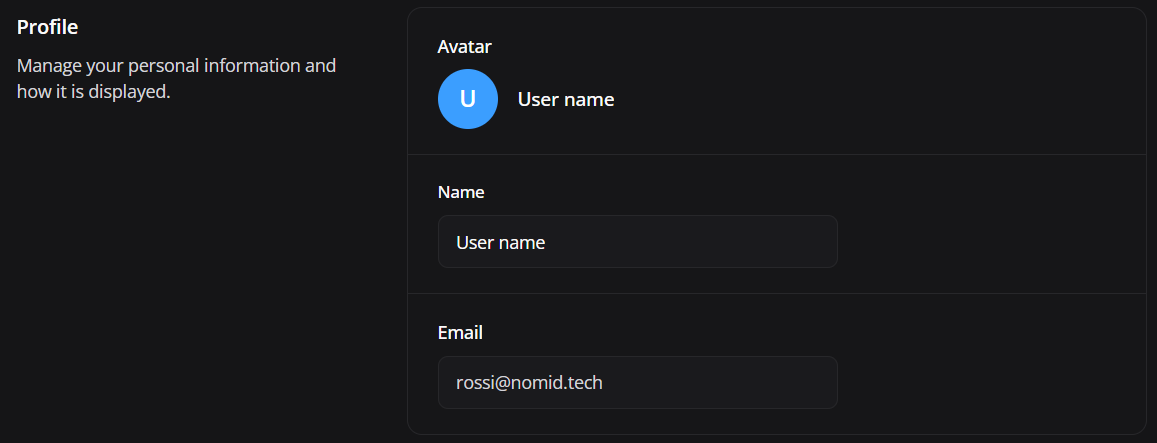
The user account profile section.
This area is used to review or update name, avatar and email, depending on the authentication method and permissions.
¶ Screen elements
- Name: identifies the operator within the portal.
- Email: shows the login used for authentication and notifications.
- Contact details: facilitate support and internal administration.
- Save changes: saves allowed changes to the account.
¶ Application in operation
- Edit the available fields and save. If the email comes from SSO, change it in the identity provider instead of trying to change it directly in Nomid.
¶ Preferences
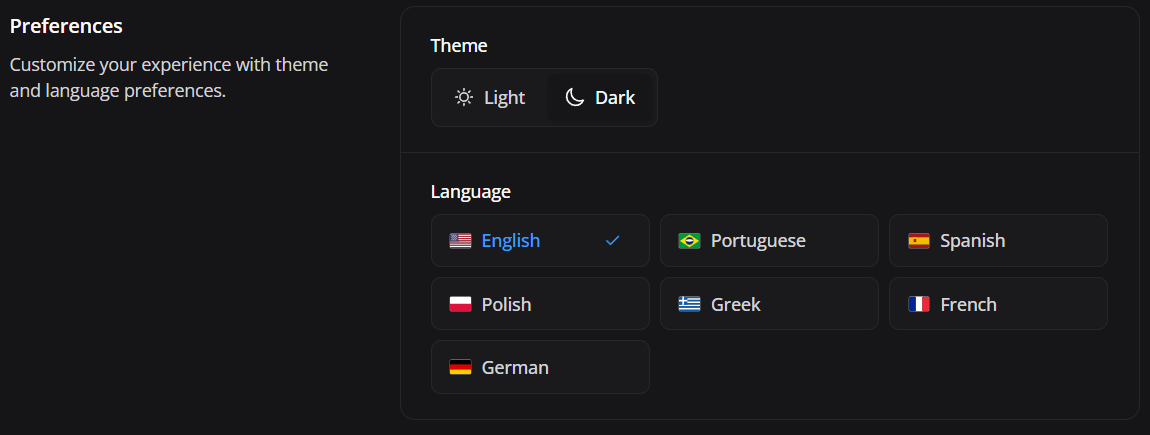
¶ Result of selections and settings
- Language: changes the interface language for the signed-in user without changing other administrators.
- Light/dark theme: changes only the visual appearance of the session/account.
- Saved preferences: are reapplied on future access when the portal supports persistence.
- Changing personal preference: does not change device policy or end-user language.
- Visual/localization issue: can be fixed without involving a global administrator.
The personal preferences section, including theme and language.
This area is used to adjust the appearance of the portal and the language used by the interface for the logged in user.
¶ Screen elements
- Language: defines the interface language.
- Theme: changes light or dark visuals.
- Visual preferences: adjust the user experience without changing policies or devices.
- Persistence: maintains preferences for future accesses when supported.
¶ Application in operation
- Select light/dark theme and desired language. Save or wait for automatic application depending on the portal. These options do not change the settings for other users.
¶ Account security

The security section of the personal account.
This area is used to manage password or security actions linked to the user, when local login is enabled.
¶ Screen elements
- Password: allows changing or updating the local credential when used.
- Sessions: help control active access.
- MFA/2FA: adds layer of protection when available.
- Good practices: recommend closing sessions on shared equipment.
¶ Application in operation
- Use Send forgot link or equivalent option to start password recovery/change. In SSO accounts, manage password and MFA in the identity provider.
¶ Organization
¶ Organization screen

The Organization Details tab contains company identification and regional preferences, not personal account preferences.
¶ Screen elements
- Company identification: check the organization before changing a shared preference.
- Regional settings: include language, country, time zone, and display formats.
- Administrative access: being able to view the tab does not guarantee permission to save changes.
¶ What each option allows
- Organization Details: opens the company information and settings described below.
- Regional preferences: define organization-level values, not personal theme or password settings.
- Branding: appears only when the feature is enabled for the company and the user has the corresponding permission.
¶ Application in operation
- Confirm the company and the current values before choosing a different value. Selecting a regional setting already requests a save; do not use these selectors merely to try out settings.
¶ Configure organization
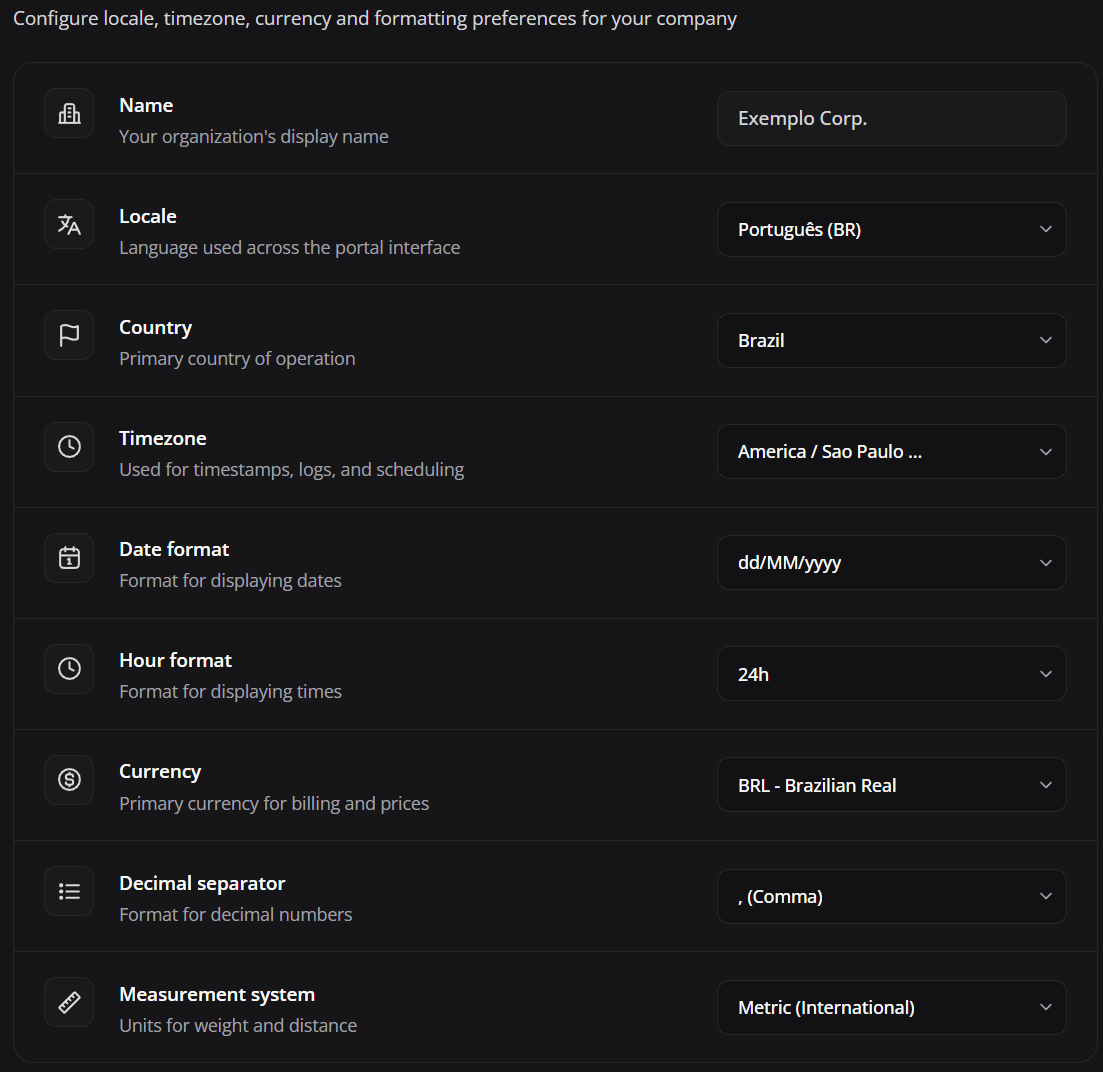
The panel displays the organization name for reference and the regional preference selectors.
Each regional change is sent separately. There is no global Save step where these choices can be accumulated or discarded before they are written.
¶ Screen elements
- Name: identifies the company and is read-only in this panel; it is not a field for editing the name, address, or contacts.
- Regional selectors: each selection requests a save for that field.
- Saving / Saved / Error: indicate a save in progress, confirmation, or failure next to the field.
- Scope: these preferences belong to the organization, not just to the administrator who changed them.
¶ What each option allows
- Locale: sets the organization's language preference.
- Country: sets the country of operation. Changing it can adjust the accepted payment methods; also review billing.
- Timezone: sets the organization's time zone for interpreting times; it does not change device clocks.
- Date format: sets how dates are displayed.
- Hour format: sets the time display to 24-hour or AM/PM.
- Currency: sets the organization's currency; it is not a currency conversion operation.
- Decimal separator: sets how the decimal part of numbers is displayed.
- Measurement system: sets the organization's units for weight and distance.
¶ Application in operation
- Change one field at a time and wait for Saved before continuing. If Error appears, do not assume the choice was saved just because the selector displays the new value; check your permissions and the value when you reopen the area.
- To correct a saved choice, select the previous value again and wait for confirmation. Leaving the tab does not undo a saved change. When reverting the country, also check payment methods: do not assume that every previous billing setting has been restored.
¶ Platform users
¶ Platform users screen

¶ Result of selections and settings
- Active user: can access the portal according to assigned roles and permissions.
- Inactive/blocked user: should not operate the company.
- Pending invitation: indicates access has not yet been completed by the user.
- Assigned role: determines visible modules and allowed actions.
- Restricted scope: limits action by group, policy, or area when available.
- Remove/deactivate user: should be used for offboarding, role changes, or contract end.
The platform's main users tab.
This area is used to manage who accesses the Nomid MDM portal and with what roles/permissions.
¶ Screen elements
- Platform users: are operators who access the administrative portal.
- Invitation: creates or sends access to a new user.
- Permissions: define visible areas and permitted actions.
- Daily management: maintains access aligned with each person's role.
¶ Application in operation
- Go to Platform Users to list, create, edit, or disable administrators. Use minimum required profiles to prevent unauthorized access.
¶ User list
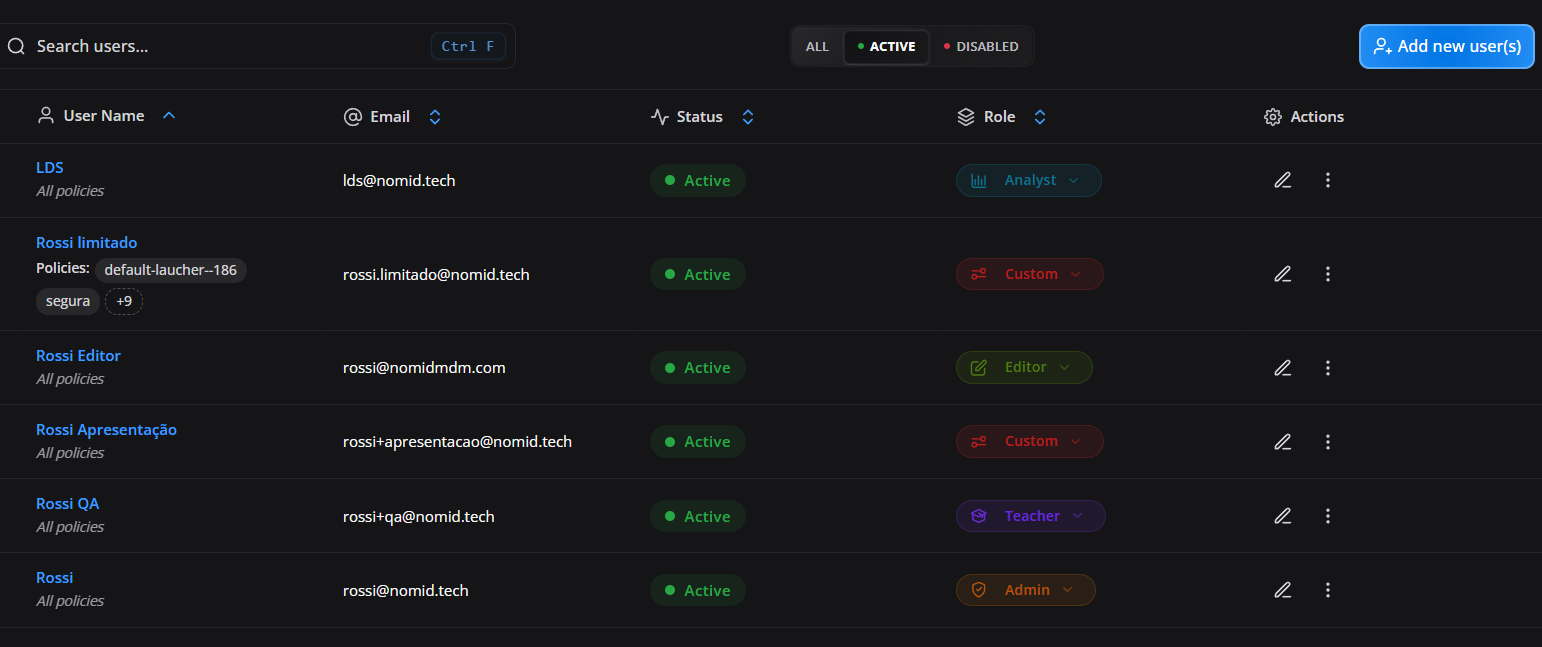
The list of registered administrative users.
This area is used to consult the name, email, status, roles and actions available for each user.
¶ Screen elements
- User: shows the name and email of the registered operator.
- Status: indicates whether access is active, pending or blocked.
- Role: defines the set of permissions granted.
- Actions: allow you to edit, re-invite, deactivate or review access.
- Search: quickly locates users in environments with many operators.
¶ Application in operation
- Use search/filters to find the user. Click edit to change data, role or permissions. Deactivate users who should no longer access the company.
¶ Add users in bulk
In the company's users area, open the bulk-invitation option to prepare several accounts. Confirm the company and access role before proceeding: the selected role applies to the users in this batch.
- Enter the email addresses and proceed to review. Correct invalid addresses, check suggested names, and remove rows that must not be registered. Preparing and reviewing this list does not create users yet.
- Decide whether to send invitation emails. Sending starts enabled; clearing this option does not prevent the accounts from being created.
- Confirm creation only after reviewing every row. Portal creates each user and, when requested, sends invitations to those successfully created.
- Check the per-row results and the users list. An email failure does not undo an account already created. Before repeating, distinguish creation failures from invitation failures; for an existing user, resend the invitation instead of attempting to register the account again.
Closing preparation before confirmation avoids starting that batch. After confirmation, leaving the modal is not undo: check the accounts actually created and correct unintended access through the authorized administrative procedure.
¶ Edit user
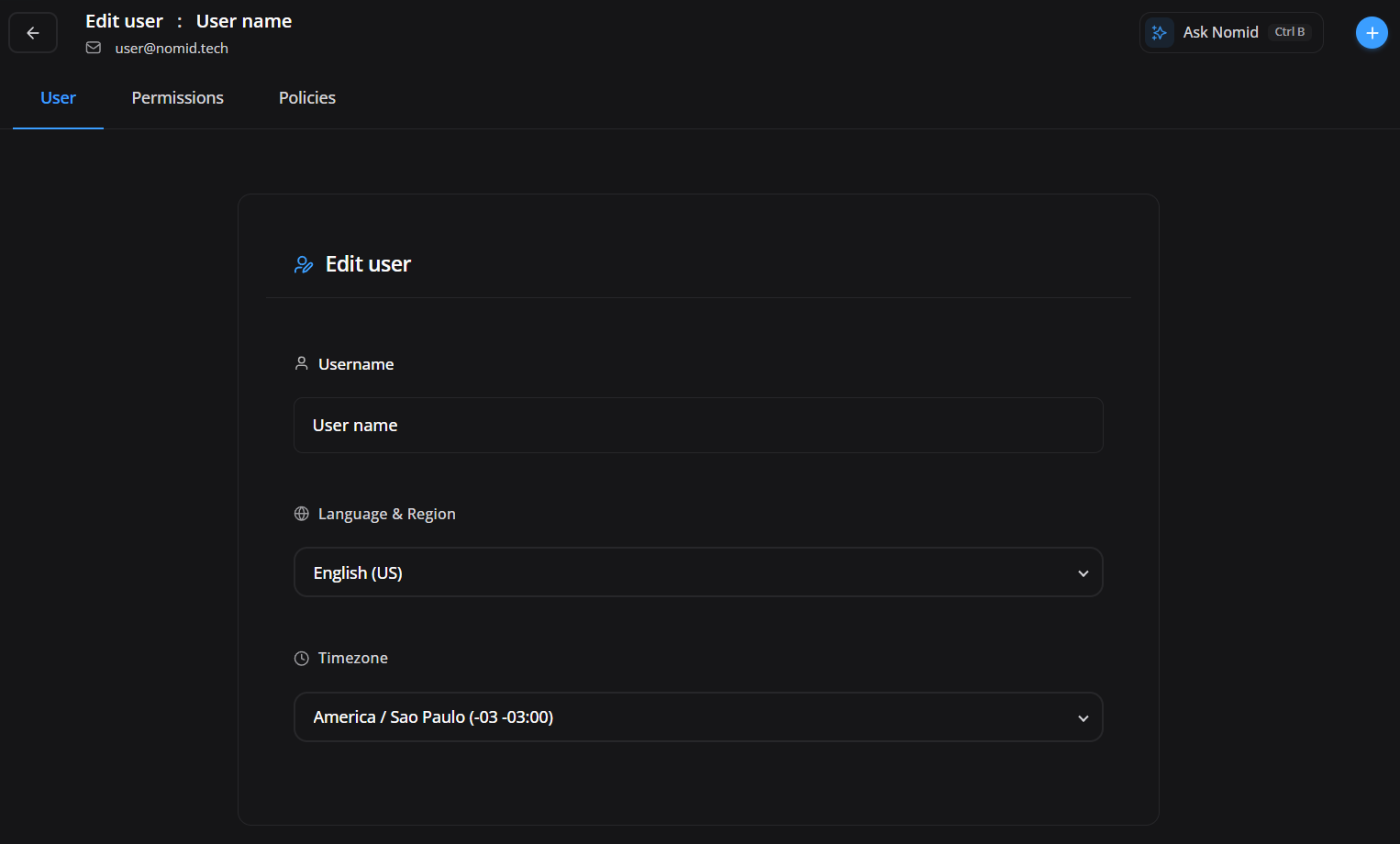
The platform user creation or edit form.
This area is used to configure name, email, language/locale, access role, and invite sending for an administrative user.
¶ Screen elements
- User data: allows you to review name, email and administrative information.
- Language/locale: defines the operator's initial language preference.
- Selected role: defines the user's main permission set.
- Send invite: sends an invitation to the provided email when enabled.
- Save: applies the user creation or access change.
¶ Application in operation
- Fill in name and email, choose the language, select the appropriate role, and decide whether the invite will be sent. Review permissions before saving, especially for administrative access.
¶ User roles

The user role/role selection step.
This area is used to choose one main role for the user, using quick options such as Admin, Editor, Analyst, Teacher, Custom, or company roles.
¶ Screen elements
- Admin: grants broad administration and should be reserved for operators responsible for company configuration.
- Editor: allows operational changes, such as policies and records, according to role permissions.
- Analyst: focuses on viewing and analysis, with lower change capability.
- Teacher: supports education/classroom scenarios when this profile is used by the company.
- Custom: lets you start from a custom base and adjust specific permissions.
- Company roles: lists roles created by the company itself.
¶ Application in operation
- Select a role compatible with the user's work. Use Custom or company roles when quick options do not exactly match the required access, keeping least privilege.
¶ Permissions 1
¶ Result of selections and settings
- View checked: allows reading the module without changes.
- View unchecked: hides or blocks access to the module.
- Create checked: allows creating new records.
- Edit checked: allows modifying existing records.
- Execute checked: allows operational commands when applicable.
- Delete checked: allows removal and should be restricted to trusted profiles.
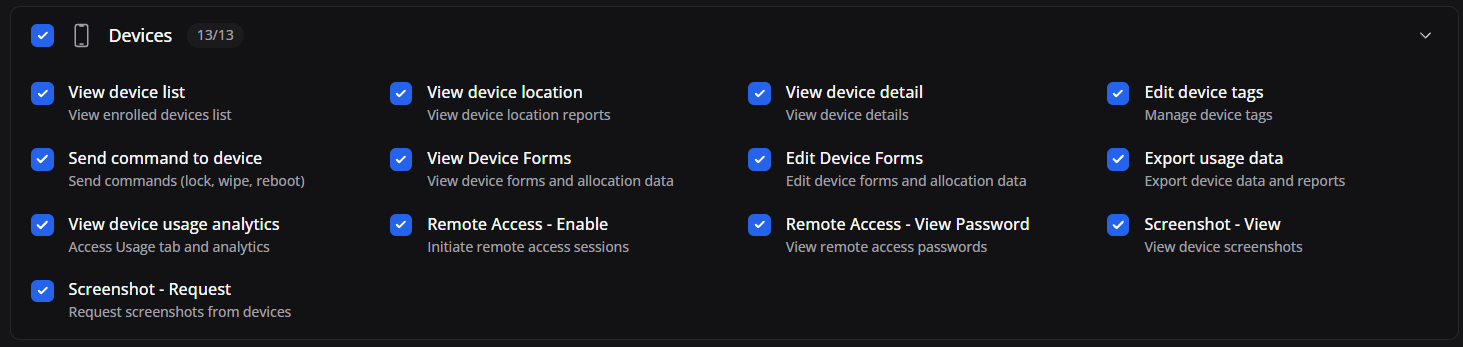
The first block of user permissions, with controls by area or module.
This area is used to enable or deny access to groups of functionality, such as devices, policies, library, integrations, or settings.
¶ Screen elements
- Read by module: allows viewing areas such as Devices, Policies, and Library without changing data.
- Create: authorizes registering devices, policies, apps, contacts, or equivalent items.
- Edit: allows modifying existing records and can affect production.
- Delete: removes resources and should be restricted to administrators.
- Principle: start with read access and expand as the role requires.
¶ Application in operation
- Check only required permissions. For support users, reading and some operational actions in Devices are usually enough, without releasing Settings or Billing.
¶ Permissions 2

¶ Result of selections and settings
- View checked: allows reading the module without changes.
- View unchecked: hides or blocks access to the module.
- Create checked: allows creating new records.
- Edit checked: allows modifying existing records.
- Execute checked: allows operational commands when applicable.
- Delete checked: allows removal and should be restricted to trusted profiles.
The second block of permissions, with specific operation actions.
This area is used to refine what the user can do within modules, such as view, create, edit, perform actions, or remove items.
¶ Screen elements
- Device actions: controls commands such as sync, report, lock, reboot, change policy, and wipe.
- Policy actions: defines who can publish, duplicate, edit, or remove policies.
- Library actions: allows maintaining reusable apps, contacts, and links.
- Critical actions: wipe, removal, and bulk changes require trusted profiles.
- Audit: record who received operational execution capability.
¶ Application in operation
- Review each action before saving. Actions such as wipe, remove device, change policy and edit user must be restricted to trusted profiles.
¶ Permissions 3

¶ Result of selections and settings
- View checked: allows reading the module without changes.
- View unchecked: hides or blocks access to the module.
- Create checked: allows creating new records.
- Edit checked: allows modifying existing records.
- Execute checked: allows operational commands when applicable.
- Delete checked: allows removal and should be restricted to trusted profiles.
The third block of permissions, with additional permissions per resource.
This area is used to control granular access to add-on functionality, reports, integrations, policy features, or administrative areas.
¶ Screen elements
- Integrations: limits who can connect Android Enterprise, Zero-touch, and SSO.
- Administrative settings: protects organization, security, billing, and API.
- Reports and export: controls data extraction to spreadsheets and audits.
- Support: release only resources needed for troubleshooting.
- Review: review permissions whenever the user role changes.
¶ Application in operation
- Mark permissions according to the internal process. When in doubt, start with smaller access and expand only after validating a real need.
¶ Permissions 4

¶ Result of selections and settings
- View checked: allows reading the module without changes.
- View unchecked: hides or blocks access to the module.
- Create checked: allows creating new records.
- Edit checked: allows modifying existing records.
- Execute checked: allows operational commands when applicable.
- Delete checked: allows removal and should be restricted to trusted profiles.
The fourth permissions block, displaying extra access categories.
This area is used to limit sensitive resources and separate responsibilities between operations, support, security, finance and administration.
¶ Screen elements
- Group/policy scope: restricts visibility to operation subsets when available.
- Separation of duties: differentiates support, finance, security, and administration.
- Sensitive data: limit access to location, billing, API, and security.
- Daily operation: avoid granting full Settings to users who only support devices.
- Validation: test with the user after saving.
¶ Application in operation
- Use this block to prevent operators from having access to data or changes outside of their role. Save and test with the user to confirm that the scope is correct.
¶ Permissions 5

¶ Result of selections and settings
- View checked: allows reading the module without changes.
- View unchecked: hides or blocks access to the module.
- Create checked: allows creating new records.
- Edit checked: allows modifying existing records.
- Execute checked: allows operational commands when applicable.
- Delete checked: allows removal and should be restricted to trusted profiles.
The fifth block of permissions, with final permissions or complementary scopes.
This area is used to complete granular configuration of user access, including special permissions or restrictions per feature.
¶ Screen elements
- Final review: confirm all permissions before sending invitation or saving the user.
- Exceptions: document permissions outside the job standard.
- Contingency: keep at least one full administrator active.
- Access removal: deactivate offboarded users or suppliers without an active contract.
- Lifecycle: periodically review assigned roles and permissions.
¶ Application in operation
- Review all markups before saving. After saving, ask the user to access the portal and validate that they can only perform the planned activities.
¶ Roles
¶ Roles screen

¶ Result of selections and settings
- Create role: generates a reusable permission model.
- Edit role: changes permissions for all users depending on that role.
- Duplicate role: creates a variation without modifying the original role.
- Delete role: removes the model; review linked users first.
- Clear name/description: reduce incorrect access assignment.
- Role scope: limits action by area, group, or policy when supported.
The main roles and permissions tab.
This area is used to create, query and manage reusable permission profiles for platform users.
¶ Screen elements
- Role list: shows existing permission profiles.
- Name and description: help you choose the correct profile.
- Number of users: indicates current use of the paper.
- Actions: allow you to edit, duplicate or remove unused roles.
- Governance: maintains standardized and auditable permissions.
¶ What each option allows
- Platform Users: are administrators who sign in to the portal and need roles/permissions.
- Roles: are reusable permission models for those administrators.
- Device Users: represent end users or owners associated with devices.
- Best practice: do not use Device Users to grant portal access; use Platform Users and Roles.
¶ Application in operation
- Visit Roles & Permissions to review existing roles. Use default roles to avoid configuring permissions on a user-by-user basis.
¶ Create role
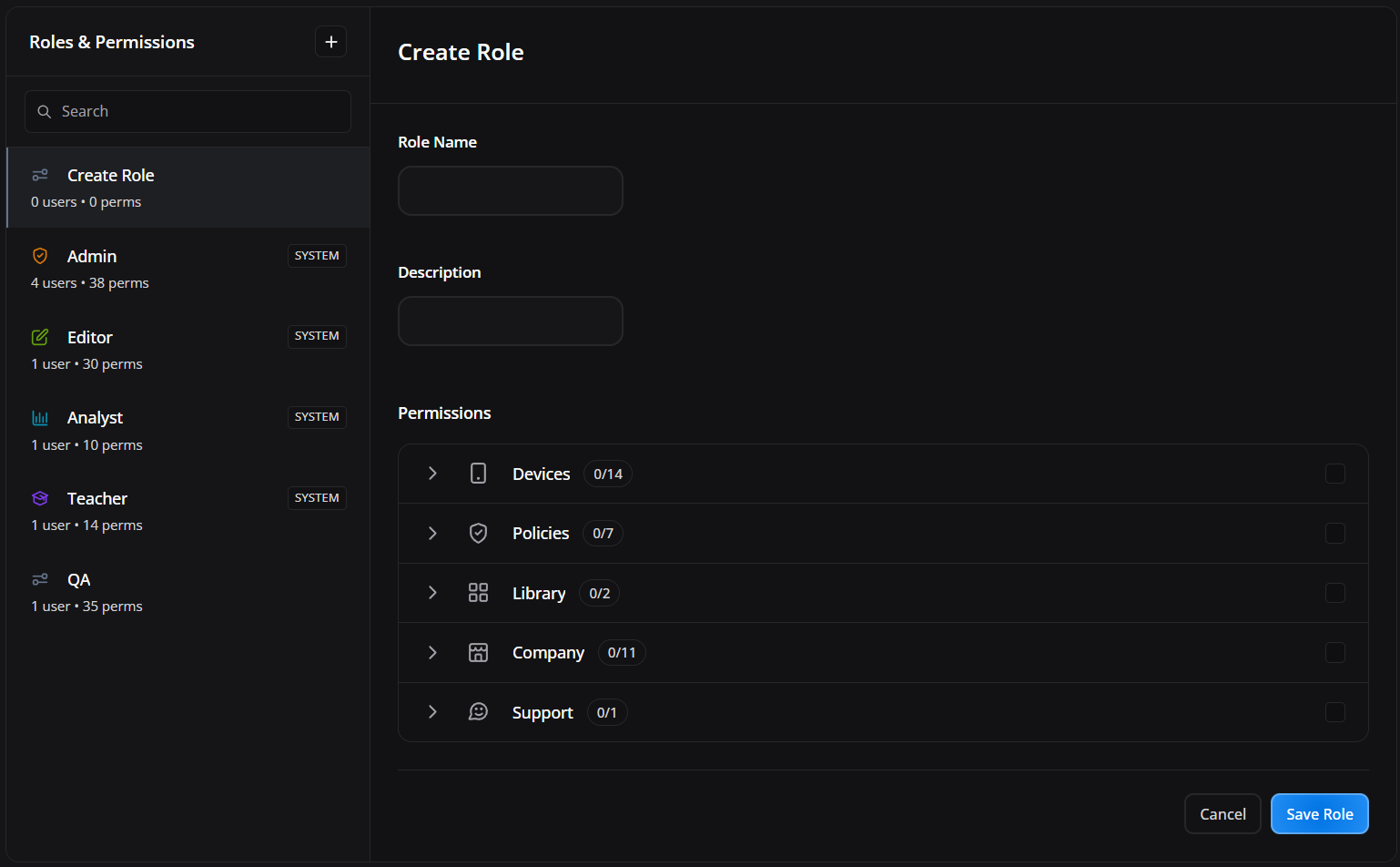
The role/access profile creation form.
This area is used to create a set of permissions with name, description and scope to reuse across multiple users.
¶ Screen elements
- Role name: identifies the access profile, such as Support, Teacher or Administrator.
- Description: documents the purpose of the paper.
- Selected permissions: define exactly what the user can do.
- Scope: limits access to groups or policies when applicable.
- Save: creates the role to be assigned to platform users.
¶ Application in operation
- Provide a clear name, describe the purpose of the role and mark permissions. Example: “Teacher — reading devices from the School X group”. Save and assign to corresponding users.
¶ Device Users
¶ Device Users screen

The main device users tab.
This area is used to manage end users or identities associated with devices, when the company process uses user-device linking.
¶ Screen elements
- Device users: represent people, students, collaborators or profiles linked to assets.
- List: shows users registered for membership.
- Search: quickly locates the person responsible.
- Actions: allow you to edit or maintain records.
- Allocation: relates user to device in inventory.
¶ What each option allows
- Platform Users: are administrators who sign in to the portal and need roles/permissions.
- Roles: are reusable permission models for those administrators.
- Device Users: represent end users or owners associated with devices.
- Best practice: do not use Device Users to grant portal access; use Platform Users and Roles.
¶ Application in operation
- Access Device Users to query or create records. Use to organize ownership, responsibility, or authentication tied to equipment.
¶ Create device user
¶ Result of selections and settings
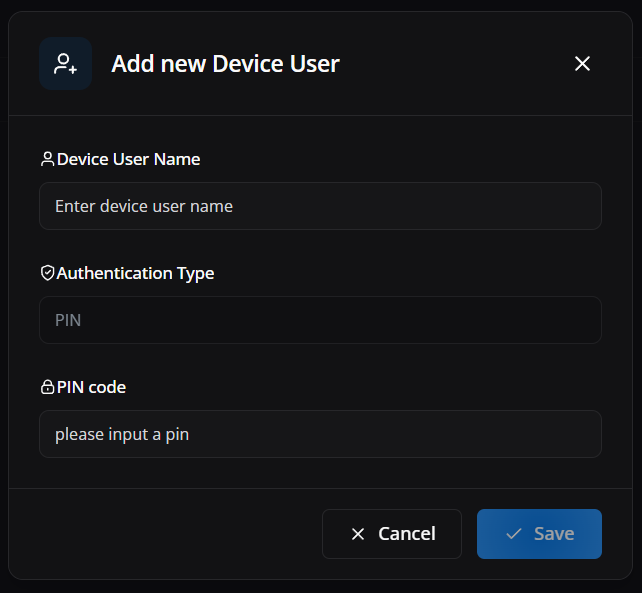
- Device User Name: identifies the end user or operational profile associated with the equipment.
- Authentication Type > PIN: uses a local numeric credential for device authentication when the flow requires it.
- PIN code: defines the initial credential; it must follow internal standard and be protected.
- Save: creates the device user for later association.
- Cancel: discards the record.
- Weak or shared PIN: reduces traceability and security on shared devices.
The Add new Device User form registers an end user or operational profile for association with a device. It is useful in scenarios with local authentication, shared use, or stakeholder traceability.
¶ Screen elements
- Device User Name: field to enter the name or identifier of the device user.
- Authentication Type: shows the authentication method defined for this registration, such as PIN.
- PIN code: receives the numeric credential that will be used on the equipment when the scenario requires local login.
- Cancel / Save: allows you to discard the registration or save it for later use in the operation.
¶ Application in operation
- Use this form to prepare shared device users, student profiles, field operators, or shift-linked identities.
- Standardize names and PIN policy to facilitate auditing, equipment replacement and end-user support.
¶ Security
¶ Security screen

The Security tab within Settings contains administrative company protection settings. It works as an entry point for authentication methods and portal access allowlist rules.
¶ Screen elements
- Security tab highlighted: confirms that the administrator is working in the context of portal security, not individual device security.
- Settings Navigation: allows you to switch between related areas, such as users, roles, billing and API, without leaving the administrative context.
- Module scope: indicates that changes made in this area impact administrator access and company governance.
¶ Application in operation
- Use this tab as a starting point to review authentication, allowed domains, and access policies before inviting new administrators or hardening security.
- Always maintain a backup administrative account before changing login methods or domain restrictions.
¶ Authentication Methods
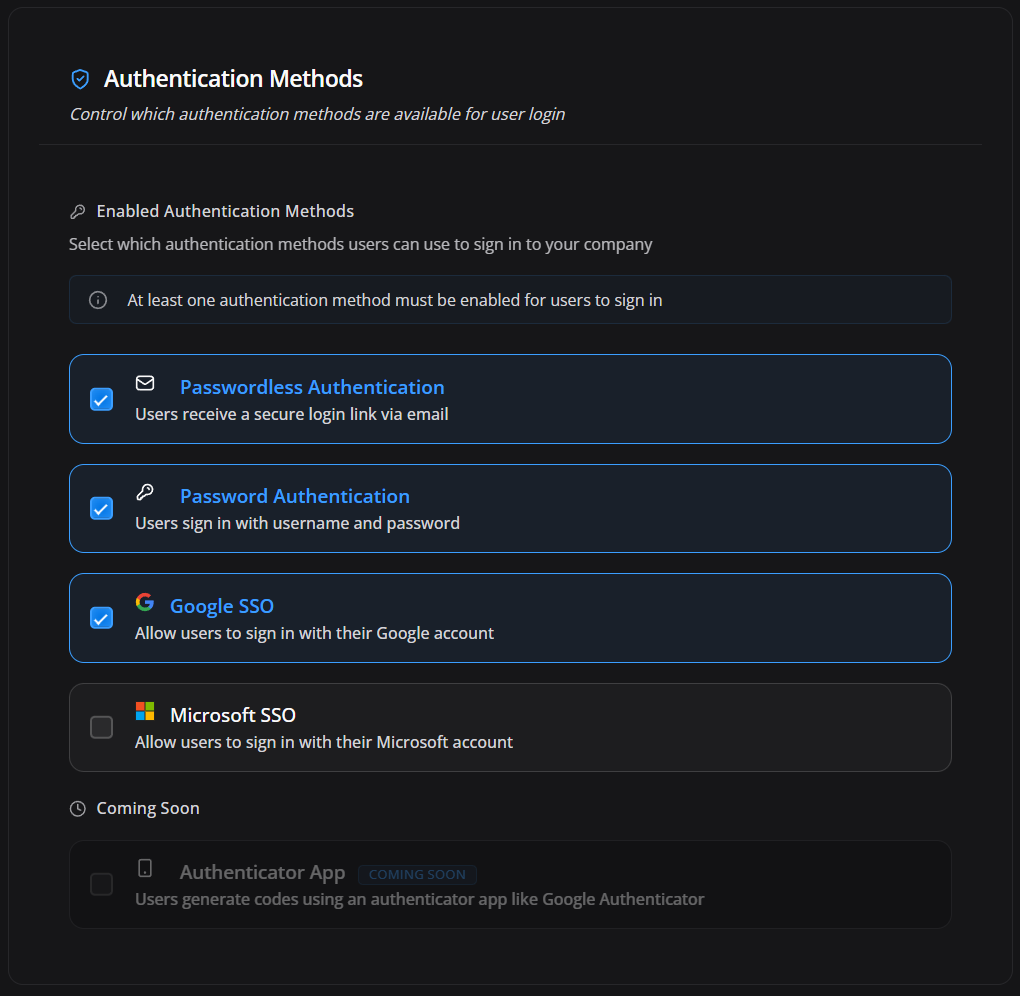
¶ Result of selections and settings
- Passwordless enabled: allows login by link/code without a password when available for the user.
- Password enabled: allows access by portal email and password.
- Google SSO enabled: offers the Google option on the company's login screen. To enable it, the Portal first validates the administrator's sign-in with Google.
- Microsoft SSO enabled: offers the Microsoft option on the company's login screen. To enable it, the Portal first validates the administrator's sign-in with Microsoft.
- Disabled method: removes that alternative from the company's offered login options. This does not replace revoking users or sessions and is not a universal block on SSO access.
- Last active method protection: the portal prevents disabling the only active method to avoid administrative lockout.
The authentication methods section of the portal.
This area defines the login options offered by the company. Changing a method requests a save; enabling Google SSO or Microsoft SSO requires account validation before saving.
¶ Screen elements
- Passwordless: controls password-free login by link/code.
- Password: controls the use of portal email and password.
- Google SSO/Microsoft SSO: opens validation with the selected provider before enabling its login option.
- Safety block: avoids leaving the company with no active method.
- Impact: affects all company operators as configured.
¶ Application in operation
- Before changing methods, keep a working administrative account and fallback sign-in method. Protecting the last active method does not guarantee that every administrator can use the remaining methods.
- When you request Google SSO or Microsoft SSO activation, the Portal opens validation with that provider. Use the same email address as the administrative account signed in to the Portal; a verified alternate email already linked to that account may also be accepted. Another user's account cannot replace this validation.
- Check that the window belongs to the selected provider before signing in. If you cancel, the account does not match, or an error occurs, that attempt does not enable the method. A previous pilot-user test does not replace this administrator validation.
- After validation, wait for the Portal's save confirmation. Other permitted method changes also request a save directly. If saving fails, check the message and the state when you reopen the area before disabling any alternative. To undo a saved change, restore the previous selection and confirm the save, while retaining at least one working way to sign in.
¶ Email Allowlist
¶ Result of selections and settings
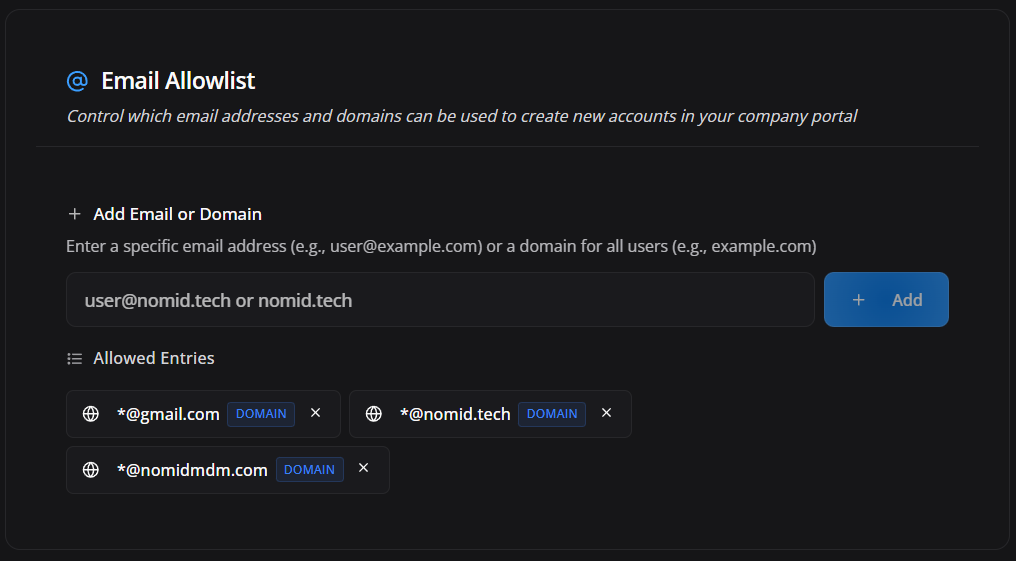
- Allowed domain: when a domain is entered, the portal normalizes the rule to
*@domain, authorizing emails from that domain. - Specific email allowed: creates a controlled exception for a user or supplier.
- Remove domain: prevents new access/invitations from that domain and may affect existing users depending on rule behavior.
- Empty allowlist: do not use it as an assumed security control. Before saving, validate company behavior with a pilot user, because the absence of rules may keep an open default or block new invitations depending on current configuration.
- Personal domain allowed: increases risk of access outside corporate governance.
The email/domain allowlist section.
This area is used to restrict which domains or emails can be used for access/invitation on the portal.
When removing a domain or email, also confirm active sessions, pending invitations, and users already registered. Keep at least one break-glass administrator outside the change to avoid operational lockout.
¶ Screen elements
- Domain rules: use a wildcard in the
*@domainformat to cover every email from that domain. - Specific emails: allow exact exceptions when necessary.
- Preventive blocking: prevents registration of undue personal or external accounts.
- Review: must follow changes in team and suppliers.
¶ Application in operation
- Add trusted corporate domains or specific emails, save, and test invitations to avoid blocking legitimate users. When removing a rule, validate the impact on new invites and future logins.
¶ Portal session duration
Session duration limits how long an administrative session can remain valid before new authentication is required. It does not control remote-access sessions or Android screen-lock time.
Under Company default, choose the general limit:
- System default: uses the system limit, currently 12 hours.
- 1 hour / 4 hours / 8 hours / 12 hours / 24 hours: sets the indicated maximum duration.
- 3 days / 5 days: permits a session for up to three or five days; five days is the maximum.
- Custom: accepts an integer from 60 to 7,200 minutes. Values outside the range cannot be saved.
Under Role overrides, an exception replaces the company default only for users with the selected role:
- Select role: chooses an active role that does not already have an override.
- Duration: applies a preset period to the role.
- Custom: sets a role-specific value from 60 to 7,200 minutes.
- Add override: adds the role and duration to the edited configuration.
- Remove override: deletes the exception so users return to the company default.
A short limit reduces the exposure of an abandoned session but can interrupt long portal tasks. The one-hour minimum displays a caution for this impact. Test authentication, SSO, and recovery with a pilot account before reducing the limit.
¶ Billing
¶ Billing screen

The main billing tab.
This area is used to access plan, current usage, payment, tax information, billing contacts, and invoices.
¶ Screen elements
- Billing: centralizes plan, usage, payment, tax data, contacts, and invoices.
- Contractual view: shows the company's commercial situation.
- Usage tracking: helps predict fleet expansion.
- Financial management: reduces billing failures and loss of access.
¶ Operational security
- Billing: restrict to finance profiles or authorized administrators because it exposes plan, usage, and billing data.
- Usage: compare consumption with inventory to avoid billing old or duplicated assets.
- API Keys: treat keys as secrets, with minimum scope, clear name, expiration, and rotation.
- Revocation: remove keys from disabled integrations and users/suppliers with no active relationship.
¶ Application in operation
- Visit Billing to review the company's commercial status. Use this area to check contracted consumption and billing data before contacting the finance team.
¶ Plan

The contracted plan section.
This area is used to view plan type, commercial conditions or subscription information available on the portal.
¶ Screen elements
- Contracted plan: shows active modality.
- Limits: indicate number of devices, resources or plan conditions.
- Renewal/change: guides expansion or commercial adjustment.
- Administrative use: helps predict the need for upgrades.
¶ Application in operation
- Check the plan before asking questions about device or resource limits. If necessary, contact sales/support to change the plan.
¶ Current usage

The current usage section of the plan.
This area is used to track company consumption, such as the number of active/managed devices and metrics used for billing.
¶ Screen elements
- Counted devices: show current consumption of the plan.
- Usage metrics: help monitor fleet growth.
- Surplus: signal the need for contractual adjustment.
- Audit: allows you to compare billing with actual inventory.
¶ Application in operation
- Review usage periodically and compare with contract. When consumption is close to the limit, plan to expand or clean out old devices.
¶ Payment

¶ Result of selections and settings
- No card on file: indicates that no card is saved for automatic billing.
- Add Payment Method: opens the payment method selector available for the company.
- Credit Card: saves a card for recurring billing when this method is enabled.
- PIX/Cora PIX: provides a PIX flow for compatible companies/currencies, especially BRL.
- SEPA/Wire US: shows bank transfer/instruction options when available for the company.
- Available methods: vary according to commercial configuration, currency, and user permissions.
The payment section.
This area is used to view, add, or change payment methods when the portal provides this control.
¶ Screen elements
- Payment method: records the method used for billing, such as card, PIX, Cora PIX, SEPA, or Wire US when enabled.
- Financial data: must be kept up to date to avoid interruptions.
- Status: indicates no card on file, pending state, validity, or need for update.
- Restricted access: must be limited to financial administrators.
¶ Application in operation
- Review payment details, click Add Payment Method when no method is saved or when the billing method needs to change, and keep access restricted to financial profiles or authorized administrators.
¶ Billing contacts

The billing contacts section.
This area is used to define who receives financial communications, notes, charges or notices related to the plan.
¶ Screen elements
- Financial contact: receives billing communications.
- Billing email: centralizes notes, notices and receipts.
- Administrative manager: helps support handle commercial issues.
- Update: must follow internal changes within the company.
¶ Application in operation
- Add emails responsible for finance/purchases and remove outdated contacts. Use shared company contacts when possible.
¶ Tax identification
Tax ID records the company's fiscal identification for billing.
- Add Tax ID: enters the identifier when no value is registered. Verify country, legal entity, and number first.
- Registered Tax ID: becomes part of billing information and applicable documents.
- Contact support: is required to request a change after the first value has been saved. Direct replacement is blocked to prevent fiscal inconsistencies.
Do not enter another company's identifier or temporary data. If the initial registration is wrong, contact support before the next document is issued.
¶ Invoices
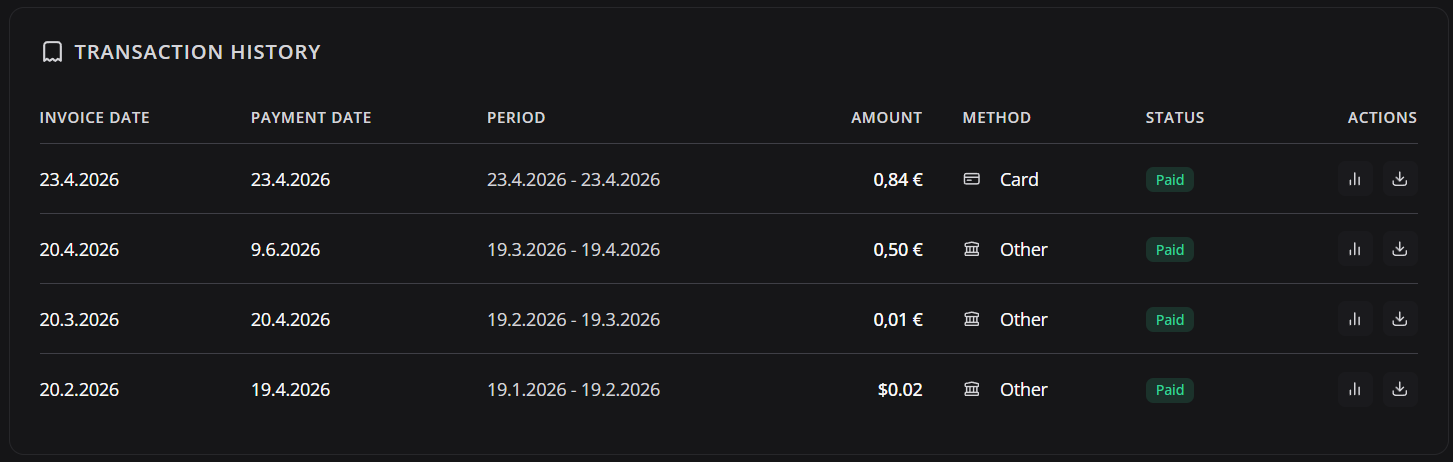
The Invoices section lists billed cycles and the documents available for reconciliation.
¶ Screen elements
- Due date: shows the invoice due date.
- Amount: shows the cycle amount and currency.
- Status: reports processing, pending, invoiced, paid, overdue, or failed states as returned by billing.
- Billing period: shows the measured cycle start and end.
- Method: identifies the associated payment method when available.
- Previous/Next: changes the list page without modifying invoices.
- Download measurement: downloads the usage measurement for the cycle.
- Download NFS-e: downloads the service tax document when the company is Brazilian and the document is available. A disabled button means there is no NFS-e for that cycle.
- Download invoice: downloads the invoice; the action remains unavailable while its status is Processing.
¶ Application in operation
- Locate the period, compare its amount and measurement with recorded usage, and download the available documents. Treat failures, overdue cycles, or missing documents with finance and support rather than repeating a payment yourself.
¶ API Keys
¶ API

The main API Keys tab.
This area is used to manage API keys used by external integrations, automations and systems that talk to Nomid MDM.
¶ Screen elements
- API: enables external integrations with Nomid.
- API Keys: authenticate third-party systems.
- Scopes: limit access according to integration needs.
- Audit: must monitor the creation, use and revocation of credentials.
¶ Operational security
- Billing: restrict to finance profiles or authorized administrators because it exposes plan, usage, and billing data.
- Usage: compare consumption with inventory to avoid billing old or duplicated assets.
- API Keys: treat keys as secrets, with minimum scope, clear name, expiration, and rotation.
- Revocation: remove keys from disabled integrations and users/suppliers with no active relationship.
¶ Application in operation
- Access API to review existing keys. Keep few keys active, with clear names and a defined purpose.
¶ API Keys

¶ Result of selections and settings
- Create key: generates a credential for an authorized external system.
- Clear name: identifies integration, environment, and owner.
- Minimum scope: limits what the key can query or change.
- Short expiration: reduces leakage impact but requires planned rotation.
- Revoke key: immediately interrupts integrations depending on it.
- Last use: helps identify abandoned keys or active integrations.
The list of registered API keys.
This area is used to view name, creation, last use, and actions to manage integration credentials.
¶ Screen elements
- Key List: shows credentials created for integrations.
- Name/description: identifies the consumer system.
- Status and expiration: indicate whether the key can still be used.
- Actions: allow you to revoke, renew or create credentials.
- Security: Never share keys on insecure channels.
¶ Operational security
- Billing: restrict to finance profiles or authorized administrators because it exposes plan, usage, and billing data.
- Usage: compare consumption with inventory to avoid billing old or duplicated assets.
- API Keys: treat keys as secrets, with minimum scope, clear name, expiration, and rotation.
- Revocation: remove keys from disabled integrations and users/suppliers with no active relationship.
¶ Application in operation
- Periodically review keys and remove any that are no longer used. Never share keys in public chats, unsecured tickets, or open documentation.
¶ Create API Key
¶ Result of selections and settings
- Key name: should state system, environment, and purpose.
- Permissions/scope: define automation reach; grant only what is necessary.
- Expiration: forces periodic credential review.
- Generated token: usually appears once and should go directly to a secure vault.
- Copying to an unsafe place: increases leakage risk.
- Rotate: creates a new key, updates the integration, and revokes the old one after validation.
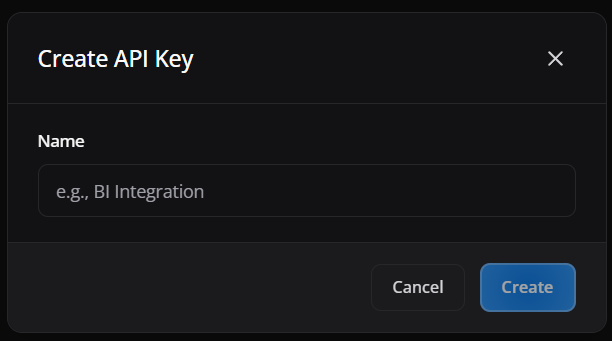
The new API key creation form.
This area is used to generate a credential for integration with external systems or authorized automations.
¶ Screen elements
- Key Name: identifies the integration that will use the credential.
- Permissions/scope: limit what the API can access.
- Expiration: reduces risk in the event of a leak.
- Token generated: must be copied and stored securely.
- Rotation: must occur periodically or after changing suppliers.
¶ Application in operation
- Enter a name that identifies the system and purpose, click create and copy the key only to the vault/secure integration environment. After that, treat the key as a secret.