¶ 6. Integrations
Application: Portal Nomid MDM
Document: V1.2.0
Last updated: 02/07/2026
Editorial owner: Nomid MDM Documentation
Last editorial review: 02/07/2026
Editorial language: en-US
The Integrations module connects Nomid MDM to external services used for provisioning, authentication and automation, such as Android Enterprise, Zero-touch Enrollment and SSO.
Important: Integrations typically require administrative credentials on external services. Make changes only with authorization and a validation plan.
For initial setup, follow First 3 steps. Before changing Google bindings, read Google Workspace and fully managed Android and, when the organization does not have Workspace, the Cloud Identity guide.
¶ Overview
¶ Integrations

The home screen of integrations available in the company.
This area is used to view which integrations are configured or available, such as Android Enterprise, Zero-touch, and SSO.
¶ Screen elements
- Integration cards: show external services connectable to Nomid.
- Status: indicates active, pending, or not configured integration.
- Actions: open configuration, authorization or review.
- Operational impact: integrations enable provisioning, authentication and automation of the environment.
¶ Application in operation
- Access Integrations, check the status of each card and enter the desired integration. Review integrations when app provisioning, login, or distribution fails.
¶ Android Enterprise
¶ Android Enterprise screen
¶ Result of selections and settings
- Create bind: connects the company to Android Enterprise and enables Android management/Managed Google Play.
- Review bind: confirms Enterprise ID, account, and organization before provisioning.
- Reconnect: requests a refresh of the binding. Afterwards, check its status and linked account; the request does not guarantee that expired authorization or an account change has been resolved.
- Remove bind: can interrupt enrollment, managed apps, and Android policies.
- Incorrect bind: can associate devices or apps with the wrong Google environment.
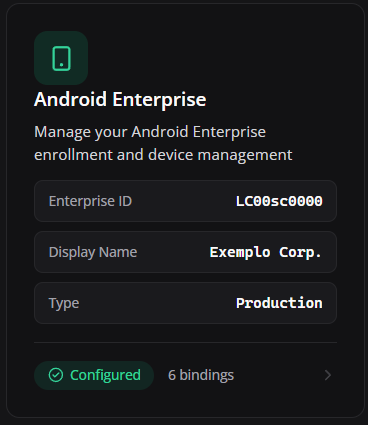
The Android Enterprise integration screen.
This area is used to verify company linkage with Android Enterprise, a necessary basis for Android policies, Managed Google Play and device management.
¶ Screen elements
- Android Enterprise Link: connects the Nomid company to enterprise Android management.
- Enterprise ID: identifies the linked Android Enterprise environment.
- Bind Status: shows whether the integration is ready for provisioning.
- Management actions: allow you to start, review or remove links as per permission.
- Impact: Without this link, Android provisioning and policies do not function correctly.
¶ Prerequisites and validation
- Keep administrative access to the Google account used for the bind.
- Confirm Enterprise ID, active status, and the correct organization before provisioning.
- If managed apps or enrollment fail, validate Android Enterprise before changing policies.
- After reconnecting or changing the bind, test enrollment and app installation on a pilot device.
¶ Application in operation
- Access the integration and confirm Enterprise ID, name and status. If apps or enrollment fail, validate that link before investigating individual policies.
¶ Binds Android Enterprise
¶ Result of selections and settings
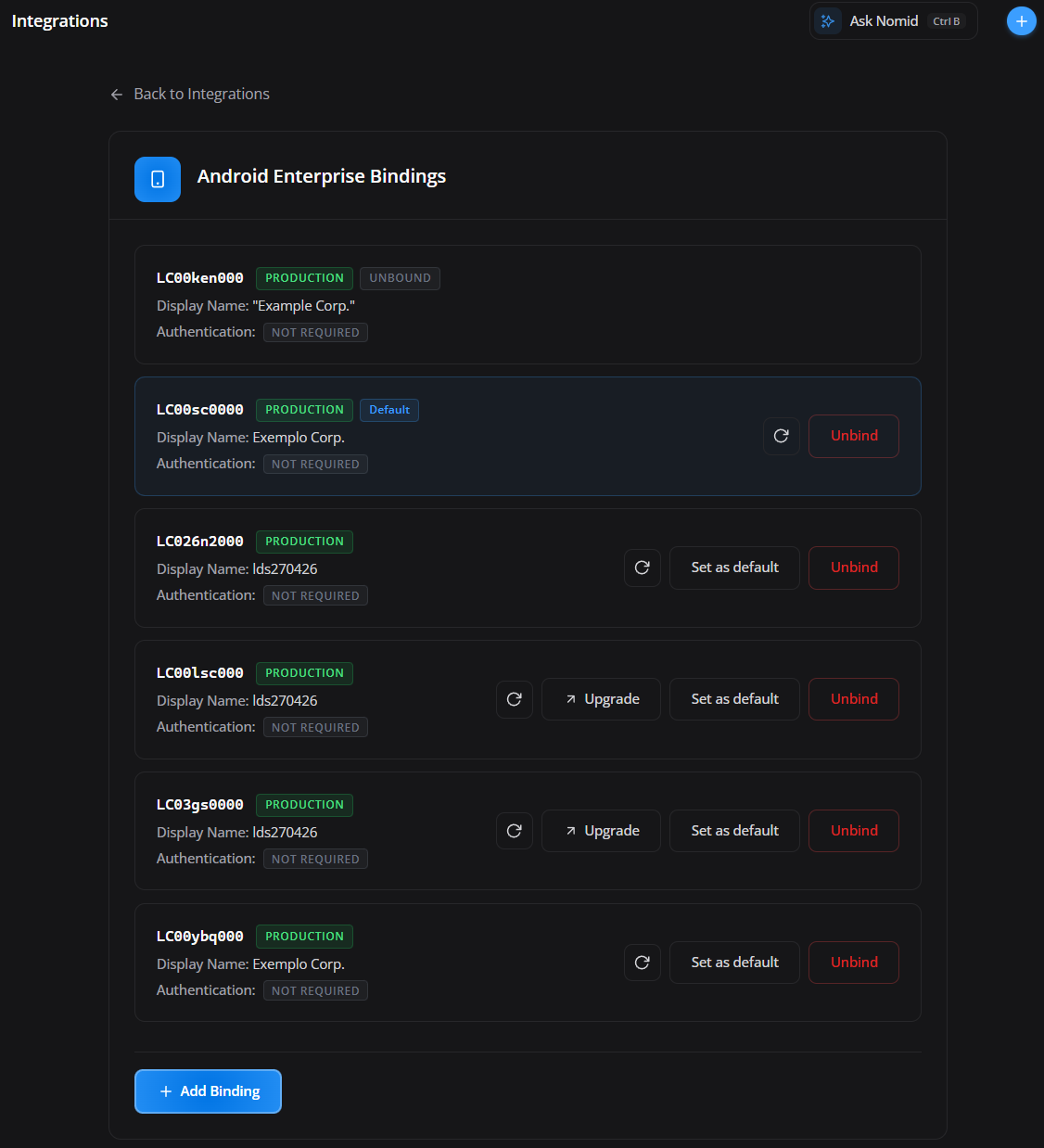
- Production bind: connects the company to the Android Enterprise environment used in real operation.
- Sandbox bind: identifies a test/staging link when available, without replacing the default production bind.
- Default binding: defines which bind will be used by default for new enrollments and company Android operations.
- Refresh: updates bind information with Google/AMAPI before investigating enrollment or app failures.
- Upgrade: appears only when the bind is upgradeable; it runs the migration supported by the backend/Google.
- Set as default: available for production binds that are not yet the default.
- Unbind: removes the production Android Enterprise integration from Google and logically deletes its binding in Portal. It then starts batch logical deletion of the device and asset records associated with that integration. An active production binding and confirmation by typing
deleteare required.
Destructive action: do not use Unbind to test or refresh a connection. Before confirming, identify the affected devices and follow your company's authorized change and recovery procedure. Afterwards, check the binding and the records in Devices. Removal of these records is not confirmation that data on the devices has been erased; this procedure does not guarantee recovery either.
The Android Enterprise bindings area.
This area is used to review the company's Android Enterprise binds, distinguish production/sandbox, and control which bind will be used as the provisioning default.
¶ Screen elements
- Bind List: shows existing Android Enterprise bindings.
- Type: distinguishes production and sandbox binds.
- Default: indicates the bind currently used as the default.
- Status and upgrade: show whether the bind is active, can be upgraded, or requires administrative action.
- Actions: allow you to refresh data, upgrade when supported, set as default, or remove the bind with confirmation.
¶ Prerequisites and validation
- Keep administrative access to the Google account used for the bind.
- Confirm Enterprise ID, active status, and the correct organization before provisioning.
- If managed apps or enrollment fail, validate Android Enterprise before changing policies.
- After reconnecting or changing the bind, test enrollment and app installation on a pilot device.
¶ Application in operation
- Check that the binding matches the correct organization. If you change your domain or administrator account, review this screen before provisioning new devices.
¶ Zero-touch Enrollment
¶ Zero-touch
¶ Result of selections and settings
- Enable Zero-touch: authorizes Nomid to query and use customer provisioning configurations.
- List active integrations: shows which accounts/customers are connected.
- Correct customer selected: ensures reseller-purchased devices enter the expected company.
- Incorrect customer: can prevent enrollment or point equipment to the wrong configuration.
- Disable/remove integration: stops new automatic provisioning for that customer.
- Validate device: confirms the equipment is assigned in the Zero-touch portal before first boot/reset.
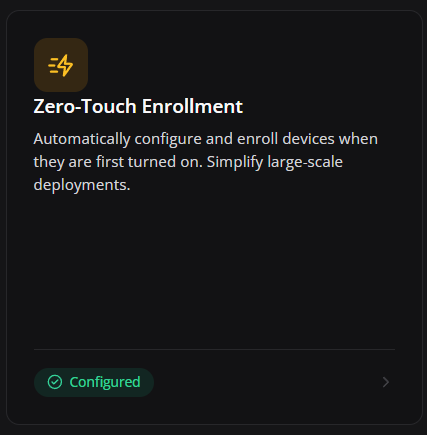
The Zero-touch Enrollment integration screen.
This area is used to connect or review the Zero-touch account used for automatic provisioning of corporate Android devices.
¶ Screen elements
- Zero-touch: allows automatic provisioning of compatible devices.
- Enrollment settings: associate token, policy, and DPC with the purchased device.
- Integration with reseller: depends on devices assigned to the customer in the Zero-touch portal.
- Benefit: reduces manual steps and avoids incorrect registration in the field.
¶ Prerequisites and validation
- The Google account used must have permission in the customer Zero-touch portal.
- Devices must be assigned by the reseller to the correct customer.
- The Zero-touch configuration must point to the DPC/token compatible with Nomid.
- After activation, test with a real factory-new or reset device.
¶ Application in operation
- Access Zero-touch, validate that the integration is active and that the correct client is linked. Use when devices purchased from a reseller should automatically register with Nomid.
¶ Active Zero-touch Integrations
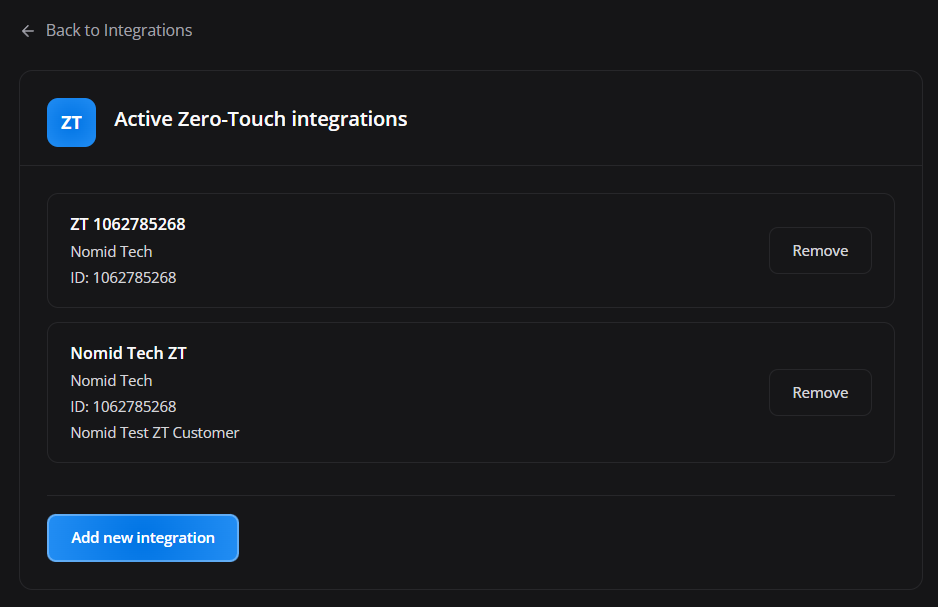
The list of already active Zero-touch integrations.
This area is used to identify Zero-touch accounts/clients connected to the company and review their status.
¶ Screen elements
- Zero-touch account: shows already configured integrations.
- Customer/company: identifies the purchasing and provisioning environment.
- Status: confirms whether the integration is authorized.
- Actions: allow you to update, remove or review the connection.
- Operational use: automates activation of devices purchased from authorized resellers.
¶ Prerequisites and validation
- The Google account used must have permission in the customer Zero-touch portal.
- Devices must be assigned by the reseller to the correct customer.
- The Zero-touch configuration must point to the DPC/token compatible with Nomid.
- After activation, test with a real factory-new or reset device.
¶ Application in operation
- Check if the expected customer appears in the list. If it does not appear, validate Google account permission on the Zero-touch portal and reauthorize with the correct account.
¶ Enable Zero-touch integration
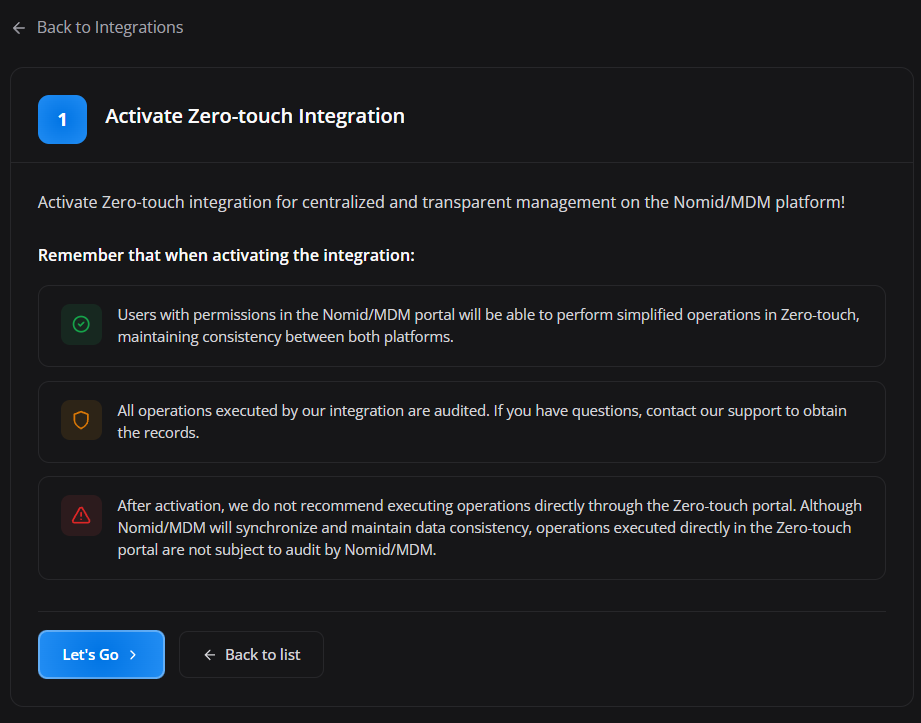
The flow to enable Zero-touch integration.
This area is used to initiate authorization with Google to connect Nomid MDM to the customer's Zero-touch portal.
¶ Screen elements
- Activation flow: starts authorization with the Zero-touch account.
- Authorized Google Account: must have permission on the customer's Zero-touch portal.
- Permissions requested: enable reading and management of provisioning settings.
- Confirmation: completes the link for use in registrations.
- Validation: must be done with a device assigned on the Zero-touch portal.
¶ Prerequisites and validation
- The Google account used must have permission in the customer Zero-touch portal.
- Devices must be assigned by the reseller to the correct customer.
- The Zero-touch configuration must point to the DPC/token compatible with Nomid.
- After activation, test with a real factory-new or reset device.
¶ Application in operation
- Select activate, authenticate with a Google account that has Zero-touch permission and approve access. Then return to Nomid and confirm that the integration is listed as active.
¶ SSO / Identity Provider
¶ SSO
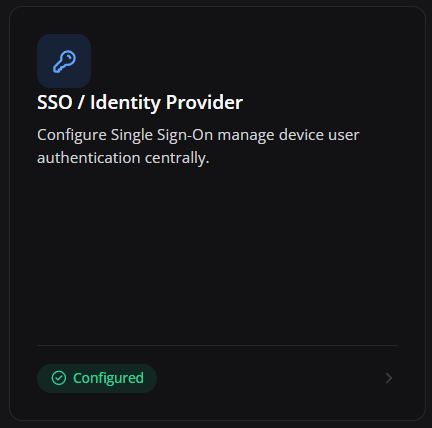
The SSO / Identity Provider screen configures user authentication on the device. It does not change how administrators sign in to the portal. On devices whose policy uses the SSO login method, the user must authenticate through a configured provider.
¶ Screen elements
- Configured: indicates that at least one identity configuration is saved. This status does not prove that provider login works.
- Registered configurations: define the providers that devices using the SSO login method can use.
- Add Configuration: adds another entry to the list, up to a limit of ten.
- Disable SSO or delete the last configuration: removes the identity configurations from the portal. Confirm an alternate device access path first.
¶ Application in operation
- Register the provider, save, and validate sign-in with a pilot user and device. Saving stores the configuration but does not run an IdP connection test.
¶ Add SSO
¶ Result of selections and settings
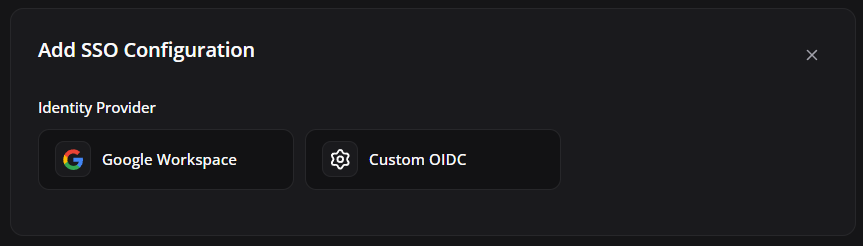
- Google Workspace: uses endpoints, issuer, scopes, and public keys preset by the portal. Enter the Display Name, Client ID, and Client Secret of the OIDC client registered with Google.
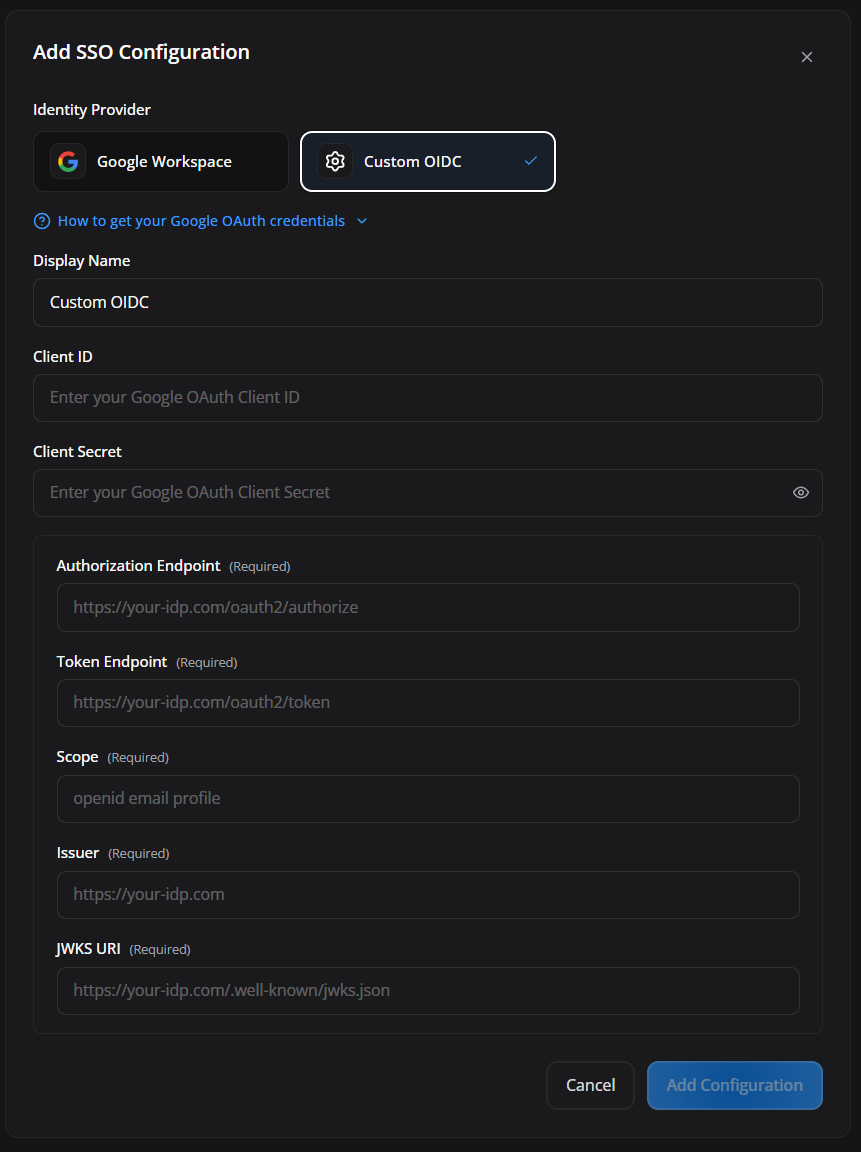
- Custom OIDC: requires you to enter the compatible provider's endpoints and validation parameters manually.
This screen starts an identity configuration registration for devices.
¶ Screen elements
- Identity Provider: selects Google Workspace or Custom OIDC. The current screen does not offer Microsoft, SAML, or domain restriction.
- Display Name: identifies the configuration in the portal list.
- Add Configuration: adds the completed form to the current list; when saved, the portal sends the complete set of configurations.
- Client Secret: is required when creating a configuration and must be handled as a secret. When editing, leaving it blank or masked preserves the existing value; entering a new value replaces it.
¶ Application in operation
- Before distributing SSO, keep a pilot device with a recovery path that does not depend on the new configuration and retain administrative access to the IdP.
¶ Identity Provider
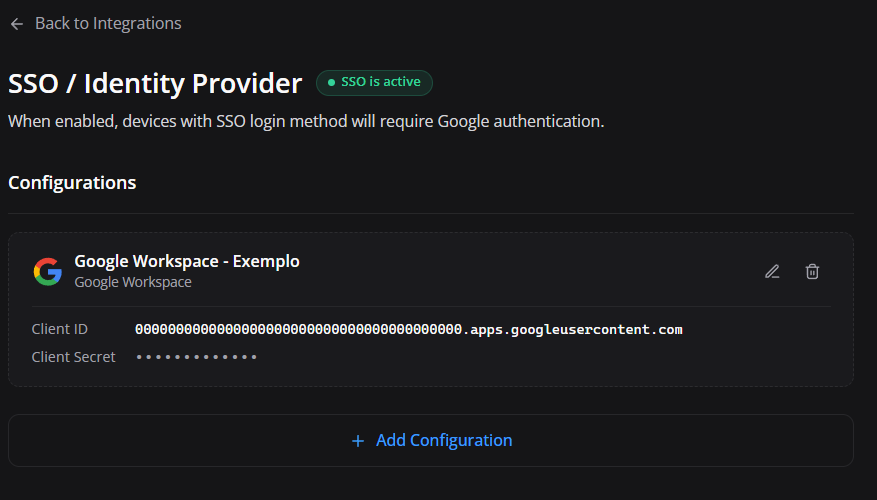
The image shows an active Google Workspace configuration. Once it is saved, devices configured for SSO login depend on Google authentication.
¶ Screen elements
- Display Name: name shown to identify the configuration.
- Client ID: identifies the OIDC client registered in Google Workspace.
- Client Secret: authenticates the client and must not be exposed. When editing, a masked or blank secret retains the stored value.
- Redirect URI: register exactly
https://app-settings.nomid.tech/oauth2callback.htmlin the provider client; any mismatch prevents the login return. - Add Configuration: adds another entry without removing the current one, up to the limit of ten.
¶ Application in operation
- Save the data and perform sign-in on a pilot device. Configured confirms only that a configuration exists, not that authentication succeeded.
¶ Custom OIDC
¶ Result of selections and settings
- Display name: visible name administrators use to identify this login configuration.
- Provider: defines that the configuration uses Custom OIDC and therefore displays manual endpoint fields.
- Client ID: identifies the Nomid application registered in the provider.
- Client Secret: authenticates the application; leakage enables integration abuse.
- Authorization Endpoint: URL where the user is redirected to authenticate.
- Token Endpoint: URL used to exchange the authorization code for tokens.
- Scope: defines which identity data will be requested, such as
openid,email, andprofile, according to the IdP. - Issuer: expected token value used to validate that it was issued by the correct provider.
- JWKS URI: address of the public keys used to validate token signatures.
- Save: stores the configuration with the current list but does not test the IdP. An incorrect endpoint, issuer, key, or secret can prevent device sign-in.
- Delete: removes the configuration from the list; deleting the last one disables configured SSO.
The customized OIDC form.
This area is used to manually register an OpenID Connect provider with explicit endpoints, client ID, client secret, scope, issuer, and JWKS URI.
¶ Screen elements
- Display name: administrative name of the integration.
- Provider: identifies the configured provider type.
- Client ID: identifies the Nomid application registered in the IdP.
- Client Secret: authenticates the application and must be stored as a secret.
- Authorization Endpoint: receives the initial login redirect.
- Token Endpoint: handles the code-to-token exchange.
- Scope: informs the requested OIDC scopes.
- Issuer: validates the logical origin of the tokens.
- JWKS URI: provides public keys for cryptographic validation.
¶ Application in operation
- Copy the endpoints and identifiers exactly from the identity provider dashboard, register the fixed Redirect URI in the IdP, and save. Test sign-in with a pilot user and device before distributing the configuration; if it fails, first review the redirect URI, client ID, secret, issuer, and JWKS URI.